You're probably here because you have a file that matters. Maybe it's a tax document you need to send to your accountant, a client contract headed to a colleague, or a folder of family records sitting on a laptop that leaves the house every day. In all of those cases, the question isn't whether the file is important. It's whether the wrong person could read it if your device is lost, your cloud account is exposed, or you send it the wrong way.
That's where encryption earns its keep. It turns a readable file into unreadable data unless someone has the right key, password, or private credential to decrypt it. The trick is that there isn't just one way to encrypt a file. Some methods are fine for basic protection on your own laptop. Others are designed for secure sharing, long-term storage, or stronger protection when greater security is required.
The practical decision is less about finding the “best” tool and more about matching the method to your situation. A shared home computer, a traveling employee's laptop, and a confidential file sent outside your company all call for different choices.
Why You Need to Encrypt Your Files
A common scenario goes like this. Someone exports a payroll report, saves it to the desktop, and emails it as an attachment because they're in a hurry. Or a parent scans legal paperwork and uploads it to cloud storage so the family can access it later. The file itself may be sensitive, but without encryption, anyone who gets access to that file can read it as-is.
File encryption is the process of converting readable plaintext into unreadable ciphertext using a cryptographic algorithm and a key. Cohesity notes that 128-bit or longer keys are advised for symmetric encryption and 2048-bit or greater keys are often recommended for asymmetric encryption in modern security practice, which is what makes the data unreadable without the right decryption credential (Cohesity file encryption overview).
In plain English, encryption is a lock. The password, passphrase, or cryptographic key is what opens it. That matters whether you're protecting a spreadsheet from a curious coworker, securing records on a stolen laptop, or sending confidential documents outside your organization.
A lot of small businesses already think this way when they review broader Titanium Computing cybersecurity best practices. File encryption fits into the same everyday discipline. It reduces the fallout when a device goes missing, a file is forwarded carelessly, or storage gets exposed.
Practical rule: If losing control of a file would create legal, financial, or personal headaches, encrypt it before you store it, sync it, or share it.
Encryption also supports privacy in the ordinary sense, not just enterprise security. If you care about how your information is handled online, it's worth reviewing a clear privacy policy alongside your file-handling habits.
Matching the Tool to Your Security Needs
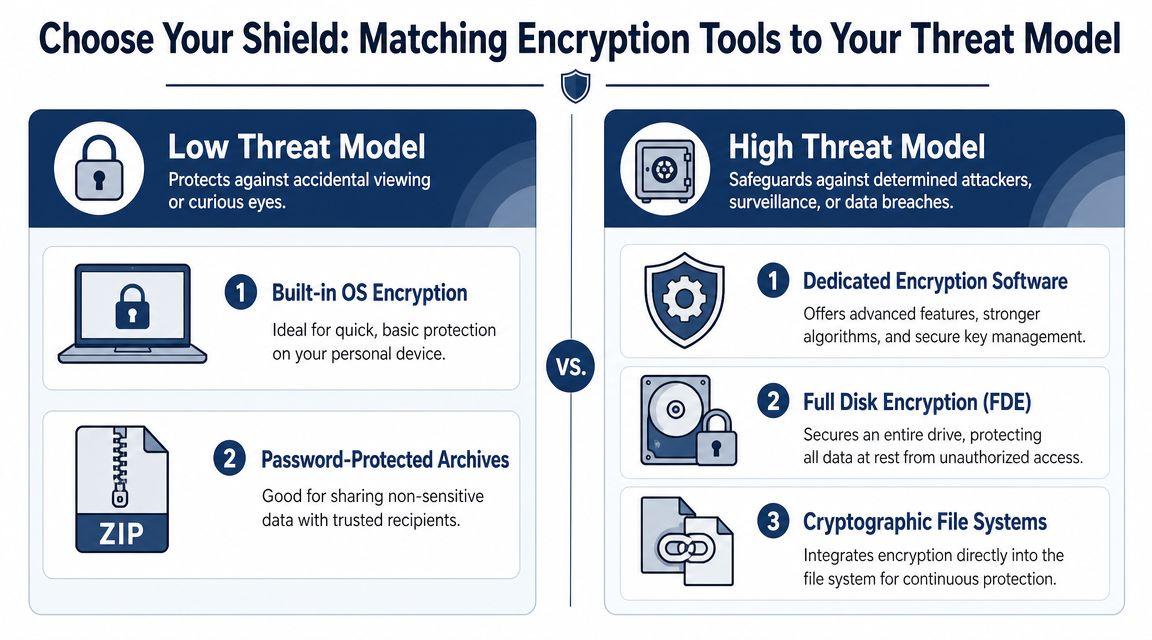
The best way to choose an encryption method is to start with your threat model. That phrase sounds technical, but it just means this: who are you protecting the file from, and what would happen if they got it?
If you want to stop casual access on your own machine, a built-in operating system feature may be enough. If you need to send a sensitive document to another person, password-protecting an archive might work, but public-key encryption is usually the cleaner long-term choice. If the file lives on a laptop that could be lost or stolen, full-disk protection matters more than one encrypted attachment.
Think in scenarios, not products
Here's the practical way I frame it for clients:
- Low-friction personal protection works when the main risk is accidental viewing on your own device.
- Portable file protection works when you need to bundle files and move them through email or cloud storage.
- Shared confidential exchange matters when another person needs to decrypt the file without you handing over a shared password.
- Whole-device protection matters when theft or device loss is the main threat.
If your team also stores files in cloud platforms, broad Cloudvara's security recommendations are a useful companion read, because encryption works best when it's paired with sane storage and access controls.
Encryption Method Comparison
| Method | Best For | Security Level | Ease of Use |
| Built-in OS file encryption | Protecting files on your own computer | Good for local data at rest | Easy |
| Full-disk encryption | Lost or stolen laptops and desktops | Strong for device-level protection | Easy once enabled |
| Password-protected archive | Sending a few files to a trusted person | Moderate, depends heavily on password handling | Easy |
| VeraCrypt container | Portable sensitive files on USB drives or shared systems | Strong | Moderate |
| Public-key encryption with GPG | Sending confidential files to colleagues or external partners | Strong for secure sharing | Harder at first |
What works and what doesn't
A few trade-offs matter more than people expect.
- Good enough for your own laptop: Built-in encryption is often the right default. It protects data at rest without changing how you work much.
- Convenient but limited: Password-protected archives are handy, but they become clumsy when you have to share the password separately and keep doing that over time.
- Excellent for higher-sensitivity files: VeraCrypt containers are strong and portable, but they add steps. People forget to mount them, save files outside them, or mishandle the password.
- Best for repeat secure sharing: Public-key encryption is the cleanest option when you regularly exchange files with someone else, because you don't have to keep sharing a secret password.
The strongest tool is the one people will actually use correctly every time.
If you're deciding how to encrypt a file, don't ask only “How secure is this?” Ask “What am I protecting against, and can I use this method consistently without creating new problems?”
Using Your OS for Effortless Encryption
You leave your laptop in a cab, or an external drive goes missing after a meeting. In that situation, the question is simple. Could someone open your files just by turning on the device or plugging in the drive?
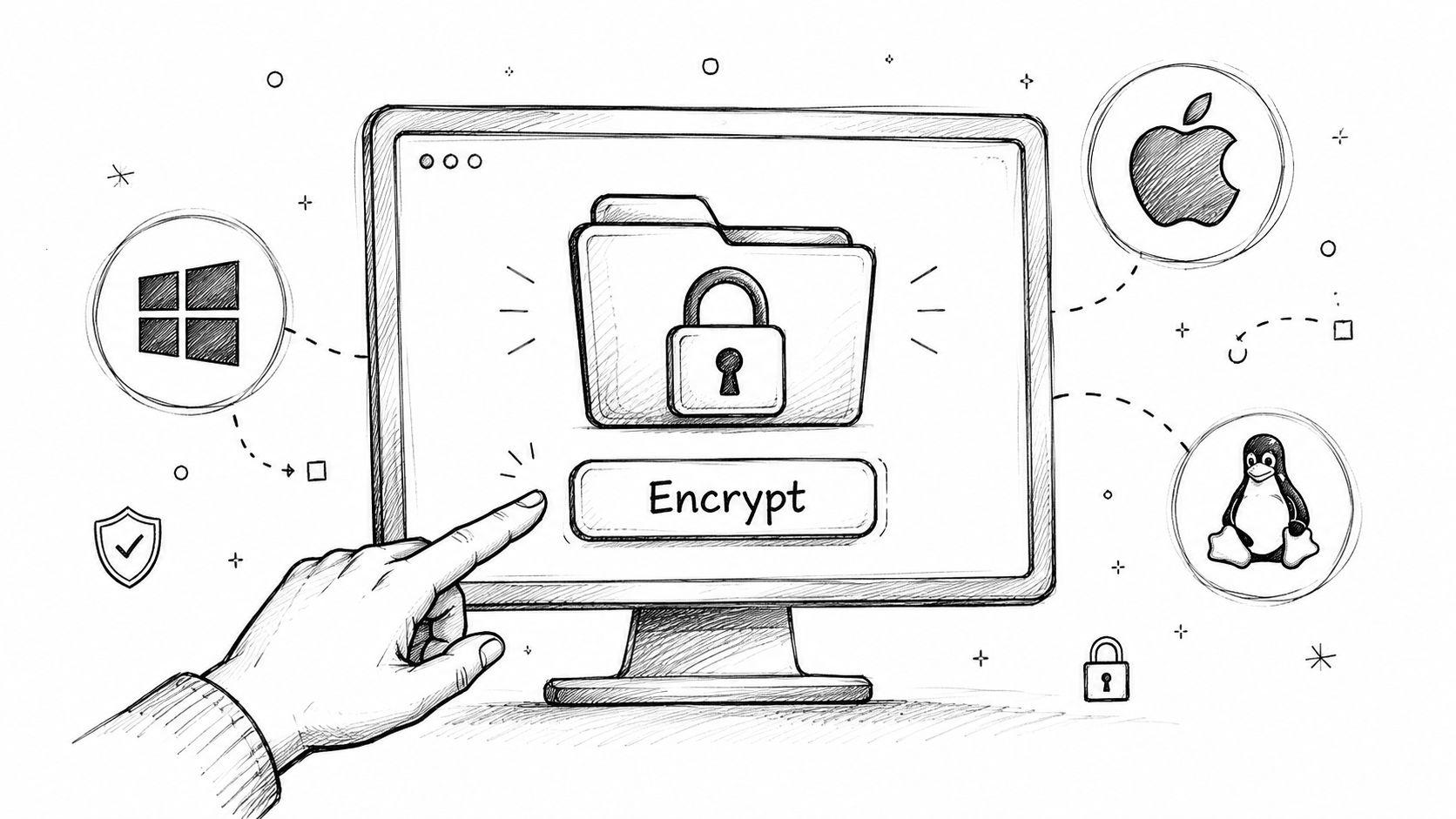
For that kind of risk, built-in operating system encryption is often the right first move. It protects data at rest on a device you control, and it usually asks for very little from the person using it day to day. That makes it a strong fit for your own laptop, a company-issued desktop, or a removable drive that stays in your possession.
The trade-off is scope. OS encryption is excellent at protecting a device and weaker at helping you hand a file to someone else securely. If your threat model is "What happens if this computer is lost or stolen?" use the tools your operating system already provides. If your threat model is "How do I send this file to a colleague outside my company?" you need a different method.
On Windows, pick the protection level that matches the job
Windows offers two common approaches, and they solve different problems.
EFS file encryption protects specific files or folders under your Windows account. It works well when you want to secure a limited set of documents on a machine you manage yourself.
Basic workflow:
- Right-click the file or folder.
- Open Properties.
- Click Advanced.
- Check Encrypt contents to secure data.
- Apply the change.
That is practical for a folder of HR records, legal drafts, or financial files stored on your work PC. It is less practical if you expect to move those files to another system, restore them after an account problem, or open them under a different user profile. Certificate backup and recovery planning matter here, and many people skip that step until something breaks.
BitLocker encrypts the whole drive. For a laptop that travels, this is usually the better answer. It protects everything on the disk, including temporary files and cached data that people forget exist. From a security standpoint, full-disk encryption also reduces the chance that a sensitive file gets left unprotected in the wrong folder.
When Windows built-ins make sense
Choose the built-in route in situations like these:
- You mainly want protection against loss or theft of the device
- The computer is company-managed or personally managed well
- You want security that runs in the background after setup
- You do not need a separate workflow for sharing encrypted files with other people
One practical warning. Device encryption protects storage on that device. It does not turn email attachments, cloud uploads, or copied files into a secure sharing process.
On macOS, FileVault is usually the first setting to turn on
For a MacBook, FileVault is the standard starting point. It encrypts the startup disk, which is exactly what you want if the machine leaves your desk, goes through airports, or gets used in shared spaces.
Typical setup looks like this:
- Open System Settings or System Preferences
- Go to Privacy & Security
- Find FileVault
- Turn it on
- Save the recovery method somewhere you can get back to later
Plan for some downtime. Initial encryption can take a while on larger drives, so it is better to enable it when the Mac can stay powered on and finish the job without interruption.
What OS encryption is good at, and where it stops
Built-in encryption is a good fit for protecting files on:
- Personal laptops
- Company laptops and desktops
- Shared family computers with separate user accounts
- External drives that stay under your control
It starts to show limits in a few cases.
- Cross-platform work: Windows and macOS protections do not always travel cleanly between systems.
- Portable file sets: If you need a secure bundle of files on a USB stick, device-level encryption may be broader than you need.
- Collaboration: Another person cannot automatically open an OS-protected file just because you sent it to them.
In practice, built-in OS encryption is the low-friction choice for protecting your own machine. It is the method I usually recommend first because people keep using it after setup. That matters. A security control that stays on is more useful than a stronger one that gets skipped when work gets busy.
Flexible Encryption with 7-Zip and VeraCrypt
A common problem looks like this. You do not need to encrypt an entire laptop, but you do need to protect a specific set of files. Maybe it is a tax folder headed to your accountant, or a client project you carry on a USB drive. In those cases, the right choice depends on what you are defending against.
7-Zip and VeraCrypt cover two different needs. 7-Zip is better for making an encrypted package you can send or upload. VeraCrypt is better for keeping a working set of files protected over time inside an encrypted container.
Use 7-Zip for file bundles you need to move
7-Zip creates an encrypted archive. You select files, add them to an archive, set a password, and end up with one protected file. That makes it useful for invoices, signed PDFs, HR documents, and small folders that need to travel.
A basic workflow is straightforward:
- Put the files in one folder.
- Right-click and open the 7-Zip archive menu.
- Choose an archive format.
- Set a strong password.
- Create the archive.
- Test it before you send or upload it.
That last step matters more than people expect.
I have seen users create an encrypted archive, send it, and only then learn they mistyped the password or forgot which settings they used. Password-based protection is unforgiving. IBM makes the same point in its guidance for encrypted SPSS files. If the password is forgotten, access may be gone for good (IBM SPSS encryption guidance).
7-Zip fits these situations well:
- One-time sharing with a trusted person
- Encrypted uploads to cloud storage
- Short-term protection for a small set of files
- Simple packaging when the recipient is not highly technical
It is a poor fit for files you edit every day. Rebuilding the archive each time adds friction, and once the process gets annoying, people start saving copies outside the archive.
Use VeraCrypt for an encrypted workspace
VeraCrypt creates an encrypted container file that you mount like a virtual drive. After you authenticate, it behaves like normal storage. When you unmount it, the contents are protected again.
That makes VeraCrypt a better choice when the files stay sensitive for weeks or months, not just during one transfer. Consultants carrying project data, finance staff working from removable media, and legal teams keeping matter files separate often prefer this model because it protects the whole workspace, not just one exported archive.
As noted earlier, VeraCrypt requires a bit more setup and user discipline. You create the container, choose its size and encryption settings, mount it before use, and unmount it when you are done. The security is strong, but the workflow only works if users keep the files inside the container.
That trade-off is the whole point of choosing by threat model. If your main concern is "I need to send this file safely today," 7-Zip is usually enough. If your concern is "I need these documents protected on a USB stick, on a hotel desk, and on multiple systems I trust," VeraCrypt is usually the better answer.
Quick comparison
| Need | Better Choice |
| Send a few files quickly | 7-Zip |
| Upload an encrypted package to cloud storage | 7-Zip |
| Work from the same protected files over time | VeraCrypt |
| Carry sensitive data on removable media | VeraCrypt |
| Keep a separate encrypted area on a shared machine | VeraCrypt |
One more practical point. Both tools rely heavily on user habits. With 7-Zip, the common failure is weak password handling. With VeraCrypt, the common failure is leaving copies of files outside the encrypted container.
If you want more plain-English security guidance for everyday file handling, the practical privacy and security articles on 1Chat's blog are a useful next read. If your use case is less about confidential business files and more about sending large personal media collections, you can also discover wedding photo sharing options.
Sharing Encrypted Files with Confidence
Password-protected files are fine until you hit the obvious problem. You still have to give the other person the password. If that password travels in the same email thread, or gets reused, or is stored badly, your security margin shrinks quickly.
That's why public-key encryption is the standard answer for more serious file sharing.
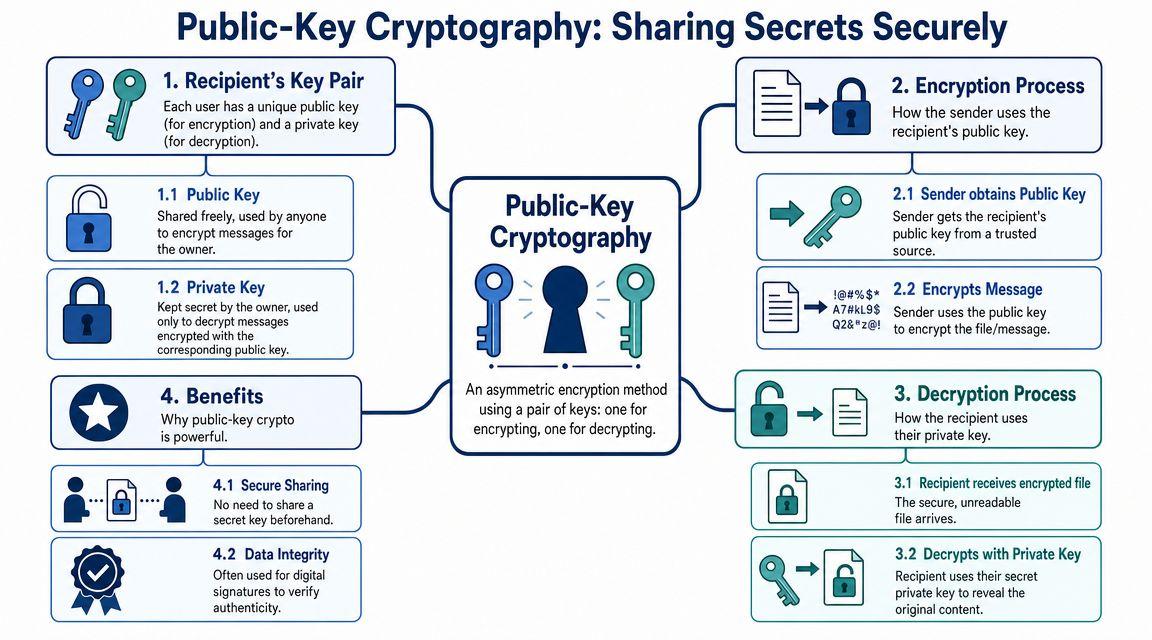
The easiest mental model is a mailbox. Your public key is the mail slot anyone can use to drop in a message for you. Your private key is the only thing that opens the box. People can encrypt a file with your public key, but only you can decrypt it with your private key.
A standard GPG-based workflow follows four steps: generate a key pair, exchange public keys, encrypt the file with the recipient's public key, and let the recipient decrypt it with their private key (GPG file-sharing workflow).
The practical workflow
For a team or business, the actual sequence looks like this:
- Create your key pair and protect your private key carefully.
- Get the recipient's public key from a trusted source.
- Encrypt the file for that recipient.
- Send the encrypted file through email, cloud storage, or another transfer method.
- The recipient decrypts it using their private key.
Once this is set up, you stop playing the separate-password game every time you send something sensitive.
Why public-key encryption is better for repeated sharing
It removes a recurring weakness from the process.
- No shared secret to keep distributing
- Clear recipient control
- Cleaner long-term collaboration
- Better fit for teams than ad hoc passwords
This matters even in ordinary media-sharing situations. For less sensitive material, people often prioritize convenience first, and resources like discover wedding photo sharing options show how quickly sharing needs can get messy once multiple recipients and storage platforms are involved. For confidential business files, convenience alone isn't enough. Encryption has to be part of the workflow.
Encrypt before uploading to the cloud
If you store confidential documents in Dropbox, Google Drive, OneDrive, or another sync platform, the safest habit is often to encrypt the file before uploading it. That way the provider stores ciphertext, not the readable original.
A few practical patterns work well:
- Archive first: Put files in an encrypted 7-Zip archive, then upload.
- Container first: Store sensitive working files inside a VeraCrypt container that syncs as one protected object.
- Recipient-based sharing: Use GPG when the primary goal is sending the file to another person securely.
For teams exploring broader digital workflows and secure AI-assisted document handling, the 1chat blog is a useful place to follow privacy-oriented operational ideas.
Don't confuse secure transport with secure content. A file can travel through a normal channel and still remain protected if you encrypt it before sending.
Managing Keys and Avoiding Critical Mistakes
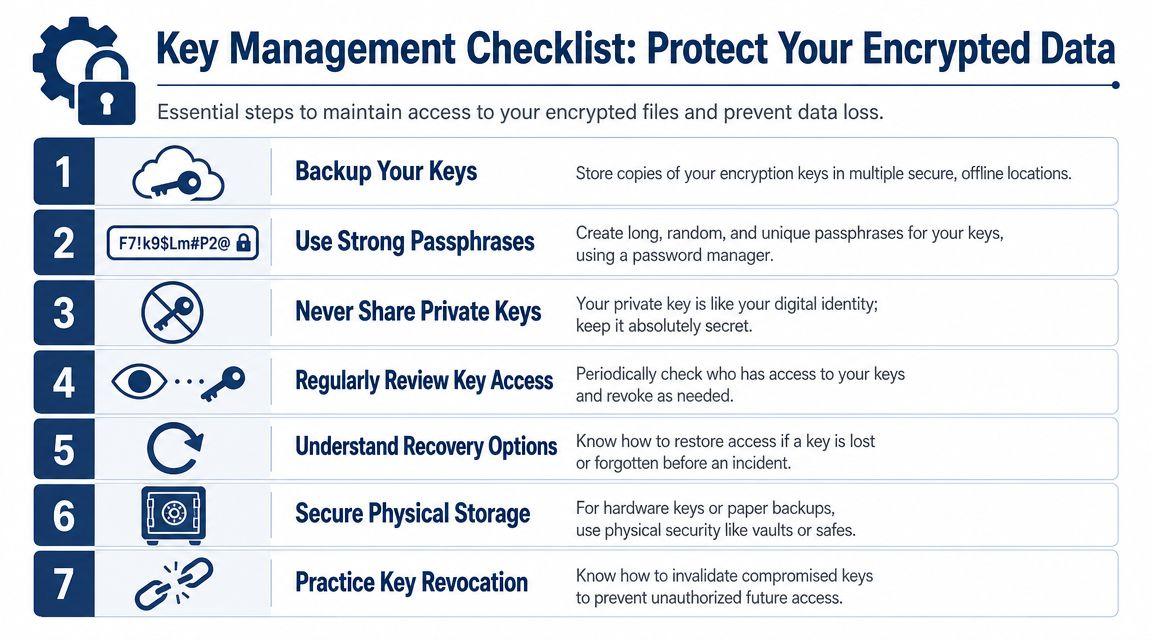
Most file encryption failures don't happen at the moment of encryption. They happen later, when someone forgets a password, loses a recovery key, rotates devices, or discovers that an encrypted file name still gives away the secret.
That's why key management matters as much as the encryption step itself.
Treat recovery as part of the setup
If you use password-based encryption, store that password in a reliable password manager or another secure system your team can access when needed. If you use public-key encryption, back up the private key and document who owns it, where it's stored, and how access is restored if the original device disappears.
For business use, this should be written down. Not in someone's memory. Not in an old chat thread. In an access-controlled procedure.
Don't ignore metadata leakage
One blind spot catches people off guard. Encrypting file contents does not always hide the file name, folder structure, or access pattern. Cloudflare's UtahFS write-up highlights this issue directly, noting that stronger designs encrypt and authenticate directory structure as well, because names and access behavior can still reveal sensitive information (Cloudflare on metadata leakage and encrypted file systems).
That means a file called Layoff-Plan-Final.pdf can leak plenty even if the contents are unreadable.
A short checklist that prevents big problems
- Back up recovery material: Save passwords, recovery keys, or private keys in a secure, documented location.
- Name files carefully: Don't put sensitive meaning into filenames if the storage setup may expose metadata.
- Test recovery: Open the encrypted file from another approved device before you rely on it.
- Plan for staff changes: If one employee leaves, make sure the organization still retains authorized access.
- Review the full workflow: Storage, sync, sharing, and recovery all need to line up.
If you want plain-language answers to common privacy and access questions, a good starting point is the 1chat FAQ.
Encryption protects content. Operations protect access. You need both.
Done well, file encryption is quiet. It sits in the background, reduces risk, and doesn't get in the way. Done poorly, it locks out the right people while still leaking clues to the wrong ones.
The best setup is the one that matches your threat model, your devices, and your real working habits.
If you're trying to build safer digital habits around documents, sharing, and privacy-conscious workflows, 1chat gives families, students, and small teams a privacy-first place to work with leading AI models in one place.