You're probably here because you need to send something that shouldn't live in plain text. A signed contract. A scan of a passport. Tax documents for your accountant. Lab results for a parent. Maybe you already drafted the message and then paused before hitting send.
That pause is justified.
A lot of people assume email is “secure enough” because major providers use modern protections somewhere in the process. But the real question isn't whether your message gets some protection in transit. It's whether the person on the other end can open it without confusion, and whether the message stays protected in a way that matches what you're sending.
That's where most advice falls short. It tells you where the Encrypt button is. It doesn't tell you what happens when your client uses Outlook, your recipient uses Yahoo, and the message lands in a portal flow they've never seen before.
Why You Still Need to Actively Encrypt Your Email
You write an email to send a lease, a diagnosis summary, or banking paperwork. The message itself feels routine. The contents aren't. If that email goes out as a normal message, you're trusting a long chain of systems and settings you don't control.
For many people, that risk still doesn't match their expectations. In a 2021 usability study on end-to-end email encryption, 66% of participants felt email encryption was important, yet over half received fewer than 10% of their emails encrypted according to Google's safer email transparency information. That gap matters because people often assume private messages are already getting stronger protection than they really are.
In-transit protection isn't the same as private content
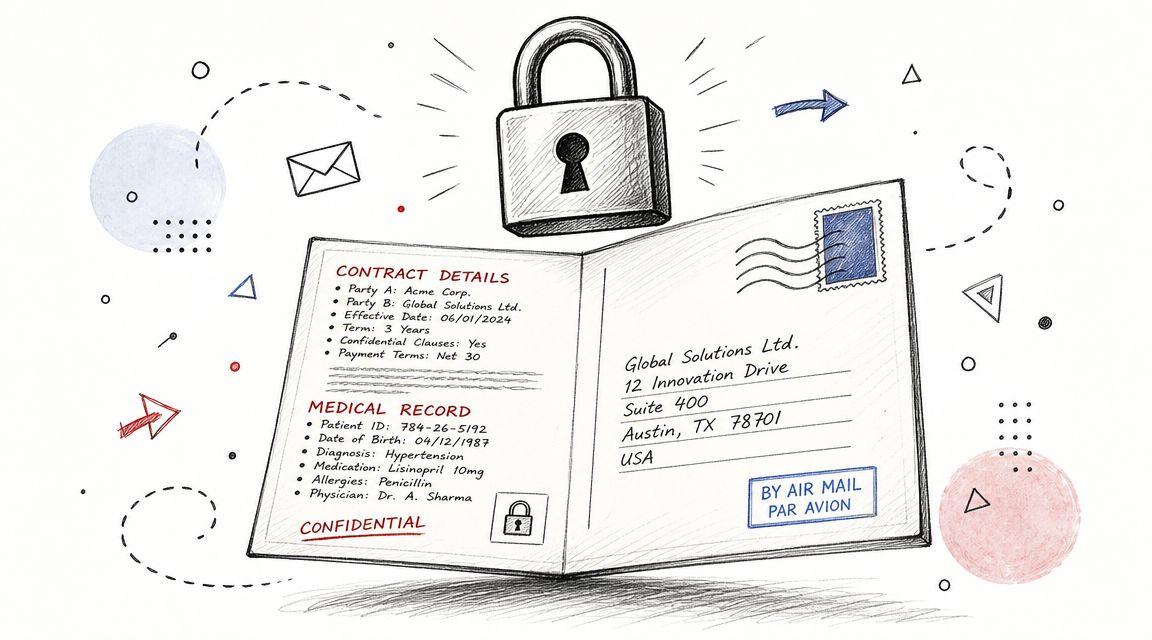
A message can travel with transport protection between mail servers and still not give you the level of privacy you expect for sensitive material. That's the practical distinction many people miss. “Protected while moving” isn't the same as “only the intended recipient can read it.”
When I explain this to small business owners, I usually use a simple test: if you'd hesitate to print the message on paper and leave it in a shared office tray, don't send it as a standard email.
Practical rule: If the email includes legal documents, medical information, financial records, or identity documents, actively choose an encryption method instead of assuming your provider handled it for you.
The bigger issue is consistency
Even when organizations care about privacy, their actual email setup may be inconsistent. One client can open encrypted Outlook messages easily. Another gets a portal notice and calls you confused. A family member using a free webmail service may have no idea whether they're supposed to download a certificate, create a password, or just click a link.
That's why basic email hygiene still matters alongside encryption. If you want a useful checklist for the broader habits around account security, device access, and safer sending practices, ARPHost's email security guide is a solid companion read.
Privacy expectations also depend on how a service handles your information more broadly, which is why it helps to review a provider's privacy policy details before you trust it with sensitive communication.
Choosing Your Email Encryption Method
If you want to send an encrypted email successfully, picking the method matters more than picking the strongest-sounding acronym.
The core split is simple. Transport encryption such as STARTTLS protects mail between servers, while end-to-end methods such as PGP and S/MIME protect content until it reaches the recipient. That distinction matters because email remains a primary attack vector, and end-to-end encryption turns intercepted content into unreadable text, as summarized in the email encryption overview on Wikipedia.
For most small businesses and families, the best option is the one your recipient can use on the first try.
Three realistic paths
You usually end up choosing among these:
- Provider-native encryption This includes built-in or add-on encryption workflows in Outlook or Gmail environments. It's often the easiest way to get started because it lives where you already work.
- S/MIME This is common in professional environments. It relies on certificates and works well when both sides already use compatible mail clients and organizational policies.
- PGP This gives the sender and recipient the most direct control over keys. It's powerful, but setup takes effort and key exchange can feel technical for casual users.
Email Encryption Method Comparison
| Method | Best For | Ease of Setup | Recipient Experience | Cost |
| Provider-native encryption | Small businesses, consultants, families who want the simplest workflow | Usually the easiest if your provider already supports it | Often smooth inside the same ecosystem, but external recipients may face portal or login steps | Varies by provider plan and add-on choices |
| S/MIME | Professional communication with clients, firms, and organizations already using certificates | Moderate, because certificate setup and client configuration take work | Good when both sides are prepared, frustrating when one side isn't | Varies depending on certificate source and administrative setup |
| PGP | Individuals or teams who want direct privacy control and don't want to rely on provider workflows | Hardest for beginners | Can be excellent for experienced recipients, rough for everyone else | Software can be free, but the time cost is real |
What works in practice
For a small team sending sensitive files to clients, provider-native encryption often wins because it reduces setup friction. You can train staff on one workflow and give recipients a short explanation ahead of time.
For consultants, accountants, and firms dealing with larger organizations, S/MIME often fits better because corporate recipients may already expect certificate-based mail.
PGP is what I recommend when privacy control matters more than convenience and both sides are willing to learn the process properly.
The strongest encryption method on paper can still fail in real life if the recipient can't open the message without calling you.
A better decision filter
Don't choose based on labels like “military-grade” or “secure by default.” Choose based on four questions:
- Who are you sending to most often Clients on Microsoft 365 behave differently from relatives on Gmail or Yahoo.
- How often do you send sensitive material If this is rare, a simpler provider-native option usually makes more sense than a full PGP setup.
- Do you control both sides If you manage both sender and recipient environments, S/MIME or PGP becomes much easier.
- Can you support the recipient If not, pick the method with the least confusing first-open experience.
If you want a plain-language refresher on where encryption fits into the broader idea of protecting digital assets with encryption, that overview is useful for non-specialists.
For teams comparing tools and communication workflows more generally, the 1chat blog can also be helpful, especially if you're trying to balance privacy, usability, and day-to-day productivity tools in one stack.
The Easy Way Using Gmail and Outlook Features
If you already live in Outlook or Gmail, start there. That's usually the least painful way to send an encrypted email because you're not adding a separate app, a new set of keys, or a new habit for every message.
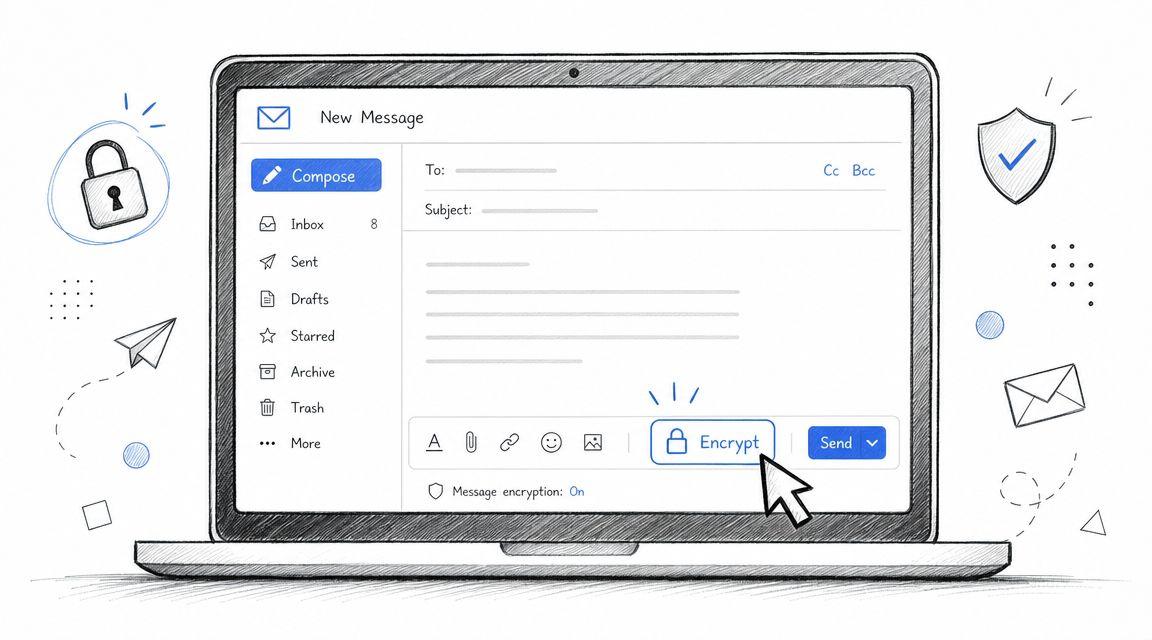
For Microsoft 365, the usual workflow is straightforward: compose a new message, open Options, then choose Encrypt. The catch is that this often depends on admin setup, S/MIME enablement, or Microsoft Purview Message Encryption, and the recipient still needs a compatible way to read the message, as described in BDO's guide to encrypted email in Office 365.
Outlook workflow that usually works
In Microsoft 365 and Outlook, the practical sequence looks like this:
- Create the message first Draft the email normally, including attachments if needed.
- Open Options In many Outlook setups, the encryption controls sit under the message options area rather than the main compose toolbar.
- Choose Encrypt Depending on your environment, you may see a simple Encrypt button or multiple protection choices.
- Check the policy Some organizations expose options such as Encrypt Only or Do Not Forward. These aren't interchangeable. They change what the recipient can do with the message.
- Send a test before using it with a real client This catches missing permissions, inactive templates, or recipient-side surprises.
What those policy choices actually mean
The biggest mistake I see in Outlook isn't technical. It's policy confusion.
- Encrypt Only usually focuses on protecting the message content while keeping the recipient experience more flexible.
- Do Not Forward adds restrictions that can help reduce sharing, but it can also disrupt legitimate workflows such as collaboration, archiving, or accessing the message on another device.
Use the lighter option unless you have a clear reason to add restrictions. If the message only needs confidentiality, don't automatically add every control available.
Tell recipients in advance if they'll need to sign in, use a code, or open the message in a browser. That single sentence prevents a lot of failed deliveries.
Gmail is less simple than people expect
With Gmail, there isn't always a universal built-in encryption button for every user. In practice, encryption is often handled through hosted S/MIME, browser extensions, or policy-based encryption tools in business environments.
That means your checklist looks different:
- Confirm what type of Gmail account you're using A personal Gmail account doesn't behave like a managed Google Workspace environment.
- Check whether S/MIME or a security add-on is enabled If it isn't, you may need an extension or a third-party secure mail tool.
- Test the recipient path Before sending real documents, send a harmless test message and walk through exactly what the recipient sees.
- Verify attachments Some systems protect the body and files together. Others send a secure notice and keep the actual content behind a portal.
For people who want privacy-minded digital tools in the same general workflow as document review, messaging, and AI assistance, 1chat is one option in that broader ecosystem. Its published materials describe privacy-focused messaging and AI features, but it isn't presented as a dedicated encrypted-email sending service, so treat it as a separate tool rather than a replacement for email encryption itself.
How to Use PGP for Maximum Privacy Control
PGP is what people turn to when they don't want to depend on a provider's portal, company policy, or hosted decryption flow. It gives you direct control. That control is why privacy professionals respect it, and why beginners often bounce off it the first time.
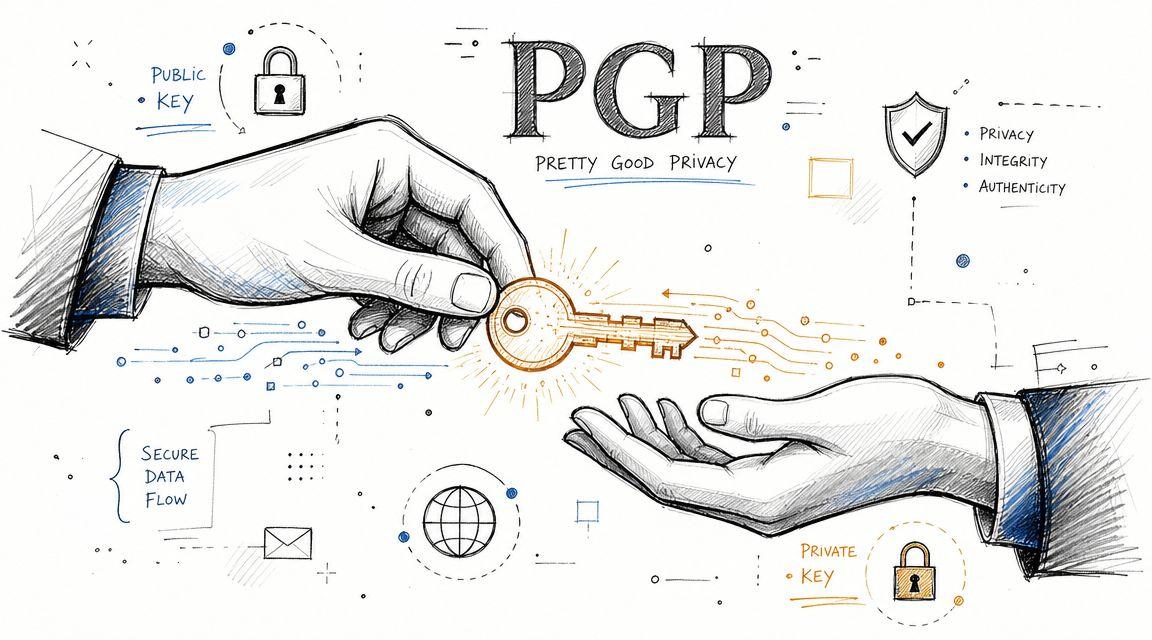
The simple model is this: you create two keys. A public key is the one you share so people can encrypt messages to you. A private key stays with you and decrypts what was encrypted with your public key. Think of the public key as the slot on a locked mailbox. Anyone can drop mail in. Only the private key opens the box.
A basic first setup
Users often begin with Gpg4win on Windows or GPG Suite on Mac. The exact screens vary, but the process is usually similar.
- Install the software from the official project site.
- Generate a new key pair inside the app.
- Choose the email address that key belongs to.
- Set a strong passphrase for your private key.
- Export your public key so you can share it.
That's the mechanical part. It's not hard. The hard part is everything around it.
The step people skip
PGP only works well if you exchange keys carefully and verify that the key you received belongs to the person you think it does.
Here's the practical approach:
- Send your public key through your normal channel Email is fine for the initial exchange.
- Verify through a second channel Confirm by phone call, secure chat, or an in-person conversation that the fingerprint or identity details match.
- Import the recipient's public key only after that check Otherwise you're trusting that nobody swapped the key on the way.
- Run a harmless test Send a short message with no sensitive content first.
Why PGP succeeds or fails
PGP works when both people understand three habits:
- protect the private key
- verify public keys
- keep backups in a safe place
It fails when one person treats it like a magic button. Lose the private key, forget the passphrase, or import the wrong public key, and the message may become unreadable to the intended recipient.
PGP is less about clicking Encrypt and more about managing trust correctly.
When to choose it
PGP makes sense if you regularly exchange sensitive information with the same people and you're willing to maintain the setup. It's less suitable for one-off conversations with clients, parents, or customers who just want to read a document without learning a new system.
For families and small firms, my rule is simple: use PGP when both sides want control more than convenience. If not, choose a method with a friendlier recipient workflow.
Setting Up S/MIME for Professional Communications
S/MIME is often the practical middle ground between “click a provider button” and “run your own key discipline with PGP.” It's common in professional settings because it uses digital certificates to prove identity and support encryption.
The certificate acts like a digital ID attached to your email identity. When someone has your certificate, they can use it to encrypt a message to you. Your mail client uses the matching private component to decrypt it.
Where the certificate comes from
You generally get an S/MIME certificate from a certificate authority or through an organization that manages them for you. Some environments provide them centrally, especially in business settings. Other users obtain them individually.
The trade-off is straightforward:
- Managed organizational certificates are easier for employees because IT handles most of the heavy lifting.
- Individually obtained certificates give you more direct responsibility and more setup work.
Installing it in your mail client
The first setup is the part that trips people up. After you obtain the certificate, you usually need to import it into the operating system, browser keychain, or mail client, then tell the email app to use it for signing and encryption.
For common desktop clients, the pattern is similar:
- Outlook Import the certificate, then assign it under security or trust settings for the email account.
- Apple Mail Certificates typically rely on the Apple keychain, so the setup often starts there before Mail uses it.
- Thunderbird Certificate management is available inside the application settings, where you can import and associate the certificate.
The recipient side matters just as much
S/MIME works best when both parties are prepared. You can't reliably send encrypted S/MIME mail to someone who hasn't shared a compatible certificate or whose client doesn't handle certificates cleanly.
That's why S/MIME is strong for recurring professional relationships. If you work with the same law firm, finance team, healthcare partner, or enterprise client repeatedly, the effort pays off. If you need to send one confidential file to a cousin using webmail on a tablet, it's usually the wrong tool.
A good operational habit is to sign messages before you rely on encryption. Signed messages help establish identity and let the other side collect the certificate needed for future encrypted exchanges.
Solving Common Encrypted Email Problems
Most encryption failures aren't cryptographic failures. They're human workflow failures.
A university guidance pattern highlights the primary issue well: external recipients may need to click a portal link and create a password before they can read the message. Yale and UTHealth examples show how that extra step becomes a usability hurdle, especially for small businesses and families sending outside their own organization, as noted in Yale's email encryption guidance.
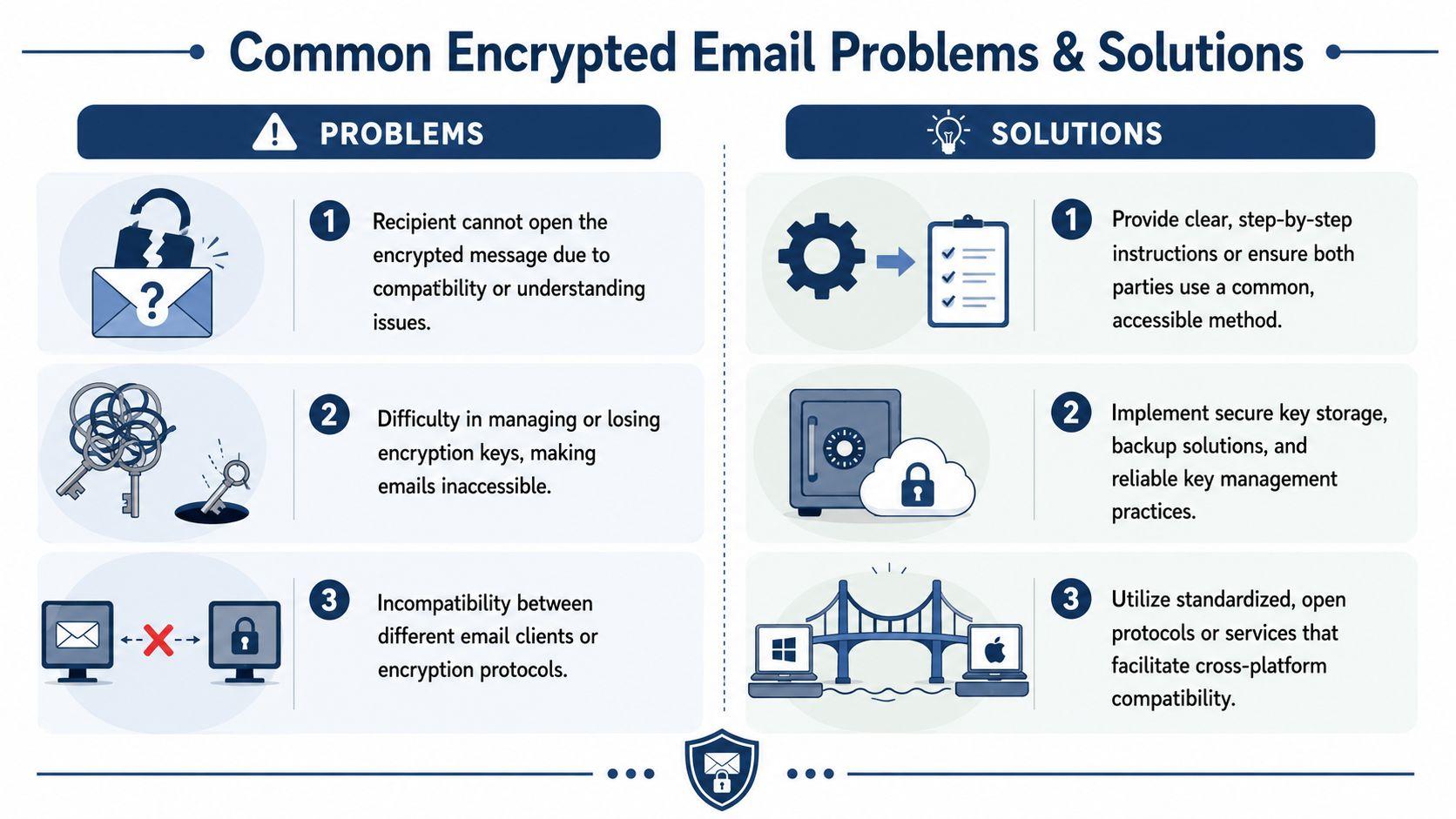
Problem one is usually confusion, not security
Your recipient gets a notice instead of the actual message. They see a link, a sign-in prompt, or a password setup page. They assume it's spam, or they stop halfway through.
Fix that before you send the message.
- Warn them first Send a plain note or text message telling them a protected email is coming.
- Describe what they'll see Tell them whether to expect a portal link, sign-in page, one-time code, or certificate prompt.
- Give them a fallback Include a phone number or alternate contact method in case they get stuck.
The next problems are setup mismatches
S/MIME issues often come down to certificate trust, expired credentials, or a recipient who doesn't have the right certificate installed where their mail client expects it.
PGP issues are usually different. The message was encrypted with the wrong public key, the private key isn't available on the current device, or the user never verified the key exchange properly.
A short pre-flight checklist avoids a lot of pain:
- confirm the recipient method
- send a harmless test
- verify attachments open as expected
- keep the subject line neutral
- make sure the recipient knows how to reply securely
Restrictions can backfire
A lot of users assume the strictest option is automatically the safest choice. It often isn't.
If you choose a restrictive policy such as blocked forwarding when simple encryption would do, you may stop a legitimate assistant, spouse, or colleague from opening a message they need to handle. The result isn't better privacy. It's a frustrated recipient who asks you to resend the content insecurely.
Use the least restrictive protection that still fits the sensitivity of the message.
If you need answers to common workflow questions around privacy tools, account behavior, and related support issues, the 1chat FAQ is a useful example of the kind of documentation worth checking before you adopt any communication platform.
If you remember one thing, make it this: sending an encrypted email isn't finished when you click send. It's finished when the right person opens it, understands it, and can respond without breaking the protection you intended.
That's the standard that matters in real life.