You already have the image.
It might be a product photo on your phone, a child's drawing on the kitchen table, a team headshot that needs a cleaner background, or a sketch you want to turn into something polished. That's the moment when text-only image generation starts to feel limiting. You can describe what you want, but you still spend time nudging the AI back toward the composition, colors, or subject you had in mind from the start.
That's why the AI image generator upload image workflow matters. Instead of asking the model to invent everything from scratch, you give it a visual starting point. For families, that means turning a selfie into a playful avatar without losing the recognizable face. For students, it means turning a rough diagram into a clean concept illustration. For small businesses, it means using the actual product photo rather than hoping a prompt produces something close enough.
The Creative Leap Beyond Text Prompts
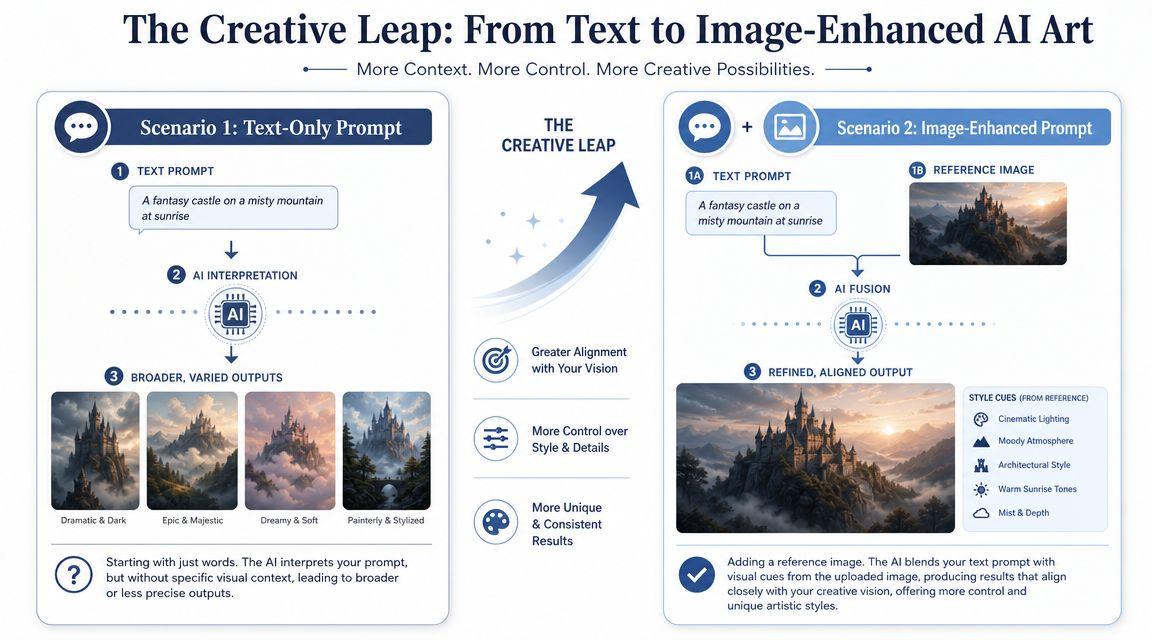
Text prompts are good at direction. Uploaded images are good at control.
With text alone, you can ask for “a cozy bakery product photo in a warm editorial style,” but the AI still has to guess the pastry shape, plate angle, lighting balance, and background layout. If you upload the bakery photo first, the model has a base to work from. That changes the job from pure invention to guided transformation.
Why image upload changes the result
An uploaded image anchors the model around something real. That gives you better odds of keeping the parts that matter most:
- Composition stays grounded: A product on a table is more likely to remain in a believable position.
- Identity holds up better: A family selfie can become stylized without turning into a completely different person.
- Brand visuals stay closer to source: A small business can reuse packaging, colors, or layout cues from existing photos.
- Student sketches become usable references: The AI has shapes and structure to follow instead of inventing from a paragraph.
This shift isn't niche anymore. Microsoft's Designer documentation confirms users can upload photos for refinement, and a 2025 Adobe survey of 16,000 creators across eight countries found 86% already use generative AI in their work, with 62% of marketers using it to generate image assets. That matters because it shows image upload isn't a novelty feature. It's part of normal creative work now.
Practical rule: If the exact pose, object, or layout matters, start with an image. If only the general mood matters, text alone can be enough.
Where this helps most in real life
A local shop owner can upload one clean product shot and generate seasonal variations for social posts.
A parent can upload a child's drawing and ask for a polished fantasy illustration while keeping the original character design.
A student can upload a rough science sketch and turn it into a clearer visual aid for studying.
If you want a broader view of how creators mix prompting, editing, and reference images, this overview of AI image workflows for creatives is a useful companion read. For more practical AI usage ideas in everyday work and home contexts, the 1chat blog is also worth browsing.
Your Workflow for Uploading Images in 1chat
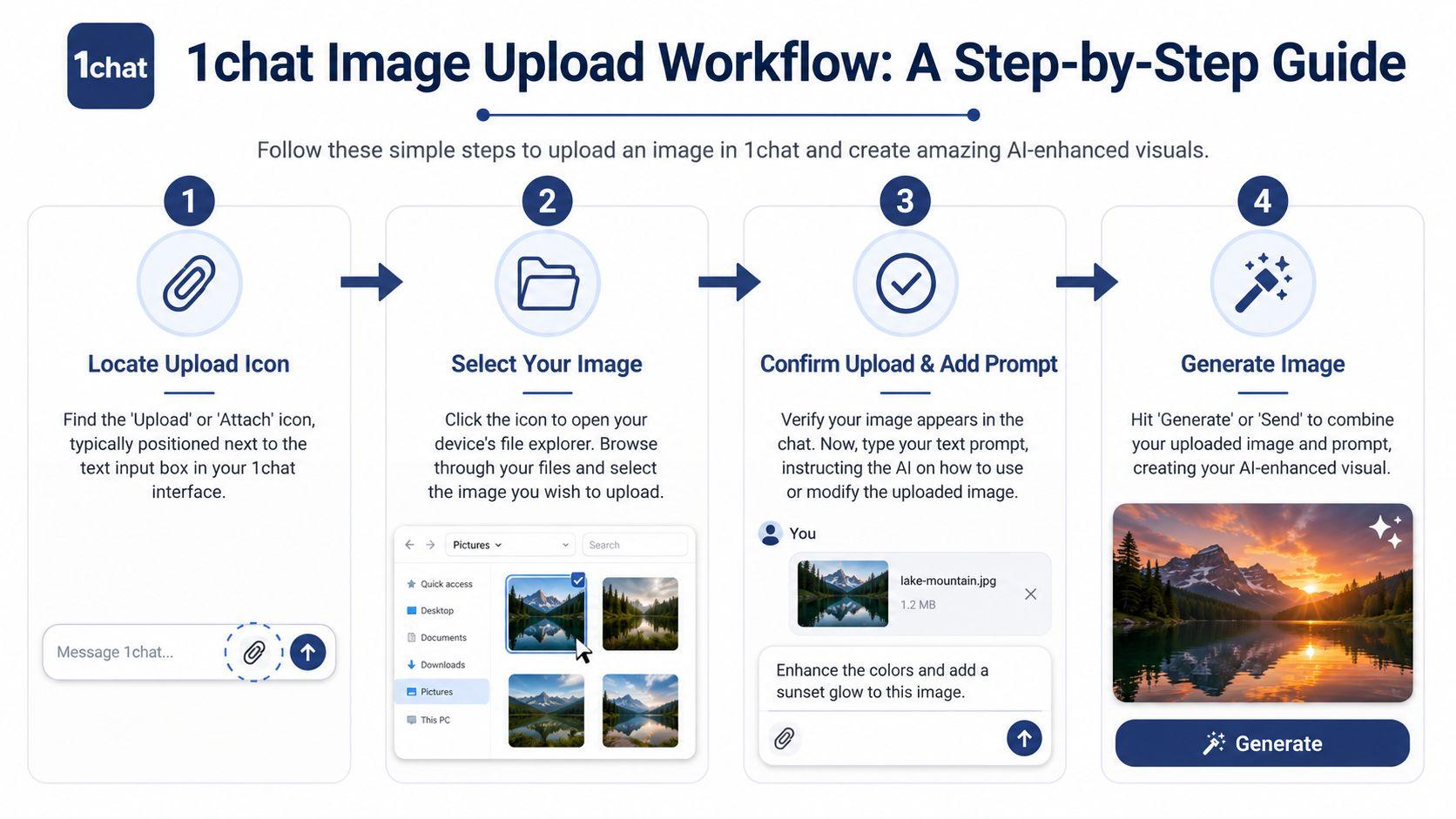
It's common to overcomplicate this on the first try. The basic workflow is simple. Pick the image, confirm it's attached, then tell the AI what role that image should play.
Finding the upload option
Look near the message box for the upload, attach, or image icon. In most chat-style interfaces, it sits beside the text field rather than inside a separate editor panel.
Once you click it, your device's file picker opens. Choose the image you want to use as the starting point. Wait until the thumbnail appears before writing your prompt. If you type and send too early, some users end up generating from text only because the attachment never fully finishes loading.
Writing the first prompt after upload
After the image appears in chat, tell the model what to preserve and what to change. That's the key step.
Try prompts like these:
- For a business photo: “Use this uploaded product image as the base. Keep the product shape and label readable. Place it in a clean holiday flat lay with soft natural lighting.”
- For a family avatar: “Turn the uploaded selfie into a friendly cartoon portrait. Keep facial features recognizable. Use bright colors and a simple background.”
- For a student sketch: “Use the uploaded drawing as a reference. Clean up the lines, keep the same diagram structure, and make it look like a textbook illustration.”
Short prompts can work, but vague prompts often produce generic images. The more your request depends on keeping the source image recognizable, the more explicitly you should say so.
Use verbs that tell the AI what to do with the upload: keep, preserve, adapt, restyle, remove, extend, clean up.
Checking the result and iterating
The first output is usually a draft, not the finish line. If the result is close but off in one area, don't start over from nothing. Revise the instruction.
For example:
| What went wrong | Better follow-up prompt |
| Background changed too much | “Keep the subject from the uploaded image, but only simplify the background.” |
| Face doesn't look right | “Preserve facial structure from the uploaded photo and change only the art style.” |
| Product lost detail | “Keep packaging details from the reference image and modify lighting only.” |
If you're working with portraits, this uploading selfies guide is helpful because it explains the kind of source images that generally lead to cleaner identity preservation.
Crafting Prompts for Image-to-Image Magic
The uploaded image gives the model a map. The prompt tells it how far to travel from that map.
That means the best prompts for image-to-image work usually have two parts. First, they name what should stay. Second, they describe what should change. People often skip the first part, then wonder why the final image drifted away from the upload.
Style change without losing the subject
Say you upload a photo of your dog lying on the couch. If your prompt says, “Make this a watercolor painting,” the model may change more than style. It might alter the pose, background, or even the breed details.
A better version is more anchored: “Use the uploaded photo of the dog as the reference. Keep the pose and facial markings. Render it as a soft watercolor painting with a handmade paper texture.”
The same logic works for people. A family selfie can become a comic-book portrait, but the strongest prompts state what must remain recognizable.
- Weak prompt: “Turn this into animation”
- Better prompt: “Use the uploaded selfie as the base. Keep the people recognizable and preserve hair shape and glasses. Restyle it as a warm animated family portrait.”
Editing the scene instead of the style
Sometimes you don't want a new art direction. You want a practical fix.
A small business owner might upload a product photo taken on a cluttered desk and prompt: “Use the uploaded image as the base. Keep the product unchanged. Replace the background with a clean neutral tabletop and improve the lighting.”
A student might upload a hand-drawn map and say: “Preserve the layout from the uploaded sketch. Convert it into a neat infographic-style map with labeled regions and clearer contrast.”
The strongest image-to-image prompts read like edit instructions, not like poetry.
Variations that actually stay on theme
Once you get one good result, ask for controlled variations instead of fresh generations. That's especially useful for marketing batches, classroom visuals, or family projects where consistency matters.
Good follow-up prompts include:
- For consistency: “Create three variations using the same uploaded reference and overall style.”
- For seasonal changes: “Keep the composition from the uploaded image, but make the setting autumn-themed.”
- For format changes: “Preserve the subject from the uploaded image and adapt it into a square social media graphic.”
If you want more examples focused on selling products and creating visuals with commercial intent, MerchLoom's e-commerce AI prompts has useful prompt patterns you can adapt.
Supported File Types Sizes and Best Practices
Most upload problems start before generation begins. The file is too messy, the crop is too wide, or the source image asks the model to guess around missing details.
What to upload
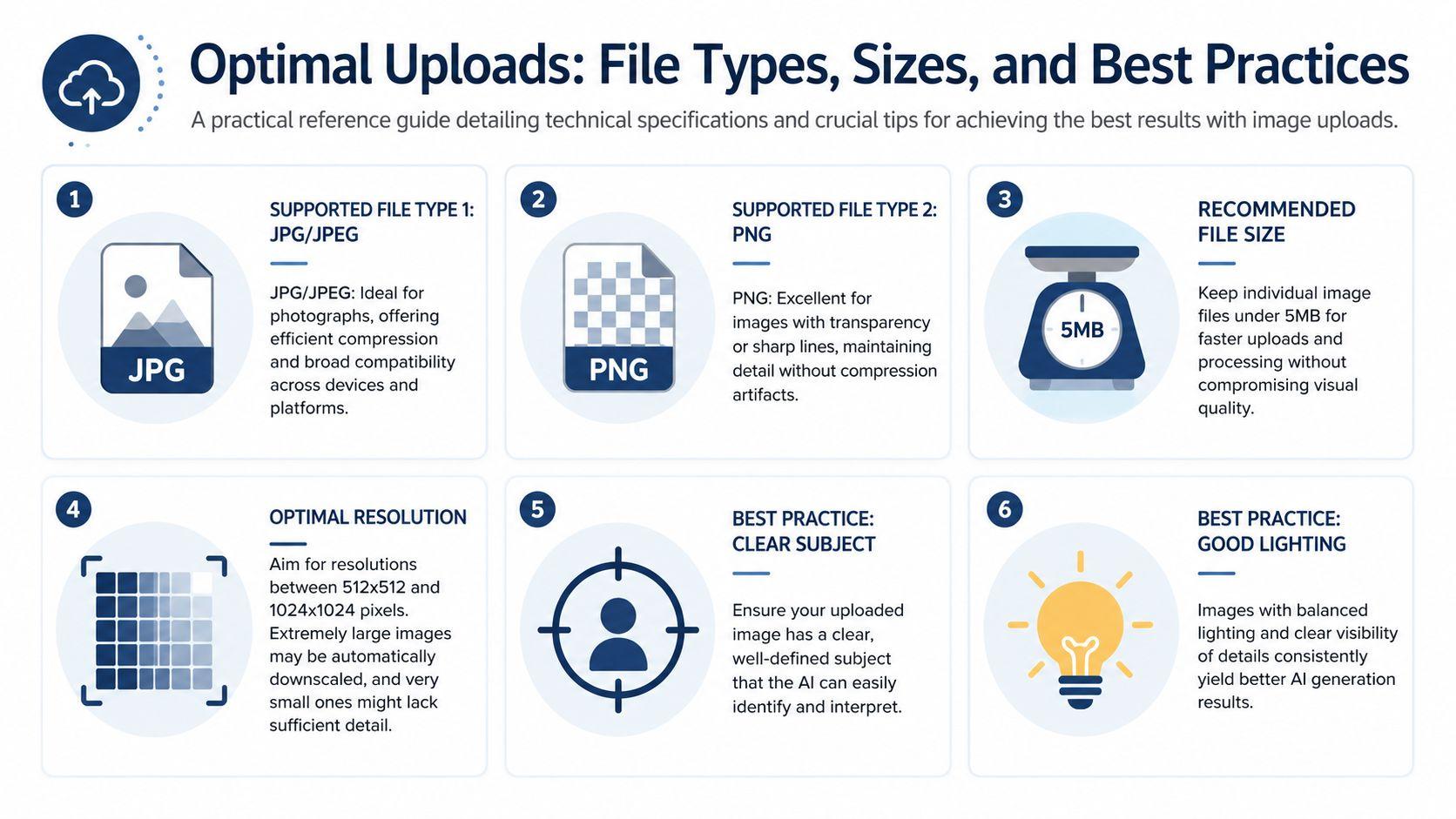
For most use cases, JPG/JPEG and PNG are the safest choices. JPG works well for regular photos. PNG is often better when you need cleaner edges, transparency, or graphic-style elements.
The bigger issue isn't just format. It's quality. A Pixexact explanation of high-resolution AI image generation notes that image-to-image systems use the uploaded image as the structural base, and weak inputs can amplify blur or distortion, especially when pushed beyond native training sizes around 512×512 or 1024×1024 pixels.
The practical checklist that saves time
Before uploading, check these:
- Use a clear subject: If the important object takes up a tiny part of the frame, the AI may focus on the wrong thing.
- Crop distractions out: A tighter crop tells the model what matters.
- Choose even lighting: Shadows and glare make preservation harder.
- Start from a sharper image: Fuzzy inputs don't become reliably crisp through prompting alone.
- Avoid tiny screenshots: Compression artifacts confuse edges, text, and faces.
Here's a simple reference:
| Image type | Best use |
| JPG photo | Product shots, portraits, casual phone images |
| PNG graphic | Logos, illustrations, screenshots with sharp edges |
| Cropped close-up | When one subject must stay consistent |
| Wide busy photo | Better only if the full scene really matters |
When bigger isn't better
People often assume the largest possible file will produce the best result. In practice, oversized files with weak composition still perform poorly. A well-cropped, well-lit reference tends to outperform a huge but cluttered image.
If you want platform-specific help on file handling or upload issues, the 1chat FAQ is the right place to check current guidance.
Privacy and Content Moderation on 1chat
Uploading images changes the trust equation. A text prompt can be disposable. A family photo, student work sample, or internal business image is personal.
That's why privacy and moderation aren't side topics in image generation. They're part of the product decision.
Why this matters more for families and teams
A parent uploading a child's drawing wants a safe environment. A small business uploading packaging concepts wants predictable handling. A team sharing draft campaign images wants clarity about what kinds of outputs are allowed and what happens when content crosses a line.
In a family-oriented and team-oriented AI workspace, those concerns shape behavior. People use image upload more freely when they understand the boundaries.
Safer image generation isn't just about blocking bad outputs. It's about giving normal users confidence to upload ordinary personal or work images without second-guessing the environment.
What to look for before uploading
Review a platform's usage rules before you upload anything sensitive. In practice, that means checking whether the service explains acceptable content, restricted content, and moderation behavior in plain language.
For 1chat users, the clearest place to review those boundaries is the 1chat usage policies. That's where families, students, and small teams should look first if they want to understand what kinds of images and prompts are allowed.
A few common-sense habits also help:
- Avoid uploading images you don't have rights to use
- Get permission before using identifiable photos of other people
- Keep school, family, and business projects in separate folders
- Don't test edge-case prompts with personal photos attached
Moderation can feel restrictive when you're experimenting. It's usually more useful to think of it as guardrails. For the audience 1chat serves, those guardrails are part of what makes image upload practical instead of risky.
Troubleshooting Common Upload and Generation Errors
AI image generation has moved at unusual speed. Since mid-2022, more than 15 billion AI images have been created, and one Everypixel estimate says roughly 80%, or 12.59 billion, came from Stable Diffusion-based models, apps, and platforms. The same source says Midjourney had about 15 million users and had generated about 964 million images by August 2023, while Adobe Firefly reached 1 billion images in 3 months after launch, according to Everypixel's AI image statistics roundup. At that scale, fixing bad outputs isn't an edge skill anymore. It's normal usage.
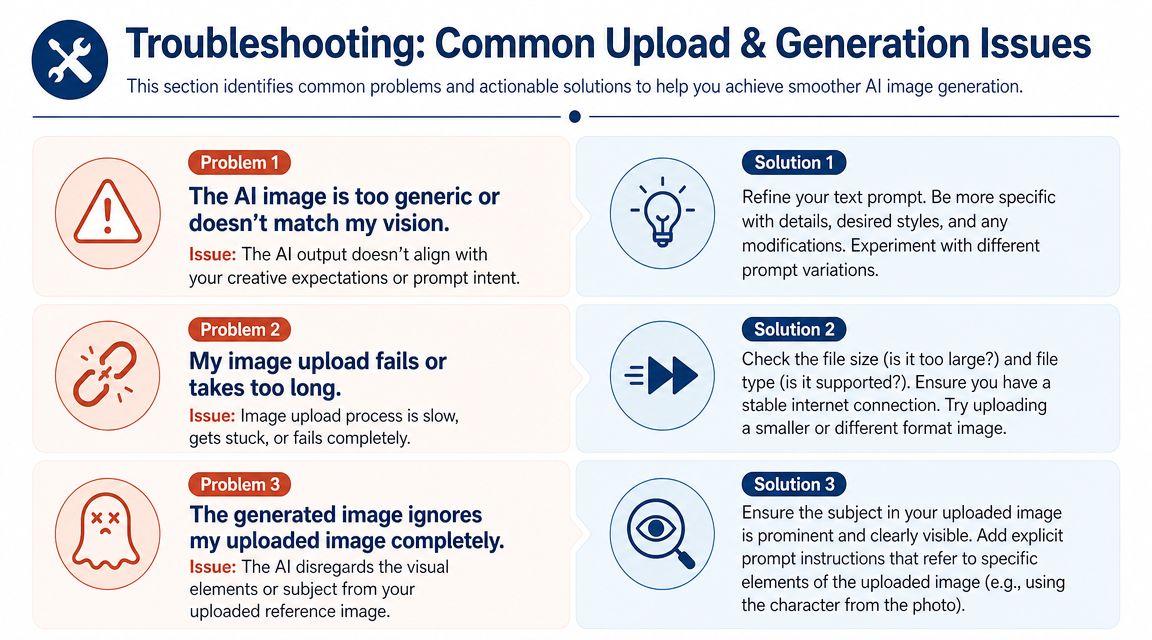
The output looks nothing like the uploaded image
This usually means the prompt asked for a transformation without telling the model what to preserve.
Try this fix:
- Name the anchor clearly: “Use the uploaded image as the base.”
- Specify what stays: face, pose, packaging, sketch layout, or color palette.
- Reduce creative drift: ask for a style change or background change, not a total reinvention.
A prompt like “make this cinematic” is broad. “Keep the subject and composition from the uploaded image, but change lighting to a cinematic look” is much harder to misread.
The upload fails or stalls
When uploads hang, the cause is often mundane. File type, file condition, browser state, or connection quality can all get in the way.
Use this quick sequence:
- Try a common format such as JPG or PNG.
- Rename the file if it includes unusual characters.
- Reduce file complexity by cropping unnecessary empty space.
- Refresh and reattach instead of resending the same stuck message.
If a screenshot or export keeps failing, save a fresh copy and upload that version instead.
Details keep turning blurry or distorted
This is usually a source-image problem or an ambition problem. You're asking the model to preserve detail the upload never captured clearly in the first place.
If the original image is weak, the model doesn't "understand" the missing detail. It guesses.
Better results come from a cleaner starting point, a tighter crop, and narrower instructions. Instead of “make this ultra-detailed and realistic,” ask for one focused change at a time.
The AI ignores one important part of the image
When one object matters, call it out directly.
- Weak: “Make this look professional”
- Stronger: “Use the uploaded image as the base. Keep the notebook and hand position unchanged. Clean the background and improve lighting.”
The more specific the visual instruction, the less likely the model is to sacrifice the thing you cared about.
If you want a privacy-first place to try this workflow with families, students, or a small team, explore 1chat. It brings leading AI models together in one place for chat, documents, and image generation without turning the experience into a maze.