
You're probably here because Chrome keeps offering to fill your info, but you're not fully sure whether to trust it, how to clean it up, or why it works perfectly on one device and feels oddly inconsistent on another.
That's a normal place to be. Autofill for Chrome is one of those features people use halfway. They save an address, maybe a card, maybe a password, then leave the defaults alone for years. The result is convenience mixed with clutter. On a personal laptop, that's annoying. On a shared family computer or a small team machine, it can become a privacy problem fast.
Used well, Chrome Autofill saves time, cuts repetitive typing, and makes routine signups and checkouts less painful. Used casually, it can expose personal addresses, old payment methods, or the wrong login to the wrong person. The trick is not just turning it on. It's understanding where Chrome stores things, how sync behaves, and when to separate people with different browser profiles.
Why Chrome Autofill Is Your Biggest Timesaver
You notice Autofill when you are halfway through a checkout form on your phone, one hand busy, and Chrome fills your name, address, and card details in seconds. You notice it even more when that same browser suggests a spouse's old shipping address or a work card on a shared device. The time savings are real, but they come from storing exactly the kind of personal data that needs a little management.
At its best, Chrome Autofill cuts out the repetitive parts of the web. It handles the fields people type over and over, keeps routine purchases moving, and removes a lot of small interruptions from signups, support forms, and account creation. Because it is built into Chrome, setup is simpler than bolting on a separate extension, and the feature tends to be available wherever you already use the browser.
What it handles well
Chrome Autofill is strongest in three categories:
- Contact info such as your name, phone number, and address
- Passwords for sign-ins
- Payment details for checkout
That covers a large share of everyday form filling. The benefit is not just speed. It also reduces typos in addresses, cardholder names, and other details that can derail orders or force a password reset later.
There is a trade-off, though. The more useful Autofill becomes, the more important it is to know whose information Chrome is offering and on which device. On a personal laptop, saved data is mostly a convenience question. On a family computer, a shared Android tablet, or a small team machine used for admin tasks, it becomes a privacy setting too.
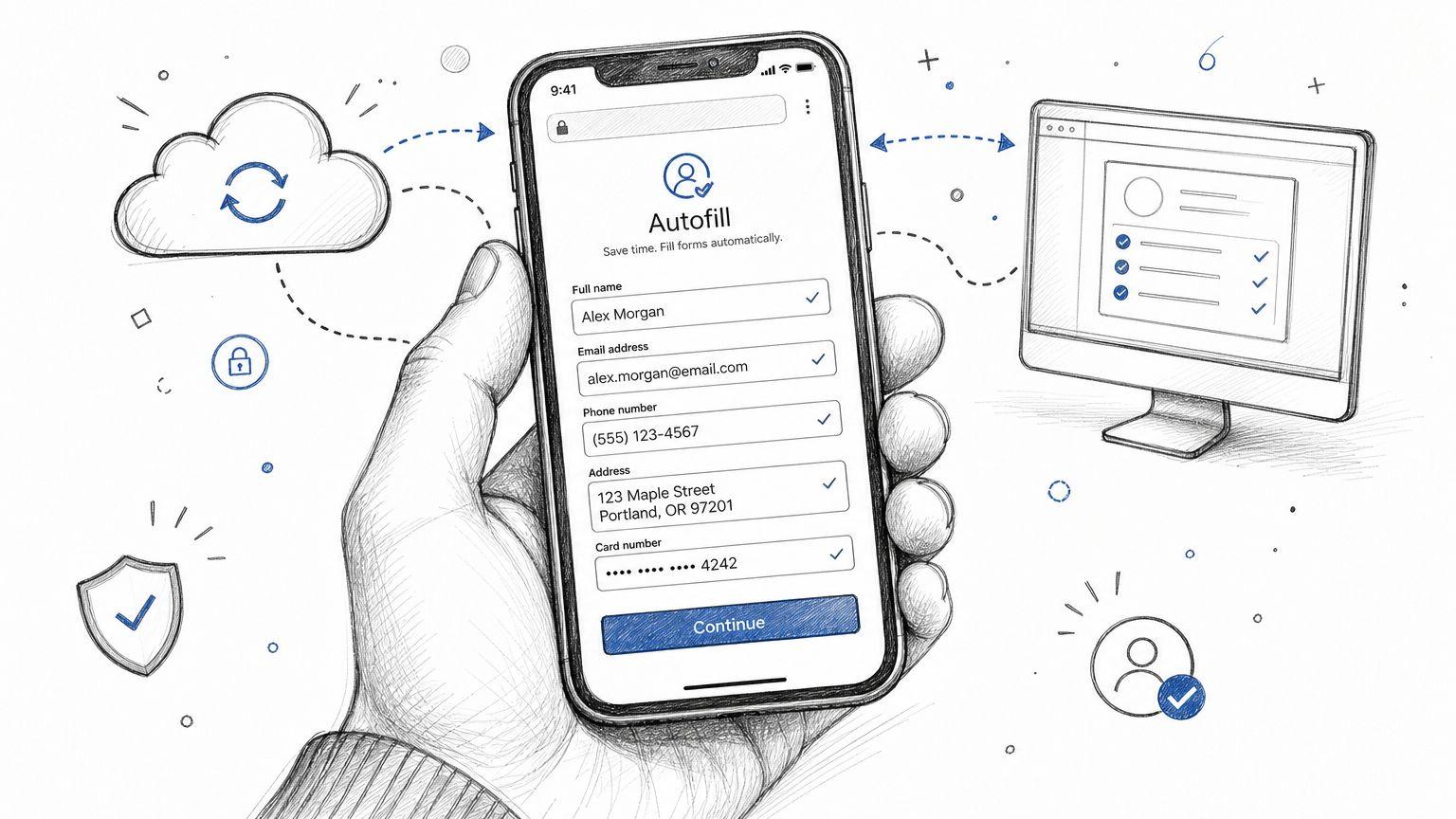
Another reason Autofill saves so much time is sync. If you use Chrome across desktop and Android, saved info can follow you instead of staying stuck on one browser install. That convenience is why people stick with it. It is also why profile separation matters. One signed-in browser profile keeps your data organized. A mixed profile turns Autofill into a guessing game.
If you build forms or want to understand why one site fills perfectly and another fights back, Static Forms has a useful developer's guide to form autofill that explains how browsers interpret fields. Even for non-developers, that gives helpful context for why Chrome gets some forms right and misses others.
Enabling and Configuring Autofill on Desktop
A lot of Autofill problems start on desktop, not because Chrome hides the settings, but because people save everything at once and clean it up later. On a personal laptop, that usually means annoyance. On a family PC or a shared office machine, it can mean the wrong address, card, or login appears at exactly the wrong time.
Chrome separates Autofill into Passwords, Payment methods, and Addresses and more. Keep that separation. It gives you control over what gets stored locally and what should stay out of the browser entirely.
Where to find the settings
Open Chrome and go to Settings. Then open the Autofill section, where those three categories live.
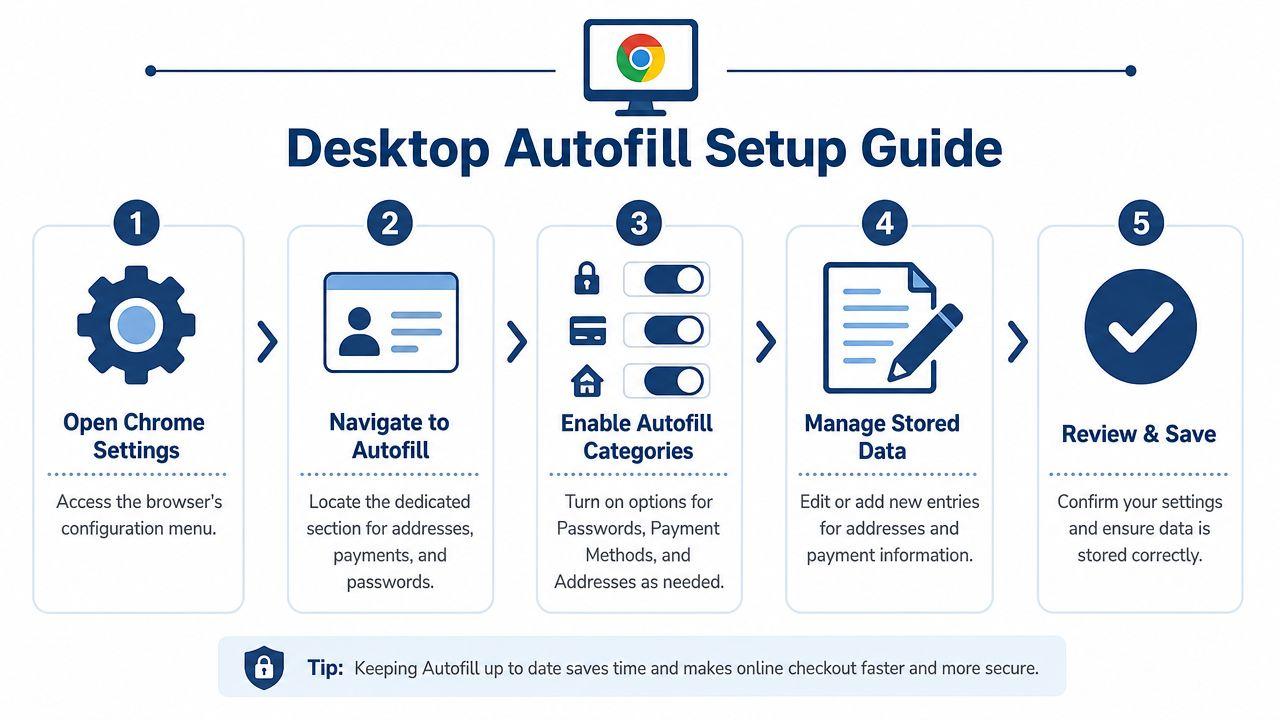
For a new setup, start with Addresses and more first. It saves time quickly, and the downside is usually manageable if you keep the saved entries current. Payment methods and passwords deserve a more deliberate choice, especially on any computer another person can access.
A desktop setup that stays manageable
Use this order:
- Open Addresses and more and turn on Save and fill addresses.
- Add your main address manually instead of waiting for Chrome to capture it from a checkout form.
- Test Autofill on a simple form, such as an account signup or event registration page.
- Turn on Payment methods only on a device you control.
- Review Passwords as a separate decision. If the browser profile is shared, storing passwords in Chrome creates obvious privacy and access problems.
The goal is accuracy, not volume.
If I am setting up Chrome for someone at home, I usually add one current address, one phone number, and nothing else at first. Old apartments, work addresses, and cards you no longer use make Chrome's suggestions worse. The browser works best when the list is short and current.
What to check right away
After the initial setup, review these items before you leave the settings page:
| Setting area | What to do | Why it matters |
| Addresses and more | Save one current address | Cuts down on wrong suggestions |
| Payment methods | Keep only cards you actually use | Makes checkout prompts cleaner |
| Passwords | Decide whether this profile should store them at all | Reduces sharing and access risk |
A simple rule helps here: if you would hesitate to hand the logged-in laptop to a family member, coworker, or IT helper, reconsider what Chrome is allowed to autofill on that device.
Desktop Autofill also behaves better when your Chrome profiles are clean. If two people use the same browser profile, Chrome cannot tell whose shipping address or saved card should take priority. Separate browser profiles fix a lot of Autofill confusion before it starts.
One more point explains why some forms fill perfectly and others do not. Chrome tries to match saved data to the fields a site presents, and some sites label those fields badly or structure them in ways the browser reads poorly. That is usually a site-form issue, not a sign that your setup is broken.
Taking Autofill on the Go with Mobile and Sync
Desktop setup is only half the story. Users often start a task on one device and finish it on another. You look up a product on your laptop, then buy it on your phone. You save an address at home, then need it during a checkout flow while standing in line.
That's where mobile Autofill earns its keep.
What sync is good at
When Chrome is set up the way you want, sync turns one-time setup into an everyday convenience. You save details once, then don't have to rebuild the same address book on every device you own.
That's the upside. The trade-off is obvious but often ignored: sync also spreads mistakes. If an old address, expired card, or bad password gets saved and synced, it follows you everywhere too.
For that reason, mobile Autofill works best when your saved data is curated, not just accumulated.
The Android change most guides miss
Android is where a lot of Autofill advice is already outdated. Google announced that Chrome on Android would natively support third-party autofill services, but users had to change settings to keep using an external service. Then Chrome 131 removed the older compatibility mode path in early 2025, and Google Help now tells Android users to choose either “Autofill with Google” or “Autofill using another service,” as explained in Google's Android autofill changes announcement.
That sounds minor. In practice, it changes setup decisions for anyone using a dedicated password manager.
What to do on Android now
If you use Chrome on Android, check which camp you want to be in:
- Use Autofill with Google if you want Chrome and Google Password Manager to handle the experience end to end.
- Use another service if you rely on a third-party password manager and want Android and Chrome to respect that choice.
- Restart and test immediately after changing the setting, because the experience depends on your Android version, Chrome version, and whether the toggle-and-restart flow completed correctly.
This matters even more in small organizations. If one person uses Google Password Manager and another uses a third-party tool, support gets messy fast. A small team should pick a standard and document it. Mixed setups can work, but they create more user confusion than is commonly anticipated.
On Android, “it used to work” isn't a useful troubleshooting clue anymore. The autofill path may have changed underneath you.
For iPhone and iPad users, the broad lesson is simpler. Review your saved data on a private device, make sure sync reflects what you want to be available elsewhere, and keep sensitive details off devices that are shared casually with family members.
Advanced Autofill Management and Security
A year into using Chrome Autofill is when serious problems show up. Someone moves. A card gets replaced. A work login changes. An old family laptop still has a browser profile with more saved data than anyone remembers.
That is why Autofill security is mostly about maintenance, not setup.
The practical rule is simple. Keep current data. Remove stale data. Save less on devices that are shared, borrowed, or used for both personal and work tasks.
The management work that actually matters
Treat Autofill like a contact list that can expose sensitive details if it gets messy.
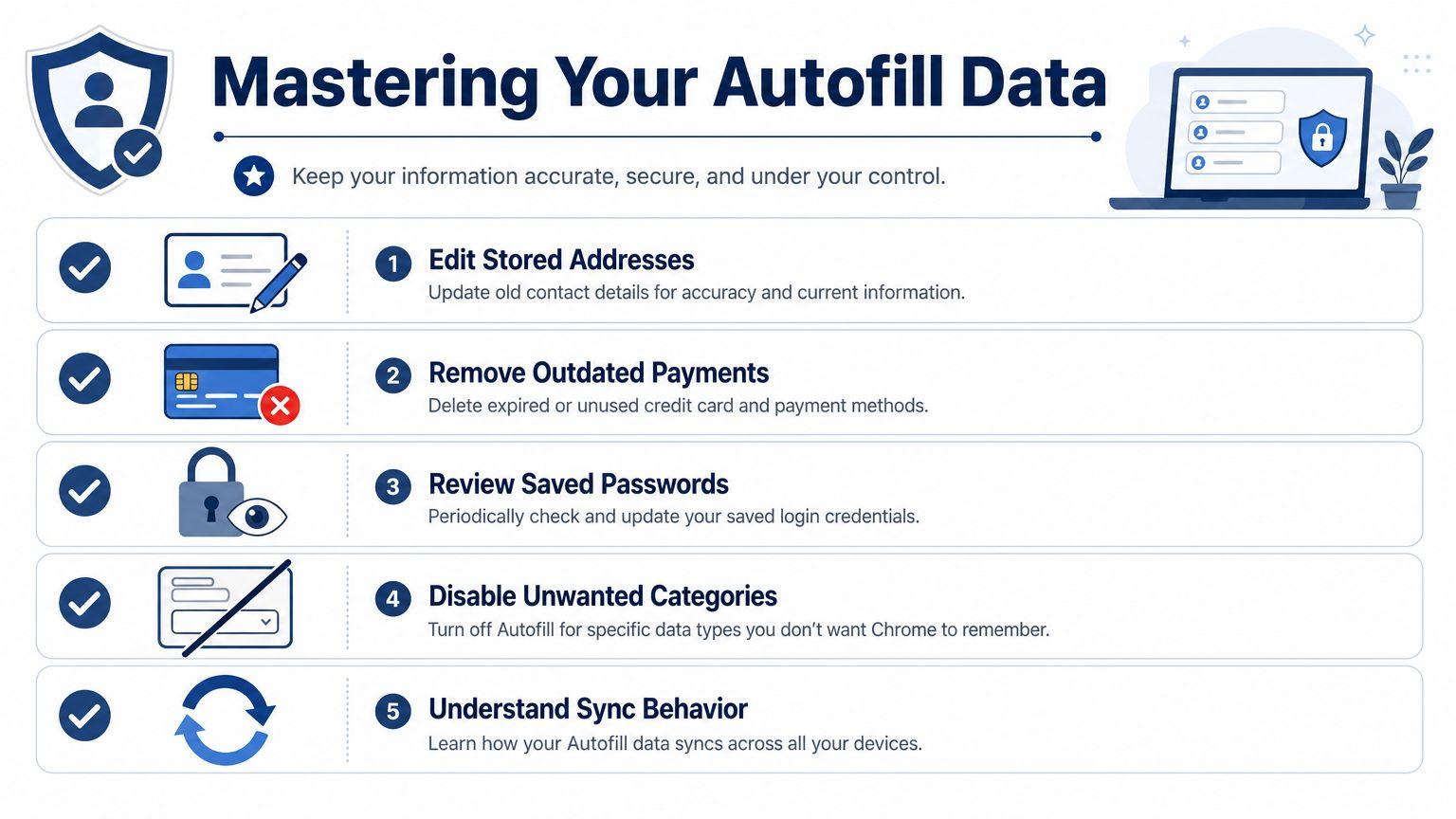
A quick review every so often prevents the common failures people blame on Chrome:
- Update addresses after a move or job change. Old home and work details lead to wrong suggestions and accidental oversharing.
- Delete expired or replaced payment methods. Fewer entries make checkout faster and reduce mistakes.
- Review saved passwords and passkeys in the accounts you still use. Old credentials create confusion, especially if a family member or teammate uses the same device profile by accident.
- Turn off categories you do not want stored on that device. A personal laptop and a shared household computer should not have the same Autofill footprint.
This is boring admin work. It also prevents the two outcomes that matter most. Bad suggestions at the wrong moment, and sensitive data showing up on the wrong device.
What newer Autofill features change
Chrome can now save and fill more than the usual addresses, cards, and passwords. On supported setups, it may offer to store highly specific details such as identification or vehicle information.
Convenience goes up. So does the risk of saving the wrong thing in the wrong place.
On a single-user laptop with a locked profile, that trade-off may be reasonable. On a family desktop, a shared Android tablet, or a small-team machine with casual account switching, it usually is not. The safest default is to keep browser Autofill focused on data you enter often and would not mind seeing suggested in front of someone else.
Use a stricter standard for shared contexts
Shared use changes the decision.
For families, the issue is often accidental exposure, not account compromise. A spouse borrows a laptop to print something. A teenager uses the family Chromebook for homework. A saved address, card nickname, or login prompt appears at exactly the wrong time.
For small teams, the problem is messier. Staff often share devices temporarily, reuse Chrome profiles longer than they should, or mix personal and work browsing on the same machine. In that setup, browser Autofill becomes hard to govern because it was built for convenience first.
Use this filter before saving sensitive data:
| Data type | Good fit for Chrome Autofill | Better kept out of browser Autofill when |
| Home address | Personal device with a private user profile | The device is shared within a household |
| Payment details | Personal laptop or phone with screen lock and profile separation | Multiple people use the same Chrome profile |
| Government ID info | Rarely, and only on a device you control closely | Anyone else can access the device or profile |
| Passwords | Personal use can be reasonable | Personal and work access are mixed, or a team shares hardware |
Save the information you reuse often. Keep high-impact data out unless the device, profile, and usage pattern justify it.
A practical security posture
Use device-level protection first. A locked screen, separate user accounts, and a private Chrome profile matter more than any Autofill toggle.
Then reduce scope. If a device lives in a kitchen, a living room, a front desk, or a small office, save less there.
I also recommend one habit that many guides skip. After cleaning up Autofill data, test what suggestions still appear from a normal form, not just from settings. That is the fastest way to catch old entries, duplicate records, and profile mix-ups before they show up during checkout or sign-in.
Chrome Autofill is useful because it remembers. Good Autofill hygiene means being selective about what it gets to remember.
Troubleshooting Common Autofill Problems
Autofill usually fails in familiar ways. It doesn't show up, it fills the wrong field, it keeps offering bad data, or it stops behaving consistently between devices.
The fix is often smaller than people think.
Autofill isn't showing on a site
Sometimes the problem is Chrome. Sometimes it's the form.
Try this sequence:
- Confirm the category is enabled. If addresses are off, Chrome won't suggest them.
- Check whether you saved matching data. A site asking for a work address won't be helped by a vague or incomplete saved entry.
- Test another site. If Autofill works elsewhere, the problem is likely how that site built its form.
If one checkout page refuses to cooperate, don't assume Autofill is broken globally. Some forms are inconsistent.
Chrome keeps suggesting old or wrong information
This is the most common quality issue.
Fix it at the source:
- Open the Autofill settings for the relevant category.
- Edit the incorrect entry if it's mostly right.
- Delete it if it's outdated or duplicated.
- Re-test on a fresh form.
Chrome tends to repeat whatever you've allowed it to keep. If the saved data is messy, the suggestions will be messy too.
It fills the wrong fields
This usually happens on forms with unusual labels, odd field ordering, or custom layouts.
Do two things:
- Use manual selection instead of blindly accepting the first suggestion
- Correct the saved record so Chrome has cleaner source data next time
For site owners and developers, field mapping quality matters a lot. For everyday users, the practical takeaway is simpler: if a site has a weird form, slow down and verify each field before submitting.
It won't stop trying to save data you don't want saved
Turn off that specific category rather than abandoning Autofill entirely. If you like address fill but hate saved payment prompts, leave addresses on and disable payment storage.
That selective approach works better than all-or-nothing setups. Most frustration comes from one noisy category, not the whole feature.
Using Autofill Safely in a Family or Team
A shared laptop at home or a front-desk office computer can turn Autofill into a quiet privacy problem. The issue is not Chrome doing something unusual. It is saved addresses, cards, and logins appearing for the next person who clicks into a form.
That matters fast in real use. A partner can see a stored work card at checkout. A teenager can trigger an old address suggestion. In a small team, one shared browser profile can expose client billing details, vendor accounts, or admin logins to whoever sits down next.
The safest default is separate Chrome profiles
If more than one person uses the same computer, set up separate Chrome Profiles for each person.
Profiles keep Autofill data, saved passwords, browsing history, extensions, and sync data apart. That boundary does more for day-to-day privacy than trying to remember who should not click "save" on a prompt.
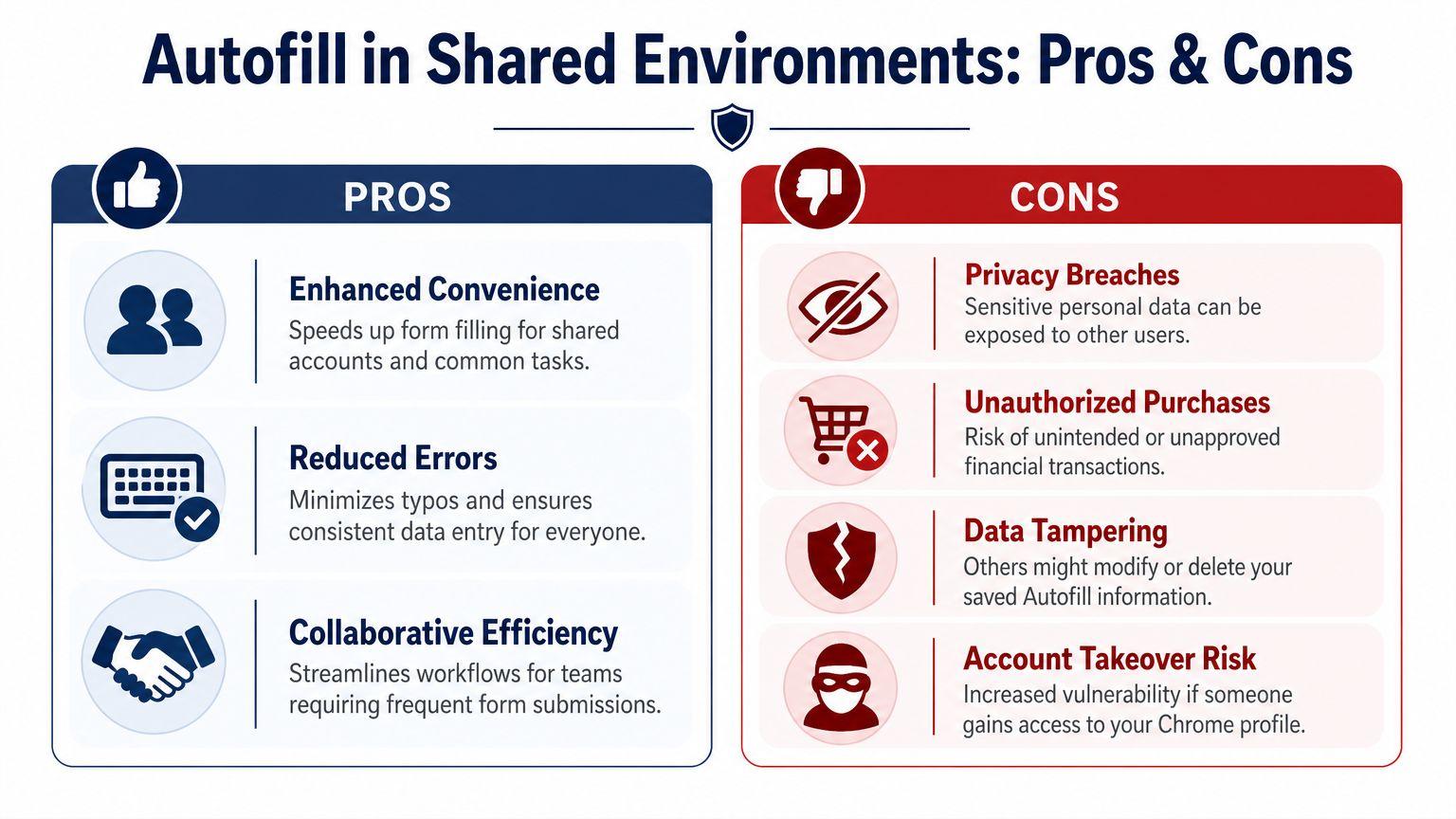
For families, this usually solves the biggest problem. For small teams, it is the minimum setup, not the full solution.
When Chrome Autofill is enough
Chrome's built-in Autofill works well in setups like these:
- One person, one device with a private OS and browser login
- A family computer with separate profiles for each adult
- A very small business where each employee uses their own machine and only needs their own work accounts
In those cases, Autofill stays fast and relatively low-risk because the browser profile maps cleanly to one person.
Where shared work starts to break the model
Chrome Autofill is built for convenience, not team permissions.
That trade-off shows up as soon as credentials belong to a group instead of an individual. If three people need access to the same vendor portal, storing that login in one employee's browser profile creates avoidable problems. Offboarding gets messy. Personal and business data mix together. Nobody has a clean view of who still has access.
Use a dedicated password manager when you need:
- Shared access controls so staff can use a login without casually copying or exporting it
- Cleaner onboarding and offboarding when roles change
- One place for team credentials instead of relying on whoever is signed into Chrome
- Clearer separation between personal and business data
If a credential belongs to the team, it should not live in one person's browser profile.
Pay extra attention on Android
Android adds another layer of confusion because Chrome Autofill can overlap with Google's system-level Autofill service or a third-party password manager. On a shared Android tablet or a work phone that gets passed around, that can blur where suggestions are coming from and which account is supplying them.
The practical rule is simple. Verify which autofill service is active in Android settings, and avoid mixing shared device use with saved payment data or sensitive work logins. Recent Android changes have made third-party autofill support better, but they have not removed the need to check the active provider and lock down the device profile.
Chrome Autofill saves time. It does not create boundaries on its own. You have to set those boundaries with profiles, device access rules, and the right tool for shared credentials.
The same principle applies to AI tools used across a household or small team. If privacy boundaries matter, use products that are designed around them. If your household or team also wants a privacy-first way to work with AI tools without bouncing between separate apps, take a look at 1chat.