Your inbox probably looks familiar right now. A store you bought from once keeps emailing. A newsletter you never remember signing up for won't stop. A few messages look shady enough that you don't even want to open them twice.
The short answer is yes, you can block emails. The better answer is that blocking is only one tool. If you use the wrong one, you'll still feel buried. If you use the right one, your inbox gets quieter fast and stays that way.
A clean inbox usually comes from choosing between four actions:
- Block a sender when one person or one address keeps bothering you
- Unsubscribe when the sender is legitimate but no longer useful
- Filter or create a rule when you want automation
- Report spam or phishing when the message is abusive, deceptive, or clearly unwanted
That difference matters more than most basic guides admit.
Your First Step Beyond the Block Button
If you've searched “can I block emails,” you probably want relief, not a lesson in email systems. Fair enough. But the fastest way to get lasting results is to match the tool to the problem.
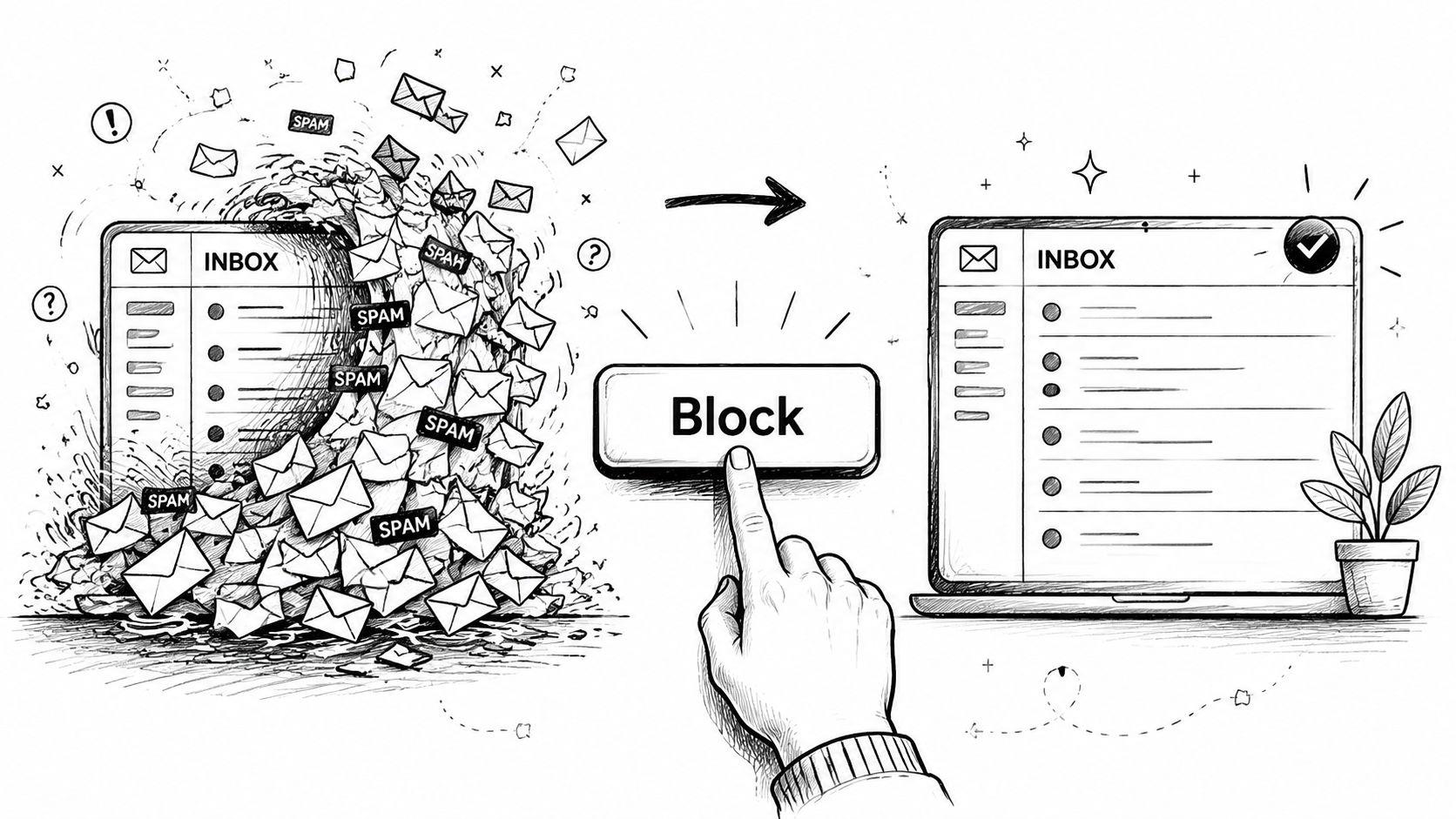
Know what each action actually does
Blocking usually targets a specific sender. It's great for repeat nuisances, one-off contacts you never want to hear from again, and mailing lists that keep coming from the same address.
Unsubscribing is the cleaner choice when the sender is legitimate. Retailers, newsletters, product updates, and event lists often include an unsubscribe option for exactly this reason.
Filters and rules give you more control. You can send messages to Spam, archive them, delete them, or route them somewhere else based on sender, domain, or keywords.
Reporting spam or phishing tells your provider that the message itself is suspicious or abusive. That's different from saying “I personally don't want this.”
Practical rule: If the email is from a real company you recognize, unsubscribe first. If it's deceptive, random, or dangerous, report it as spam or phishing.
Why blocking alone often disappoints
A lot of people expect blocking to work like shutting a door. Email doesn't work that neatly. Many unwanted messages come from rotating or spoofed addresses, which means blocking one sender may stop that exact address but not the next variation. That's why blocking a single address is usually weak against modern spam, while spam filters and marking messages as spam are the stronger layer of defense, as noted in this video explanation of spoofed and rotating spam senders.
That's the key mindset shift. Blocking helps with known repeat senders. It doesn't solve the whole spam problem.
A simple decision guide
Use this when you're not sure which button to hit:
| Situation | Best action | Why |
| Store emails you no longer want | Unsubscribe | It tells a legitimate sender to stop |
| One person keeps emailing you | Block sender | Fastest fix for a repeat address |
| Messages keep coming from the same company domain | Filter or domain rule | Better than blocking one address at a time |
| Obvious junk or scam attempt | Report spam or phishing | Helps provider filtering do more of the work |
Once you understand that, inbox cleanup gets much easier.
The Quick Fix Blocking Senders and Unsubscribing
When the problem is straightforward, use the built-in tools and move on. This is the quickest path for newsletters, persistent contacts, and low-level inbox clutter.
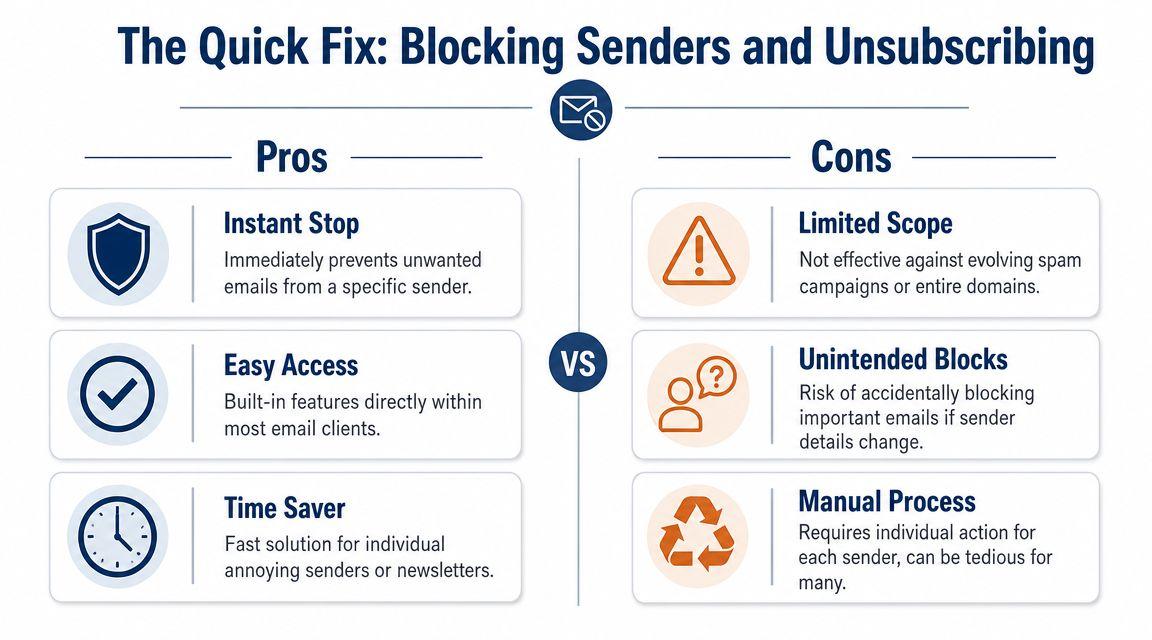
Email platforms usually treat blocking as a sender-level filter, not a full erase button. Gmail admin tools can block a specific address or an entire domain, and Outlook's Block Sender action routes future mail to Junk instead of making it vanish from the system, according to Google's Gmail blocking documentation.
Start with unsubscribe when the sender is legitimate
If the message is from a retailer, software company, nonprofit, school, or newsletter you recognize, scroll for the unsubscribe option first. That's usually cleaner than blocking because it asks the sender to remove you from future campaigns instead of just rerouting mail on your side.
For broader habits that reduce clutter across text and email, these tips for managing digital junk mail are a useful companion read.
Gmail
In Gmail on the web:
- Open the message.
- Click the menu in the message area.
- Choose Block for that sender.
What happens next depends on the tool you chose. A block is usually enough for an annoying sender. If you need help sorting common account questions while cleaning things up across your tools, the 1chat FAQ is a simple reference point.
Outlook
In Outlook:
- Open the email.
- Find the sender options or message actions.
- Choose Block Sender.
Outlook then sends future messages from that sender to Junk. That's convenient, but it's still not the same as stopping all mail from reaching the mailbox environment.
Apple Mail
Apple Mail can block contacts and send blocked messages to Trash or mark them as blocked, depending on your setup and device. The exact menu can vary between macOS and iPhone or iPad.
Use Apple Mail blocking for individuals and repeat senders. If you need more advanced behavior, Apple's native experience is usually less flexible than webmail settings from the provider behind your account.
Blocking is best when you know exactly who you want to stop. It's not the best answer for widespread spam.
When this quick fix works best
- A former contact keeps emailing
- One newsletter ignores your attention and keeps resurfacing
- A single sender repeats the same unwanted pitch
- You want a fast fix without building rules
If you're asking “Can I block emails from one person right now,” this is the right lane. If your real question is “How do I stop this whole category,” filters are where things get better.
Gaining Advanced Control With Filters and Rules
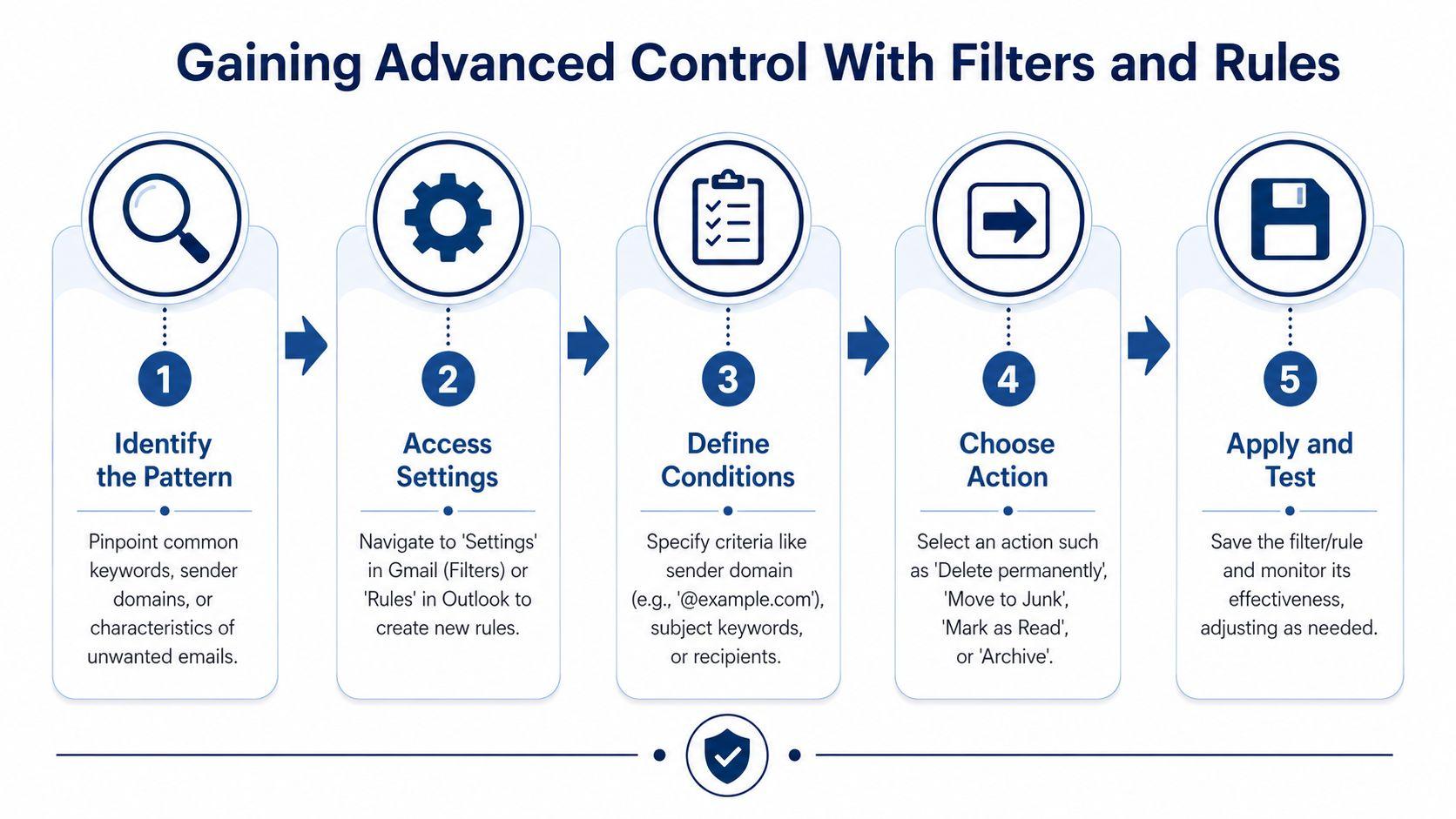
Blocking one sender at a time gets old quickly. Filters in Gmail and rules in Outlook are how you take back control when the pattern is bigger than one address.
When filters beat blocking
Use a filter or rule when:
- The sender keeps changing addresses but uses the same domain
- The same type of promo keeps appearing with predictable subject lines
- You want to archive low-value mail instead of seeing it in your inbox
- You want messages deleted automatically without touching them
At this point, many people finally stop asking “Can I block emails?” and start asking the better question: “How do I automate the cleanup?”
Gmail filters
In Gmail, there's an important difference between a block and a filter. The Block function sends future messages from that sender to Spam, while a filter can automatically delete or archive matching messages. That's stronger, but also riskier, because a forgotten delete filter can make it look like blocking failed when the filter is removing the mail, as explained in this guide on blocking and filtering in Gmail.
Here's a practical setup for a domain you never want to see in your inbox:
- Open Gmail settings.
- Go to filters.
- Create a new filter using the sender field.
- Enter the domain pattern you want to catch.
- Choose the action. Delete, archive, or skip inbox.
If you want ongoing workflow ideas for organizing communication and digital tasks, the 1chat blog covers adjacent productivity topics.
Outlook rules
Outlook rules are strong when the same junk follows a pattern. For example, you can target:
- a sender domain
- words in the subject line
- messages sent to a specific alias
- recurring low-priority notices you want moved elsewhere
A good rule is narrow enough to avoid collateral damage. Start with one condition. Watch it for a few days. Then widen it only if the same messages keep slipping through.
Delete rules are powerful. They're also the easiest way to hide legitimate mail by accident.
A safe progression
I usually recommend this order:
| If the problem is | Use | Risk level |
| One sender | Block | Low |
| One legitimate list | Unsubscribe | Low |
| One domain or repeated pattern | Filter or rule | Medium |
| Anything suspicious or deceptive | Report spam or phishing | Low for your inbox, helpful to provider filtering |
One final note. If you're managing conversations across different apps and AI tools while triaging digital clutter, products like 1chat exist for consolidating multiple models in one place. That's a workflow choice, not an inbox filter, but it can reduce some tool sprawl that contributes to notification fatigue.
How to Block Emails on Your Phone
Individuals often manage their inboxes away from a desk. They do it while waiting in line, walking between meetings, or trying to clear notifications before bed. Mobile apps are good for quick actions. They're not always great for advanced control.
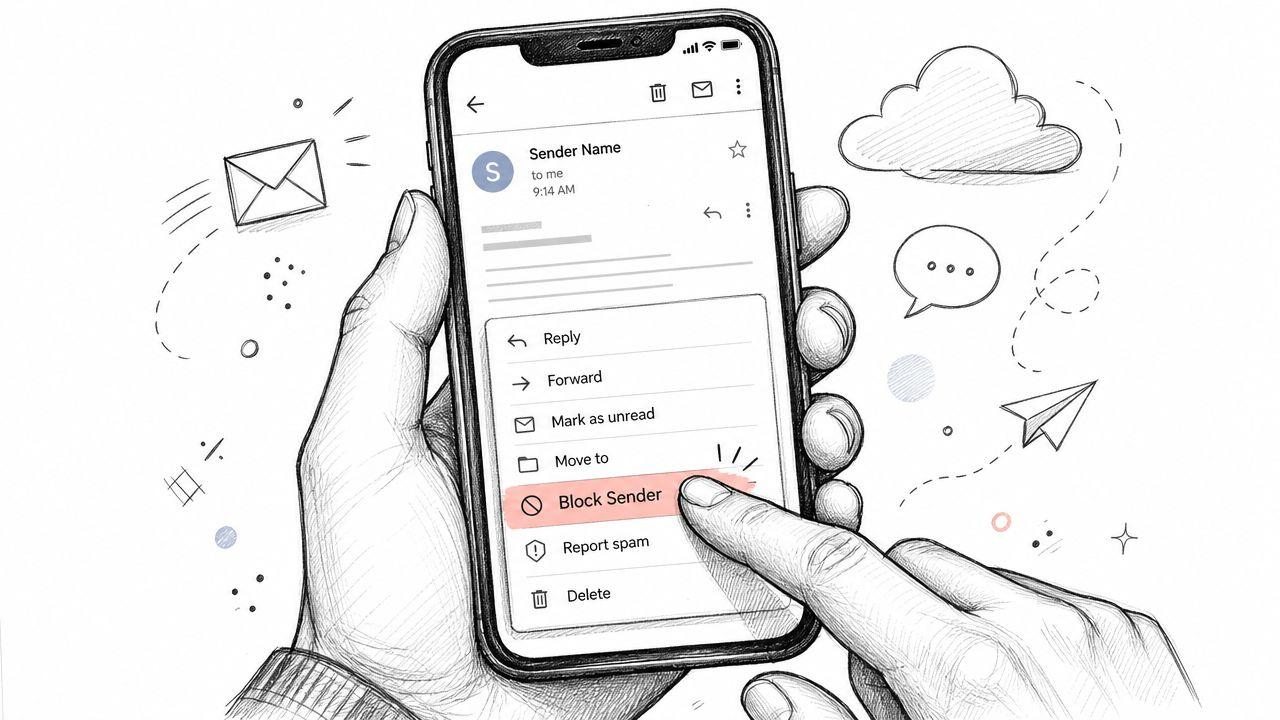
Gmail and Outlook apps
On the Gmail app, open the message, tap the menu, and look for the sender options. If the email is from a nuisance sender, blocking is quick. Reporting spam is also easy from the same general area.
On the Outlook app, open the message, tap the menu, and use the block or junk-related actions available for your account type. This works well for one sender at a time.
These apps are ideal for triage. You spot junk, you act, you move on.
iPhone and iPad Mail
The iOS Mail app can handle basic sender management, but it's comparatively limited for deeper rule-building. Users often want to block by domain or keyword, but that depends heavily on the provider behind the mailbox and is often restricted in native mobile apps. Microsoft's Outlook documentation also notes that native mobile experiences can be limited, and iOS Mail may require server-side filters set up on a computer, as described in this Outlook sender blocking reference.
Use your phone for this and your computer for that
Use your phone when:
- You need a quick sender block
- You want to report spam immediately
- You're unsubscribing from a real mailing list
- You're clearing obvious clutter fast
Use a computer when:
- You want domain-level filtering
- You need keyword rules
- You want messages auto-deleted or archived
- You need to review existing filters so nothing important disappears
The phone is for speed. The web settings are for precision.
If mobile blocking feels incomplete, that's usually not you missing a hidden button. It's the app limiting what you can do.
Blocking Emails for Your Business or Team
A personal inbox problem becomes a different job when multiple people in a company are getting hit by the same nuisance. At that point, user-level blocking isn't enough. You need policy.
Microsoft 365 and Google Workspace approach
In Microsoft 365, admins can move from individual blocked senders to broader controls like anti-spam policies, mail flow rules that set Spam Confidence Level to 9, and the Tenant Allow/Block List, according to Microsoft's guidance on blocking email in Microsoft 365. That matters because high-confidence spam handling happens in the provider's filtering engine, not just inside one user's inbox.
Google Workspace admins can also block by address or domain at the tenant level if they have the right Gmail settings privileges. That's useful when the same external source keeps hitting multiple users.
The safe way to escalate
The best admin workflow is usually narrow first, broad later.
- Identify the scope
Is this one sender, one domain, or a pattern across many users? - Apply the smallest useful block
Start with the single sender or smallest matching rule. - Watch for evasion
If the source rotates addresses under one domain, expand carefully. - Escalate only when needed
Tenant-wide controls are powerful. They also carry more risk.
A lot of inbox damage inside companies comes from overcorrecting. One aggressive domain rule can suppress messages from a vendor, client system, or shared sending service you need.
The risk most admins learn the hard way
Overblocking is a genuine danger. Domain-level rules and aggressive spam handling can catch legitimate mail, especially when a sender uses shared infrastructure or relays through a third party.
That's why good admins don't treat blocking like a hammer. They treat it like change control.
| Admin scenario | Best first move | Why |
| One user has a nuisance sender | User-level block | Lowest impact |
| Many users get mail from one bad domain | Domain rule | Targets the shared source |
| Organization-wide spam pattern | Anti-spam policy or tenant list | Scales better than manual blocks |
| Unclear source with mixed legitimacy | Review before broad enforcement | Reduces false positives |
For broader thinking on company safeguards, this practical Networking2000 email security advice is worth reading alongside your admin documentation.
Troubleshooting and Common Questions Answered
Sometimes you block a sender and the emails still show up. Sometimes you unsubscribe and the messages keep coming. Sometimes the email feels dangerous and you want to know whether opening it caused any risk.
The good news is most of these issues have a simple explanation.
Why blocked emails still appear
The most common reason is that the sender changed addresses. Blocking is often address-based, so a new variation gets around your old block.
Another common cause is a filter conflict. If a message is being archived, deleted, or routed elsewhere by a rule, it can look like the block didn't work or did something strange.
Block versus report spam
These are not the same action.
Block says you don't want messages from that sender.
Report spam says the message itself is junk and should help train the provider's filtering systems.
This distinction matters more now because email control has shifted toward provider-managed filtering. Gmail requires bulk senders to include clear unsubscribe options and says unsubscribe requests should be processed within two days in its current framework, as summarized in this write-up on modern unsubscribe and filtering standards.
If a message is part of a real mailing list, unsubscribe. If it's abusive or deceptive, report it.
Will the sender know I blocked them
In normal use, the sender isn't notified that you blocked them. They typically just keep sending as usual, and your mailbox provider handles the message according to your settings.
That said, if you keep replying, clicking, or interacting with the sender in other ways, you're obviously still visible to them. Blocking doesn't make you invisible. It just changes how your mailbox handles future mail.
Can an email give you a virus
The risk usually comes from what you click or open, not from the mere existence of a message in your inbox. If you want a plain-English explanation of what's risky and what isn't, this guide to email virus risks and protection is a helpful companion.
If you're reviewing privacy-related settings while cleaning up online accounts, the 1chat privacy page is one example of the kind of policy page worth checking whenever you use online tools.
A final practical checklist
- Use unsubscribe for legitimate lists you no longer want
- Use block for repeat senders and nuisance contacts
- Use filters or rules when the problem is broader than one address
- Use report spam or phishing for suspicious or abusive mail
- Review your filters if mail seems to disappear unexpectedly
A cleaner inbox doesn't come from pressing one magic button. It comes from using the right control for the right kind of email. Once you start doing that, the inbox feels manageable again.