You're probably staring at a draft email right now and hesitating before you hit Send.
Maybe it has a signed contract, bank details, tax records, medical information, a school form, or a password reset screenshot you know you shouldn't be emailing at all. Gmail feels familiar, fast, and safe enough for everyday use. But “safe enough” and “private” aren't the same thing.
That's where people get stuck with Gmail encrypted email. They hear that Gmail is encrypted, then assume every message is private from end to end. In practice, Gmail gives you several different layers of protection, and they don't all solve the same problem.
If you only remember one idea from this guide, remember this: email security has levels. Some tools protect messages while they travel. Some help reduce forwarding or casual sharing. Some keep message content unreadable unless the right recipient opens it. And some are built more for enterprises than for a family or a small shop with five employees.
Why Sending a Standard Email Is Like Shouting in a Crowd
A standard email often feels private because it lands in one person's inbox. But the path it takes matters.
Think about a small business owner sending payroll details to a bookkeeper, or a parent emailing a scanned insurance card to a school office. The message may only be intended for one person, yet several systems can handle it before it arrives. That's why many people feel a flash of doubt right before clicking Send.
Email was built for delivery first, not secrecy first. That doesn't mean Gmail is careless. It means regular email behaves more like a public utility than a locked filing cabinet.
Here's a simple analogy. Talking in a crowded room is fine if you're asking where to meet for lunch. It's not fine if you're reading out someone's Social Security number. Standard email can create that same mismatch. It's convenient for normal communication, but not always appropriate for sensitive details.
Practical rule: If the message would make you uncomfortable on a postcard, pause before sending it as a normal email.
That pause is healthy. It's the moment when encryption becomes useful.
For many readers, “Gmail encrypted email” really means one of three different goals:
- Basic safety: You want email protected during delivery.
- Controlled sharing: You want limits like expiration or no copying.
- True privacy: You want the content locked so only the intended recipient can read it.
Those goals sound similar, but the tools behind them are different. Once you know which one you need, Gmail gets much easier to use wisely.
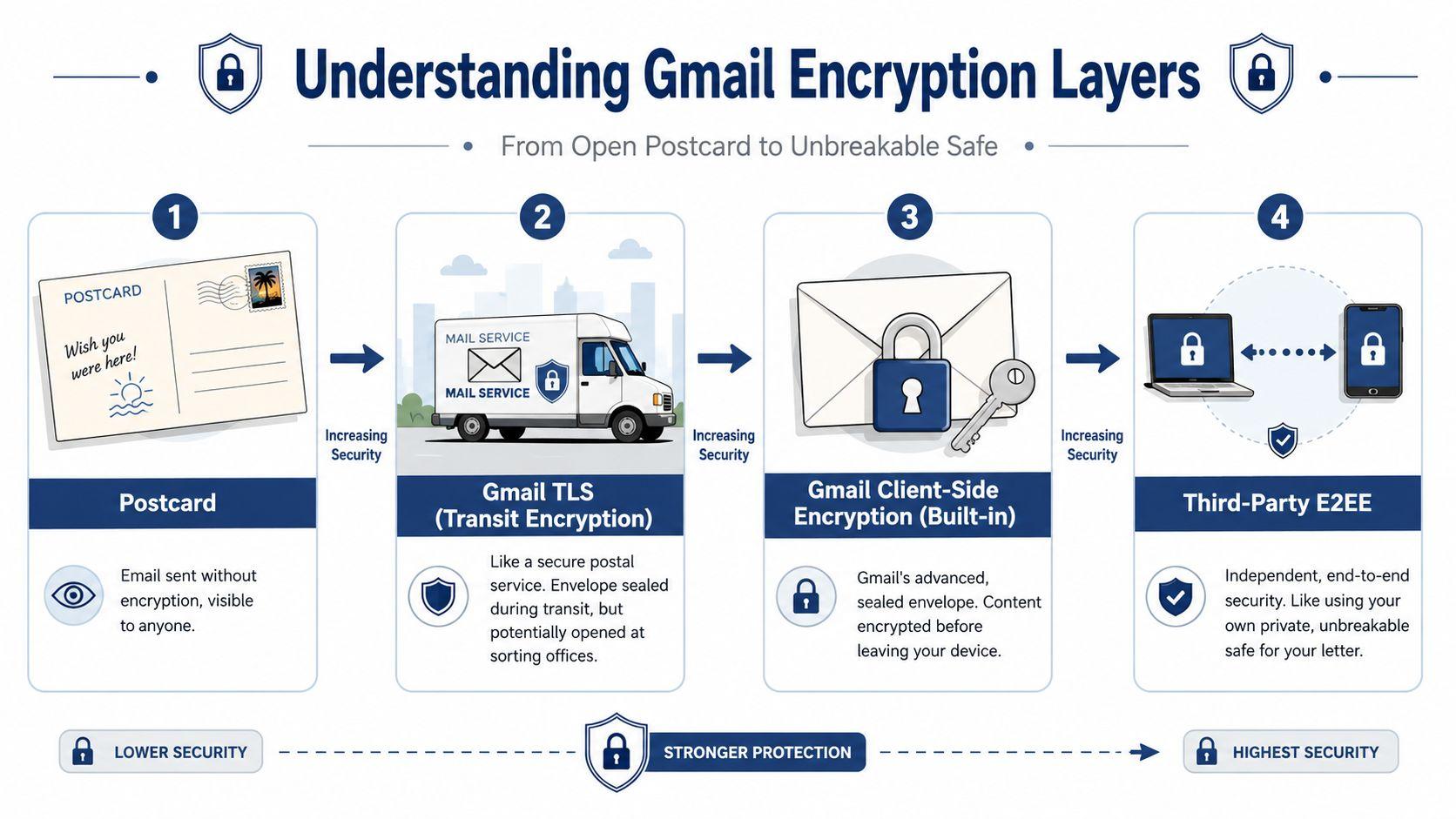
Understanding the Layers of Gmail Encryption
A lot of the confusion around "Gmail encrypted email" comes from treating encryption like a single on or off switch.
It is closer to a set of locks placed at different points in the delivery process. One lock protects the message while it travels between mail servers. Another can protect stored data on a provider's systems. A stronger option can lock the message before it leaves the sender, so the provider handling delivery cannot read the contents.
Four layers people often lump together
Layer 1: No meaningful encryption
This is the risky version. If a message is sent through systems that do not protect it in transit, the contents are easier to intercept or expose.
Layer 2: Transport encryption
Gmail commonly uses TLS while a message moves between email servers. That protects the message during handoff, which is useful for everyday communication. But the provider handling the message can still process the content on its side. For a small business, this is usually fine for scheduling, quotes, and routine updates. It is a poor choice for tax forms, medical records, or account details.
Layer 3: Encryption controlled by the provider
Some email services protect messages while they are stored and add administrative controls around access. This improves security, especially for organizations that need policy controls and auditing. It still does not guarantee that only the sender and recipient can read the content.
Layer 4: End-to-end encryption
This is the privacy-focused model people often mean when they say they want encrypted email. The content is locked on the sender's side and opened on the recipient's side. If you are sending legal documents to a client, financial aid records to a student office, or family identity documents, this is the layer that best matches the sensitivity of the message.
Privacy and inbox security solve different problems
Gmail also protects users in ways that have nothing to do with keeping a message body secret. Google describes Gmail's defenses against spam, phishing, and malware on its Gmail security overview. That matters because many email threats come from fake invoices, credential theft, and malicious links, not from someone tapping the connection between sender and recipient.
So it helps to separate two questions:
- Is the message hard to intercept?
- Is the message itself private from the service handling it?
Those answers are not always the same.
The part many senders forget
Even with stronger encryption, some email details often stay visible so the message can be routed correctly. Microsoft explains this clearly in its overview of message encryption basics. In plain terms, the outside of the message still needs addressing information, much like a shipping label on a package.
That usually includes:
- Recipient and sender addresses
- Timestamps
- Subject line
- Other routing metadata
The message body and attachments may be protected. The subject line often is not.
This catches people off guard. A parent carefully secures a medical form, then writes "Ella's ADHD evaluation report" in the subject line. A student protects an attachment, then uses "appeal for disciplinary action" as the email title. A business owner sends an encrypted file, then labels it "Q4 payroll corrections for terminated staff."
The safer habit is simple. Keep sensitive detail out of the subject line. Put the private information inside the protected content instead.
What this means for small businesses, families, and students
The right layer depends on what you are trying to protect.
Small businesses usually need a mix. Routine client communication can travel with standard Gmail protections, while contracts, HR files, tax records, and banking documents deserve stronger controls or end-to-end tools.
Families often care less about corporate compliance and more about limiting exposure of health, school, and identity documents. For them, the biggest improvement is knowing when regular email is enough and when to switch to a more private method.
Students deal with a different threat model. Their risk often involves shared devices, school-administered accounts, and sensitive academic or financial documents. They need to pay attention not just to encryption, but also to who controls the mailbox and can access the account.
Once you see Gmail encryption as layers instead of a single feature, the choices become much easier to make.
Using Gmail's Built-in Security Toolbox
A good way to choose the right Gmail tool is to start with one question: what problem are you trying to solve?
Sometimes you want to stop casual forwarding. Sometimes you want a message to expire. Sometimes you need stronger protection because you are sending payroll details, a student record, or a family health document. Gmail includes tools for each of those situations, but they are not interchangeable.
Pick the tool by the job
Here is the practical split:
| Gmail tool | What you use it for | Good fit | Where it falls short |
| Standard Gmail sending | Regular day-to-day email | Scheduling, status updates, low-risk client communication | Not the right choice for highly sensitive files |
| Confidential Mode | Limiting access and discouraging easy sharing | Temporary notes, draft documents, one-time instructions | It adds controls, but it is not the same as end-to-end secrecy |
| Client-side encryption in Workspace | Sending high-sensitivity content inside a managed business setup | HR records, legal documents, financial files, regulated information | Usually requires Google Workspace setup and admin involvement |
That table matters because many people treat these options like three versions of the same lock. They are closer to three different tools in a toolbox. A screen privacy filter, a locked filing cabinet, and a document shredder all improve privacy, but you would not swap one for another and expect the same result.
How to use Confidential Mode well
Confidential Mode works best when your goal is to control access after sending.
You can set an expiration date and, in some cases, require a passcode. You can also reduce easy actions like forwarding, copying, downloading, or printing inside the Gmail experience. Google explains the workflow in this Google Workspace video overview.
That makes it useful for situations like these:
- Small business: sending a draft proposal or internal policy that should not keep circulating for months
- Family: sharing school pickup instructions or a temporary document with a relative
- Student: sending a short appeal note or tutoring feedback that does not need to live in multiple inboxes forever
It helps to picture this as putting rules on the letter after delivery, not sealing the letter so only the recipient can read it. If you need stronger privacy than access controls can give, use a different method.
When standard Gmail is enough
Regular Gmail sending is fine for plenty of normal communication.
Meeting invites, simple follow-ups, project check-ins, homework reminders, and basic customer service replies usually fit here. For a small business, this covers a large share of daily email. For families, it may be the default for routine coordination. For students, it works for ordinary class communication that does not expose private records.
The mistake is not using regular Gmail. The mistake is using it for information that would cause real harm if the wrong person saw it.
When Workspace client-side encryption makes sense
Client-side encryption is the option to consider when your organization needs tighter control over sensitive messages and has the staff or provider support to set it up.
This is usually a business decision, not a casual setting you flip on during lunch. A small company handling contracts, tax forms, employee files, or protected client data may decide the extra setup is worth it. A family using personal Gmail usually will not go this route. A student on a school-managed account usually cannot control this setting at all because the school administers the account.
A simple rule helps here:
- Use standard Gmail for ordinary communication
- Use Confidential Mode when you want limits on sharing or lifespan
- Use client-side encryption when the message itself needs stronger protection and your Workspace setup supports it
Before sending sensitive email, check two things: what Gmail account you have, and what kind of recipient you are sending to. A personal Gmail inbox, a school-managed account, and a business Workspace account do not offer the same controls.
That small habit saves a lot of confusion. It also keeps you from relying on a convenience feature when the situation calls for a stronger privacy workflow.
Exploring Third-Party End-to-End Encryption Tools
When Gmail's built-in tools don't go far enough, people usually start looking outside Gmail itself.
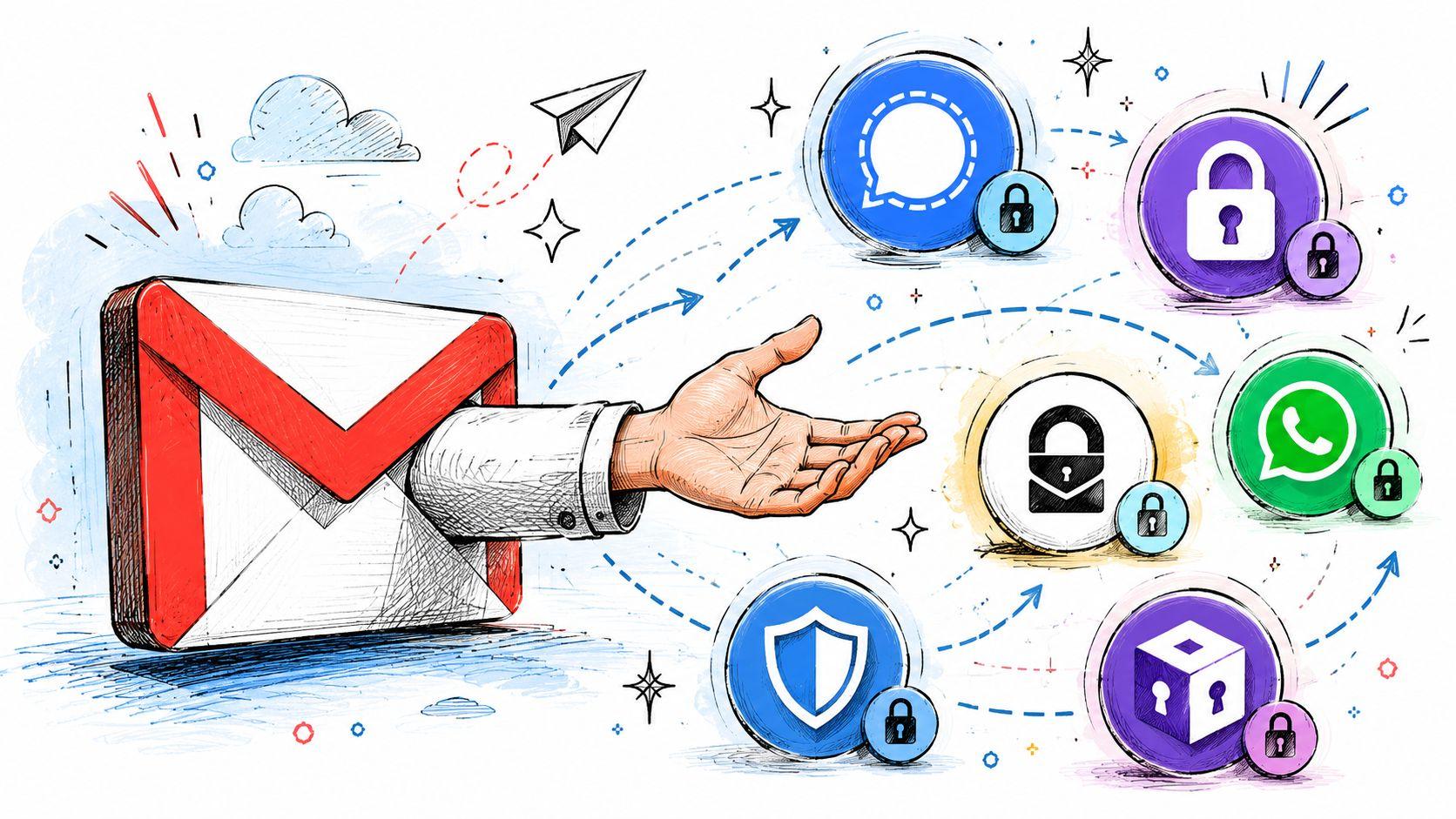
That doesn't always mean abandoning Gmail. Sometimes it means adding a tool that encrypts content before it reaches Gmail. Other times it means using a separate secure service only for the most sensitive conversations.
What third-party E2EE changes
Third-party end-to-end encryption tools usually aim for a zero-knowledge style model. In plain English, that means the provider is designed so it can't casually read your message content because the content is encrypted before it reaches their readable systems.
That's appealing when your concern isn't just hackers in transit. It's also about minimizing who can access the message at all.
You'll generally run into two approaches:
- Gmail add-ons or browser-based tools that work alongside the Gmail interface
- Dedicated secure communication providers that handle sensitive conversations in a separate app or portal
Neither path is automatically better. The right choice depends on how much convenience you're willing to trade for privacy.
The trade-offs are real
Third-party tools usually add steps. The recipient may need an account, a shared password, a private key, or access through a secure portal. That can be perfectly reasonable for a lawyer, accountant, or clinic. It can feel like overkill when you're sending a soccer schedule to parents.
For many small organizations, the sweet spot is mixed use:
- Keep normal Gmail for everyday communication.
- Use stronger E2EE only for specific message types.
- Train staff so they know which lane each message belongs in.
That “lane” mindset prevents two bad outcomes. One is using weak protection for sensitive data. The other is making every email so cumbersome that people stop following the process.
If you want a broader privacy and productivity perspective for teams using AI and communication tools together, the 1chat blog covers adjacent workflow topics in a family and small-business context.
Choosing the Right Encryption Strategy for You
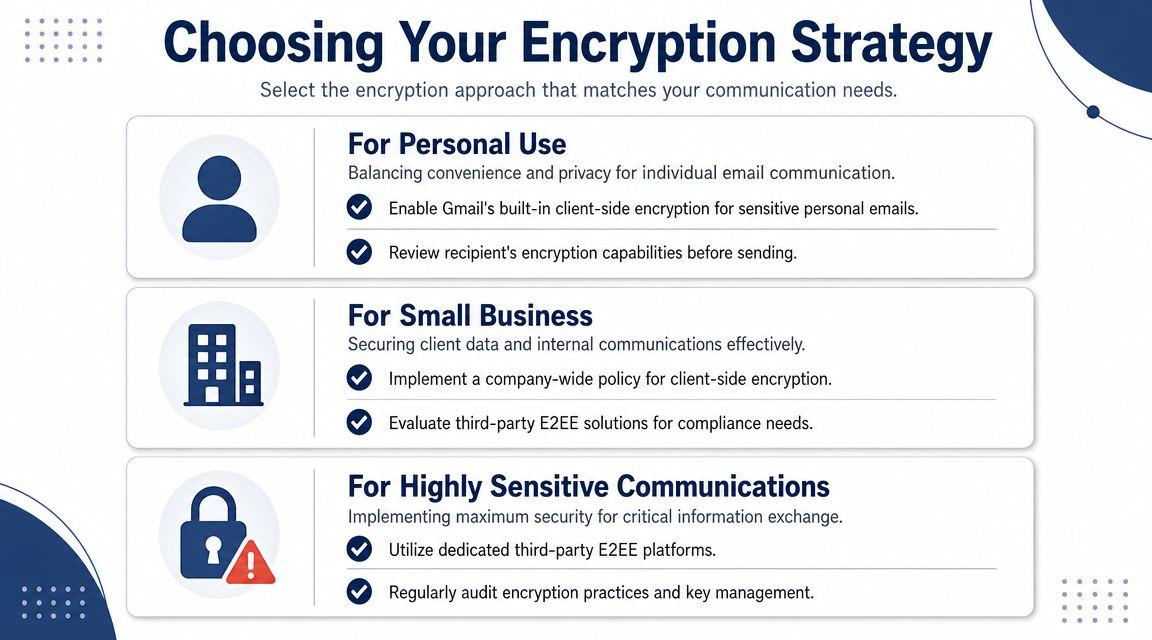
A good Gmail encrypted email plan starts with one practical question. Are you sending a postcard, a sealed letter, or a locked box with the key delivered separately?
That is the crucial decision for small businesses, families, and students. The right setup depends on the message, the recipient, and how many extra steps people will follow.
For small businesses
Small businesses usually need a lane system, not a single tool for every email. You might send a harmless scheduling update at 9 a.m., then payroll files or signed contracts after lunch. Treating those messages the same creates confusion.
If you use Google Workspace, Google's client-side encryption option is part of the higher-security path discussed earlier. The main takeaway is simple. It is designed for organizations that want tighter control over who can access sensitive messages and the encryption keys behind them.
A practical workflow looks like this:
- Routine communication: Use standard Gmail for scheduling, basic questions, status updates, and normal client communication.
- Light control needs: Use Confidential Mode when your goal is to reduce casual forwarding or limit how long access stays open.
- High-sensitivity material: Use client-side encryption in Workspace, if available on your plan, or a separate secure platform for HR files, legal documents, financial records, and customer data.
That policy becomes much easier to follow if you put it in plain language.
| Message type | Recommended path |
| Scheduling, updates, general questions | Standard Gmail |
| Temporary access, draft review, low-stakes sharing control | Confidential Mode |
| Legal, financial, HR, customer-sensitive data | Client-side encryption or third-party E2EE |
One part of this often trips up small teams. If your business controls the keys, someone has to own that process. Who creates them, who can rotate them, and what happens when an employee leaves? If those questions feel murky, EnvManager's secrets guide gives a useful foundation because key control and secrets management follow the same basic discipline.
For families
Families usually do not need enterprise-grade protection for everyday email. They do need a clear rule for when to stop using ordinary email and switch to something safer.
A useful household workflow is:
- Use normal Gmail for everyday notes, school reminders, and routine coordination.
- Use Confidential Mode for lower-stakes situations where you want some sharing limits, such as travel details or temporary document access.
- Use a stronger secure tool, portal, or separate protected channel for tax forms, scanned IDs, legal paperwork, insurance documents, or account recovery details.
The postcard versus sealed-letter idea helps here. A school event reminder is a postcard. A passport scan is not.
Parents often run into trouble because the email feels familiar, so the risk feels small. But a scanned birth certificate, custody document, or banking form can create long-term problems if it lands in the wrong inbox. For those items, a secure portal or password manager sharing feature is often a better fit than email at all.
For students
Students are in a mixed position. Their inbox may hold class messages one hour and financial aid paperwork or unpublished research the next.
The easiest approach is to sort by use case.
Everyday academic use
Standard Gmail is usually fine for class coordination, professor communication, club planning, and normal campus life.
Sensitive school paperwork
Use the institution's secure option first for admissions documents, accommodation records, financial forms, or ID materials. If the school gives you a portal, use the portal instead of attaching files to a regular email.
Research and collaboration
Unpublished work, private interview notes, and sensitive project files deserve stronger protection. A third-party end-to-end encrypted workflow can be worth the extra step if the material would cause harm, embarrassment, or policy trouble if exposed.
One simple habit helps students more than they expect. Keep academic and personal accounts separate. Forwarding sensitive university mail into a casual personal inbox may feel convenient, but it weakens the boundary around important records.
Avoiding Common Security Pitfalls and Best Practices
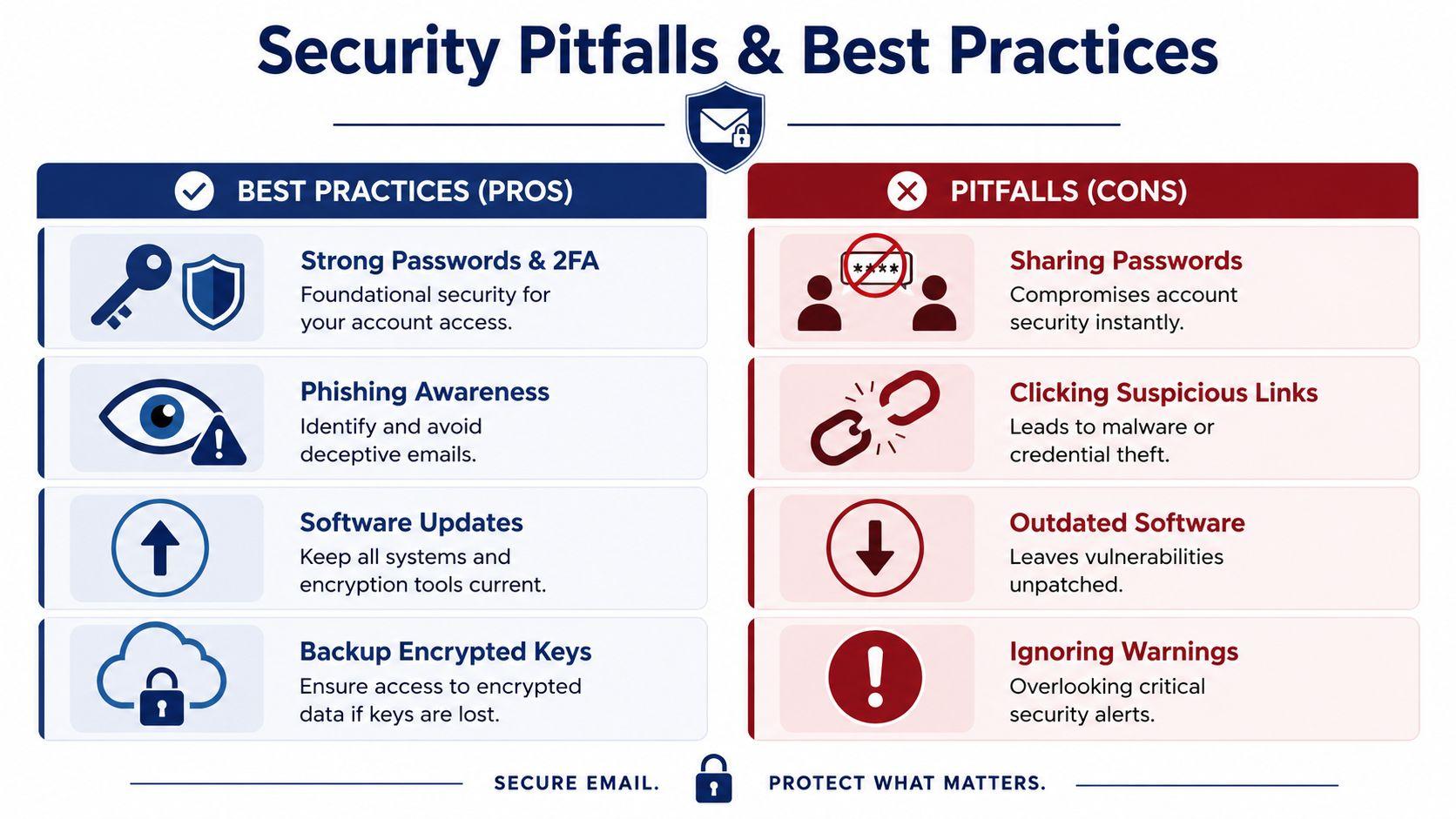
Encryption helps, but it doesn't fix poor account security or bad habits.
A locked letter still fails if you hand the key to the wrong person. That's why most email incidents happen around passwords, phishing, and mistaken recipients rather than dramatic cryptography failures.
Habits that matter more than people expect
- Use a strong unique password: Your Gmail account security is the front door. If the account gets taken over, message encryption choices matter much less.
- Turn on two-factor authentication: This adds a second barrier when someone tries to log in with a stolen password.
- Double-check recipients: Auto-complete causes more leaks than many people realize. Slow down before sending sensitive material.
- Keep subject lines bland: Sensitive details in the subject line can expose too much.
- Update devices and apps: Old software makes every other protection weaker.
Watch for attacks that bypass encryption entirely
Phishing is the classic example. A fake login page can trick you into giving away access before encryption ever enters the picture. If you want a practical refresher on protecting against future Gmail scams, that guide is useful because it focuses on the kinds of attacks real users see.
Another overlooked issue is privacy settings outside email content. If you're sharing files, using AI tools, or storing sensitive account information in connected services, your broader privacy posture matters too. The 1chat privacy page is a useful example of the kind of policy document worth reviewing whenever you trust a platform with sensitive information.
Strong encryption with weak account habits is like a steel safe left open in the driveway.
A short checklist before sending
- Is email the right tool for this information?
- Does the subject line reveal too much?
- Did I verify the recipient address?
- Do I need access controls, stronger encryption, or a secure portal instead?
- If someone forwarded this, would it create a real problem?
If the answer to that last question is yes, upgrade the workflow.
Your Encrypted Email Questions Answered
A small business owner sends a contract through Gmail. A parent emails school records. A student shares financial aid paperwork. All three are asking the same practical question: how much privacy does this email have?
Can Google read my end-to-end encrypted Gmail message?
With client-side or end-to-end style protection, the protected message body is designed so the service provider does not have the usable key to read that content. The important catch is that email still has an envelope around the letter. Details like sender, recipient, time sent, and often the subject line may still be visible outside the encrypted part.
Is Confidential Mode the same as end-to-end encryption?
Confidential Mode works more like putting a time limit or passcode on a shared document than sealing a letter with a lock only the recipient can open. It can help control access, reduce casual forwarding, and add an expiration date. It does not provide the same privacy model as true end-to-end encryption.
Can I send an encrypted email to someone who does not use special software?
Yes, in some cases. The experience depends on the tool you choose.
A small business might send a protected message that opens in a secure web portal. A family member might receive a passcode-protected message through a browser. A student working with a professor or school office may need to use the institution's approved system. The practical question is not just "can they receive it?" but "how much friction will this create for the recipient?"
What matters more than the word "encrypted"?
The workflow matters more.
Ask four questions. Who controls the keys? What parts of the message stay exposed? How does the recipient open it? What happens if they need to reply securely? Those answers tell you far more than a label on a product page.
Does using encryption make me look suspicious?
For ordinary business, family, and school communication, no. It usually signals care and professionalism, the same way a locked filing cabinet signals that you handle records responsibly.
Context still matters. A bakery sending a menu does not need the same setup as a law office sending tax records. Parents sharing medical forms and students sending ID documents also have different risk levels. The right goal is to match the tool to the sensitivity of the message.
For a broader refresher on account hygiene and message handling, CloudOrbis has a practical roundup of essential email protection strategies. If you want a plain-language reference for privacy tools and safer messaging workflows, the 1chat FAQ on secure communication questions is a useful next read.
Gmail encrypted email is a set of choices, not a single button.
Regular Gmail fits routine messages. Confidential Mode fits light access control. Client-side encryption or a third-party end-to-end tool fits higher-risk information. The best choice depends on who you are protecting, what you are sending, and how easily the recipient can use the system.