You're probably protecting more accounts than you realize with one password. It may open your email, cloud files, banking profile, social media, or a work dashboard, and a leaked or reused password can give an attacker a starting point. Two-step verification adds a second proof of identity, so knowing the password alone isn't enough.
The switch is usually easy to find. The important work is choosing a suitable second factor, saving recovery options, and testing the sign-in before you depend on it. This guide shows how to turn on 2 step verification for common services and how to build a setup that works for individuals, families, and small teams.
What 2 Step Verification Actually Protects
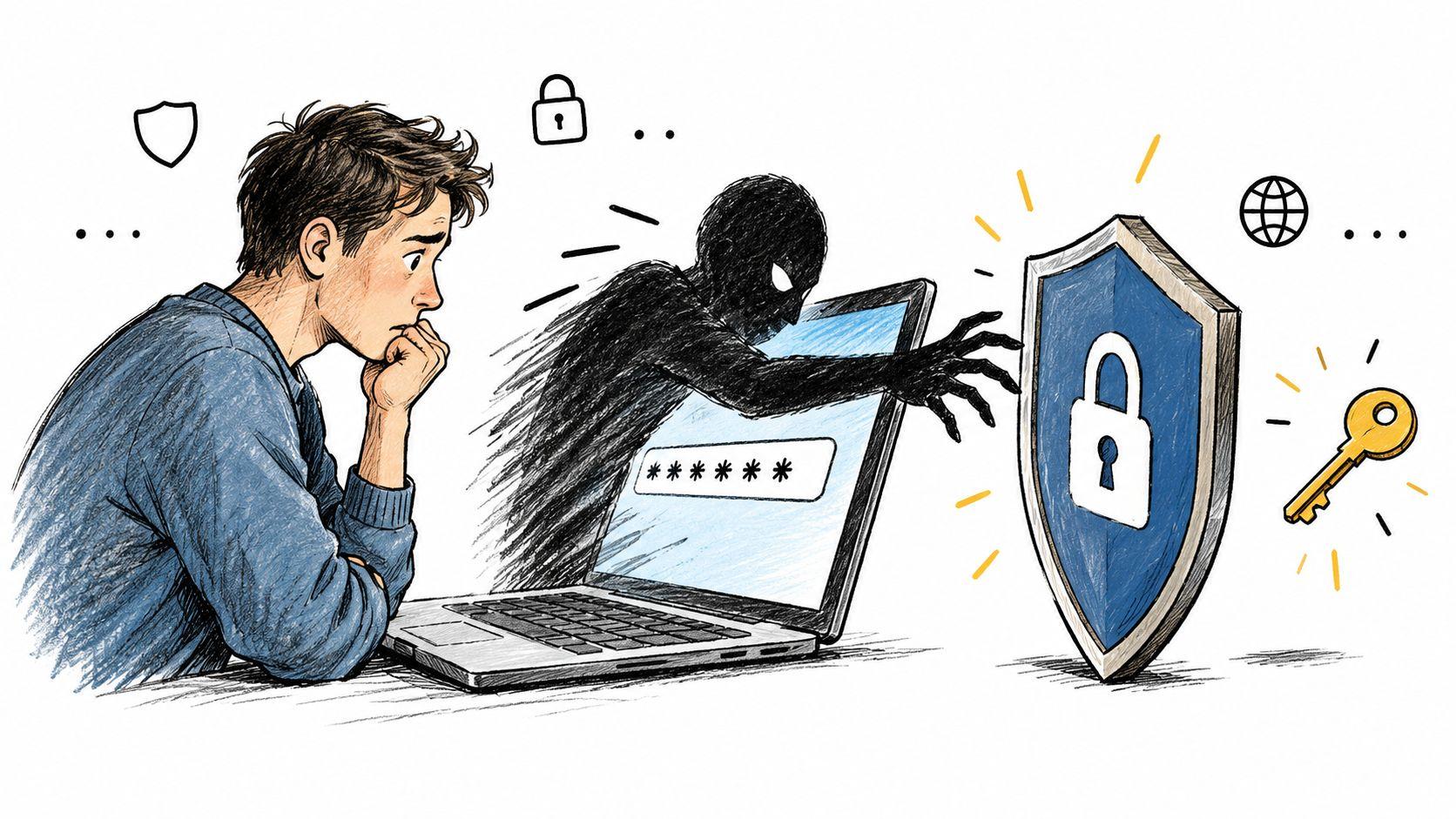
An attacker may obtain your password through a phishing page, a reused-password breach, or malware. Without another control, that password can be enough to enter your account, change recovery details, and lock you out. Two-step verification interrupts that sequence by asking for a second type of evidence.
Two-step verification, also called multifactor authentication or MFA, requires at least two different factor types. The first is commonly something you know, such as a password. The second is something you possess, such as a phone, authenticator app, security key, or device with a linked biometric. Two passwords still represent one factor, so adding another password doesn't create genuine multifactor protection. NIST's digital identity guidance defines these factor categories and explains why they must be meaningfully different.
The protection is measurable, not decorative. A Microsoft research review found that more than 99.99% of MFA-enabled accounts remained secure during the investigation period. It also reported that MFA reduced compromise risk by 99.22% across the full population and by 98.56% among accounts with leaked credentials. The review found that authenticator applications performed better than SMS, while both substantially improved security compared with no MFA. See the Microsoft MFA research review for the underlying analysis.
The basic activation flow
Most services follow this pattern:
- Sign in and open Settings, Security, or Account protection.
- Select Two-step verification, Two-factor authentication, or MFA.
- Re-enter your password if prompted.
- Choose a second factor and enroll your phone, authenticator app, passkey, or security key.
- Enter the generated code or approve the device prompt.
- Save recovery codes somewhere safe.
- Test a new sign-in in a private browser window.
Account protection works best when it sits alongside basic data-security habits, including strong unique passwords, careful sharing, and controlled access. This practical guide to ensuring data security basics can help you review those surrounding controls. If you're enabling verification for a service that handles personal information, also review its privacy policy before enrolling devices or recovery contacts.
Choosing Between SMS, Authenticator Apps, and Security Keys
The second factor matters. Treating every option as equally strong can leave you with a setting that looks secure but remains vulnerable to the attack you're most likely to face.
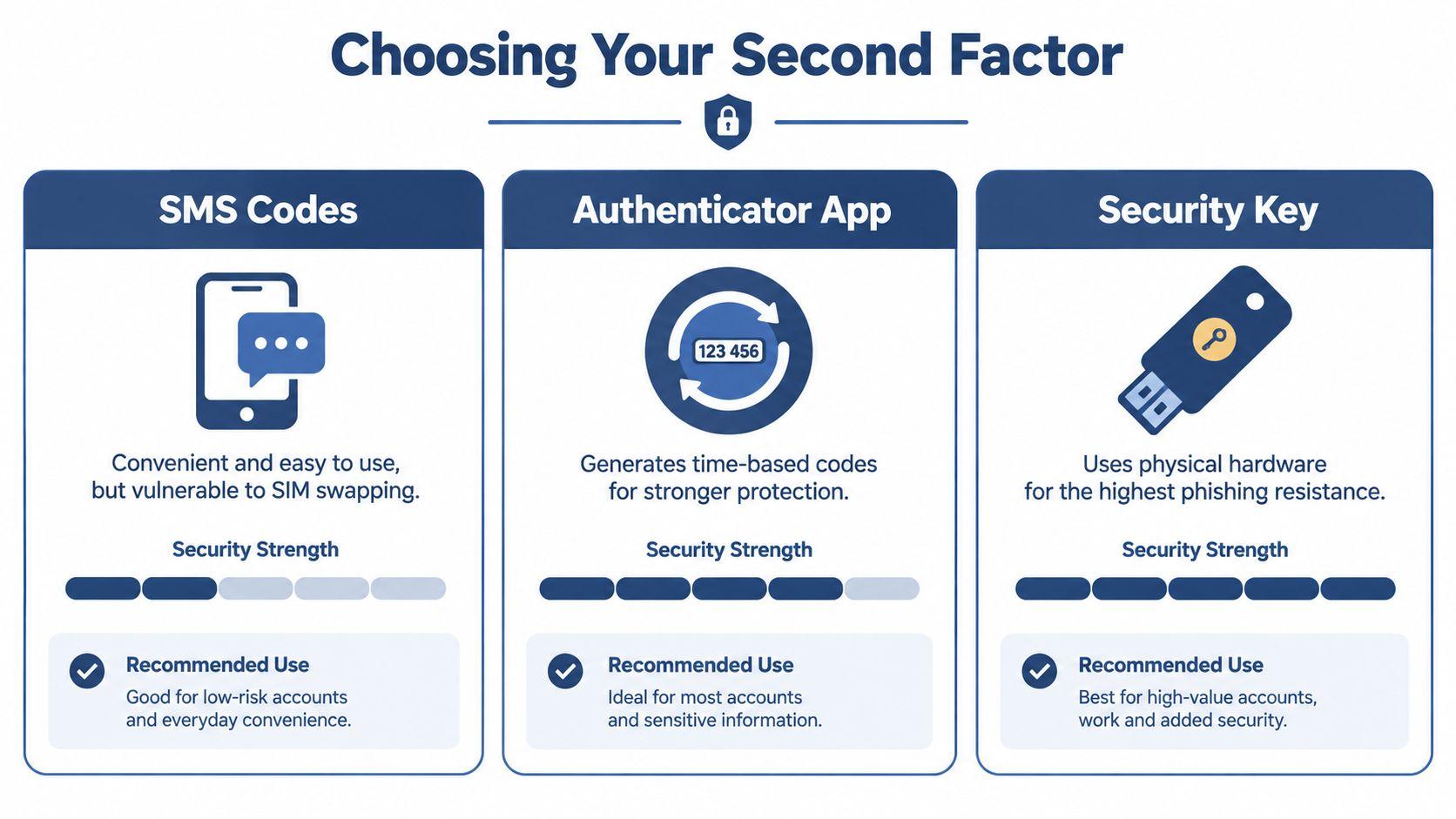
| Method | Practical advantage | Main trade-off | Suitable use |
| SMS code | Familiar and easy to deploy | Exposed to phone-number takeover, SIM swapping, and interception | A useful first step when stronger options aren't available |
| Authenticator app | Works without mobile service and generates time-based codes | Manually entered codes can still be phished | Email, cloud storage, social accounts, and many everyday services |
| Passkey or FIDO2 security key | Phishing-resistant and tied to the legitimate service | Requires compatible devices and recovery planning | Administrators, financial access, student records, and high-value work accounts |
SMS isn't useless. It's often the fastest way for a family member or small business employee to add a second factor, and it's substantially better than password-only access. The trade-off is that control of the phone number may be attacked separately. Use SMS as a starting point when necessary, then upgrade sensitive accounts.
Authenticator apps are a stronger everyday choice for many people. They generate a time-based one-time password, often called a TOTP, and don't depend on receiving a text message. However, entering that code into a fake login page can expose it during a real-time phishing attack. NIST-aligned guidance distinguishes phishable methods, including SMS, TOTP, and many push approvals, from phishing-resistant options such as passkeys and FIDO2 keys. The NIST 800-63 digital identity checklist provides useful context for that distinction.
When to upgrade
Choose a passkey or FIDO2 security key where a compromised account could affect many other people or systems. That includes a business administrator account, a finance platform, a school record account, or the email account used to reset everything else. Passkeys use cryptographic credentials tied to the legitimate website or app, while security keys provide a separate physical possession factor.
Push notifications deserve care too. Approve only a prompt you initiated, and check the displayed sign-in details when the service provides them. A stream of unexpected prompts can indicate that someone already knows your password and is trying to persuade you to approve access.
Practical rule: Use SMS if it's the only available improvement, prefer an authenticator app for routine protection, and reserve passkeys or security keys for the accounts whose compromise would cause the greatest damage.
How to Turn on 2 Step Verification for Major Services
Service names and menu locations can change, and work or school administrators may restrict available methods. Start from the official app or type the service address yourself rather than following an unfamiliar login link.
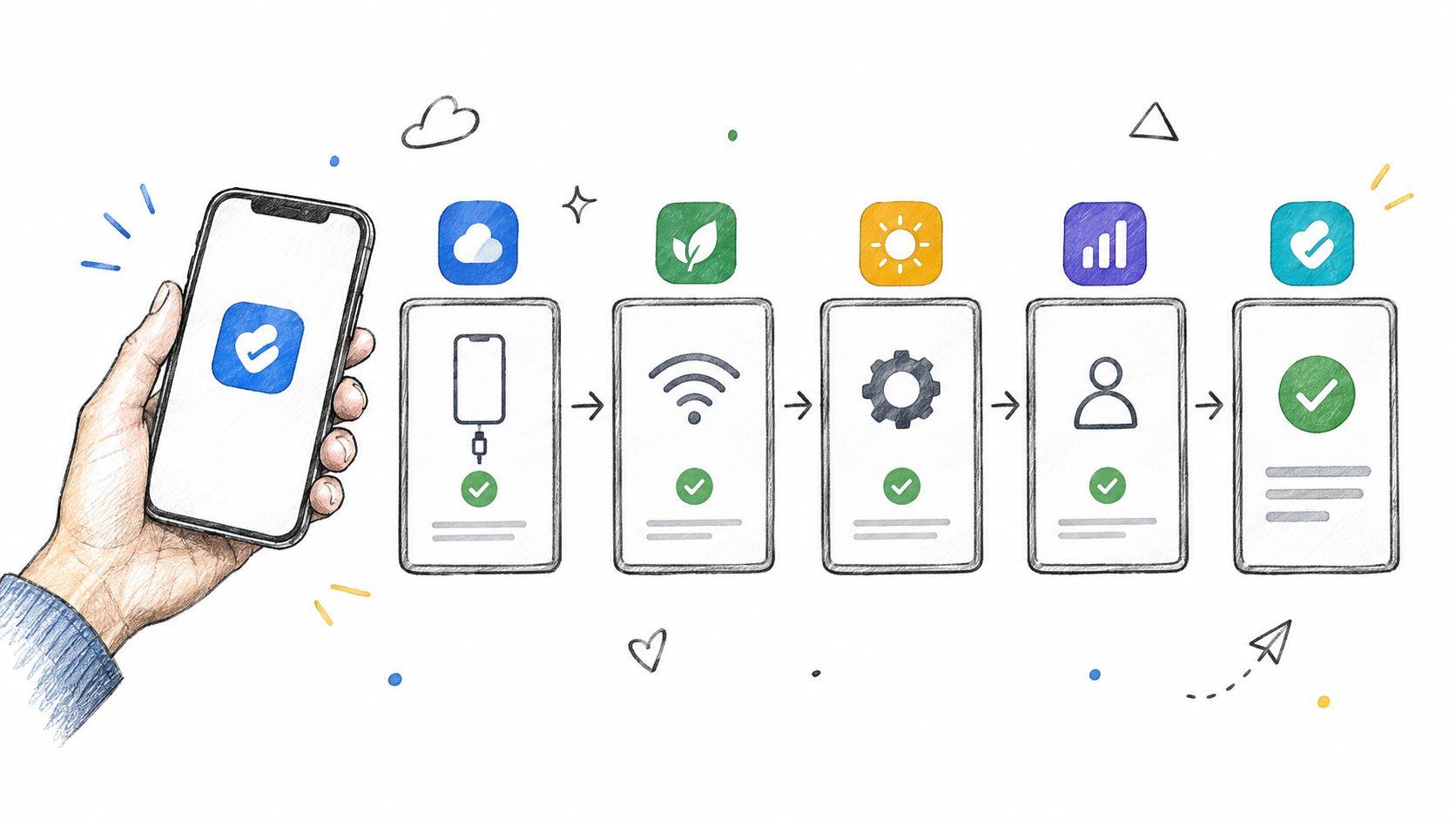
Open your Google Account, choose Security, then find 2-Step Verification under the sign-in settings. Select Get started, confirm your password, and follow the prompts to add a phone, authenticator app, passkey, security key, or another supported method. If you use an authenticator app, scan the QR code or enter the setup key, then type the current code to confirm enrollment.
After activation, generate and save Google's backup codes. Add a second recovery method before closing the page, then test the account in a private browser window. For Workspace accounts, an administrator may enforce enrollment or limit which methods users can select.
Apple
On an iPhone or iPad, open Settings, tap your name, then choose Sign-In & Security and Two-Factor Authentication. On a Mac, open System Settings, select your Apple Account, then open Sign-In & Security. Follow the prompts to add or confirm a trusted phone number and complete the verification step.
Apple's flow relies heavily on trusted devices and numbers. Keep your account recovery details current, especially before replacing a phone. Don't remove your only trusted device until another recovery route is ready.
Microsoft
Sign in to your Microsoft account and open Security or Advanced security options. Select the two-step verification or MFA option, then choose Microsoft Authenticator, another authenticator app, SMS, a passkey, or a security key where supported. Scan the displayed QR code with the authenticator app and enter its time-based code to finish setup.
For a work or school account, the organization may use Microsoft Entra policies instead of the consumer account menu. Follow the administrator's enrollment instructions, and ask for a documented recovery process before changing devices.
Open Facebook's Settings & privacy, then Settings, and look for Accounts Center and Password and security. Select Two-factor authentication, choose the account, and pick an authenticator app, SMS, or another available method. Complete the code check, then review the account's recovery options and active sessions.
Open WhatsApp and go to Settings, Account, then Two-step verification. Choose Enable, create a PIN, and add an email address for recovery if WhatsApp offers the option in your region. This PIN protects registration of your phone number in WhatsApp, so don't reuse it as your device passcode or another account password.
For a broader practical reference on setting up two-factor authentication, compare the service's current instructions with the account you're configuring. You can also review 1chat's blog for related privacy and technology guidance. If you use an AI workspace such as 1chat, check its current account-security settings directly because menus and supported methods may change.
Setting Up Recovery Options and Backup Codes
A verification system that works only while your current phone is in your hand is incomplete. Phones get lost, authenticator apps get deleted, numbers change, and employees leave teams. Recovery planning should happen during enrollment, not after a lockout.
Generate backup codes when the service provides them. Store them in a password manager, an offline document, or a protected physical location that you can reach without the device used for verification. Don't leave the only copy in an email account that depends on the same verification method.
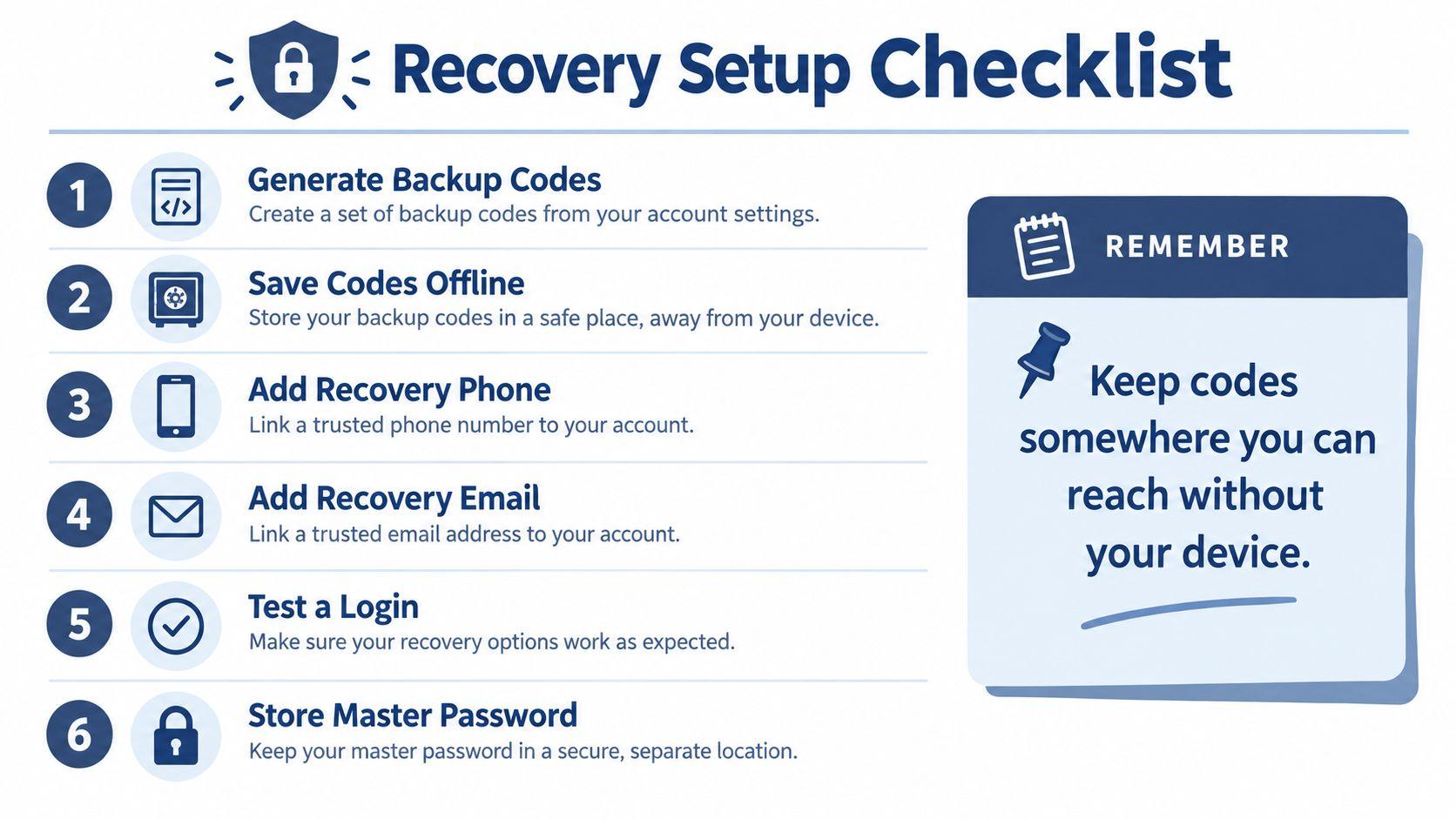
Build recovery in layers
- Backup codes: Generate a fresh set and treat each code like a one-time password. If you regenerate them, replace the old stored copy.
- Recovery phone: Use a number you control and can reliably access. Understand that this may be weaker than a security key or passkey.
- Recovery email: Choose an address protected by its own strong authentication. Don't create a circular recovery path where two accounts depend exclusively on each other.
- Additional device: Enroll a second trusted device or authenticator where the service supports it.
- Security key backup: For important administrator accounts, keep a separately stored spare key if the organization can manage the cost and procedures.
- Documented process: Write down who can help, what identity checks apply, and how access is restored after a lost device.
Teams should require enrollment only after recovery has been tested. Administrators need at least one usable recovery method for each user and a clear process for deleted authenticator apps or replaced phones. Families can use the same principle by keeping recovery information accessible to the account owner without putting all secrets in one place.
Keep recovery codes somewhere you can reach without your primary verification device, but don't leave them where an intruder who steals that device can immediately find them.
Testing Your Setup and Fixing Common Issues
Don't assume enrollment succeeded because the settings page says “on.” Open a private browser window, visit the sign-in page manually, and log in with your password. Confirm that the service requests the expected second factor, complete the challenge, and verify that the account opens normally.
Then review recent sessions, trusted devices, and active sign-ins. Revoke anything you don't recognize, change the password if activity looks suspicious, and repeat the check from another trusted device when practical.
If an authenticator code fails, check that the phone's date and time are set automatically. A device with an incorrect clock may generate a code outside the service's acceptance window. If you've replaced a phone, use the authenticator app's transfer process or a saved backup method before deleting the old configuration.
Never share an OTP with someone who contacts you by phone, email, or chat. Don't approve an unexpected push notification, even if repeated prompts become irritating. Avoid photographing or sending QR setup codes, because someone who obtains the underlying seed may be able to generate future codes.
A lost phone is an incident to manage, not a reason to disable verification permanently. Use a backup code or alternate factor, revoke the lost device, review sessions, and enroll the replacement device. If you can't access any recovery method, use the service's official account-recovery process and expect additional identity checks.
Prioritizing Security for Families and Small Teams
You don't need to change every account in one sitting. Protect the accounts that can open or financially affect the others first.
- Email accounts: Email often receives password resets, so protect it before social or shopping accounts.
- Administrator accounts: Secure business owners, cloud administrators, domain administrators, and anyone who can reset other users.
- Financial accounts: Enable the strongest available method for banking, payment, payroll, and accounting access.
- Cloud storage: Protect shared files, photographs, tax documents, and business records.
- Work tools and social accounts: Extend coverage to collaboration platforms, messaging, social media, and individual user accounts.
For a family, assign each person responsibility for their own devices and recovery details, while making sure parents or guardians understand how household-critical accounts are recovered. For a small team, administrators should require enrollment, provide recovery guidance, and verify that each person has a working backup method before enforcement.
Use a simple inventory with the account owner, chosen factor, backup method, and last recovery test. Keep it restricted because it contains sensitive operational information. If a team uses an AI service for business work, such as 1chat, include that account in the same review rather than treating it as separate from other work tools.
Frequently Asked Questions About 2 Step Verification
Does it slow down every login?
Usually, the service remembers a trusted browser or device when you choose that option. Keep that convenience for private devices, not shared computers. For sensitive accounts, asking for verification more often is a reasonable trade-off.
Is SMS always unsafe?
No. SMS is weaker than an authenticator app or phishing-resistant method, but it still adds a barrier that password-only access lacks. Use it when it's the available starting point, then upgrade high-value accounts.
Do two passwords count as two-step verification?
They don't. Two passwords are both knowledge factors. Genuine MFA combines different evidence types, such as a password plus a device-generated code, security key, or biometric linked to a physical device.
What should I do before changing phones?
Enroll the new device while the old one still works, create or refresh backup codes, and test the new sign-in. Don't wipe the old phone until the replacement method succeeds.
Which account can wait?
Avoid leaving email, administrator, financial, or cloud-storage accounts unprotected. If you must roll out gradually, start there and continue through social, messaging, and individual accounts. You can find more practical answers in the 1chat FAQ.
Turn on verification for your primary email today, choose the strongest practical method, save the recovery codes offline, and perform a clean sign-in test. Then repeat the process for administrator, financial, and cloud-storage accounts before expanding it across your household or team.