You probably have a folder full of PDFs that all matter and none of them are quick to read. A parent is trying to compare school forms and medical paperwork. A student is juggling journal articles, lecture notes, and annotated readings. A small business owner is opening contracts, invoices, and policy documents while a dozen other tasks compete for attention.
That's where a good PDF analysis tool changes the game. Instead of treating every file like a static page you have to scroll manually, modern tools can summarize, answer questions, pull key fields, and help you work across multiple documents without losing the thread. The best ones don't just “read text.” They handle structure, context, and document layout well enough to make the output useful.
The catch is that not every tool is reliable, and not every workflow is safe. Accuracy depends heavily on document quality. Trust depends on privacy policy, retention rules, and how the tool handles sensitive uploads. If you work with contracts, HR files, student assignments, household records, or client paperwork, those details matter as much as the headline features.
Why PDF Analysis Tools Are Your New Secret Weapon
PDF overload used to create one of two bad choices. You either read everything line by line, or you search for keywords and hope the important parts happen to use the same wording you typed. Neither approach scales when your files include scanned pages, tables, forms, appendices, or mixed formatting.
Modern PDF analysis tools are different because they try to understand the document as a document, not just as a blob of text. That shift matters. A major milestone came with the launch of Google Cloud Document AI, which extended machine learning based document understanding to PDFs, and by 2024 Google said it supported more than 40 pre-trained processors for invoices, receipts, and forms, showing how the field moved beyond basic text search into systems that detect tables, key-value pairs, and structured fields, as noted in Lido's overview of PDF extraction tools.
What changed in practice
A useful PDF analysis tool now helps with jobs that used to require a mix of OCR software, manual review, and spreadsheet cleanup:
- Long report summarization: Turn a dense report into a readable brief before you decide what deserves close review.
- Question answering: Ask for the renewal date, payment terms, or main argument instead of digging through pages.
- Field extraction: Pull names, totals, invoice numbers, clauses, or policy references into a more usable format.
- Cross-file work: Compare several PDFs without copy-pasting notes into a separate document.
That's why these tools feel like a productivity upgrade instead of a novelty. They collapse several repetitive tasks into one interface.
Practical rule: Use PDF analysis to shorten the first pass, not to eliminate judgment. The tool should get you to the relevant page faster. You still decide whether the answer is complete and trustworthy.
Who benefits most
The sweet spot isn't just enterprise operations teams. It's also people with recurring document work and limited time.
Students use these tools to locate arguments, citations, and sections worth reading in full. Small businesses use them to review contracts, vendor paperwork, and intake forms. Families use them to keep track of school notices, insurance documents, and application packets without re-reading everything from scratch.
The reason adoption has spread so quickly is simple. PDFs are still the default format for important information, but they're one of the slowest formats to work with manually. A strong PDF analysis tool gives you speed, structure, and a better starting point for decisions.
Preparing Your PDFs for Accurate Analysis
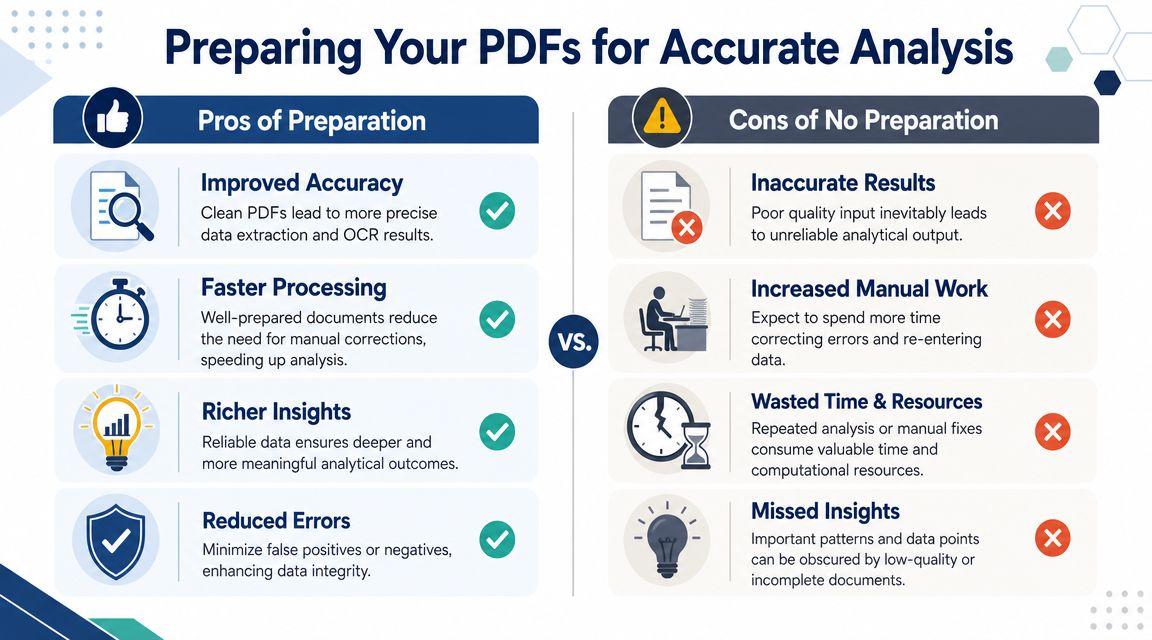
The fastest way to get bad output is to upload a messy document and expect a clean answer. Most failures start before the analysis even begins.
A native PDF usually contains selectable text and cleaner structure. A scanned PDF is more like a photograph of a page. The tool has to recognize characters, guess reading order, and reconstruct layout before it can summarize or answer questions. That's a much harder job.
Start with a quick document triage
Before uploading, check which kind of file you're holding:
- Selectable text PDF
If you can highlight and copy text cleanly, you're in the best-case scenario. - Scanned image PDF
If each page behaves like a picture, expect OCR errors and weaker table handling. - Complex layout PDF
Multi-column pages, sidebars, footnotes, forms, or embedded graphics increase the chance of broken reading order.
A common mistake is assuming summarization quality tells you everything. It doesn't. Recent coverage of PDF structure extraction makes the important point that layout analysis is a separate problem from simple summarization, and the real question is whether a tool can preserve tables, reading order, and page context well enough to trust the result, as discussed by HURIDOCS in its write-up on unlocking PDF content and structure.
Fix the easy problems first
Small cleanup steps often make a bigger difference than switching tools.
- Straighten crooked scans: A skewed page can throw off OCR and line grouping.
- Split giant mixed files: If one PDF contains unrelated sections, break it into logical chunks.
- Remove duplicate scans: Repeated pages can distort summaries and confuse extraction.
- Check page order: Misordered pages ruin timelines, citations, and clause references.
- Prefer the original export: If you have the source PDF from Word, Google Docs, or a billing system, use that instead of a printed-and-scanned copy.
Know when to lower your expectations
Some documents will still fight you.
Handwritten annotations, multilingual pages mixed with tables, packed legal exhibits, and research PDFs with dense sidebars can all produce shaky results. In those cases, use the tool for orientation first. Ask it to identify sections, page ranges, or likely key passages. Don't jump straight to “extract every term accurately.”
When a PDF looks visually complicated to a human, it's usually complicated for the model too.
A simple habit helps a lot: open the original PDF beside the AI output for the first few runs. You'll catch recurring issues quickly. If the tool consistently scrambles columns or misses table headers, the problem probably starts with document structure, not your prompt.
Getting Your First Insights Summaries and Q&A
The first session with a PDF analysis tool is often wasted by asking broad questions too early. Start smaller. You want to test whether the system understood the document structure before you trust any conclusions.
A practical workflow often follows a modular path: layout detection, then text and table extraction, then fusion for question answering. Research surveying PDF understanding notes that the highest-yield step is preserving page geometry and reading order during extraction, because once layouts are flattened into plain text, recovery gets much harder. It also notes that parsing quality is often limited more by layout errors than by raw text recognition, as explained in this survey on multimodal PDF document understanding.
First task to run
Begin with a constrained summary request. Don't ask for “everything important.”
Try prompts like:
- Summarize this document in five bullet points.
- Identify the main purpose of this PDF.
- List the sections or topics covered in order.
- Give me a short summary and note any tables or appendices.
These requests reveal whether the tool has the document's shape right. If the section order looks wrong, the later answers may be shaky too.
How to test a summary fast
Use a three-part check:
| Check | What to look for | Why it matters |
| Scope | Did it cover the whole document or only the opening pages? | Some tools overfocus on early sections |
| Structure | Are tables, headings, and appendices reflected correctly? | Broken structure leads to bad conclusions |
| Specificity | Does it mention concrete items from the file? | Vague summaries often signal weak extraction |
If the summary passes, move to question answering. If it doesn't, clean the file or narrow the task.
For teams that want a stronger grounding in extraction before analysis, this walkthrough on how to extract data from PDF files is useful because it helps you think about what should be captured before you ask the model to interpret it.
Ask questions the model can answer from the page
The best early questions are explicit and document-bound:
- What are the payment terms?
- Which page mentions cancellation?
- What dates appear in this agreement?
- List the named parties in the contract.
- What are the main findings in the conclusion section?
Then escalate:
- Compare the obligations of each party.
- Identify risks mentioned in the policy.
- Pull all deadlines into a checklist.
- Summarize the differences between section 3 and section 5.
Ask for page references or direct supporting passages whenever the tool allows it. That habit makes review much faster.
A lot of frustration comes from asking inferential questions before confirming extraction quality. If a table was flattened badly, “What was the largest expense category?” may be impossible to answer reliably. But “Extract the expense table as rows with headers” gives you a better chance of seeing the problem and fixing it.
Crafting Powerful Prompts for Deeper Analysis
Once basic summaries and Q&A work, the next jump is asking the tool to perform a task, not just answer a question. That's where a PDF analysis tool starts behaving like a real work assistant.
The key is to specify four things in each prompt: the role, the target output, the evidence standard, and the scope. Weak prompts ask for insight. Strong prompts define what kind of insight and how it should be presented.
A simple prompt formula
Use this pattern:
Act as [role]. Analyze [scope]. Return [format]. Use only information from the PDF. If the document is unclear, say so.
Examples:
- Act as a contract reviewer. Analyze termination, renewal, and payment clauses. Return a risk checklist.
- Act as a study assistant. Analyze the paper's thesis, methods, and limitations. Return bullet points with section references.
- Act as an operations manager. Extract action items, owners, and deadlines. Return a table.
That last instruction matters. “Use only information from the PDF” reduces freelancing. “If the document is unclear, say so” gives the model permission to admit uncertainty instead of filling gaps.
Sample prompts for different users
| User Type | Task | Example Prompt |
| Student | Turn a paper into study notes | Summarize the research question, main argument, and limitations. Return concise revision notes. |
| Parent | Review school or health paperwork | Extract dates, required actions, fees mentioned, and signatures needed. Present them as a checklist. |
| Small business owner | Review a contract | Identify payment terms, renewal language, termination conditions, and anything that could create operational risk. |
| Team lead | Process a policy update | Compare the old and new responsibilities described in this document and list what the team needs to change. |
| Researcher | Pull evidence from a report | Extract all claims that appear to be findings or conclusions and group them by topic. |
Prompt patterns that work well
- For tables: Ask the model to preserve headers, units, and row labels.
- For timelines: Tell it to list events in document order first, then chronological order.
- For arguments: Request the strongest points for and against a position, with supporting passages.
- For sentiment or tone: Limit the task to a defined section such as customer feedback or survey comments.
- For comparisons: Name the exact sections, appendices, or PDFs to compare.
If you want to sharpen your general prompting technique beyond PDFs, this guide to mastering AI prompts is a good companion because it reinforces the habit of asking for format, constraints, and evidence up front.
One warning: complex prompts don't fix broken parsing. If the source extraction is messy, a more elegant prompt just produces a more polished mistake.
Integrating PDF Analysis into Your Team's Workflow
A tool doesn't create efficiency on its own. A repeatable process does.
Teams usually fail with document AI for boring reasons. Nobody defines what success looks like. People upload random file types with no standards. One person becomes the unofficial expert, everyone else uses the tool inconsistently, and the pilot never becomes part of normal work.
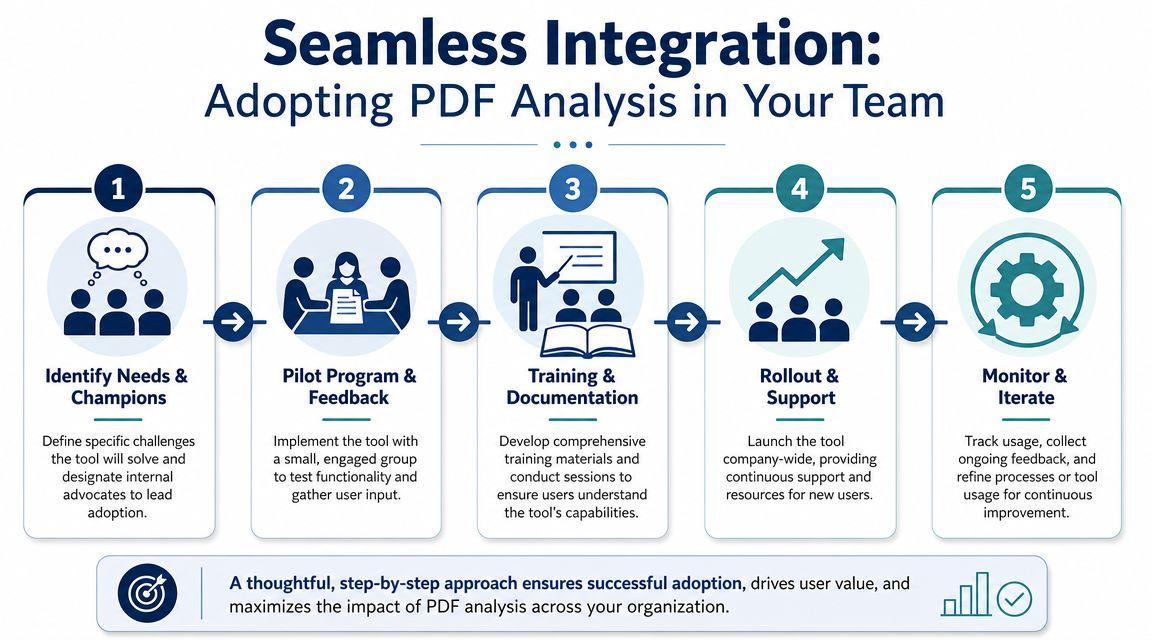
A white paper on why AI projects fail identifies data quality and reliability issues as the most common process failure cause and also flags unclear expectations, weak infrastructure, limited skill coverage, poor governance, and not clearly measuring success as recurring problems. It also recommends defining success metrics before launch, which maps directly to PDF analysis rollouts where teams need targets such as extraction accuracy by field, table reconstruction fidelity, and grounded answers, as discussed in the Manchester Business School white paper on AI project failure.
Build one workflow before you expand
Pick a narrow use case first. Good examples:
- contract review intake
- invoice extraction
- policy summary creation
- customer onboarding document checks
Document the exact flow in plain language:
- Upload the file type the team will use.
- Run the approved summary prompt.
- Run the extraction prompt for key fields.
- Review the output against the original PDF.
- Save the result in the system your team already uses.
This prevents the tool from becoming an isolated demo that people open once and forget.
Use success metrics your team can actually review
Skip vanity metrics. Use checks tied to real work.
- Field accuracy: Did the system capture the terms your team needs?
- Table fidelity: Did rows and headers survive intact?
- Grounded answers: Can a reviewer trace the answer back to the source page?
- Operational fit: Did the output reduce manual handling in the existing process?
Teams adopt faster when the tool slots into familiar work. They resist when it creates one more tab, one more export, and one more format to maintain.
A shared prompt library also helps. Keep tested prompts for each task in one place and update them after review cycles. If you're comparing plan options for broader rollout, the 1chat pricing page is a practical place to evaluate whether the cost structure fits a small team or family-sized setup instead of enterprise-only budgeting.
A Non-Negotiable Your Guide to Privacy and Security
This is the part many PDF tool guides blur or skip. They talk about speed, summaries, and chat features, but they don't say enough about what happens after you upload the file.
That's a problem if your PDFs include contracts, student work, tax records, personnel files, client material, or anything with private identifiers. Public-facing tool pages often mention broad ideas like encrypted upload or deletion after processing, but that still leaves important questions unanswered. How long is the file retained? Who can access it? Is the content used to improve the system? Can you review the policy without legal guesswork?
A major underserved angle in PDF analysis is privacy and security. Guidance often focuses on convenience, but users handling contracts, HR files, or student work need to know whether uploads are stored and for how long. That matters even more because PDFs can also carry risky embedded content, so buyers need advice that separates convenience from actual data-handling risk, as noted in Sejda's discussion of deskewing PDFs and related handling considerations.
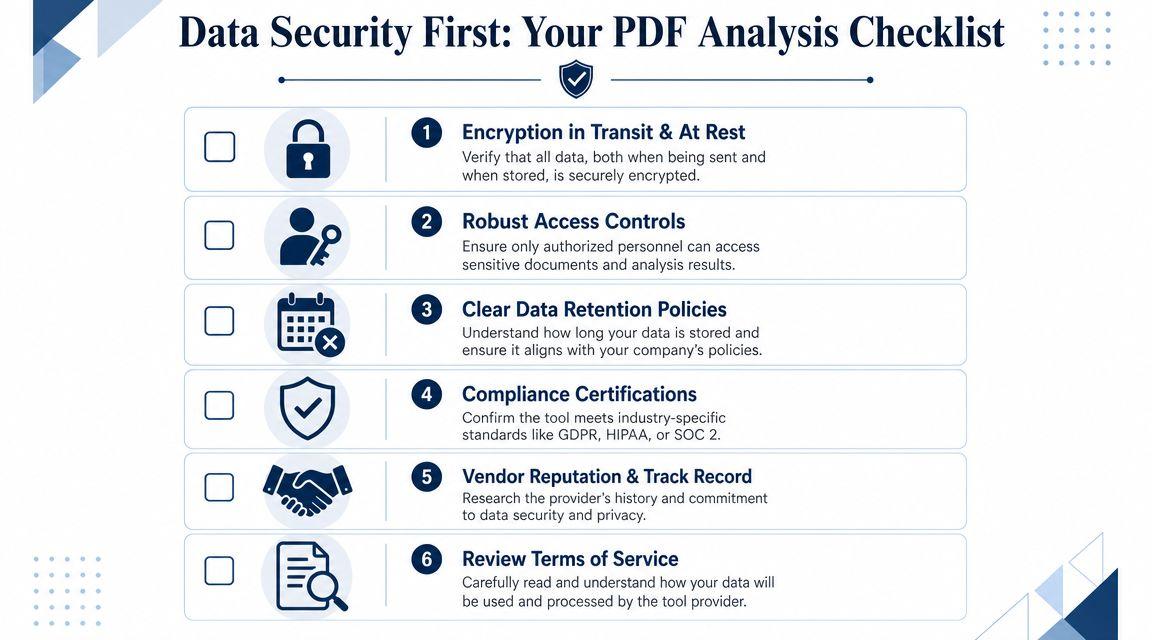
What to check before you upload anything sensitive
Treat a PDF analysis tool like any other data processor. Review it with the same care you'd give payroll or e-signature software.
- Retention policy: How long are files and results stored?
- Access controls: Who inside your account can open uploaded files?
- Training usage: Does the provider use uploads to improve models?
- Deletion path: Can you remove files and outputs clearly?
- Policy clarity: Can a normal person understand the privacy language?
Metadata is another overlooked issue. Even when the visible content seems harmless, PDFs can contain hidden document properties. If that's on your radar, this guide to PDF metadata privacy is worth reviewing before you share files externally.
Convenience isn't the same as safety
Free tools can be useful for low-stakes documents, but they're a poor default for sensitive paperwork unless you've checked the policy carefully. Families and small businesses get hit hardest here because most tools are marketed either to casual consumers or large enterprises. The middle is underserved.
That's why privacy-first products stand out. If you're evaluating options for ongoing use, read the actual 1chat privacy policy before adopting any AI workflow involving private PDFs. It's one of the simplest ways to separate a flashy feature list from a tool you'd trust with documents that matter.
Frequently Asked Questions About PDF Analysis
A lot of practical questions only show up after the first few uploads. These are the ones that usually matter most.
Can a PDF analysis tool handle multiple files at once
Yes, many tools can work across several PDFs, but quality depends on how clearly you define the task. If you upload a contract, a policy addendum, and an invoice, ask the tool to identify each file first and then compare specific sections. Broad prompts like “analyze these documents” usually produce muddled output.
A better approach is to assign roles to the files. Ask for “differences between the renewal terms in file A and file B” or “create one checklist from all school forms uploaded.” The more explicit the scope, the better the result.
What's the difference between OCR and a PDF analysis tool
OCR turns image text into machine-readable text. A PDF analysis tool goes further by trying to preserve structure and support tasks like summarization, question answering, extraction, and comparison.
If OCR gives you a raw transcript, analysis gives you a working layer on top of the document. That extra layer is what helps you ask about deadlines, clauses, or findings instead of scanning line by line.
Why do tables still break so often
Tables fail when the model loses headers, reading order, merged cells, or visual grouping. That's common in scanned PDFs, financial statements, and research reports with dense formatting.
If a table matters, don't ask for interpretation first. Ask for reconstruction. Once the rows and columns look right, then ask for trends, anomalies, or totals mentioned in the table.
How should I work with non-English PDFs
Start by asking the tool to identify the document language and keep the response in that language, or translate only after extraction. If you jump straight to translation, you can hide parsing mistakes that would have been easier to catch in the original.
For multilingual files, work section by section. Ask the tool to separate content by language before summarizing.
What should I do when the answer seems wrong
Go back one layer. Don't just rephrase the same question.
Try this sequence:
- Check extraction: Ask for the exact passage or page location.
- Check structure: Ask for section headings in order.
- Check scope: Narrow the question to one page range or one clause.
- Check document quality: If it's scanned badly, clean or replace the source file.
That usually reveals whether the issue is the prompt, the parsing, or the document itself.
Is a PDF analysis tool safe for school, family, or small business documents
It can be, but only if you review the provider's privacy and retention rules before uploading anything sensitive. This matters more than flashy summarization features.
If you want a direct answer to product and policy questions before choosing a tool, the 1chat FAQ is a useful place to review how a privacy-first option is positioned for students, families, and small teams.
If you want a PDF analysis tool that fits real life instead of just demo scenarios, look for two things first: reliable document handling and privacy you can understand. For families, students, and small businesses that want a more privacy-first alternative to mainstream AI chat tools, 1chat is worth a serious look. It brings PDF analysis together with access to multiple leading LLMs in one place, while staying oriented toward the people who often get ignored by enterprise-heavy AI products.