You open a web page to find one answer. Instead, you get a wall of text, sidebar promos, autoplay video, pop-ups, and three tabs' worth of related links you'll “read later.” A parent sees this while helping with homework. A small business owner sees it while trying to compare tools before a meeting. Most of us respond the same way. We skim, jump, and hope the important part finds us first.
That feeling isn't a personal failure. It's how people use the web. A Nielsen Norman Group study on web reading behavior found that users read at most 28% of the words on an average web page, and in practice often read only about 20% of the text.
That's why the idea of a Web Pages Reader matters. I'm using that term broadly on purpose. It doesn't mean one app. It means a family of tools that help you consume web content in a way that fits your needs. Sometimes that means hearing the page read aloud. Sometimes it means stripping away clutter. Sometimes it means getting a short summary. And more recently, it can mean asking the page questions through AI.
For families, students, and small teams, this changes the job from “fight the page” to “use the right reading tool.”
The Unread Web and Your Secret Weapon
A bakery owner I once helped had a simple problem. She wanted to compare payment processors. She opened four long articles, tried to skim them between customer questions, and ended up remembering only one thing: one site had a giant blue button and another had a lot of ads. The actual details were buried.
That's normal web behavior, not bad discipline. Most pages are written as if readers will move top to bottom. Most readers don't. They scan headings, look for bullets, and stop when they feel overloaded.
A Web Pages Reader is your workaround. It helps you adapt the page to the way people really process information online.
What counts as a web pages reader
The term covers several kinds of tools:
- Read-aloud tools that turn page text into speech
- Reader modes in browsers that remove clutter
- Summarizers that pull out the main points
- AI assistants that let you ask follow-up questions about what you're reading
Each one solves a different problem.
Practical rule: If a page feels tiring, don't force yourself to read it the default way. Change the format first.
A parent might use read-aloud during homework time. A student might switch on reader mode to focus on an article. A team lead might use a summary tool before sharing a link with coworkers. An AI-powered reader goes a step further and helps the person understand, not just access, the content.
That's the secret weapon. You don't need to become a faster reader. You need better ways to read web pages.
The Four Main Types of Web Page Readers Explained
Some people hear “web pages reader” and think of a screen reader used for accessibility. Others think of Safari Reading View or Microsoft Edge Immersive Reader. Both are right, but they're only part of the picture.
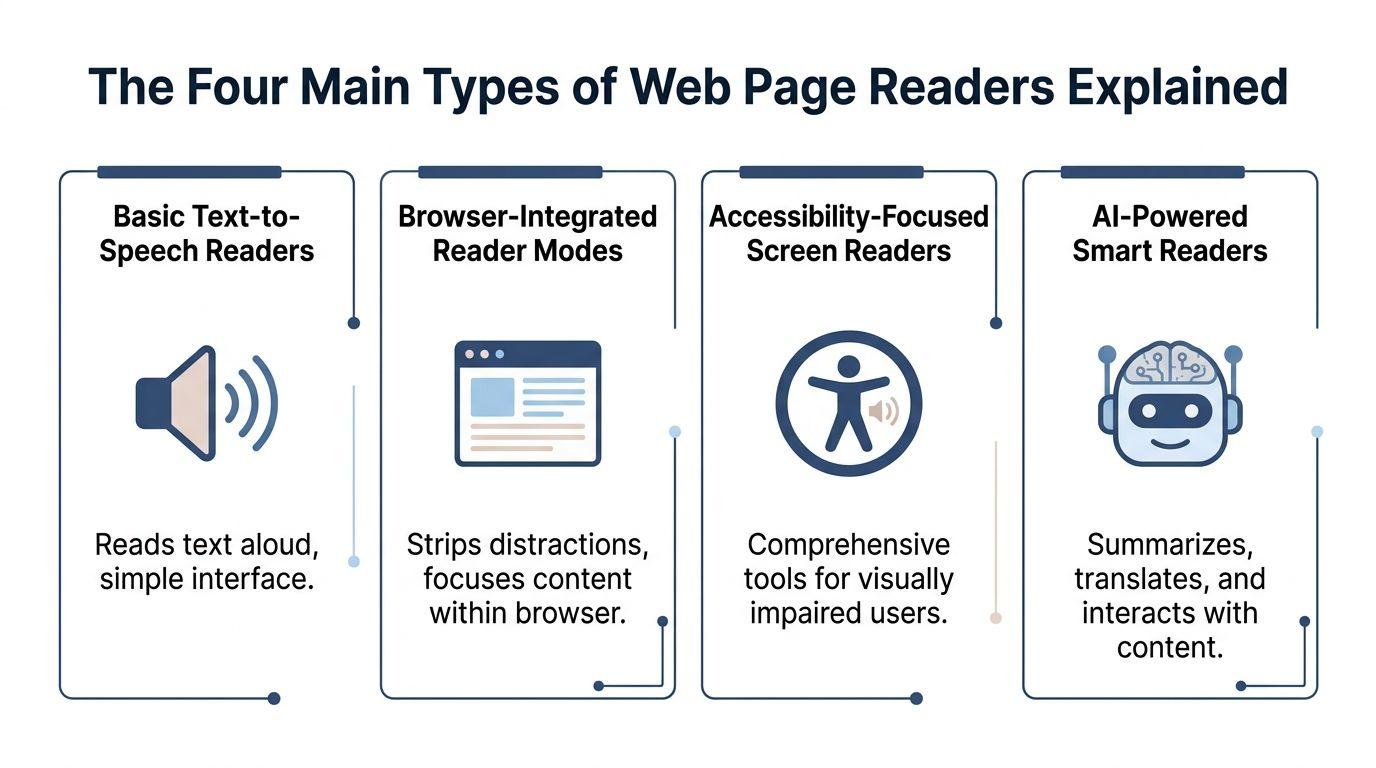
A simple way to understand the category is to think of four tool types, each with a different job.
The announcers
These are basic text-to-speech readers. Their job is straightforward. They take visible text on a page and speak it aloud.
This is useful when your eyes are tired, your hands are busy, or you understand better by listening. A parent cooking dinner can listen to a school newsletter. A salesperson can hear an article while organizing notes. These tools tend to be easy to use and quick to start.
They are not the same as full screen readers. They usually focus on reading page text, not helping a user interact with every control on the page.
The de-clutterers
These are browser-integrated reader modes such as Safari Reading View, Chrome Reader Mode, and Microsoft Edge Immersive Reader. They remove visual noise and present the main article in a cleaner layout.
For many people, this is the easiest first step. You stay in your browser, the page becomes calmer, and you can often adjust text size, spacing, or background color.
This category shines when the problem is distraction, not access.
The navigators
These are accessibility-focused screen readers like JAWS, NVDA, and VoiceOver. They are built for people who need deep support navigating digital content, especially users with visual impairments.
A screen reader doesn't just read the article body. It helps a user move through headings, links, buttons, forms, and menus. That makes it a different class of tool. It's not merely reading for convenience. It's access to the page itself.
Screen readers are not a luxury feature. For many users, they are the primary way the web becomes usable at all.
The research partners
These are AI-powered smart readers. They don't stop at reading or simplifying. They can summarize, explain difficult passages, translate, and answer questions about the page.
That changes the experience. Instead of merely receiving information, the reader can interact with it. A student can ask for a simpler explanation of a paragraph. A business owner can ask for the key differences between two policy pages. A parent can turn a long article into a short family-friendly summary.
Here's the overview at a glance.
| Reader Type | Primary Function | Best For |
| Basic Text-to-Speech Readers | Read page text aloud | Multitasking, auditory learners, reducing eye strain |
| Browser-Integrated Reader Modes | Simplify layout and remove distractions | Focused reading, cleaner pages, casual use |
| Accessibility-Focused Screen Readers | Navigate and read full page structure | Users who need robust accessibility support |
| AI-Powered Smart Readers | Summarize, explain, translate, answer questions | Research, study help, deeper understanding |
The key isn't choosing the “best” type in general. It's choosing the one that matches the job you need done.
How These Readers Actually Work
Most web reading tools depend on one invisible thing: the page's structure. If the page is built clearly, the tool can usually identify what matters. If the page is messy, the tool has to guess.
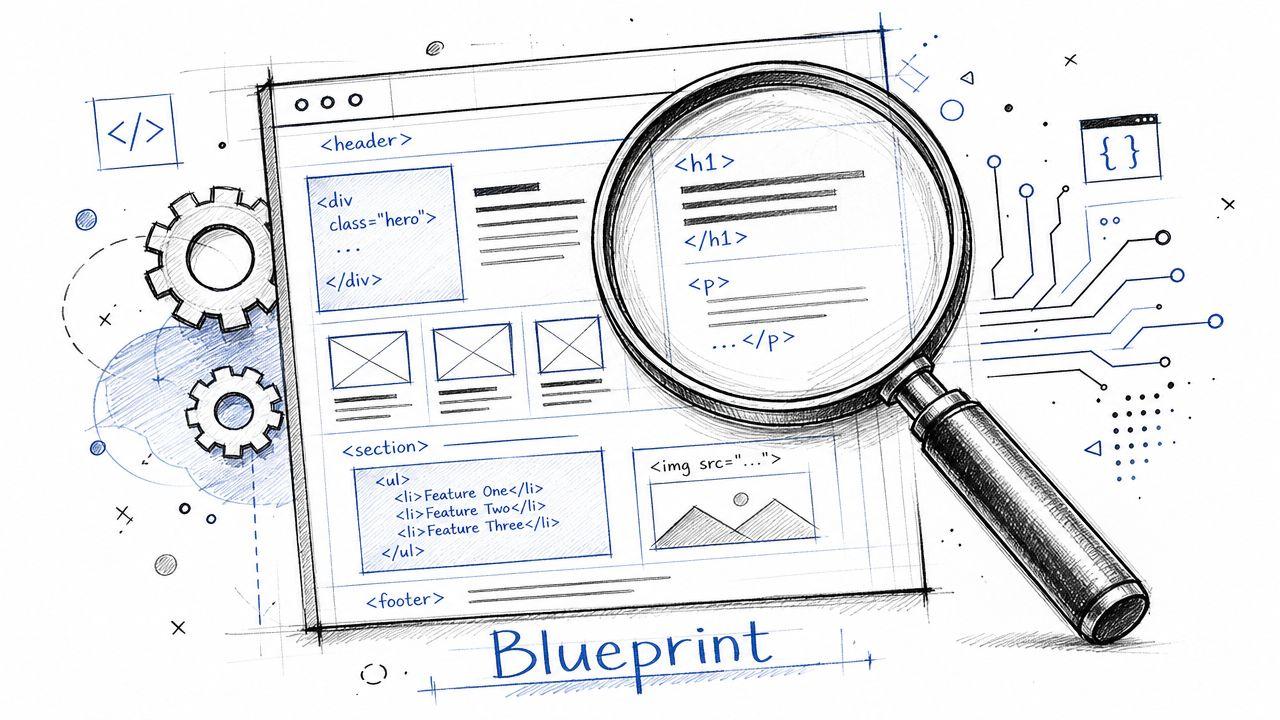
Think of a web page like a house blueprint. A good blueprint labels the kitchen, hallway, and bedroom. A bad blueprint just draws boxes. A reading tool faces the same problem. It needs to know which text is the main article, which parts are navigation, and which items are side content.
Why semantic HTML matters
The term semantic HTML sounds technical, but the idea is simple. It means the page uses the right labels for the right content. Headings are coded as headings. Lists are coded as lists. Main content is marked as main content.
When that structure is present, reading tools can separate the article from the clutter much more reliably. When it's missing, mistakes happen.
According to ReadSpeaker guidance on webReader and accessible online text-to-speech, pages with non-semantic layouts can increase error rates in reading tools by up to 20–40% when those tools try to identify the correct reading sequence.
What this means for everyday users
If you've ever had a tool read the cookie banner before the article, or jump from a heading into unrelated sidebar content, you've seen this problem in action. The tool may not be “bad.” The page may be poorly structured.
For a small business owner, this is also a publishing lesson.
- Use real headings: They help humans scan and help reader tools move through.
- Keep related content grouped: A scattered layout creates confusion for assistive tools.
- Avoid building everything from generic containers: A page made from unlabeled blocks is harder for reading technology to interpret.
A clean page structure doesn't only help accessibility. It also helps every tool that tries to simplify, summarize, or speak your content.
That includes browser reader modes, text-to-speech tools, and AI systems that try to understand page content before responding.
Accessibility and Privacy What You Need to Know
A lot of people first encounter web reading tools as convenience features. They want fewer distractions or a hands-free way to get through an article. That's useful, but it can hide the bigger point. For many users, these tools are part of basic digital access.
A student using a screen reader doesn't just need the words spoken aloud. They need the page to respond smoothly. Delays matter. Repeated speech matters. A page that keeps shifting under the cursor can turn a simple reading task into a frustrating one.
Performance is part of accessibility
The technical side sounds minor until you picture the typical setting. A child is using an older school Chromebook. A teacher has posted a resource on a busy website. The page loads extra effects, floating elements, and dynamic content.
The result can be audible lag. The University of North Dakota accessibility guidance on screen readers notes that on modest hardware like school-issued Chromebooks, complex layouts can increase perceived latency by 200–300 ms per interaction, which can create stutters that affect reading comprehension.
That delay may look tiny on paper. In use, it feels like interruption.
Privacy matters more when AI enters the picture
Once a reading tool starts summarizing or answering questions, a second issue appears. Where is your content going?
If you paste a work policy, a child's assignment, a medical article, or a customer message into a cloud tool, you should know what happens next. Does the service store the text? Does it use the content to improve models? Can team members control what gets shared?
Families and small businesses should ask those questions before they adopt an AI reader.
A good habit is to read the privacy terms before you rely on any smart reading assistant. For example, if you're comparing privacy-first options, review the 1chat privacy policy and compare that level of transparency with other services you're considering.
A simple checklist before you trust a reader
- Check the access need: If someone relies on the tool to access content, choose a real accessibility solution, not only a convenience reader.
- Check the device reality: Fancy features aren't helpful if they make the experience choppy on everyday hardware.
- Check the data path: Know whether your text stays private, is stored, or is sent elsewhere for processing.
Accessibility gets people into the content. Privacy protects what happens when they interact with it.
The Rise of AI Readers and Smart Assistants
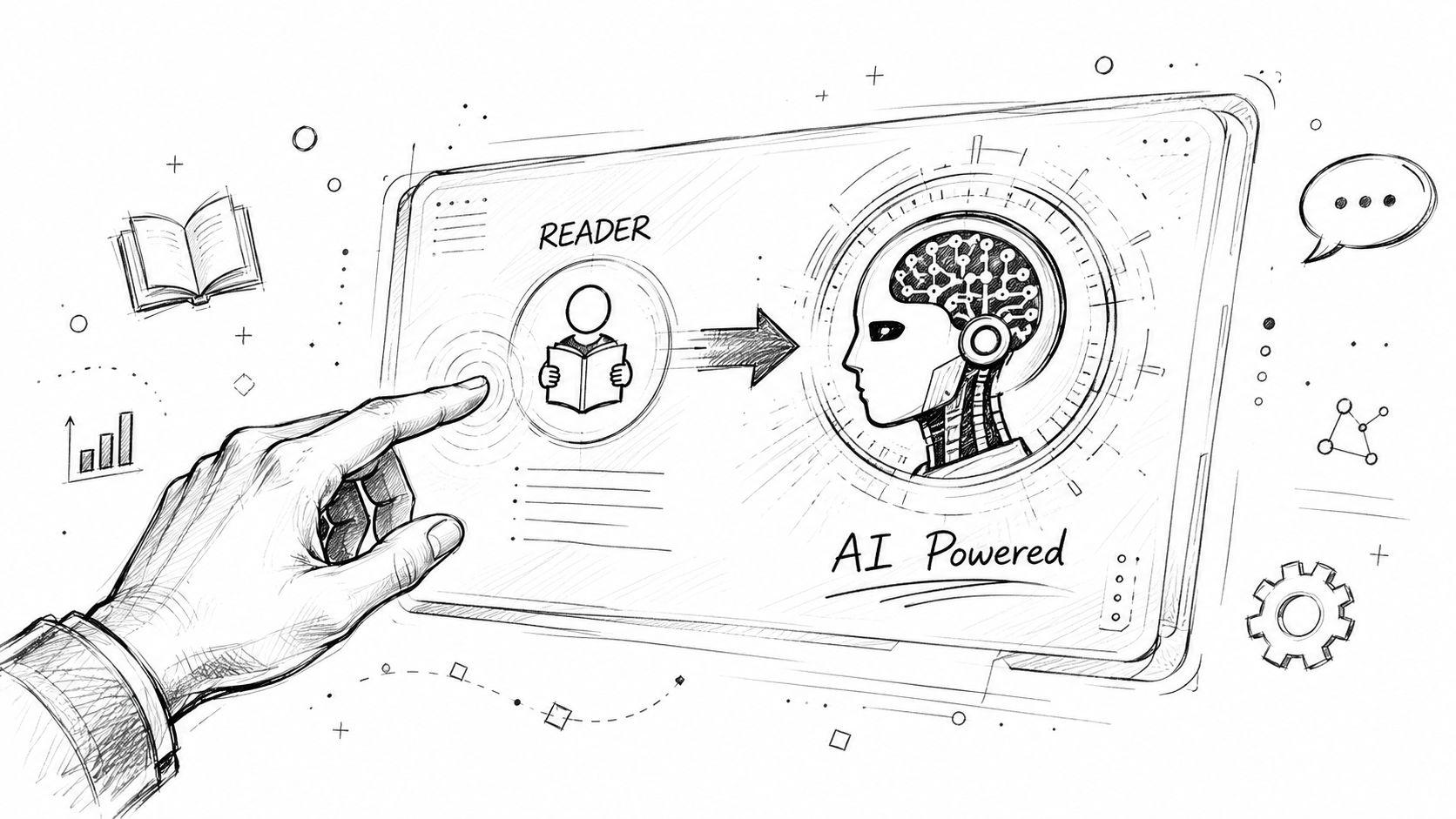
Reader tools used to be mostly passive. They cleaned up text, changed typography, or read words aloud. That's still useful, but it doesn't match how many people want to learn now.
Students, parents, and business users increasingly want the page to become interactive. They don't only want to read the article. They want to question it, compress it, translate it, or ask for help understanding one confusing part.
From reading to dialogue
Microsoft's education material around Immersive Reader reflects a broader shift in user expectations, and the related trend is clear in this verified point: students increasingly want to ask questions about text directly from the reader interface, such as asking for a simpler explanation of a paragraph, while many current tools still focus mainly on typography and basic read-aloud.
That single change transforms what a web pages reader can be.
A smart reader can:
- Clarify difficult language: Useful for students, multilingual households, and busy professionals
- Summarize long articles: Helpful before meetings or homework review
- Generate study support: Questions, outlines, or simpler restatements
- Keep context in place: You stay with the page instead of bouncing between tabs
Why this matters for small teams and families
A small business owner often reads to decide. A parent often reads to explain. A student often reads to understand. Traditional reader tools help with access and focus, but AI readers add guided comprehension.
That doesn't mean every AI layer is automatically a good choice. The strongest versions of these tools will be the ones that combine helpful interaction with clear privacy boundaries.
If you're trying to understand where AI reading tools are heading, a useful technical overview is Explore GPT-4o's new capabilities, which shows why users now expect more natural, multi-step interaction from AI interfaces.
The future web pages reader won't just say the words back to you. It will help you work with the words.
That's why more people are looking for an assistant-style experience instead of a one-feature reading tool. If you want examples of how privacy-focused AI workflows are being discussed for everyday users, the 1chat blog is one place to watch how this category is evolving.
Choosing the Right Web Pages Reader for You
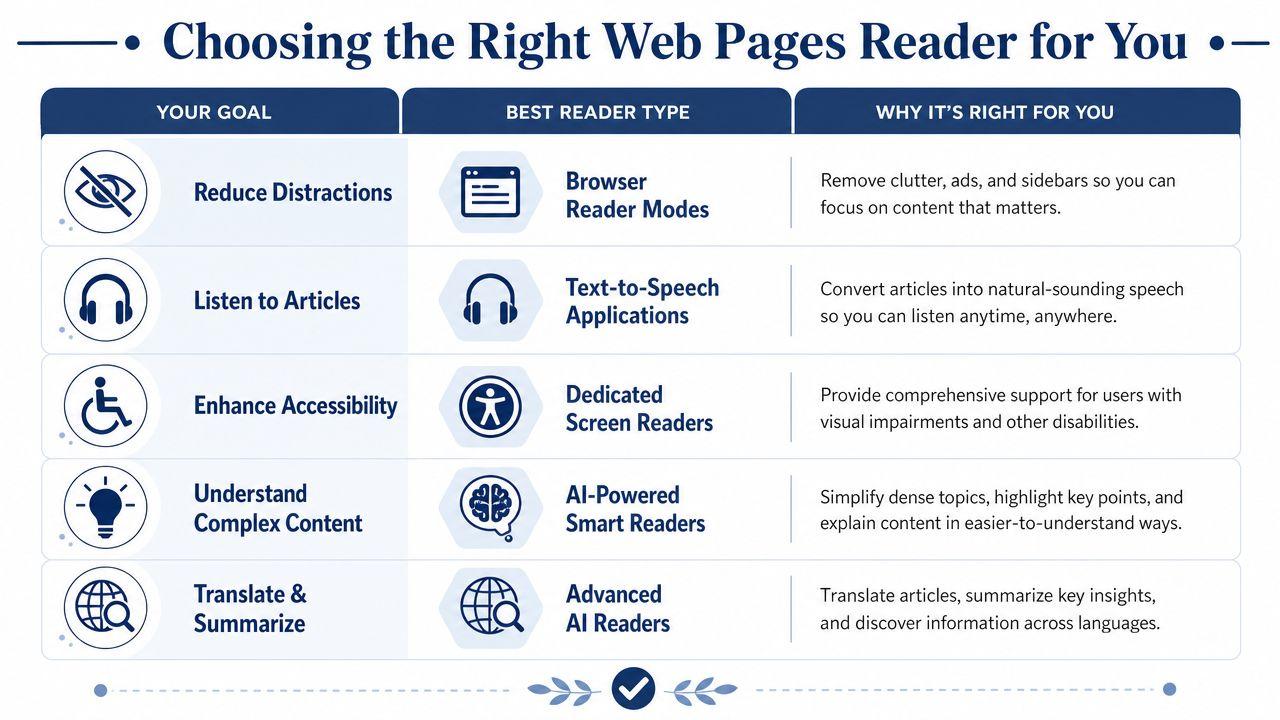
The right tool depends less on features and more on your actual reading problem. Don't start by asking which app is best. Start by asking what keeps going wrong when you read online.
If the page is too busy
Use a browser reader mode first. Safari Reading View, Chrome Reader Mode, and Edge Immersive Reader are good for long articles, blog posts, and news pages.
They're fast and built into the environment many people already use. For focus and visual calm, this is usually the easiest upgrade.
But there's a catch. The University of Washington coverage on screen-reader and keyboard browsing of modern web pages highlights a real issue in educational technology: simplified reading displays often strip interactive tables and embedded calculators that students may need for data-heavy homework.
So if a student is working with interactive content, reader mode may help with the article text while removing the very tool needed to complete the assignment.
If listening helps more than looking
Choose a basic text-to-speech reader. This fits people who absorb information better by hearing it, or who want to turn reading into a background task during chores, commuting, or document review.
If you want ideas for mobile use cases and how audio-first reading can fit a daily workflow, this guide on how to improve productivity with text reader apps is a practical companion resource.
If accessibility is non-negotiable
Use a dedicated screen reader, not just a browser feature. JAWS, NVDA, and VoiceOver are designed for full-page access and navigation.
That distinction matters. If someone needs to move through headings, controls, and forms with confidence, convenience readers won't fully replace purpose-built accessibility tools.
If the content is hard to understand
Use an AI-powered smart reader or assistant. This is the right choice when the issue isn't clutter but comprehension.
A few questions can help narrow the choice:
- Do you mostly need focus? Browser reader mode is often enough.
- Do you want to listen while doing something else? Text-to-speech is the better fit.
- Do you need full digital access? Pick a dedicated screen reader.
- Do you need explanation, summary, or follow-up answers? Choose an AI reader.
For families or teams comparing advanced tools, it also helps to look at practical cost and access options before committing. The 1chat pricing page is one example of how to evaluate whether an AI assistant fits home or team use without overcomplicating the decision.
Getting Started Your First Steps to Smarter Reading
Many users don't need a perfect tool stack. They need one better habit.
Start with the simplest upgrade today. Turn on the reader mode already built into your browser and test it on one long article. If that helps, try a text-to-speech tool next so you can listen instead of stare at the screen. If you regularly deal with dense material, add an AI assistant that can explain and summarize while respecting your privacy expectations.
A good starting sequence looks like this:
- Try browser reader mode on a news article or blog post you'd normally abandon halfway through.
- Test a read-aloud tool on a page you need to review while multitasking.
- Use a privacy-conscious AI assistant when you need to ask questions, simplify a section, or pull key takeaways from long content.
The bigger shift is mental. Stop treating every web page like it must be read in its original form. A web pages reader gives you options, and options make the web far easier to live with.
If you want a privacy-first AI assistant that can help with reading, summaries, PDFs, and follow-up questions for family, school, or team use, take a look at 1chat.