At 9 PM, a small-business operations lead may be staring at a long vendor contract while a board call waits in the morning. In another home, a student may be switching between several scanned history sources, trying to find one usable passage before an assignment deadline. Both problems look like reading problems, but they're usually retrieval problems. The person doesn't need to absorb every page. They need a dependable answer, the supporting passage, and a clear next action.
That's where AI chat with PDFs earns its place. It can locate obligations, compare language, restructure tables, and turn dense material into study questions. It can also misread scans, invent citations, expose confidential files, or give a polished answer that no one verifies. The right approach isn't to treat an AI PDF tool as an autonomous reader. Treat it as a controlled workflow with preparation, verification, precise prompts, and explicit privacy rules.
When AI Chat With a PDF Actually Beats Reading It
Maria manages operations at a distributor with a small staff. A 180-page vendor agreement sits open on her laptop, but the board call won't require a literary reading of the contract. She needs to know whether the renewal clause creates an obligation, which party can terminate, and where the relevant language appears. Asking targeted questions is faster than scanning every paragraph, provided the system can point her back to the source.
The same pattern works for a high-school student comparing three primary sources. The student might ask which document describes a particular policy, what evidence supports that interpretation, and how the sources disagree. A summary alone isn't enough. The useful answer identifies the passage, preserves the distinction between documents, and leaves the student with material they can evaluate.
The use cases that work
AI chat PDF tools outperform manual reading when the task has a clear target:
- Find a narrow fact: Ask for a renewal date, payment condition, eligibility rule, or definition buried in a long document.
- Translate dense tables: Request a plain-language explanation of columns, assumptions, and exceptions. Verify important figures against the original table.
- Compare clauses: Name the documents and sections you want compared instead of asking for a general comparison.
- Extract actions: Turn a meeting packet into owners, deadlines, dependencies, and unresolved questions.
- Build learning material: Convert a course reader into questions, flashcards, or an outline that cites the relevant pages.
A tool such as chat with PDF online can be useful for this kind of targeted interaction, especially when the alternative is manually searching through a document for one answer.
Where it's the wrong tool
Don't use AI chat as the final authority for a short document you must sign word for word. Don't rely on a generated answer for exact figure-by-figure verification, legal interpretation, or a decision where a missing exception changes the outcome. Creative writing also demands human judgment because voice, ambiguity, and context don't reduce neatly to extracted passages.
Practical rule: Use AI to narrow the search and organize evidence. Use a person to approve the decision.
The productive mindset is simple: AI chat with a PDF is a workflow, not a magic trick. You prepare the file, test whether the parser understood it, ask for evidence, and review the result before acting.
Preparing Your PDF So the AI Can Read It Well
The most common PDF-chat failure starts before upload. A PDF can look perfectly readable to a person while containing only page images, broken text layers, or a layout that confuses extraction. Better preparation usually improves the answer more than a clever prompt does.
Check the text layer first
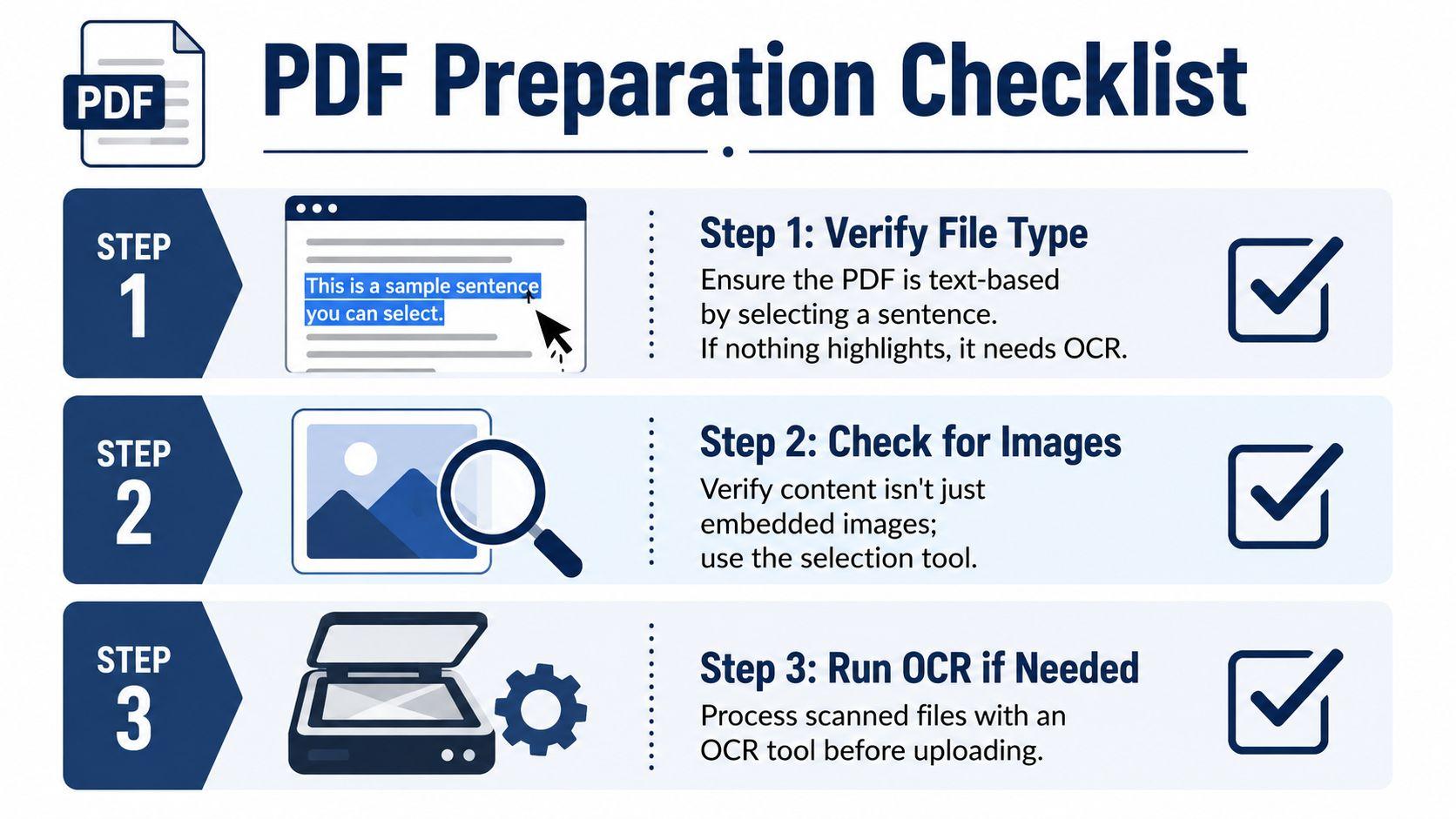
Open the document in a regular reader and try to select a sentence. If individual words highlight, the file probably contains searchable text. If the cursor selects the entire page like an image, run OCR before uploading.
For scans, use a tool such as Adobe Acrobat Pro, OCRmyPDF, or Microsoft Lens. OCR converts visible characters into a text layer that an AI system can index. Preserve the original scan, then create a searchable working copy so you can compare extracted text with the source when accuracy matters.
Clean the file without damaging its meaning
Native digital PDFs may contain unnecessary embedded assets, metadata, or duplicated resources. A compressor such as PDF24 or iLovePDF can reduce file complexity, but inspect the result afterward. Compression should never blur small print, remove pages, or destroy selectable text.
Tables need special attention. A table that continues across pages may be extracted as disconnected fragments, with headers separated from values. If the document has natural section breaks, splitting it can make questions easier to answer. Don't split in the middle of a definition, table, or clause.
Redact private identifiers locally before upload. Remove account numbers, student IDs, medical identifiers, signatures, and unnecessary addresses with a true redaction tool, not a black rectangle drawn over text. Keep a protected original outside the AI workspace.
Run this pre-flight check
- Text: Can you select and copy a sentence?
- OCR: If not, has the file been processed locally?
- Tables: Do multi-page tables retain their headers and context?
- Privacy: Have unnecessary identifiers been permanently redacted?
- Integrity: Does the prepared copy still contain every required page?
- Upload: Is the file within the selected service's limit?
A clean, searchable, minimally sensitive PDF gives the retrieval system a fair chance to produce a grounded answer.
Uploading, Parsing, and Asking Your First Question
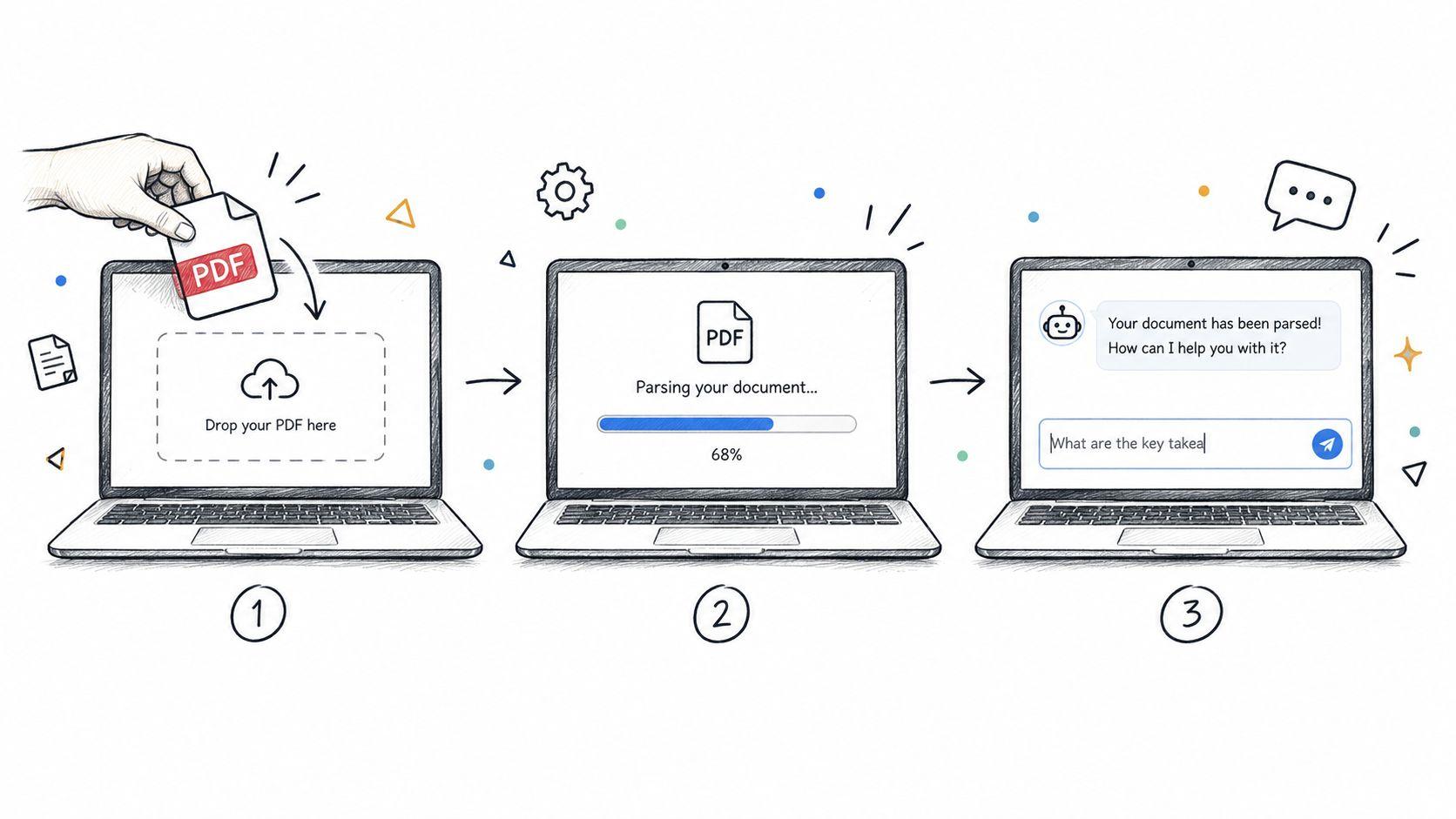
Uploading a file is only the visible part of the process. Internally, the system transfers the document, extracts or parses its content, divides that content into retrievable chunks, and uses those chunks to answer later questions. The exact implementation varies, but the operational sequence is similar.
Start with a privacy-reviewed workspace such as 1chat, then drag the prepared PDF into the upload area or select it from your device. Before asking for analysis, inspect the tool's document summary. Confirm that the page count looks right and that a recognizable sentence from page 3 appears in the parsed content.
Verify the parser before trusting the answer
Use a known passage as a test. Ask:
Quote the first complete sentence under the heading “Payment Terms” and give its page number. If you can't find the exact sentence, say that you can't verify it.
This test has a practical purpose. If the quote is wrong, the page number is missing, or the tool confidently cites a passage that doesn't exist, stop. Re-export the PDF, run OCR, or inspect whether the content is being read as an image.
Understand the processing chain
The upload transfers the file to the service. Parsing extracts text, headings, tables, and other available structure. The system then breaks the content into chunks and creates an index that helps retrieve relevant sections when you ask a question. Generation writes the response from the retrieved material, but the model can still misunderstand context or fill gaps if you don't require evidence.
Ask the first substantive question with four parts:
- Role: “Act as a contract-review assistant.”
- Task: “Compare the termination and renewal obligations.”
- Source: “Use only the uploaded vendor agreement.”
- Format: “Return a table with the clause heading, page number, quoted language, and practical implication.”
A strong first query might be:
Act as a contract-review assistant. Compare the termination clause with the renewal clause in the uploaded agreement. Quote the relevant language, provide page numbers, identify which party has each obligation, and write “not found” if the document doesn't support a conclusion.
That structure makes the answer easier to audit. It also gives you a clear failure signal instead of a smooth paragraph that hides uncertainty.
Prompting Patterns That Get Cited, Trustworthy Answers
Vague prompts invite vague outputs. “Summarize this PDF” gives the system too much freedom over what matters, what gets omitted, and whether evidence appears. A production-ready prompt limits the task and tells the model how to expose its work.
The strongest pattern combines role, task, source, and format. The role sets the operating perspective, the task defines the decision or extraction job, the source limits the evidence, and the format makes omissions visible.
Force evidence into the answer
Ask for page numbers, section names, direct quotations, or table-row references. A citation requirement doesn't guarantee accuracy, but it makes unsupported answers easier to detect. If the system can't quote the passage, it should say so rather than synthesizing.
Use this contract template:
Act as a document-review assistant. Using only the uploaded contract, extract every obligation assigned to [party]. For each obligation, list the action, trigger, deadline, exception, section heading, page number, and a short direct quote. Separate explicit obligations from interpretations. If a detail isn't stated, write “not stated.” Do not infer dates or responsibilities.
For research material, use a different output shape:
Create a study guide from the uploaded research PDF. Organize it by section heading. For each section, provide the central claim, supporting evidence, important terms, one potential exam question, and the page number for each factual point. Quote short passages where wording matters. Mark any unclear or missing information instead of guessing.
Anchor the question to the document's structure
“Find the cancellation rule” is weaker than “Under the heading ‘Cancellation,’ identify the notice period and exceptions.” Section headings, exhibit names, table labels, and document titles give retrieval a map. When working with multiple files, name the source in every question and request a separate answer for each document before asking for a comparison.
Prefer verbs that produce inspectable outputs:
- Cite the page or section.
- Quote the supporting passage.
- List each obligation or condition.
- Compare named clauses or documents.
- Extract dates, owners, and exceptions.
- Flag ambiguity or missing evidence.
Avoid relying on broad verbs such as “explain” or “summarize this long PDF” unless you've already defined the scope. A weak prompt may return a polished overview. A structured prompt can return a page-cited list that another person can review.
Ask the model to prove the answer, not merely to phrase it confidently.
Add a refusal guardrail to important prompts: “Use only the uploaded document. Don't guess. If the evidence is incomplete, identify what's missing.” This is especially important for contracts, medical paperwork, school policies, and financial documents.
Workflows for Teams, Families, and Students
The best AI PDF workflows end with an artifact someone can use. A team needs a task list or draft email. A family needs deadlines and a shared checklist. A student needs study material tied to source pages. In each case, keep the model setting conservative, turn citations on when available, and make human review part of the output process.
Small-business operations
Start with vendor invoices, NDAs, and client briefs. Upload one document at a time when the files have similar labels or overlapping terms, then extract payment terms, renewal language, deliverables, and open questions. Follow with a drafting prompt that uses only the extracted facts:
List payment terms, renewal triggers, notice requirements, deliverables, and unresolved risks. Cite each item. Then draft a concise follow-up email containing only confirmed facts and questions that require the vendor's response.
The expected output is a review table plus an email draft. The time saved comes from reducing manual searching and first-pass formatting, not from eliminating approval. Watch for invoices where the amount, date, and line-item description sit in separate table regions.
If the final output is visual, a tool such as PDF to carousel converter can turn approved PDF material into a presentation-style sequence. Review every slide against the source before sharing it externally.
Family and household paperwork
Use school forms, medical paperwork, and lease renewals as separate workspaces. Ask the system to extract deadlines, required signatures, fees, contact details, and missing fields. For technical language, request a plain-language explanation beside the original wording, not instead of it.
Extract every deadline and required action from these documents. Group the results by document, identify the responsible person, quote the supporting passage, and mark anything that needs confirmation from the school, provider, or landlord.
The output should become a shared checklist. A realistic failure point is a form whose instructions appear in a footer, image, or handwritten annotation. Check those areas manually. Families should also review sharing permissions before uploading anything containing health, identity, or school records. Pricing and account limits can be checked on the 1chat pricing page before assigning a workflow to several household or team users.
Student research and revision
A student can upload a course reader, then request questions, flashcards, and a one-page revision sheet in separate prompts. Keep citations on and ask for page references so the student can return to the original argument rather than memorizing an unverified paraphrase.
The output is useful when it distinguishes the author's claim, evidence, terminology, and unresolved question. Watch for a parser that treats footnotes, captions, or two-column layouts as continuous prose. A student should compare generated notes with the source before using them in an essay.
| Workflow | Typical Inputs | Sample Prompt | Expected Output | Time Saved |
| Operations team | Invoices, NDAs, client briefs | “Extract terms, dates, obligations, and exceptions with citations.” | Review table and follow-up draft | Less manual searching and formatting |
| Family household | School, medical, and lease documents | “List deadlines, responsible people, and missing information.” | Shared action checklist | Faster first-pass organization |
| Student | Course readers and research PDFs | “Create cited questions, flashcards, and section notes.” | Source-linked study pack | Faster revision preparation |
Privacy, Retention, and What Happens After Upload
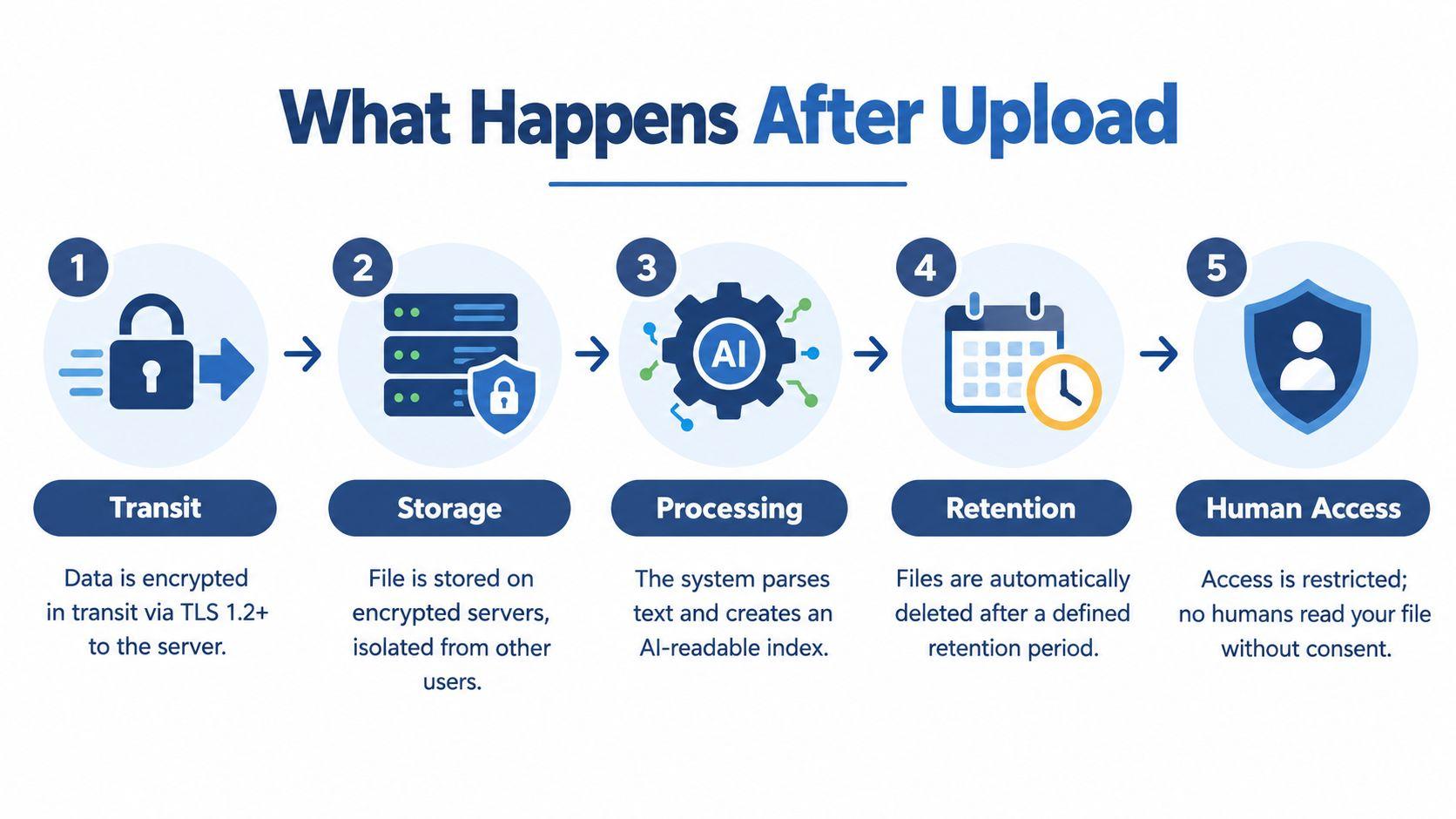
Treating upload as a black box is a mistake. The moment a PDF leaves your device, you need answers about transmission, storage, processing, retention, access, deletion, and model training. A tool can produce excellent answers and still be unsuitable for a family medical document or a confidential client agreement.
During transit, the service should protect the file with encryption. After arrival, the provider may store the original, extracted text, indexes, conversation history, logs, or temporary processing artifacts. Those components can have different retention periods. A deletion button may remove the visible file while leaving backups or logs for a period defined in the vendor's policy.
Ask the vendor direct questions
Before uploading sensitive material, ask:
- Storage location: In which region are files and derived indexes stored?
- Training use: Is document content used to train or improve models, and can an administrator opt out?
- Human review: Can employees or contractors access content for safety, support, or quality review?
- Retention: What gets deleted, when does deletion happen, and are backups covered?
- Access control: Can administrators restrict file sharing and revoke access?
- Legal terms: Is a data processing agreement available for business use?
Official privacy guidance advises users to read policies, avoid sharing personal or confidential files unnecessarily, and delete outdated chats. Security guidance also emphasizes controls such as encryption, deletion mechanisms, opt-in training, and strong access restrictions. Those aren't abstract compliance details. They determine who may still access a PDF after the person who uploaded it has moved on.
A privacy-first option such as 1chat describes document processing without using uploaded documents for model training, but you should still review its current policy and configure account access deliberately. The relevant details are available in 1chat's privacy policy.
Decision rule: Public or low-sensitivity material can use a general-purpose tool. Confidential business, family, medical, school, or legal files require clear retention, training, deletion, and access answers before upload.
If a vendor can't explain what happens after upload in plain language, don't upload the document. Redact first, use a local workflow, or choose a provider with controls your team can verify.
Troubleshooting the Five Most Common PDF Chat Problems
Most failures have a recognizable cause. Don't respond to a bad answer by writing a longer prompt immediately. Diagnose the document, the retrieval scope, and the evidence first.
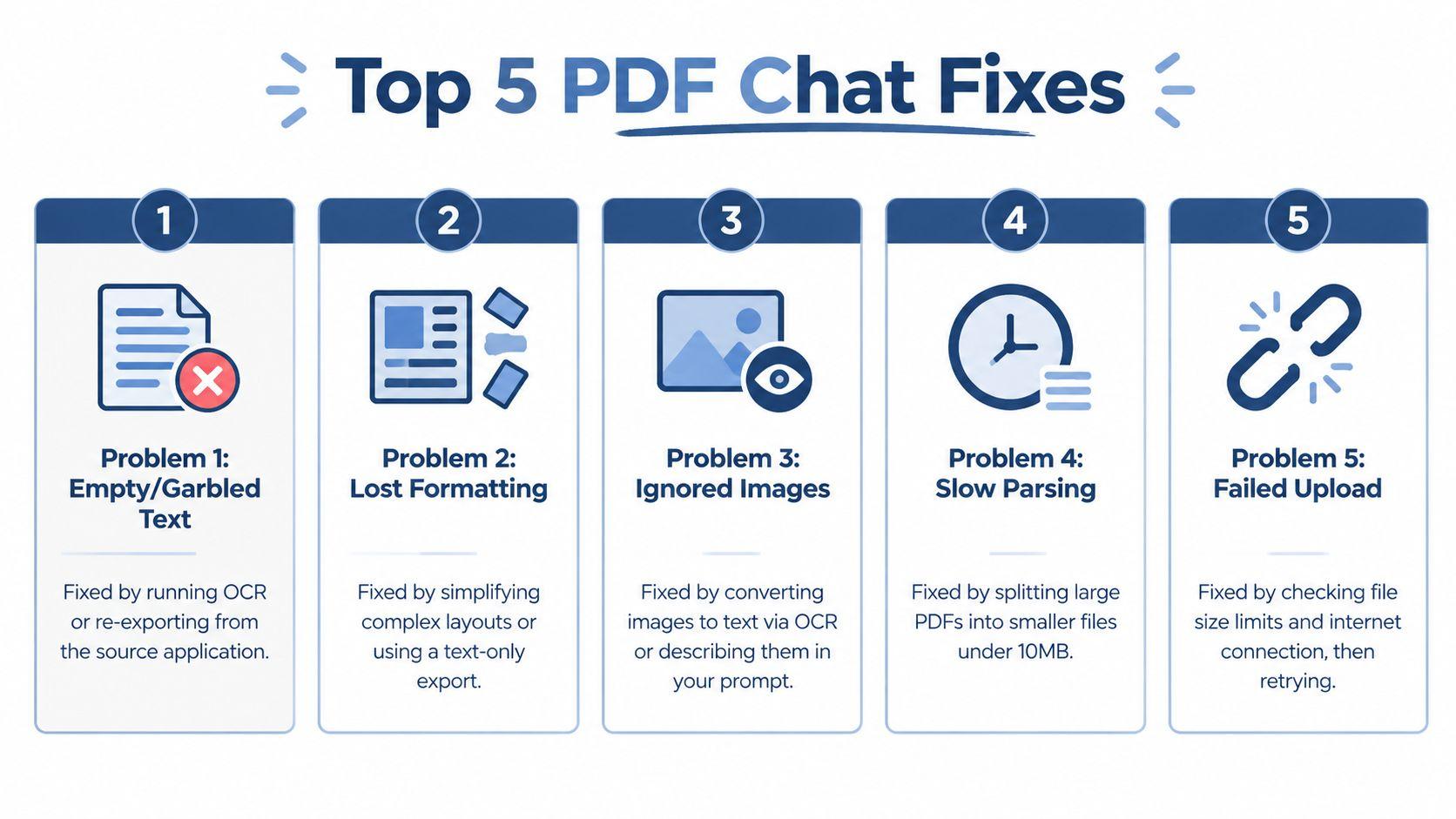
- Empty or garbled text: The file is probably a scan or has a damaged text layer. Run OCR locally or re-export it from the source application, then repeat the known-sentence test. The expected result is selectable text and a quote that matches the page.
- Lost formatting: Complex columns, sidebars, and decorative layouts can arrive in the wrong order. Simplify the PDF, export a text-focused copy, or ask the system to process one section at a time. Check headings and lists before trusting a comparison.
- Ignored images: Charts, signatures, diagrams, and screenshots may not be represented in the extracted text. Convert relevant images through OCR or describe the visual content in the prompt. For a chart, ask for a specific row or label rather than a general interpretation.
- Blended multi-file answers: The system may combine similar language from separate documents. Ask one document at a time, name each file explicitly, and request a source column in the output. Compare the separate results only after checking them.
- Hallucinated citations or unfinished answers: Enable citation mode and ask for direct quotes. If the page reference looks suspiciously neat, verify it in the PDF. For long files that stop mid-document, split the upload at a natural boundary or use targeted retrieval queries instead of requesting a full-document response.
For product-specific limits and common account questions, consult the 1chat FAQ, then test the workflow with a non-sensitive file before introducing real records.
The goal isn't to force the AI to answer every question. It's to make failure visible quickly, correct the input or scope, and keep a person responsible for the final decision.
Choose one low-risk PDF today, prepare a searchable copy, and run the sentence-verification test before asking for analysis. If the workflow produces accurate, cited answers and the vendor can clearly explain retention and training controls, document the prompt as a team or family template. If it can't, keep the file out of the system and fix the privacy or parsing problem first.