Your inbox is full of PDFs again. Vendor invoices are sitting next to scanned receipts, a signed contract is buried in a folder, and someone on your team is still retyping names, totals, and dates into a spreadsheet because the source files aren't neat enough to trust. That kind of work doesn't look dramatic from the outside, but it eats hours, introduces avoidable errors, and turns every month-end close into a scavenger hunt.
AI for document processing is software that reads messy files, pulls out the information that matters, and sends it where it needs to go. Think of it as a digital assistant that can handle stacked paperwork without getting tired, distracted, or annoyed by a crooked scan. Older OCR tools mostly turned an image into text, while newer systems can recognize layout, understand context, and help route the result into the next step of a workflow.
That shift matters because the job isn't just reading. It's reading, understanding, and acting. A supplier invoice can become a structured row in a spreadsheet. A lease can become searchable text plus a renewal reminder. A medical bill can turn into a clean record without anyone manually copying the same details three times. For a practical comparison of how this changes operations, the guide on improve order processing with IDP is a useful companion.
What AI for Document Processing Actually Does
A small accounting team feels the value of document AI during an ordinary Monday morning. Vendor invoices, scanned receipts, contracts, and handwritten client forms arrive together. Someone must decide what belongs in QuickBooks, what needs approval, and what requires follow-up. Retyping totals, finding PO numbers, and copying addresses from PDFs into a CRM turns routine administration into repeated checking.
From paper chaos to structured data
Document AI reads a file, identifies useful information, and converts it into data that another system can use. A lease can become searchable text. A receipt can become an expense record. A signed client form can create a reminder when its date needs attention.
OCR handles one part of this process by converting pixels into text. That helps when a person only needs to search or copy the words. It does not necessarily identify the document type, connect a label with its value, or recognize that a number is an invoice total rather than an address.
Modern document AI goes further by understanding structure and intent. It can distinguish an invoice from a contract, locate the fields that matter, and prepare the result for the next action. The guide on improve order processing with IDP offers a practical comparison of how this approach can change routine operations.
Practical rule: use OCR when the goal is readable text. Use document AI when the file must support a decision, update a system, or trigger follow-up.
Three jobs it performs
Document AI handles messy inputs such as crooked scans, faint pages, and forms with changing layouts. It then identifies what the content means, so a date is treated as a date, a supplier name as a supplier name, and a total as a total. Finally, it routes the result onward to a spreadsheet, accounting system, CRM, or human review queue.
A useful analogy is a mailroom clerk who sorts incoming envelopes, reads the important details, and places each item in the right tray. The clerk still needs clear rules and a way to flag uncertainty. Document AI works in much the same way. It can handle routine documents automatically while sending unclear fields to a person for checking.
That balance suits small teams and families that cannot justify a large IT project. A privacy-first tool such as 1chat can offer a more affordable path for working with documents, provided its settings and data-handling terms match the sensitivity of the files. The practical question is not whether AI can read every document perfectly. It is whether it can reduce repeat work while keeping people in control of exceptions.
The Core Technologies Working Together
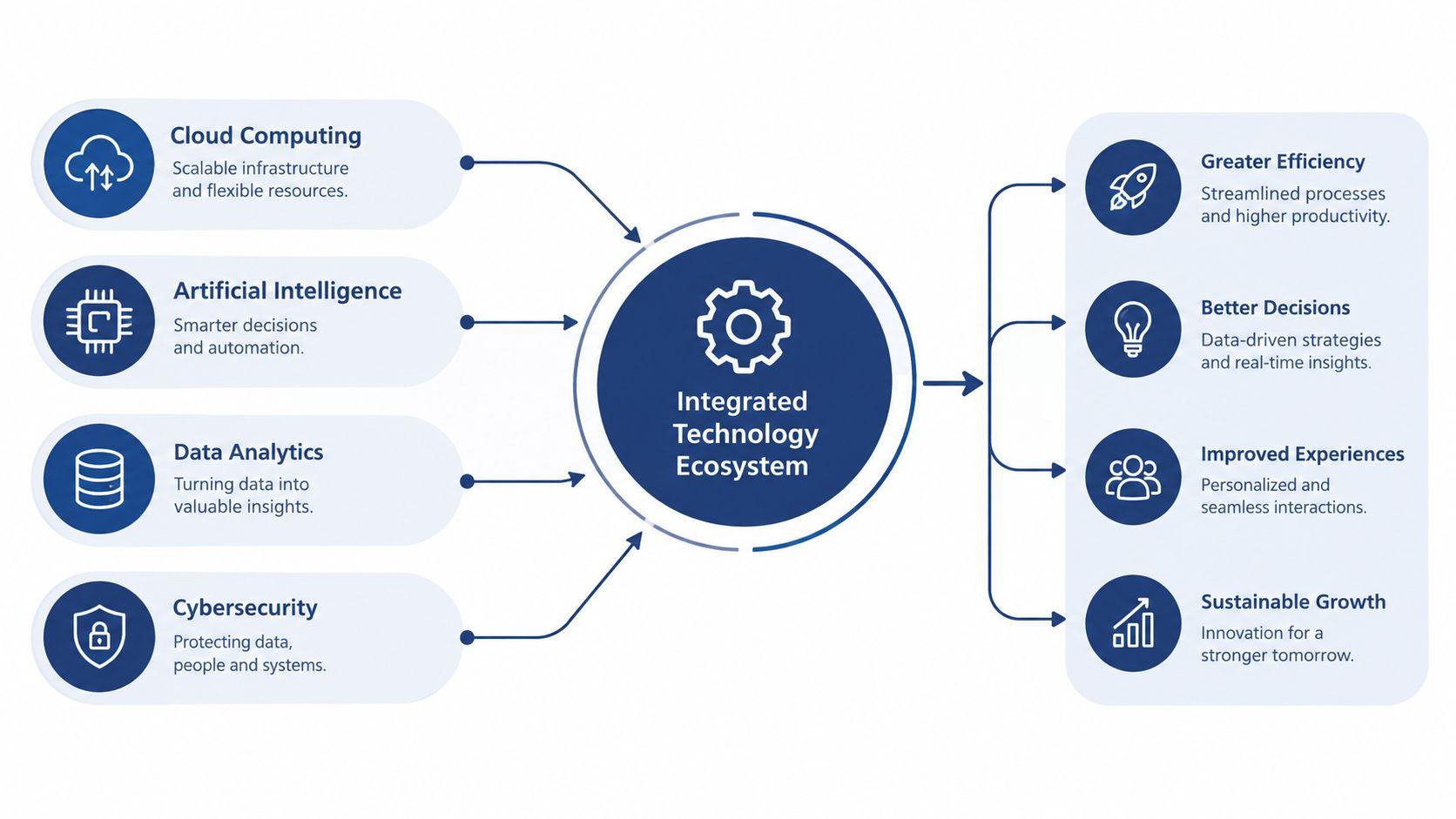
Document processing works like a bakery assembly line. One station prepares the ingredients, another bakes, and another checks and packages the loaf. Each stage has a defined job, and the order matters. A poor scan at the start can create extra work for every later stage.
The pipeline starts before OCR
The first stage is preprocessing. Software can straighten tilted scans, remove background noise, improve contrast, and standardize page images. These steps matter because real documents are less tidy than test samples. A phone photo may contain shadows, a scanned form may use a changed layout, and compression may blur small characters. Strong pipelines account for those conditions before attempting to read the page.
Next, OCR converts pixels into text. Modern engines can handle rotated pages, multiple writing systems, and some handwriting, although results still depend on image quality and document design. For a plain-language explanation of this layer and its business role, see what OCR means for businesses.
OCR alone does not explain how information is arranged. Layout analysis identifies headers, tables, checkboxes, signatures, and other visual relationships. For example, it helps distinguish an invoice total from a nearby line-item amount. Without this layer, the system may read every word correctly while losing the meaning created by its position on the page.
NLP, rules, and LLMs do different jobs
After text and layout are available, NLP and extraction assign meaning to the content. They can identify a supplier, date, total, address, or line item and place each value in a defined field. Rule-based checks then test predictable requirements, such as whether a tax ID follows the expected format or whether an invoice total matches its line items.
An LLM layer handles broader language tasks. It can summarize a multi-page contract, answer questions about its contents, or draft a reply using the extracted information. Its output still depends on the earlier stages. If a scan misreads a number or assigns a value to the wrong field, a fluent summary can repeat the mistake.
Validation provides the final control. Confidence scores send uncertain fields to review, while people handle exceptions before incorrect data reaches an accounting system, CRM, or spreadsheet. A document may be readable yet still fail if the extracted information cannot support the next action.
Small teams can adopt this staged approach without building an enterprise platform. A privacy-first, affordable option such as 1chat may suit families and small businesses, subject to checking its settings and data-handling terms against the sensitivity of their files.
Skip preprocessing, and later stages work harder. Skip validation, and the result becomes harder to trust.
Common Workflows Where Document AI Shines
The clearest wins show up in workflows where someone is already doing the same copy-and-check work all day. Accounts payable is the classic example. A clerk can spend time keying invoice numbers, matching purchase orders, and chasing approvals, while document AI can capture the fields, compare them, and route the invoice to the right queue.
HR sees the same pattern. Onboarding packets often arrive as a bundle of forms, IDs, and emergency contacts, and someone has to enter the same details into an HR system by hand. Legal teams feel it in contract review, where clause hunting and renewal tracking are slow if every agreement starts as an unstructured PDF. Sales and operations teams see it when lead forms and intake documents sit in email instead of entering the CRM cleanly.
| Workflow | Manual Step Being Replaced | Time Saved per Item |
| Accounts payable | Typing invoice fields and matching PO numbers | Reduces repetitive entry by automating capture and routing |
| HR onboarding | Re-entering IDs, tax forms, and contacts into HR systems | Cuts duplicate data entry and follow-up checks |
| Contract review | Searching clauses and filing renewal dates manually | Shortens review and makes obligations easier to track |
| Sales intake | Copying lead details from PDFs into the CRM | Speeds up contact creation and note transfer |
| Logistics paperwork | Re-keying bill-of-lading details and matching shipment records | Streamlines three-way matching and exception handling |
The pattern behind the gains
The important thing isn't the department name, it's the document shape. If a process repeats, uses forms, and creates the same fields over and over, document AI has a shot at helping. If the documents are highly varied or full of judgment calls, the tool may still help, but human review stays in the loop.
That's especially true for multi-step processes. A file can be read perfectly and still fail if the extracted data doesn't connect cleanly to approval, accounting, or customer systems. The strongest use cases are the ones where capture and routing happen together, not as two separate projects.
Real Use Cases for Small Teams and Families
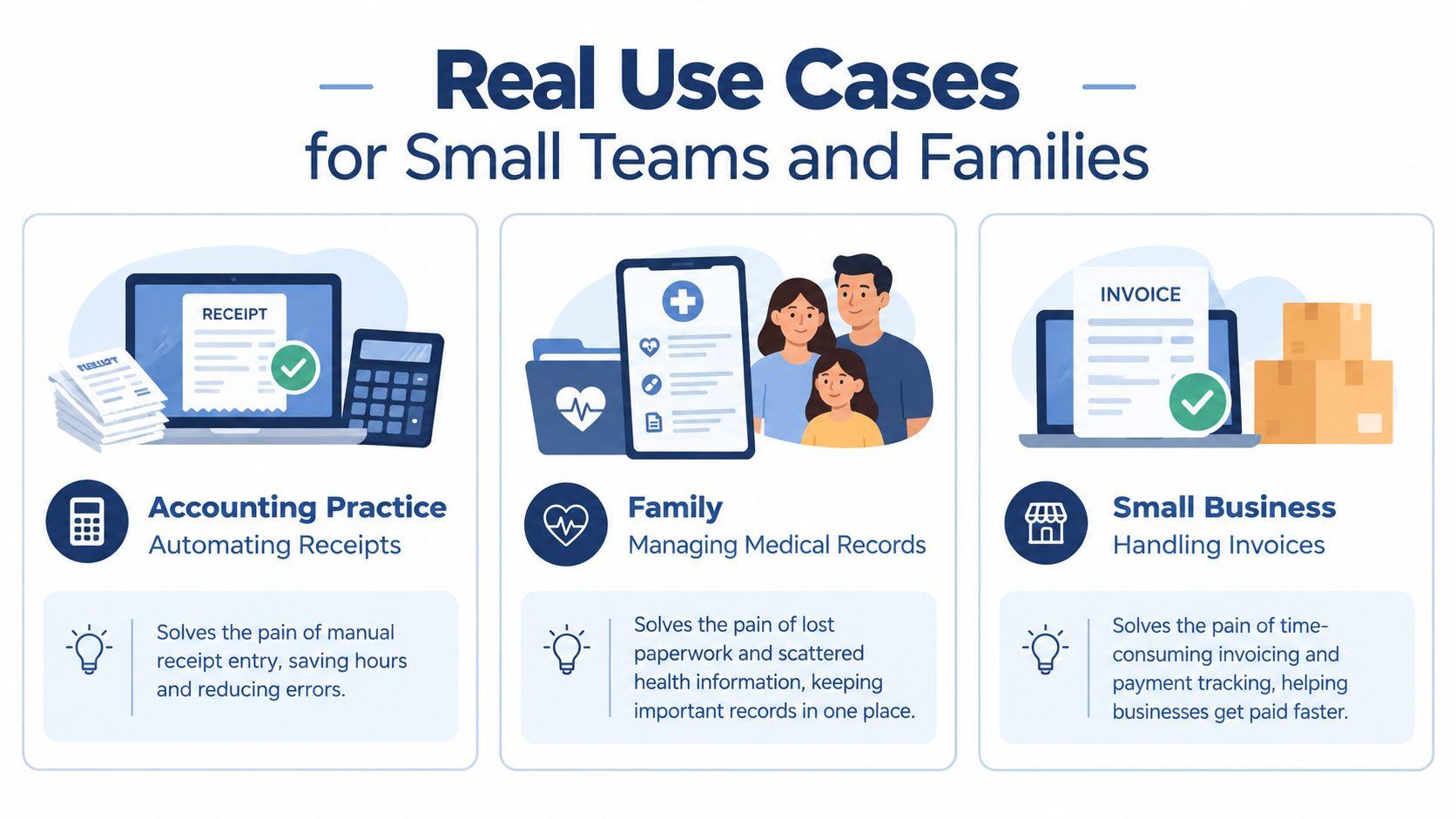
A two-person accounting practice doesn't need a giant platform to feel the value. One common setup is simple, scanned receipts and bank statements go into a document AI workflow, the data comes back structured, and month-end close stops dragging across several days. The original PDFs stay in place as the audit trail, which matters as much as the time saved.
Small teams use it to remove clerical drag
A five-person logistics startup usually doesn't have spare admin capacity. When bill-of-lading data has to be entered across three carriers, the work is slow and prone to small errors that become bigger exceptions later. Document AI can pull out shipment details, standardize them, and reduce the number of records that need manual correction.
Families use the same idea in a different way. School forms, medical bills, and warranty paperwork can be extracted into a private notebook so tax season, reimbursements, or warranty claims don't start with a folder search. The value there isn't enterprise scale, it's just not having to rebuild the same paper trail every time life gets busy.
Human review still matters
Some documents should never be treated like a fully automated decision. Legal signatures still deserve a person's eyes, and medical diagnoses should stay in the hands of qualified professionals. Document AI is a helper for organizing information, not a substitute for judgment in sensitive areas.
For small businesses and households, the win is often quieter than the marketing claims. People stop losing time to filing, copying, and re-checking. That leaves more room for actual work, and for families, it means less stress when paperwork shows up at the worst possible moment.
A Practical Implementation Path for Small Teams
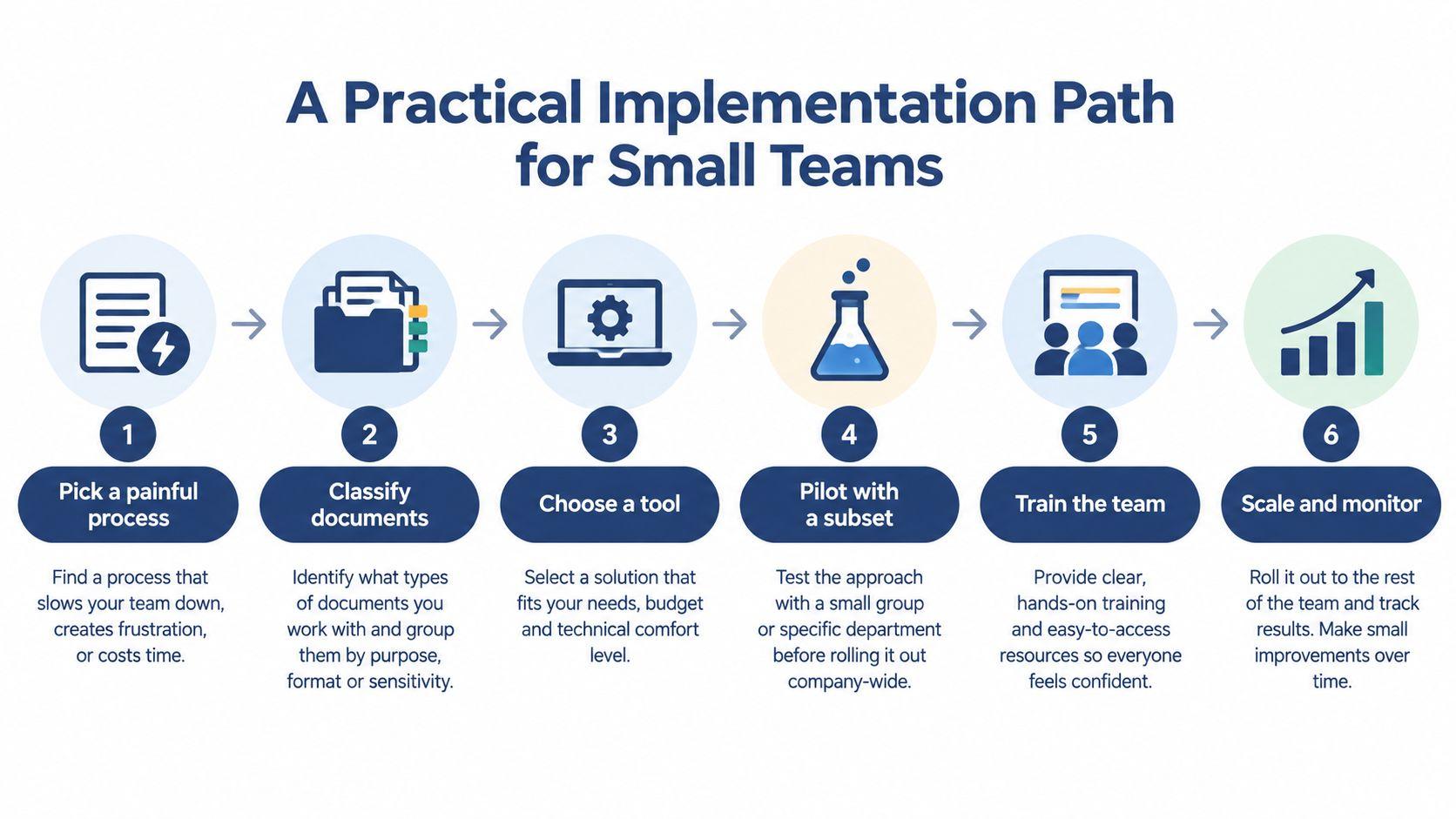
A small team doesn't need consultants to get started. It needs one painful process, a realistic pilot, and a clear stop-or-go decision at each step. The worst mistake is trying to automate everything at once, especially when sensitive documents are involved.
Start small and measure the baseline
- Pick one process. Choose the paper-heavy task that causes the most weekly pain, then time how long it takes today. If you can't describe the current baseline, you won't know whether the tool helped.
- Classify the documents. Separate by type, volume, and sensitivity. A clean invoice set is very different from a pile of handwritten forms or customer contracts.
- Choose an integration path. Some teams want embedded components, some want cloud APIs, and some want privacy-first assistants like 1chat pricing that fit smaller budgets and simpler setups.
Pilot before you commit
- Run a short pilot. Use real samples, not polished examples. Measure accuracy, turnaround time, and how many documents still need exception handling.
- Add human review. Low-confidence items should go to a person, especially when the result affects money, compliance, or customer records.
- Expand only after checkpoints are met. If the pilot shows stable output and the workflow reduces labor, then scale to the next document set. If not, fix the pipeline first.
The key question is simple. Can the tool turn your documents into reliable action, or does it only produce a prettier PDF to look at later? That question saves small teams from buying software that looks impressive in a demo and breaks on the first messy file.
Privacy and Compliance Considerations
Document AI isn't automatically unsafe. The core question is where the data goes, who can access it, and how much control you keep over retention. That matters because common documents often contain IDs, financial statements, contracts, and medical records, all of which can create real exposure if handled casually.
Cloud, private, and local choices are not the same
Some tools send files to cloud APIs for processing. Others work in isolated environments, and privacy-first options such as 1chat can fit teams that want document handling in a more controlled setup. The right choice depends on the sensitivity of the document, your internal policies, and any residency or sector rules you need to follow.
| Privacy Risk Comparison Common Document AI Deployment Options | Data Location | Vendor Access | Best Fit |
| Cloud API | Vendor-managed cloud environment | Often visible to the service provider during processing | Lower-sensitivity documents and fast integration |
| Private assistant | Isolated or restricted environment | Limited access, depending on setup | Teams that want tighter control over files |
| On-device or local | Your own device or network | Minimal external exposure | Very sensitive records and smaller document sets |
If you're comparing privacy statements, read the details carefully. The 1chat privacy policy is one place to check how a privacy-first tool frames data handling, retention, and deletion.
What to ask before you upload anything sensitive
Teams should ask about encryption at rest and in transit, audit logs, retention controls, and clear deletion promises. They should also check whether the vendor trains on customer data, where files are stored, and whether they can support GDPR, HIPAA, or regional data residency rules that apply to the business.
Myth check: if a vendor can't explain where your files live, how long they stay there, and how you can delete them, don't treat the service as privacy-ready.
Privacy doesn't mean avoiding document AI. It means choosing a deployment path that matches the risk level of the documents you handle.
How to Evaluate Document AI Tools
A good buying decision starts with a scorecard, not a feature list. Demos usually show clean samples, which makes every product look smarter than it is. Real evaluation happens on the ugliest files in your stack, the ones with odd layouts, weak scans, and edge cases your team already knows too well.
Ask the vendor the hard questions
- Document type coverage. Can it handle invoices, contracts, receipts, and handwriting, or only neat forms? Red flag: the demo works only on one document style.
- Accuracy expectations. What does success look like on messy, real files? Red flag: the vendor avoids showing error handling.
- Integration paths. Does it connect cleanly to your storage, accounting, or CRM systems? Red flag: every connection seems to require custom engineering.
- Pricing transparency. What happens after the trial ends? Red flag: fees get vague once volume increases.
- Data residency and retention. Where is data stored, and how long is it kept? Red flag: privacy answers stay generic.
- Human-in-the-loop review. Can you route uncertain items to a person? Red flag: no workflow for exceptions.
- Vendor lock-in. Can you export your data and schema if you leave? Red flag: your setup depends on proprietary formats.
- Support responsiveness. Who helps when documents fail in production? Red flag: support is only community-based.
For teams that care about residency, retention, and lock-in, privacy-first options like 1chat FAQ can be worth comparing because the workflow is built around secure handling and document-level use rather than broad data reuse.
Pilot with the worst files first
A pilot should include the messiest documents you typically use, not the best ones you can find. If a tool survives that test, it has a real chance of helping. If it doesn't, the failure saved you from scaling the wrong choice.
Document AI works best when the tool matches the document reality, not the slide deck.
Best Practices and Your First 30 Days
Start by listing the document pain points that waste the most time each week. Then rank them by volume, sensitivity, and how often the same work gets repeated. That gives you a simple way to avoid chasing the flashiest workflow first.
In week two, run a pilot on two or three representative documents with a privacy-first tool like 1chat, then compare the results to the manual baseline. Track both speed and accuracy, because a faster bad process is still a bad process. In week three, write a short human review checklist so the team knows which fields need sign-off and which can flow automatically.
Week four is for cleanup. Standardize file names, folder structure, and retention rules, then expand to the next workflow only if the pilot held up under real use. Keep three habits in place throughout, don't upload sensitive originals until you've checked the privacy posture, keep a human involved on judgment calls, and revisit accuracy quarterly because document formats change.
Document AI compounds when you treat it as an operating practice, not a one-time install. The teams that benefit most aren't the ones with the biggest stack, they're the ones that start with one real bottleneck, prove the workflow, and keep tightening the loop between extraction, review, and action.
If your team is still copying data from PDFs by hand, pick one workflow this week and run a small pilot with real documents. Use the privacy checks first, keep a person in the loop, and compare the result against your current process so you can see whether document AI is saving time in your business.