You're finishing a bake-sale flyer, a welcome slide for a new hire, or a birthday card, and the photo you need doesn't exist. An AI image generator people workflow can invent a face in a minute. That speed is also the trap. The first result may have odd hands, look like a real neighbor, or repeat the same kind of person every time you ask for "a professional."
Treat the portrait like a small production job. Write a brief, generate a few candidates, then run consent, likeness, and bias as pass or fail gates. An image that fails any gate stays off the website, the slide, and the family group chat. Parents, teachers, and small business owners can share one sequence. The subject changes. The gates don't.
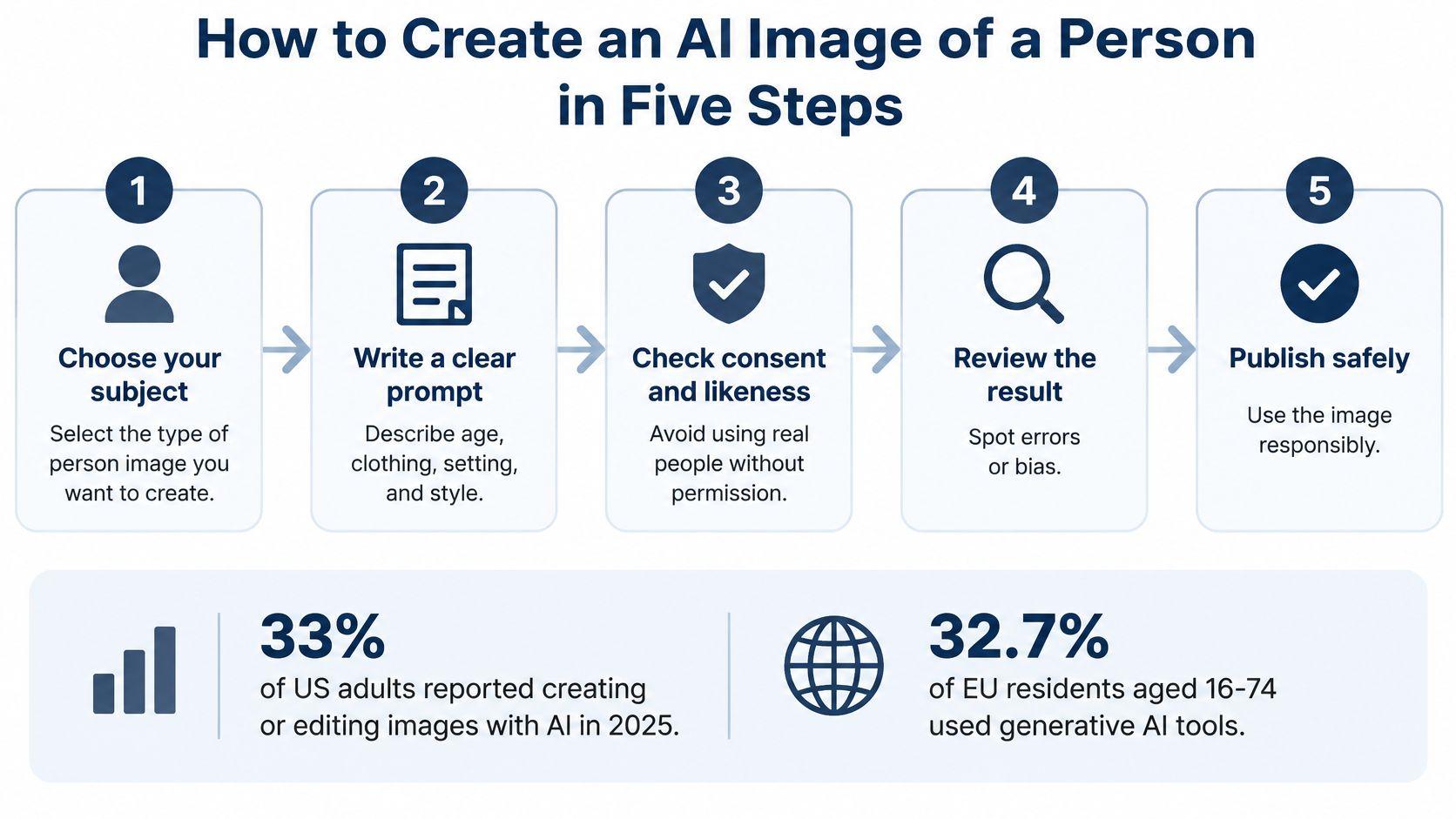
How to Create an AI Image of a Person in Five Steps
In 2025, 33% of adults surveyed by AP-NORC reported creating or editing images with AI, and Eurostat counted 32.7% of people aged 16 to 74 in the European Union using generative AI tools. The habit is already ordinary. Doing it well is the part many overlook.
Work the brief before the pixels
- Decide the purpose and who appears. A staff headshot, a classroom scene, and a family card need different subjects and different rules. A bakery owner might want a fictional cashier for a menu mockup, not the teenager who works Saturdays. The slip is typing "make me a person" before you know where the picture will live.
- Pick a tool that draws people in the style you need. Open the image mode and check whether faces are allowed, and whether you can choose photo or illustration. Some products restrict realistic faces or only offer cartoons. The slip is writing a careful prompt in a tool that will refuse the subject or force a look you can't use on a flyer.
- Name the person in concrete terms. Include subject, age range, clothing, action, setting, light, and style. "A librarian" collapses into a young adult in a blazer against gray. "A 55-year-old librarian shelving novels under warm overhead light, candid photo" gives the model less room to invent a stock default. The slip is stopping at a job title.
- Set the frame, then make four candidates. A square suits a profile picture. A wide frame suits a slide. The first picture is rarely the one you keep, so compare four before you edit anything. The slip is spending twenty minutes fixing a weak first face instead of looking at the other three.
- Change one variable, then save the winner. If the hands look wrong, adjust only the hand instruction. Paste the prompt that worked into a note with the date and the use, so next month's poster doesn't start from zero. The slip is stacking five edits and forgetting which one fixed the face.
Checkpoint: Keep the image only when it matches the brief, faces and hands look right, and you can say in one sentence why it is appropriate to publish.
Prompt Templates for Portraits, Teams and Classroom Images
"A businessman" usually returns a generic stock figure: dark suit, crossed arms, blank office. "A 40-year-old accountant reviewing a spreadsheet in a bright office, soft window light, candid photo style" describes one person doing one thing. That gap is the whole craft.
Use one formula every time: subject, action, setting, lighting, style, then constraints. Age range, wardrobe, action, and camera framing do more work than adjectives like "beautiful" or "professional." In a group scene, name the number of people. "A team" often grows an extra face or merges two bodies. "Three coworkers" gives you a count you can check.
| Use case | Prompt template | Detail that changes results |
| Small business headshot | Professional headshot of a 40-year-old accountant in a bright office, soft natural light, plain background, direct eye contact | Specify age range and wardrobe, not just the job title |
| Team or staff illustration | Flat vector illustration of three coworkers reviewing a bar chart together, friendly tone, each wearing different work clothes | Name the number of people and what each one is doing |
| Student history or science poster | Painted illustration of students in a 1920s science classroom, wool coats, wooden benches, chalk diagrams on the wall | Give the period and setting so the model does not default to modern clothing |
| Family-friendly illustration | Cartoon-style family of four hiking at sunrise, bright colors, no text in the image | Keep the style and setting neutral and avoid real family faces |
| Product model shot | Full-body photo of a woman in a blue raincoat walking down a city street at dusk, shallow depth of field | Name the lens look, lighting and pose |
Each row is a starting point, not a finished brief. The third column is the edit most likely to rescue a weak result. If the history poster shows sneakers and hoodies, you didn't fail at "realism." You left the century unnamed.
Keep a shared prompt library
Save prompts that pass review in a shared doc or folder your family, class, or shop can reopen. Label each one with the use, the aspect ratio, and one note on what you changed. A teacher reusing the 1920s classroom line, or a shop reusing the accountant headshot, wastes less time than rewriting from memory. When a prompt keeps failing the same way, retire it. Don't keep "improving" a line that always invents a fourth person.
Settings That Change How a Person Looks
The prompt describes the person. The settings decide the crop, how many tries you get, and whether the next image can look like the same character. Names differ by product, so hunt the panel for ratio, style, variations, seed, negative prompt, and strength rather than one exact label.
| Setting | What it controls | When to change it |
| Aspect ratio | Framing and crop of the person | 1:1 for profile pictures, 4:5 for social posts, 16:9 for slides |
| Style or model version | Realism, skin detail and illustration look | Photorealistic for headshots, illustration for classroom or family content |
| Number of variations | How many candidates you can compare | Four for a first pass, eight for group scenes |
| Seed | Repeats a composition for consistency | Keep it fixed when one person must appear across several images |
| Negative prompt | Lists what to avoid, such as extra limbs or text | Add it for hands, extra faces, watermarks and logos |
| Prompt strength | How closely the image follows your text | Raise it when counts or actions are wrong, lower it when the image looks stiff |
When to touch each control
Aspect ratio is the first cut. A 16:9 slide will slice a square portrait at the shoulders if you forget to regenerate. Style or model version is the look: photo skin for a shop headshot, flat illustration for a worksheet so nobody mistakes the drawing for a student photo.
Raise the number of variations from four to eight when several people share a frame. Group scenes are where a face goes missing or two heads fuse. A seed is a repeatable starting number. Lock it when one invented librarian must appear on three course slides. Change the action in the text, not the seed, or you'll get a different person in the same clothes.
A negative prompt is a do-not list: extra fingers, extra faces, watermarks, logos, text. Prompt strength is how hard the tool obeys your sentence. Turn it up when someone is holding the wrong object or the head count is off. Turn it down when skin looks plastic and the pose feels frozen.
Change one setting at a time and write down what you changed, so you can undo it. Two knobs at once, and you won't know which one fixed the hands.
Consent and Likeness Rules for Real People
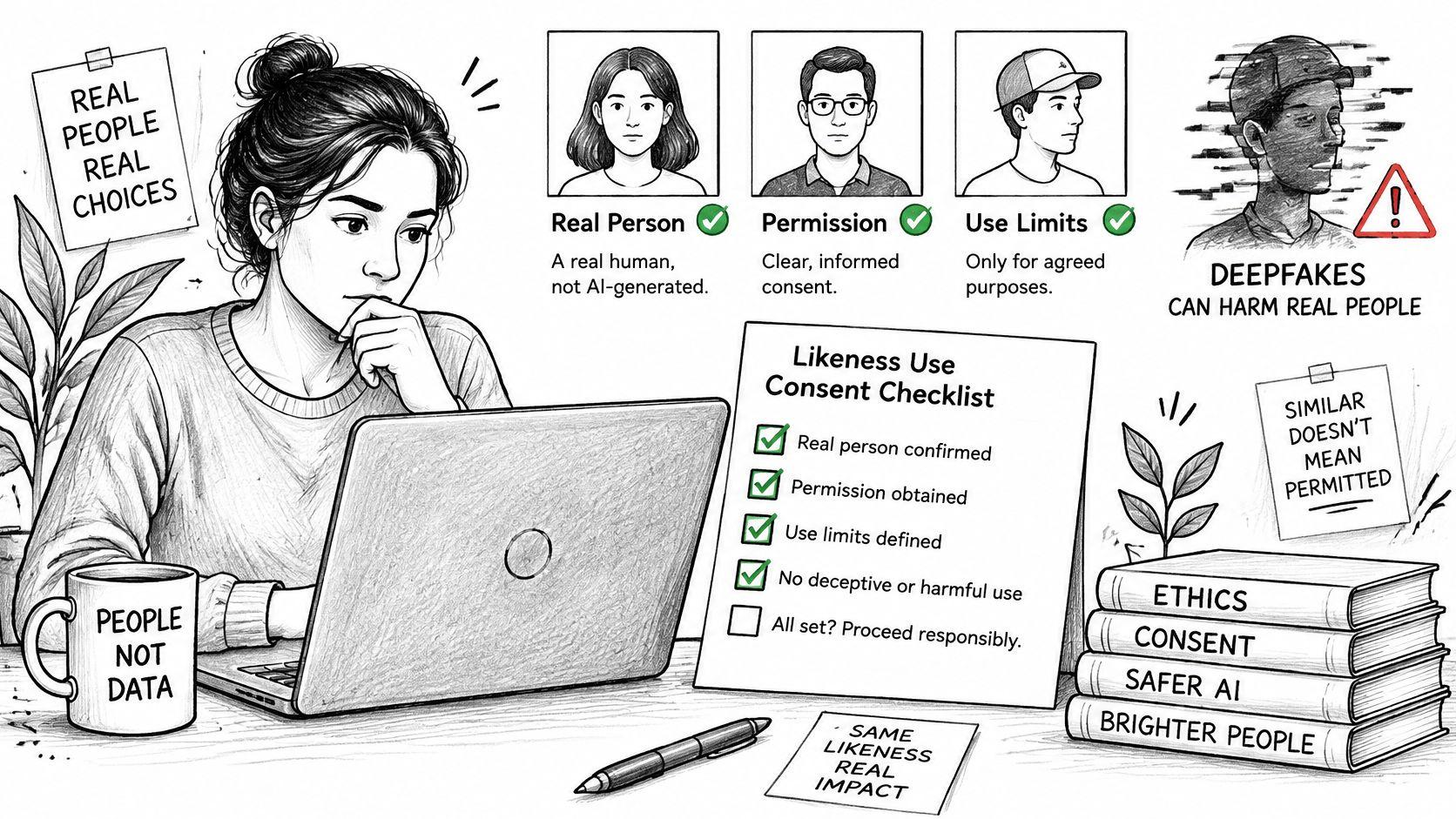
A staff photo can become a fake classroom scene in one prompt. Realistic faces are not harmless illustrations once a viewer could mistake the output for a real classmate, employee, or public figure. Microsoft's 2025 Global Online Safety Survey found that 82% of respondents worried about children using AI to create false deepfake images or videos of classmates or friends, and 73% were concerned about sexual or online abuse; the same report noted that Oxford researchers found deepfake generators had been downloaded nearly 15 million times since 2022, and 96% of analyzed deepfake models targeted identifiable women. That is why consent has to work as a gate, not a footnote. If the subject, the use, or the audience fails, the image does not ship.
A baseline you can apply today
| Depiction | What you need | Rule of thumb |
| Fictional person with no real features | No consent needed, but follow the tool's terms | Use invented characters for lessons and marketing mockups |
| Volunteer employee or friend | Written consent that names the exact use | Get it in writing before any business use |
| Recognizable public figure | Legal review and no implied endorsement | Never show them saying or endorsing anything |
| Child or student | Parent or guardian consent and a school policy | Never use a real child's face in generated images |
| Sexual, defamatory or abusive content | Not permitted | Do not generate it; report and remove it if found |
Treat each row as a pass/fail gate. Gate one is the subject: a fictional cashier with no borrowed features needs no signature, but you still follow the product terms. Gate two is the use: a friend who agrees to a website banner needs that exact use in writing before you generate, not a casual "sure" in chat. Gate three is the audience. A recognizable public figure needs legal review, and the image must not imply they endorse your shop, school, or product. If any gate fails, change the concept instead of arguing with the gate.
For minors, the rule is stricter than "be careful." Don't upload a child's photo to steer the generator, and don't place a classmate in a fake scene. Parent or guardian consent plus a written school policy come before any student project that touches a real young person. 1chat's services cannot be used for child sexual abuse material, whether or not any portion is AI generated. That ban, and the rest of the conduct rules, sit in our usage policies.
If something abusive is already online, take it down, report it in the product, and keep a dated record of what you removed. Schools should adopt the policy before the first assignment. Small businesses should file signed consent forms with the campaign they belong to. Likeness and deepfake laws differ by country and state, so treat this table as a floor and check local rules before any paid or public use.
Do not send a generated face to a PeopleFinder face search or any similar matching service to test resemblance. That can expose a real person's data and does not settle consent. If a face looks unexpectedly familiar, delete the image and start again from an invented description, because any resemblance to a real person is a fail.
Would the subject be comfortable seeing this image in public? If you can't answer yes, don't publish it.
Checking Bias, Realism and Accuracy Before Publishing
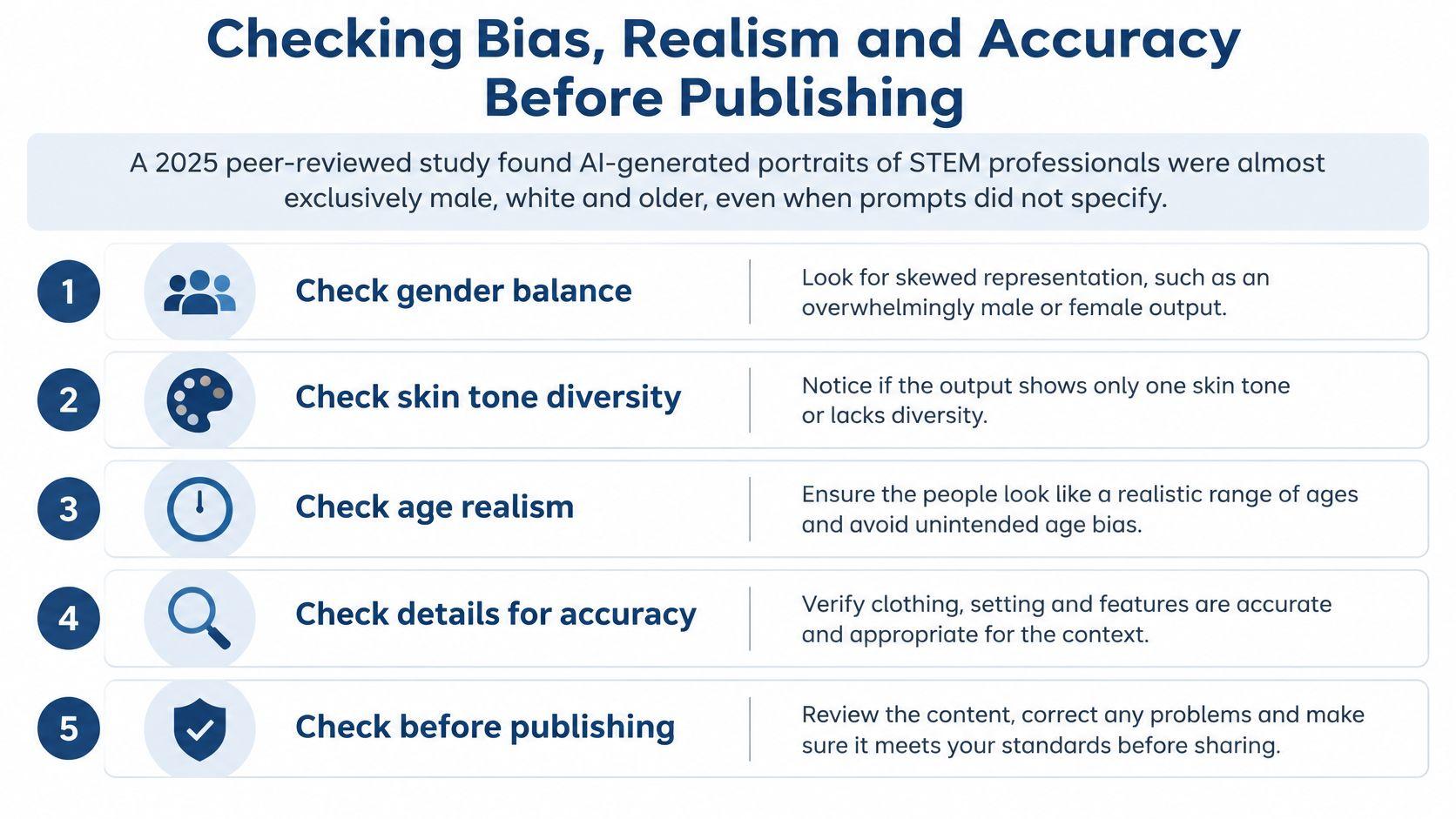
A prompt that omits gender or race does not produce a neutral picture. A peer-reviewed 2025 study found that AI-generated portraits of STEM professionals were almost exclusively male, white, and older, even when prompts did not specify gender or race. Viewers often cannot tell an AI portrait from a photograph, and many want a clear label when an image is AI-generated. Treat the consent rule for that subject, the bias check, and the realism and accuracy check as three gates. A candidate publishes only after it passes all three.
Early public generators already showed the skew. For the neutral prompt "person," a comparative evaluation of DALL·E 2 and Stable Diffusion found males in 70% of DALL·E 2 images and females in 66% of Stable Diffusion images, while white representation reached at least 70% of images in the reported analysis. Compare your own set with the brief you wrote. Don't assume the tool balanced itself.
Score every candidate
- Vary the tests. Rerun the job across gender, age, race, disability, occupation, and body type. Fail the batch if one look dominates even though the brief calls for a mixed group.
- Watch the roles. Men in charge and women assisting, or older people only in the background, is a stereotype, not a casting choice. Fail any set that repeats that split.
- Count faces, hands, and attributes. Each person needs the right action and the right clothes. Fail a picture with a missing, duplicated, or merged face, an extra finger, a floating earring, or a coat that jumps to the wrong body.
- Give accuracy its own gate. A nurse with the wrong badge, a team in a room that does not match your business, or a fake customer in a testimonial fails even if the face looks real. Label synthetic images and keep them out of staff pages and testimonials.
- Label and file. Mark the picture as AI-made, and keep the prompt, settings, and date. Our privacy policy shows how account data is handled while you store that record yourself.
One diverse-looking portrait is tokenism if the rest of the folder still casts the same roles. Your acceptance rate is the share of images that pass every check, not an average "looks nice" score. The set passes only when every image clears every line.
Pick a Tool and Run Your First Safe Test
Pick one job you will finish this month: a staff headshot, a classroom poster, or a family card. Write three prompts with the subject-action-setting formula, and generate four candidates for each. Score every picture against the bias checks and the consent rule for that subject. Publish only the passes. Keep the failures, with a one-line note, so you don't reuse a prompt that merges faces or invents a classmate.
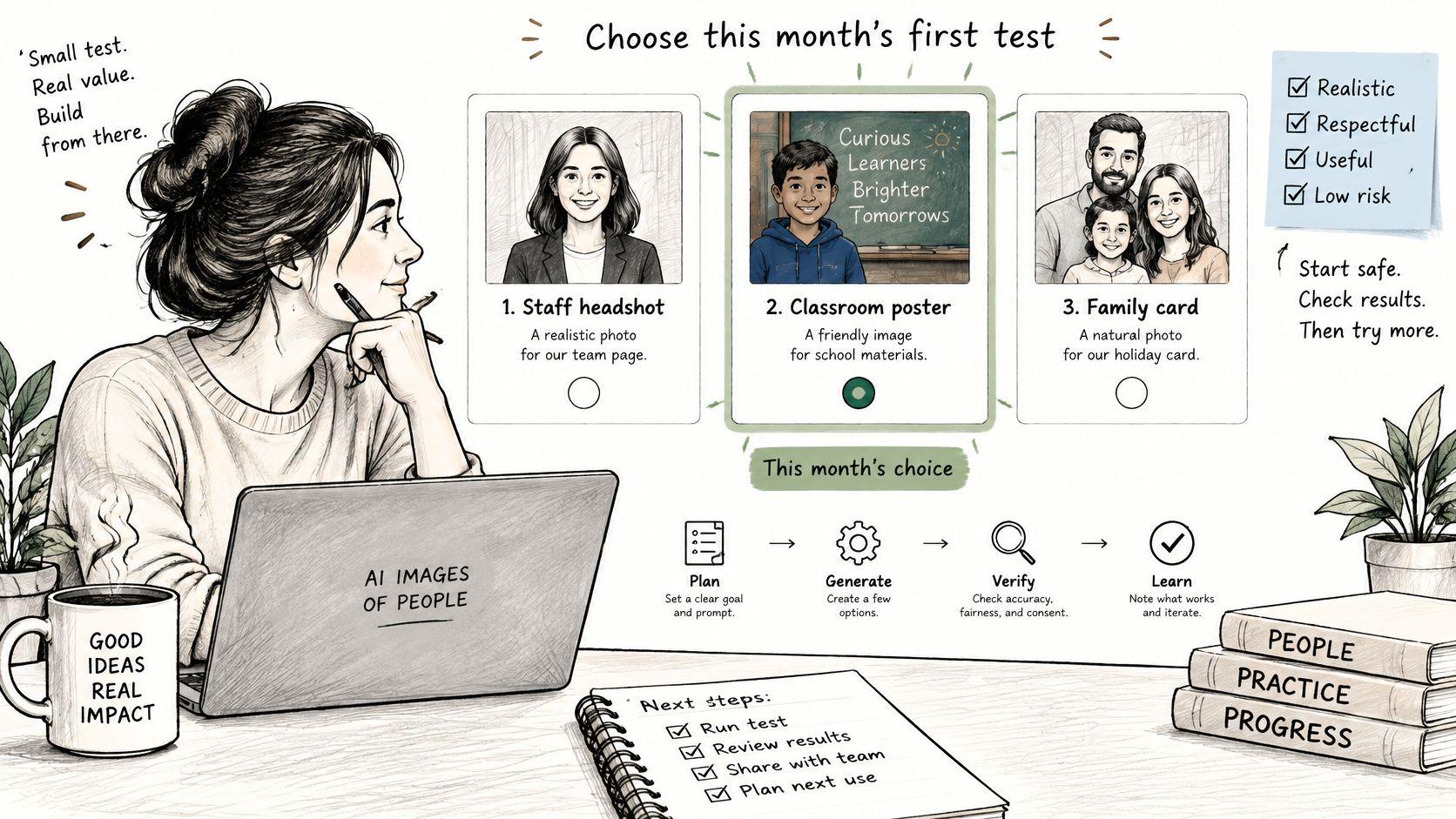
Track the acceptance rate for the twelve-image set. Next month you'll see whether the prompts got stricter or sloppier. If the job is a real interview photo rather than a fictional portrait, start from a professional image for interview candidates instead of inventing a face that could be mistaken for the applicant.
Three actions this week
- Write the consent note for the use you chose, even if the answer is "fictional character, no real features."
- Save the first template in the shared library with ratio, style, and the detail you expect to tweak.
- Run the twelve-image test before the next live project, and ship nothing that fails a gate.
We can generate AI images in the same workspace you use for the brief, and you own the output from your input because we assign you our rights in that output. Start the test on 1chat.
Open a note tonight and write the one use case, the three prompts, and the consent line. Generate the set this week, mark each image pass or fail, and publish only the passes. Bring the saved prompt back for the next flyer, poster, or card so the gates stay in the workflow instead of living in a forgotten checklist.