It's a Tuesday night and the science project is due Friday. Your 12-year-old has stopped asking you how a plant turns light into food and started asking the chatbot on the family tablet, because the chatbot answers in two seconds and never sighs.
That's usually the moment a parent starts wondering what is protecting the child on the other side of the screen. Not the landing page that says family friendly. The rules underneath: what the tool refuses to say, what it does with the conversation afterwards, and who is allowed to hold the account in the first place.
This guide treats every family friendly benefit of an AI tool as a claim you can test. Six claims, in plain language, with the setting, clause or question that confirms each one. Where the check is quick, you get the ten-minute version. Where it isn't, you get the question to put in writing before your child starts.
Family Friendly Benefits at a Glance
You're on the sign-up screen and two boxes matter more than the price. One asks who the main account holder is. The other asks whether the user is under 18. Before you tick either, it helps to know what the six standard benefits promise, and what you'd read to confirm that promise exists.
Parents already know how far a label can travel from reality. The BLS family leave benefits fact sheet reports that 27% of civilian workers had access to employer-provided paid family leave by March 2023, and that only 6% of the lowest-wage workers had paid leave through their employers in 2023. Same phrase on the poster, very different access behind it. AI tools work the same way.
Public policy adds the other half of the lesson. The OECD's research on parental leave and family benefits puts combined public spending on support for families with children at about 2.3% of GDP across member countries, delivered through cash payments, tax concessions and services such as childcare, with the mix varying sharply from one country to the next. Support isn't one lever. It's a system, and removing one part changes what the whole thing does.
The six benefits worth checking first
Here's that system for an AI tool, laid out as a comparison you can run against any provider's terms.
| Benefit | What it means for families | What to check |
| Age-appropriate answers | Responses adjusted in tone and depth for younger users | Whether graphic, sexual or violent content is excluded |
| Content limits against harm | Clear bans on misuse such as grooming or exposing minors to harmful material | Published terms and how the provider enforces them |
| Minimum age and consent | Account rules that depend on the child's age | The minimum age in your country and whether parent permission is required |
| Privacy controls | Limits on how chats and uploads are stored and reused | How content may be used to provide and improve the service, and how to delete chats |
| Homework support | Explanations, outlines and feedback instead of finished work | The school's rules on AI use and whether the tool encourages the child to think |
| Shared family access | One subscription and shared credits across several members | Member limits, who manages the main account and how sub-accounts are added |
No row means much alone. A minimum age with no content limits just produces a younger account. Content limits with no privacy controls protect the answers but not the record of them. Treat the table as a checklist to verify, never as a brochure to trust.
Which row deserves your attention first depends on the child. For a 9 or 10-year-old, start with content limits and supervision, because the main risk is exposure to material that wasn't written for them. For a 14-year-old, start with privacy and homework rules, because the risks shift to what gets stored, what gets shared and what gets submitted as their own work.
How Content Guardrails Keep Answers Age Appropriate
Walk into the children's section of a public library and the system is visible before you reach a single book. Picture books at knee height. Chapter books on the low shelves. A reference set a nine-year-old can reach without wandering past the adult fiction aisle. Nobody stands at the door deciding case by case, because the shelves do most of the work and a librarian handles the rest.
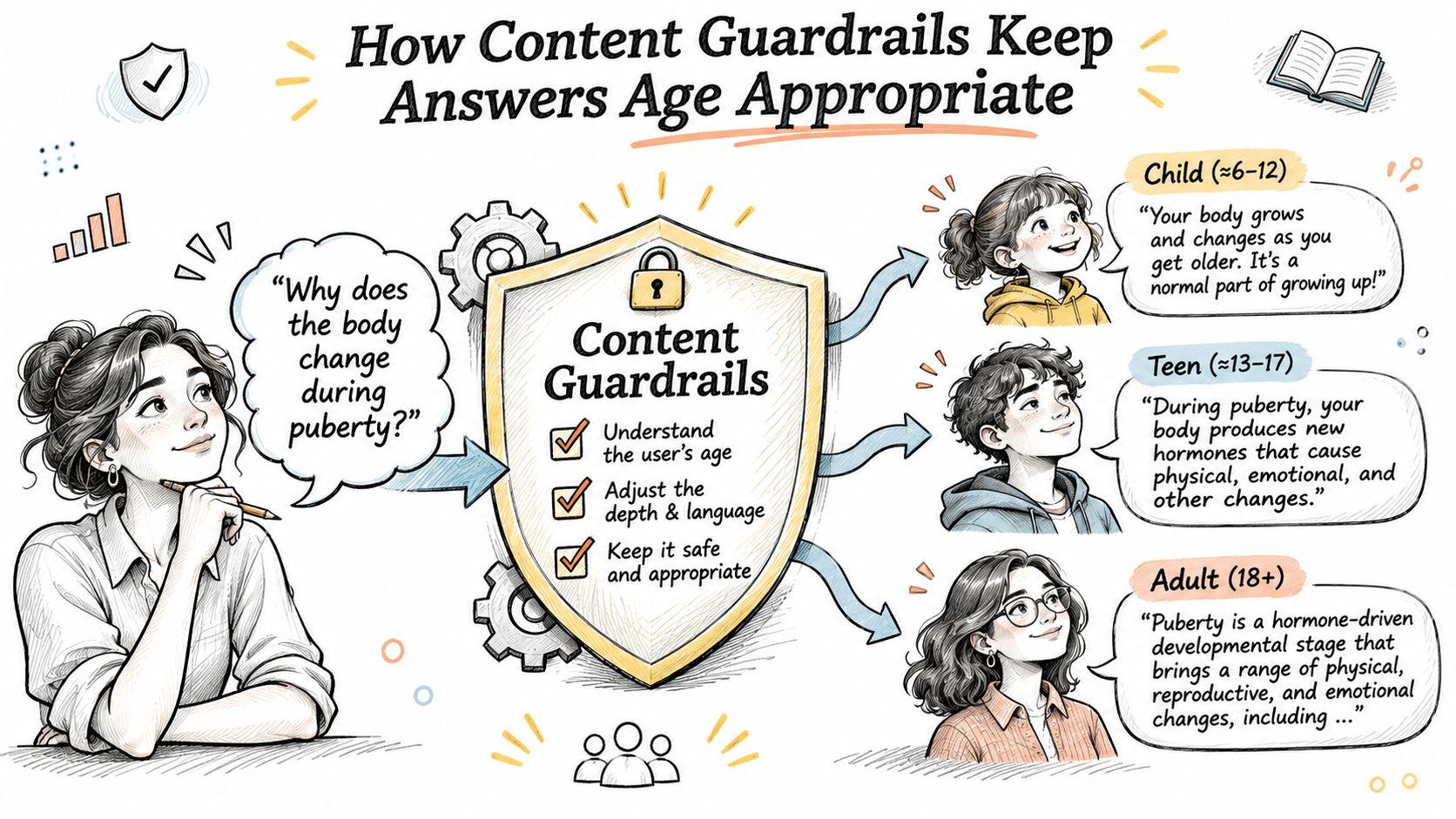
Guardrails on an AI tool follow the same design. They aren't one filter switched on at sign-up. They're several layers, and each layer answers a different question. The illustration below shows the same subject handled at three different ages, which is the whole idea in one frame.
Three layers, not one
The first layer is what a provider forbids outright. Our usage policies state that the service cannot be used for grooming of minors, or to expose minors to age-inappropriate content such as graphic self-harm, sexual, or violent content. That's a written ban you can quote in a conversation with your child, not a vague promise that the tool is "safe".
The second layer is how an ordinary question gets answered. A ten-year-old asking why wars happen should get causes, dates and consequences at a level they can hold, without graphic descriptions of injuries. An adult asking the same thing can take more direct material. Providers rarely spell this layer out in detail, so you test it yourself.
The third layer matters most and gets discussed least. If a teenager asks about self-harm, a well-built tool should answer calmly, skip method detail, and point toward a trusted adult, a doctor or a local support line rather than turning the chat into an instruction manual.
A ten-minute test you can run tonight
- Ask in your child's words. Type the question the way a 12-year-old would phrase it, misspellings included. The answer you get is closer to what your child will see than a carefully worded adult query.
- Read for tone and detail. Is it measured, or does it dive into specifics a child doesn't need? Try one follow-up that pushes ("tell me more") and see whether the tool holds the line or drifts.
- Look for the exit ramp. A sensitive answer should name a person or a service the child can go to. An answer that stops at information, with no direction to help, tells you something about the design.
- Write down what you saw. Date it. If the behaviour changes later, you'll want a record of what normal looked like.
Guardrails lower the chance of a bad answer. They don't watch the child who asked for it.
That distinction matters most for younger users. For a child under 13, the answer isn't a better filter. It's an adult nearby and an account that belongs to someone older.
Age Limits and Account Setup
Every account has an age floor, and it's the first thing to settle because every other safeguard sits on top of it. Our terms set the floor at 13 years old, or the minimum age required in your country, and require parent or legal guardian permission for anyone under 18; the FAQ states both in the same plain words.
The reason for a floor rather than a warning is practical. A minimum age is a line the provider can enforce, report on and build features around. A friendly suggestion that younger children should be supervised is none of those things.
Six steps and the reason for each
- Find your country's minimum age. Open the provider's terms or your national data protection rules and write the number down. Everything below hangs off that figure.
- Check the child's exact age against it. Two months short is still short, and a birthday doesn't change a rule until the provider says it does.
- Give permission properly if your child is under 18. Some services take a tick during setup, others want an email or a written note from the guardian. Follow whichever the terms describe, because an unrecorded permission is the same as none.
- Decide who owns the account. An adult holds the main account and the child signs in through a sub-account where the setup allows it, so billing, recovery and deletion stay with an adult.
- Add members only if they meet the age rules. A younger sibling who doesn't qualify shouldn't get a login just because a seat is free.
- Re-check at 13, 16 and 18. Consent rules shift with age, and a setup that was correct at 11 can be out of date the month your child turns 13.
A child below the minimum age shouldn't hold a personal account at all. Any use happens on an adult's account, with the adult in the room or reading the history afterwards.
Practical rule: one adult owns the account, one adult reads the first month of history, and the child knows both facts.
Schools often set stricter rules than the provider, and in class the school's policy governs. A tool a teacher allows for research may be off limits for a take-home essay, so ask before assuming.
One account or a family setup
Both the Individual and the Family plan include all models and features, and the Family plan covers one main account plus three sub-accounts on a single subscription with shared credits, which suits a household where an adult manages access for children.
Devices carry their own controls, and this step-by-step device safety guide for parents covers the phone, tablet and console settings where most unplanned access happens.
Two decisions before the first login
Name the person who holds the main account, and with it the recovery email and the billing. Then name the person who supervises the opening month, checking the history weekly and answering questions about what turned up. Say both out loud, to each other and to the child, so nobody assumes the other adult is watching.
Privacy Checks Every Parent Should Run
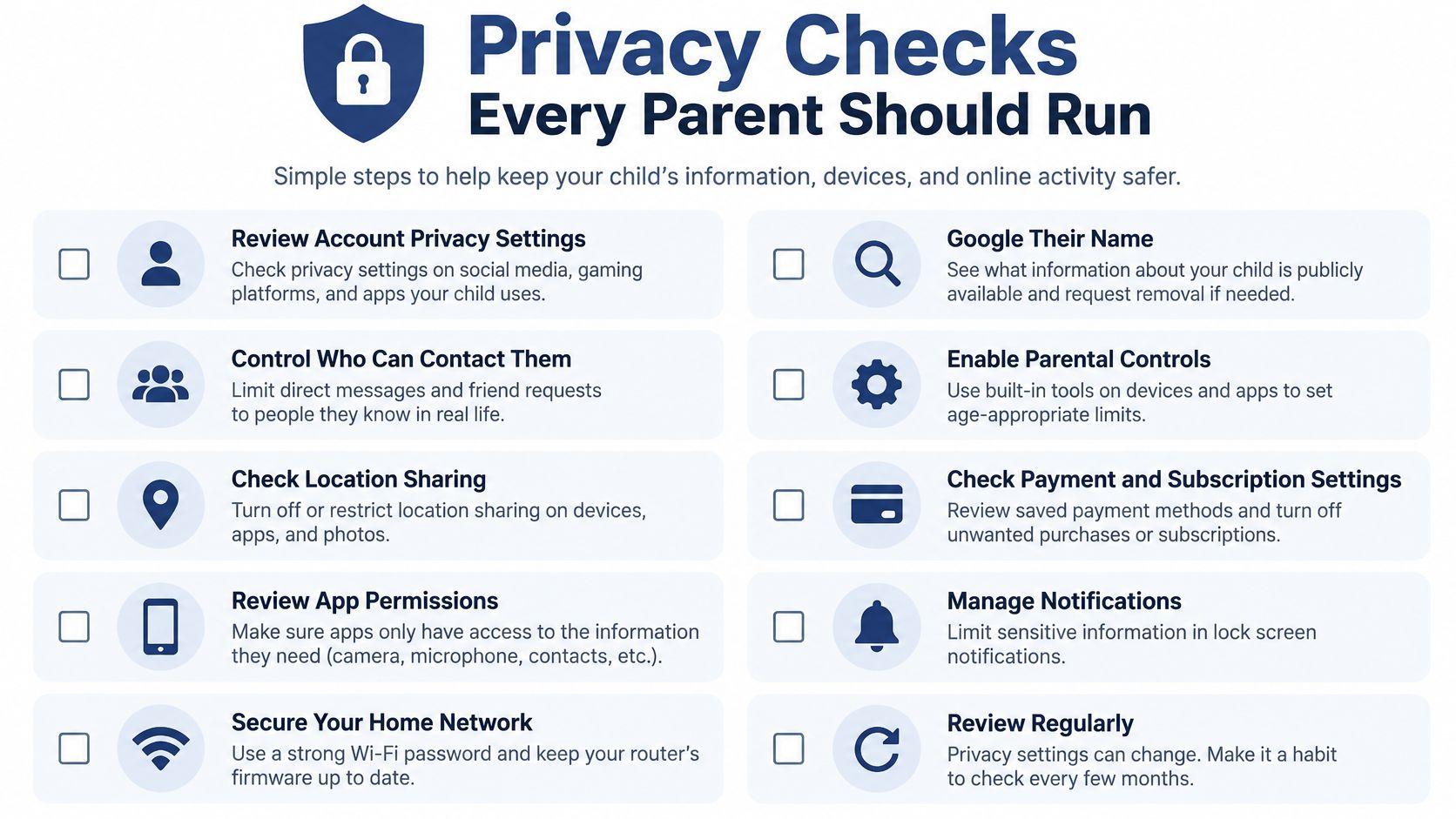
A chat is a record. So is a PDF your child uploads and so is an image they generate. Each one is content the provider handles, and each one deserves a straight question rather than a guess.
Our privacy policy says content may be used to provide, maintain, develop and improve the services, comply with law, enforce the terms and keep the services safe. That sentence is standard for the industry and worth reading slowly, because "improve" is the word a parent should ask about in detail.
Five questions with a habit attached
- What's stored, and for how long? Look for a stated retention period. A history that lives indefinitely is a diary with no lock on it. Habit: check the setting once a term, since defaults change.
- Can you delete a single conversation? Then do it with your child, side by side, so they learn the control exists and belongs to them too. Habit: a monthly clear-out of anything they'd rather not keep.
- Are uploaded files kept? PDFs and photos leave the device. Habit: no pictures of classmates, no school documents carrying other children's names.
- Can the account be exported or erased? Know the exit before you need it, and write down where the delete control lives. Habit: store that note with the account recovery details.
- Who receives the email and the usage notices? Habit: register with a family mailbox instead of your child's own address, so anything important lands with an adult.
The habits that do the most work are the boring ones. Teach your child never to type a full name, school name, home address or phone number into a chat, and never to upload a photo of another person. If you work from home, keep client files out of the family account entirely, and this confidentiality guide for solo practitioners explains how to separate work material from shared devices and shared logins.
If a clause is unclear, ask the provider in writing before your child starts using the account. A vague answer is a reason to wait, not a reason to hope. Copy the question and the reply into a folder, because the answer you receive is the version you can hold someone to later.
Homework Support Without Doing the Work for Kids
Three evenings, three different children, three different versions of the same line between help and replacement.
A 14-year-old writing an essay on climate policy asks for an outline first. The next night she asks for feedback on one paragraph she wrote herself. On Thursday she asks for a list of counterarguments she should address, then decides which ones she disagrees with. The essay gets written by her, and the tool never sees a blank page it could fill in.
A 9-year-old is stuck on long division and asks for the steps explained with a different example, not with his numbers. He works the new problem himself, then checks it against the tool's explanation. A university student proofreads a research draft by asking for clarity suggestions on three sentences, then accepts or rejects each change on its own merits.
Most nights, this is what support looks like. An adult nearby, a child doing the thinking, and a tool answering the small questions that used to stall the whole evening.
What helpful use looks like
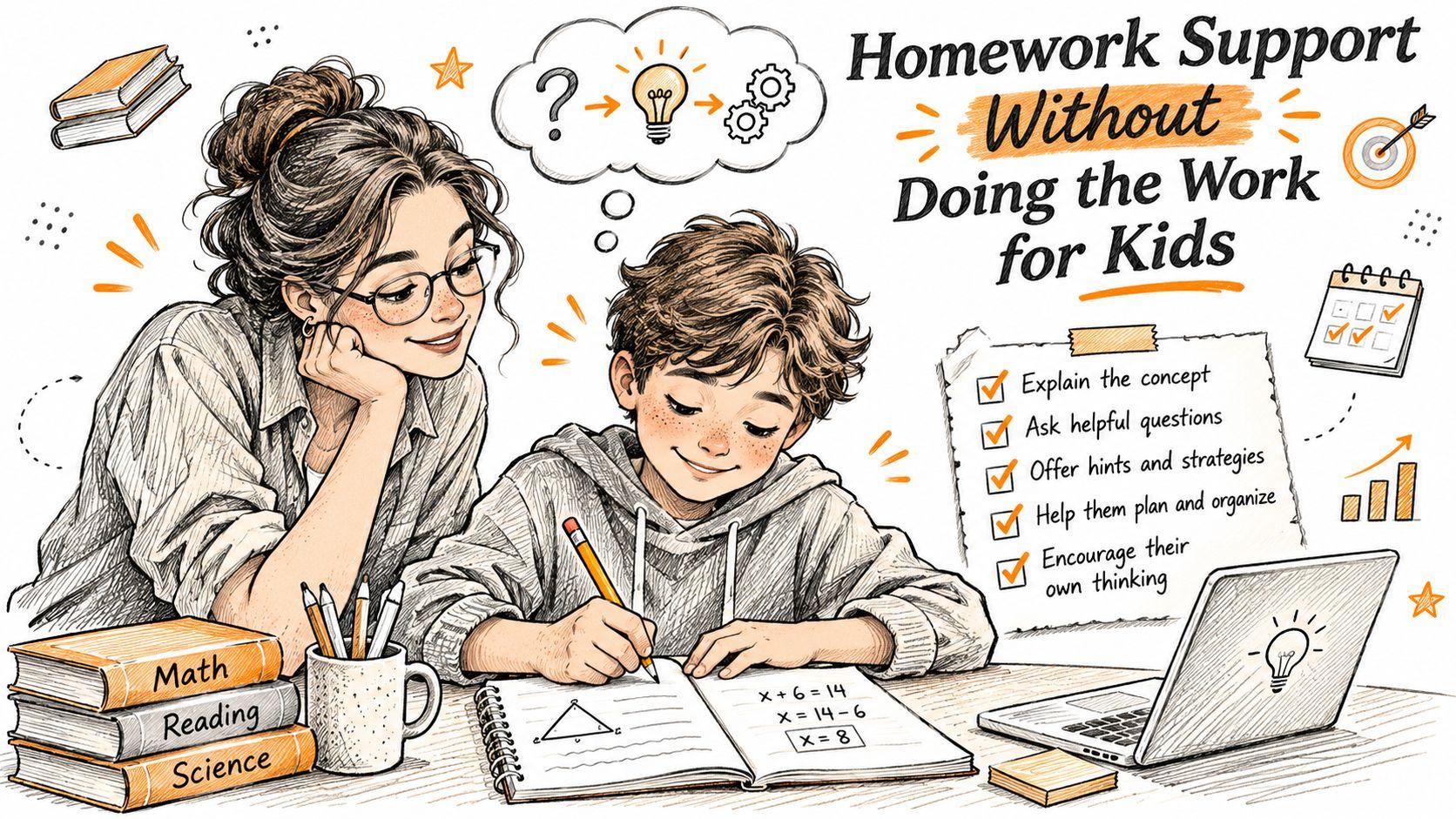
- Explanations at the child's level: "explain this like I'm ten" is a legitimate prompt. So is "show me a different example".
- Outlines and structures: a skeleton the child fills in teaches sequencing. A finished draft teaches nothing.
- Feedback on their own text: clarity, grammar and argument gaps in something the child already wrote.
- Counterarguments to weigh: useful for older students, as long as the student decides what to include.
- Finished essays, graded answers or text to submit as their own: this is the line. It's also the version teachers recognise fastest.
Check the teacher's AI policy before the term gets busy, and encourage your child to say when a tool helped. A student who can describe their process is in a much stronger position than one who can't explain a sentence they "wrote".
The test that settles it
Close the tab and ask your child to explain the answer in their own words. If the explanation holds, the tool did its job as a tutor. If it collapses without the screen, the work wasn't theirs.
Homework help also tends to fill a gap rather than create one. In Deloitte's Women at Work 2025 global outlook, only 17% of women with children aged 17 or younger reported access to affordable childcare, and around four in ten were concerned about the cost of child or adult care. A tool that explains long division at 8pm answers a real need. It still can't supervise anyone, which is why the adult nearby isn't optional.
For younger readers, comprehension matters more than output, and ReadLab's advice for parents of readers offers practice ideas that need no screen at all.
What to Do If Something Goes Wrong
The first minute matters more than the first policy. Stay calm, ask what happened, and pause use until you understand it. A child who expects a lecture deletes the evidence and goes quiet, and you lose the information you need most.
That reaction is predictable. In a 2025 U.S. employer survey, one-third of employees who needed at least four days of official family or medical leave didn't take it; affordability was the leading reason, cited by 37%, followed by fear of employer stigma at 33% and concern about career advancement at 26%, as reported in this benefits survey summary. Adults skip support to avoid looking unreliable. A 12-year-old will hide a bad chat to avoid losing the tablet. Make telling you the cheaper option.
Six steps in order of urgency
- Save before you delete. Screenshot or export the conversation, and note the date and which tool it was, so any report you make is specific.
- Report it through the provider's channel. Use the in-app report option or the contact address in the terms, and keep a copy of what you sent and when.
- Escalate at once if a child mentions self-harm, abuse or contact from an adult stranger. Reach the school's safeguarding lead, a trusted adult and local emergency or support services the same day, before you finish troubleshooting settings.
- Tighten the setup. Change permissions, remove a sub-account, or pause use until you've re-read the terms and know what the tool is meant to refuse.
- Go back through what's stored. Review the chats, uploads and images on the account and delete anything that doesn't need to stay.
- Talk it through afterwards. Explain in plain words what happened, why the family is changing the rules, and what your child should do next time something feels wrong.
One bad evening is a reason to review the setup, not proof that the tool is unsafe by nature. Change what you can control, the age settings, the supervision, the stored records, and then judge the tool on how it behaves after the change.
The first step costs ten minutes and no money. Sit with your child tonight, open the account settings together, confirm the age on the profile, and read the content clause and the data clause out loud rather than skimming them.
If you'd rather start from a setup built for households, 1chat's Family plan runs one main account plus three sub-accounts on a single subscription with shared credits, includes all models and features, and costs $19.99 per month billed monthly. Have a chat with all the best LLMs in one place at 1chat.com.