You've got a stack of meeting notes, class pages, completed forms, or journal entries sitting in a drawer. The information is useful, but finding one detail means flipping through every page, and retyping it all would take longer than the work itself. Handwriting scan to text can turn those pages into searchable, editable content, but the result depends on much more than pressing an OCR button.
Handwritten recognition has a harder job than printed OCR. Letter shapes vary from person to person, words run together, ink fades, and page layouts often confuse the system before it even tries to identify a character. A clean scan with well-separated lines can outperform a sharper image with shadows, skew, or heavy ruled paper.
Modern systems have moved far beyond simple character matching. A review of OCR's development describes the progression from early patents and practical printed-text recognition in the 1950s to feature extraction, hidden Markov models, and neural networks. A 2026 survey reports that early handwritten recognition methods reached character error rates as high as 18.2%, while newer benchmark systems such as VAN and OrigamiNet reached 4.7% and 4.6% CER, respectively, as documented in this 2026 handwriting recognition survey.
Those figures describe controlled research benchmarks, not every messy notebook. In daily work, expect a strong first draft followed by proofreading, especially for names, numbers, cursive, faded ink, and mixed scripts. The reliable approach is a repeatable pipeline: capture carefully, prepare the image, segment lines, recognize the writing, review the output, export it, and then analyze the resulting document securely. If you're also exploring broader AI-assisted document work, 1Chat's AI resources provide useful context for building a practical workflow.
Introduction to Handwriting Scan to Text
A stack of meeting notes often looks readable until it is scanned. A margin arrow may point to a sentence in the main column, while a side comment sits between ruled lines. Handwriting scan to text describes the process of converting that scan, photo, or PDF into machine-readable characters through handwritten text recognition, or HTR. Depending on the tool and purpose, the result can be a TXT file, editable DOCX, searchable PDF, spreadsheet, or structured JSON.
HTR differs from ordinary OCR for printed pages. Handwriting changes with speed, pressure, pen type, fatigue, and personal style. One writer may form the same letter differently across a page, and the system must interpret both wording and layout. Marginalia, two-column notes, arrows, and headings can cause errors even when individual characters appear clear.
Accuracy starts before recognition
Many failures blamed on the OCR model begin during capture. An angled photo makes lines slope, while a binding shadow can erase parts of words. Ruled lines, paper texture, and tightly packed writing interfere with baseline detection and line separation.
Research on preprocessing and segmentation identifies skew, overlapping ascenders and descenders, ruled lines, and fragmented characters as important failure sources, especially when a system receives a full page instead of separated text lines. In practice, capture settings and line segmentation often affect accuracy more than switching between similar OCR models. A model cannot recover information hidden by glare, blur, or a merged line.
Use OCR as a draft, not an authority
For meeting notes, the first result may be sufficient for searching a topic or creating a rough summary. Invoices, school records, legal paperwork, research notes, and historical documents need a review pass. Check names and figures first, because one wrong character can change a sentence's meaning.
For a multi-page batch, keep the original files, process copies locally when privacy permits, and review uncertain lines against the source image. A practical sequence is capture, prepare, segment, recognize, proofread, export, and securely analyze the converted document. Guidance on broader AI-assisted document workflows can help shape that process. Preserving the scan beside the text prevents an OCR mistake from becoming the only surviving record.
Choosing the Right Scanning Setup for Handwritten Notes
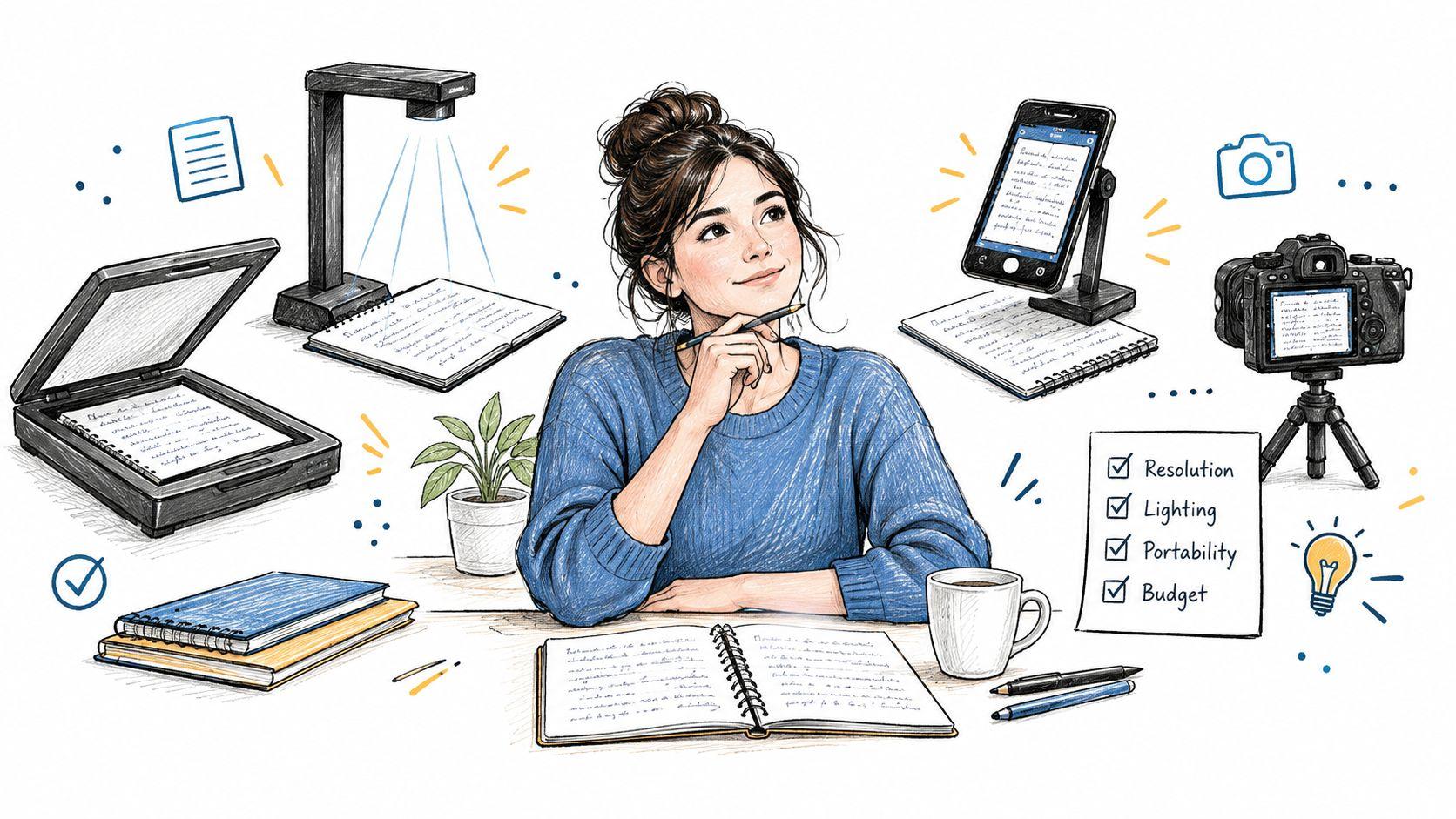
Choose the capture method according to volume, page condition, and privacy requirements, not just convenience. A phone is fast for a page or two. A flatbed or office multifunction scanner is more consistent for a pile. A team handling recurring forms needs an intake process, not a collection of one-off camera uploads.
Match the device to the job
A phone camera works well when the page is flat, lighting is even, and you need immediate capture. It's less dependable for glossy paper, bound notebooks, curled pages, and large batches. Hold the camera parallel to the page, fill the frame without cutting off margins, and watch for your own shadow.
A flatbed scanner gives you stable framing and uniform illumination. An office scanner is more efficient for multi-page documents, especially when pages have a consistent size and orientation. For business records, forms, invoices, and archives, keep each job as one multi-page PDF when the pages belong together. That preserves sequence and makes later review easier.
Build a privacy-first intake route
Teams often need scan-to-email rather than a phone app. A practical arrangement is to send the scanner's output directly to a private inbox, keep the full document together, and process the clean scan with a handwriting engine. The independent scan-to-text workflow guide specifically recommends avoiding the scanner's built-in OCR so the recognition service receives the original image rather than a potentially damaged text layer.
That approach also creates a clear audit trail. The inbox can act as a controlled intake point, while the original PDF remains available for checking. Use access controls appropriate to the document, and avoid forwarding sensitive pages to personal accounts.
A quick choice guide
- Home projects: Use a phone for loose notes and a flatbed scanner for valuable originals or fragile pages.
- Classroom work: Capture pages consistently, preserve the original order, and separate each assignment or student packet into its own file.
- Small business records: Use an office scanner, scan-to-email, and multi-page PDFs for repeatable batch intake.
- Historical documents: Prefer a flat, evenly lit capture and retain every original image, including pages that appear difficult to read.
File handling matters as much as hardware. Name a batch before processing, keep pages in order, and don't compress images aggressively just to make uploads smaller. A clean source gives the recognition system more useful evidence.
Preparing Images for Better Handwriting Recognition
Before choosing another OCR model, fix the image. Line segmentation is often the most effective step because the system needs to know where one line ends and the next begins. If two lines overlap visually, recognition may merge words, skip a line, or assign a letter to the wrong baseline.
Start with deskewing. Rotate the page until horizontal writing lines look level, then crop away large borders, scanner edges, and unrelated background. If the page contains a strong shadow, retake the scan when possible. Software can improve contrast, but it can't reliably reconstruct ink that a shadow has completely concealed.
Prepare the page in the right order
A useful sequence is:
- Deskew the image. Correct slanted pages before line detection.
- Remove background noise. Reduce shadows, paper texture, and dark borders.
- Handle ruling carefully. Remove horizontal lines when they cross writing or interfere with baseline detection.
- Separate text lines. Process individual lines or clearly defined regions instead of treating a crowded page as one block.
- Check the result visually. Make sure letters, punctuation, and margins remain visible after enhancement.
Research on preprocessing documents why this order matters. Ruled lines can interfere with baseline detection and feature extraction, while closely spaced lines create problems when ascenders and descenders overlap. The same research also notes that some systems aren't designed for multiple text lines in a filled page image, so segmentation should happen before recognition whenever the page is complex. See the research on handwriting preprocessing and segmentation for the technical background.
Don't assume more resolution is always better
The practical scan-to-text guide cited earlier recommends 300 DPI rather than 600 DPI, along with grayscale or color instead of pure black and white. The recommendation challenges the usual “maximum resolution” instinct. Excessive resolution creates larger files and may preserve distracting paper texture, while aggressive monochrome conversion can erase faint strokes and punctuation.
Use even lighting for camera captures. Keep the lens clean, avoid glare, flatten curled corners, and place the page on a contrasting background. For a scanner, clean the glass and align the page consistently.
Practical rule: Clean, separated writing lines usually matter more than a fancier recognition model.
Test one representative page before processing the entire batch. If the test misses lines, improve the capture or segmentation first. Running the same poor image through several models usually produces several different versions of the same mistake.
Handwriting OCR Tools Compared and How to Choose
The right tool depends on the handwriting, page layout, document sensitivity, and the work required after recognition. A mobile scanning app suits quick individual pages, while specialized HTR services handle cursive, historical documents, and mixed-language material more reliably. Desktop OCR suites support controlled local workflows when privacy rules discourage uploading files.
Capture quality and line segmentation often matter more than the model itself. A clean image with separated writing lines gives any recognizer a better starting point. For a multi-page batch, test one representative page, confirm that lines are detected correctly, then process the set with consistent crops and settings. If the pages contain confidential notes, prefer local processing or a service with clear retention and access controls.
A 2026 study reported strong benchmark results for a hybrid AI model, including 98.55% accuracy on IAM and 98.80% on RIMES, with word error rates of 1.5% and 1.2%, as described in the published handwriting recognition results. These figures set a useful reference point, but benchmark datasets do not represent every notebook, faded archive, or multilingual form.
Compare the main categories
| Tool Type | Best For | Accuracy and Languages | Privacy and Export |
| Mobile scan apps | Quick individual pages and casual notes | Convenient for clear writing, but performance varies with cursive and page layout | Usually cloud-oriented, with exports depending on the app |
| Desktop OCR suites | Local processing, office workflows, and controlled document handling | Useful for structured pages, though handwriting support varies widely | Often stronger for local privacy and document management |
| Specialized handwritten text recognition services | Cursive, historical documents, archives, and multilingual work | Built around handwriting patterns, scripts, and review workflows | Often provide broader exports and side-by-side correction tools |
For business use, find the best OCR for your business offers a useful comparison framework. Check supported scripts, file limits, retention policies, reviewer tools, and export formats before committing to a batch.
Prioritize the output workflow
A tool that produces imperfect text but supports visual review can be more useful than one that converts pages quickly without showing uncertainty. Specialized platforms such as Transkribus support scans, PDFs, cursive, historical material, multilingual work, and exports including TXT, DOCX, PDF, Excel, and JSON. These features suit archives and research teams that need to correct, structure, and reuse text.
For sensitive notes, verify where processing occurs, how long files are retained, whether data supports training, and who can access shared projects. Simple, nonconfidential pages may justify cloud convenience. Personal, student, medical, financial, or internal business documents require privacy checks from the beginning. Review collaboration features and costs through 1Chat's plans before choosing a team-oriented service.
Proofreading Exporting and Organizing Your Converted Text
Raw OCR output is a draft until someone checks it against the scan. Don't proofread by reading the converted text alone. Open the image beside the transcription so your eyes can compare uncertain words, punctuation, line breaks, and numbers without relying on what you expect the note to say.
The most common confusions are highly contextual. A handwritten “r” may resemble another stroke, an “m” may lose a hump, and a name may look like an ordinary word. Faded ink can turn punctuation into noise, while connected cursive can cause two words to appear as one. Use a dictionary or grammar pass to catch obvious errors, but treat those tools as assistants. They may replace an unusual surname or technical term with a familiar word.
Review in batches, not randomly
For a multi-page file, preserve the page order and mark uncertain passages as you work. A simple notation such as [unclear] is safer than guessing, especially in archival research. Later, you can return to the original scan, adjust the crop or contrast, and rerun only the troublesome region.
Exports should match the next task:
- TXT: Best for plain searching and lightweight storage.
- DOCX: Useful for editing, formatting, and sharing notes.
- Searchable PDF: Keeps the visual original while adding a text layer.
- Excel: Suitable for repeated fields, lists, and tabular forms after careful checking.
- JSON: Useful when another application needs structured fields or automated processing.
If you want a quick second opinion on an image, the MyImageUpscaler image to text tool can fit a lightweight review workflow. Don't treat a second tool as proof that the result is correct. Compare outputs with the scan and resolve disagreements manually.
Create an archive you can trust
Use filenames that identify the date, document type, and page range without relying on memory. Keep the original scan in a read-only folder, store the reviewed transcription separately, and preserve a revised version when you make substantive corrections. For a student packet or meeting series, consistent naming makes later search far easier than scattered files named “scan” or “new notes.”
Mixed-script, faded, and historical documents deserve more review time. Specialized platforms increasingly combine transcription with correction interfaces and flexible exports, which reflects a practical truth: difficult handwriting is becoming a verification-heavy workflow, not a one-click conversion task.
Troubleshooting Common Issues and Secure Analysis With 1chat
When recognition fails, identify the image problem before changing OCR tools. Missed lines usually come from poor cropping or line segmentation. Merged words often result from skew, crowded writing, or baselines that sit too close together. Cursive may need a handwriting-focused service, while faint ink usually needs a cleaner capture rather than stronger language correction.
Use this fault map:
- Missed lines: Crop the page into regions, correct skew, and run line detection before recognition.
- Merged lines: Increase the space between writing lines and remove ruled lines that cross the text.
- Weak cursive output: Test a specialized HTR system, then check word boundaries manually.
- Faint ink: Rescan with even lighting in grayscale or color instead of forcing pure black and white.
- Broken multi-page results: Keep related pages in one ordered PDF and confirm that page context remains intact.
- Plausible but wrong names: Compare every proper noun with the scan and mark uncertainty instead of accepting an automatic correction.
Analyze the converted document carefully
After proofreading, an AI assistant can summarize meeting decisions, extract action items, group student topics, or identify repeated fields in forms. Upload the reviewed PDF or document, not an unverified OCR draft, when the analysis could affect a decision. Keep the original scan available so you can investigate answers that seem inconsistent.
A privacy-first batch workflow separates capture, recognition, review, and analysis. Restrict access to the intake folder, retain the original files, remove unnecessary personal pages, and check how the analysis service handles uploads. For multi-page scans, process a small ordered batch first, verify the output, then continue with the remaining pages. Families and small teams should take particular care with student work, personal journals, financial forms, and internal records.
For private document questions, 1chat provides a workspace for analyzing PDFs, summarizing converted notes, and extracting information without treating the document as a public search. Upload only the verified file, keep its page order, and retain the source scan for review.
If a page is distorted, shadowed, or cut off, rescan it. If the image is clean but the text is wrong, adjust segmentation or try a handwriting-specific engine. Reprocessing can change recognition choices, but it cannot restore missing visual information.
Start with a small batch. Scan the pages as one clearly named PDF, use 300 DPI in grayscale or color, compare the first output with the original, and then process the remaining documents. After proofreading, analyze the verified file while keeping the digitized archive organized and traceable.