A paralegal has two vendor contracts open, both named something like Final_Approved.pdf, and the legal team wants to know what changed overnight. A teacher sees a student's submitted essay and a later emailed version that no longer contain the same wording. A product manager is checking whether a revised policy really matches last quarter's approved draft, apart from the intended update.
Those situations look similar, but they don't call for the same comparison method. Text comparison finds changed words, visual comparison reveals shifts in layout or appearance, and structural comparison examines elements such as page order, annotations, fonts, and embedded objects. The right workflow starts by identifying what kind of PDF you have, not by opening the first comparison tool you find.
PDF itself has passed through several specification eras. It was introduced in January 1993, remained proprietary until Adobe released PDF 1.7 as ISO 32000-1:2008, and the current PDF 2.0 standard was published in December 2020 as ISO 32000-2:2020, as documented by the PDF Association's history of the Portable Document Format. A reliable comparison process must therefore account for more than visible text.
The Moment You Actually Need to Compare Two PDFs
The difficult part often comes before the comparison. You need to identify whether the files are genuinely different versions, whether one was printed and scanned, and whether the important change is textual, visual, or hidden in the document structure.
A contract may contain a changed indemnity clause that looks almost identical at a glance. A small alteration to a number, defined term, or footnote can matter more than a page full of obvious edits. A text-only comparison can help, but it may not show that a signature block moved, a page disappeared, or an annotation was removed.
An essay creates a different problem. If both files contain selectable text, a text diff can expose inserted or deleted passages. If one file is a scan or includes photographed pages, the comparison starts with OCR rather than extraction. Teachers and reviewers should treat the result as an aid to inspection, not as a final judgment about authorship.
Three meanings of comparison
- Text diff: Extracts words or characters and marks additions, deletions, and substitutions. It works best when both PDFs contain usable text layers.
- Visual diff: Renders pages and compares their appearance. It catches changed spacing, images, colors, line breaks, and page composition.
- Structural diff: Examines document elements such as page order, annotations, metadata, fonts, tags, and embedded objects.
The distinction matters because PDF/A and PDF/X preservation workflows require attention to layout, fonts, tags, and embedded objects, not only wording. The Library of Congress overview of PDF notes that PDF 1.4 became a basis for PDF/X standards published by ISO in 2003 and the first PDF/A standard published in 2005.
If typography is part of the dispute, a practical PDF font identification tutorial can help you determine whether a changed font, fallback, or embedded typeface explains the visual difference.
Text-Based PDF Comparison with Free Command-Line Tools
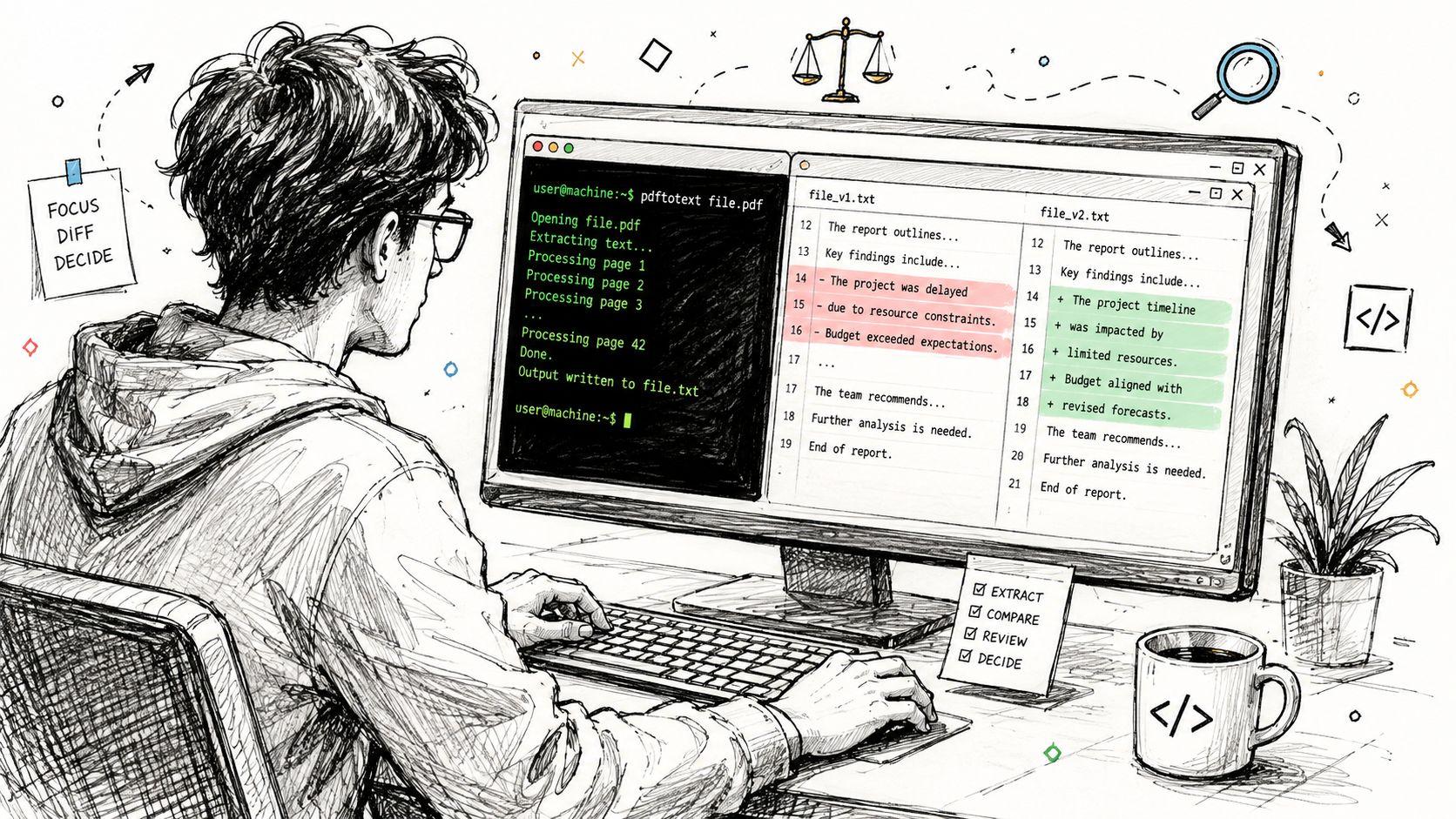
For searchable, digitally generated PDFs, the quickest dependable route is Poppler's pdftotext followed by a standard diff utility. This avoids uploading documents and gives you a repeatable command that can be saved in an audit record.
Install Poppler using your operating system's package manager or a trusted binary distribution. Then extract each file:
pdftotext old.pdf old.txt
pdftotext new.pdf new.txt
diff -u old.txt new.txt
The -u option produces a unified diff, which is compact and easy to redirect into a review file. For documents with columns, tables, or financial statements, preserve the page's visual spacing:
pdftotext -layout old.pdf old-layout.txt
pdftotext -layout new.pdf new-layout.txt
diff -u old-layout.txt new-layout.txt
Without -layout, extraction may place text from separate columns into an order that makes the output difficult to interpret. Layout preservation won't reconstruct every complex table correctly, but it usually gives the diff utility a more useful starting point.
Limit the comparison deliberately
You don't always need to process an entire manual or filing. Use -f for the first page and -l for the last page:
pdftotext -layout -f 12 -l 18 old.pdf old-pages.txt
pdftotext -layout -f 12 -l 18 new.pdf new-pages.txt
diff -u old-pages.txt new-pages.txt > section-diff.txt
For multilingual drafts, specify UTF-8 explicitly:
pdftotext -layout -enc UTF-8 old.pdf old-utf8.txt
pdftotext -layout -enc UTF-8 new.pdf new-utf8.txt
diff -u old-utf8.txt new-utf8.txt
The output is useful for wording changes, but it can mislead you about formulas, tables, reading order, and visual placement. Benchmark guidance reports that parsing accuracy can vary by more than 55 percentage points across document classes, with legal contracts reported around 95% accuracy while academic papers can fall to 40% to 60% in harder extraction settings, as explained in the PDF parsing benchmark guidance. Those figures aren't a reason to abandon command-line tools. They're a reason to inspect the document type before trusting the result.
If your next step is converting extracted content into a reviewable format, these Resumey.Pro Markdown conversion tips provide useful context on handling PDF-to-Markdown conversion. Stop immediately, however, if both extracted text files are empty. That usually means the PDFs are scans, and a clean diff at that point proves nothing.
Visual and Structural Diffing for Layout-Heavy Documents
Text extraction can report no meaningful change when a table has shifted, an image has been replaced, or a header has moved between pages. It can also produce a noisy result when a PDF generator reflows identical content. For contracts with signature blocks, academic papers with formulas, manuals with diagrams, and reports with dense tables, add a visual or structural pass.
In Adobe Acrobat, open the comparison workflow through View > Tools, select Compare Documents, choose the older and newer files, and set the document type or comparison options presented by your installation. Acrobat places detected changes in a results view with color-coded highlights and a navigation panel. The feature belongs to Acrobat's paid editing product rather than the free Reader, so verify your license before building a workflow around it.
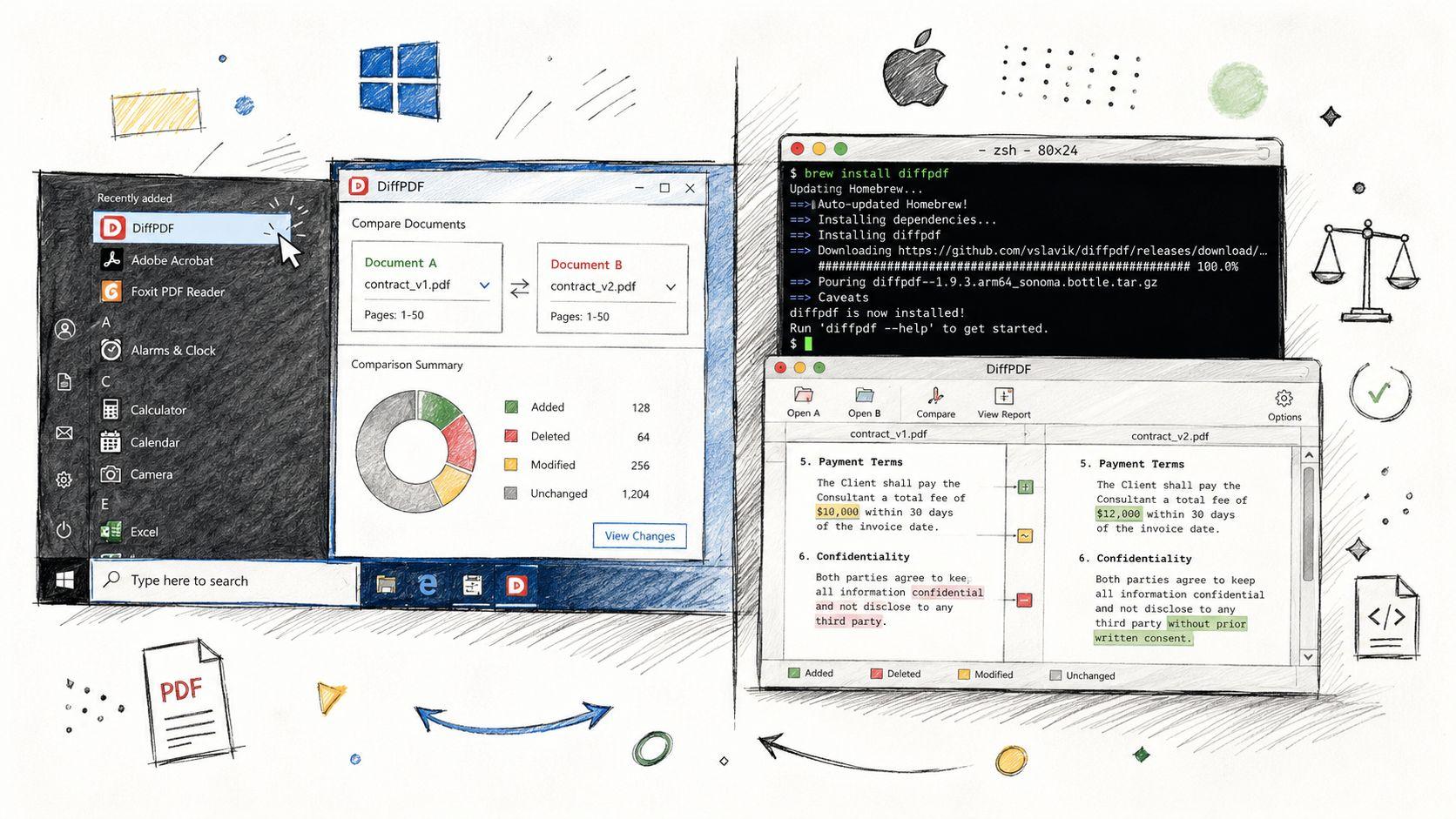
A visual comparison is especially valuable when you care about the rendered page. DiffPDF is a useful Windows option for side-by-side and appearance-oriented inspection. On Linux, an open-source compare-pdf workflow can fit teams that prefer scripts and local processing. These tools won't all interpret annotations, fonts, or reading order in the same way, so test them against representative files before using them for formal review.
Practical rule: Use pixel comparison to confirm appearance, not to explain every cause. A reflowed document can generate many visible differences even when the wording is unchanged.
The PDFKing guide to comparing two PDF documents is a useful supplemental reference when choosing between text and visual review.
Visual PDF Comparison Tools at a Glance
| Tool | Platform | Cost | Best For |
| Adobe Acrobat Compare Documents | Windows, macOS | Paid Acrobat product | Guided review with a change list and visual results |
| DiffPDF | Windows | Free option available | Local side-by-side and visual inspection |
| compare-pdf workflow | Linux | Open source | Scriptable local comparisons |
| pdftotext plus diff | Windows, macOS, Linux | Free | Searchable PDFs where wording is the primary concern |
Pixel-level comparison catches layout regressions that text tools miss, but it can become noisy on reflowed documents. Large manuals also take longer to process in graphical comparison modes, so narrow the page range when the suspected change is localized.
Online vs Local Tools and the Privacy Trade-Off
Online comparators are convenient. You upload two files, wait for processing, and review a side-by-side result or downloadable report. That workflow suits low-risk documents and occasional checks, especially when collaborators need a browser-based review.
The convenience changes the risk model. Your files leave the machine, pass through a vendor's infrastructure, and may be subject to retention, deletion, logging, support access, and data-residency policies. A vendor's encryption statement addresses transmission and storage protection, but it doesn't automatically answer where the file is processed, who can access it, or whether your organization can produce an audit trail.
Compare the operating model
| Dimension | Online Tools, such as Draftable and iLovePDF | Local Tools, such as DiffPDF, pdftotext, and Acrobat Pro |
| Upload speed | Depends on connection and file size | Limited mainly by local storage and processing |
| Cost model | Often free for basic use, with paid limits or plans | Free command-line options, or a paid desktop license |
| Collaboration | Convenient browser sharing and review | Requires local export or a controlled team workflow |
| File retention | Must be checked in the vendor's policy and settings | Files stay under your local or managed storage controls |
| Auditability | May provide a report, but policies vary | Easier to preserve commands, outputs, and local records |
| Data residency | Depends on the provider's infrastructure | Determined by your own environment and policies |
Recent online comparison guidance highlights features such as OCR, page ranges, formatting controls, annotations, Word comparisons, and shareable reports. Those features make browser tools more capable, but they also make the privacy question more important.
Keep HR records, M&A drafts, medical forms, sealed litigation PDFs, student records, and confidential customer documents offline unless your organization has explicitly approved the service. Before using any cloud tool, review its retention and deletion terms, access controls, processing location, and contractual commitments. Your organization's privacy and legal guidance can help turn that review into a consistent policy.
If a leaked PDF would trigger a breach-notification email, compare it offline.
For local work, pdftotext, DiffPDF, and Acrobat Pro can operate without sending the file to a comparison website. Local processing isn't automatically secure, though. Protect the workstation, control temporary files, encrypt storage where required, and preserve only the outputs your review process needs.
Platform-Specific Workflows for Windows, macOS, and Linux
The command is similar across platforms, but installation and application menus differ enough to cause avoidable mistakes.
Windows
Install Poppler through a trusted Windows binary distribution, or use Chocolatey where your organization permits it:
choco install poppler
Open PowerShell in the folder containing the PDFs and run:
pdftotext.exe -layout old.pdf old.txt; pdftotext.exe -layout new.pdf new.txt; fc.exe old.txt new.txt
Windows users who prefer a graphical workflow can launch DiffPDF from the Start menu and pin it to the taskbar after installation. The common Acrobat navigation trap is finding View > Tools > Compare Documents, rather than looking for a comparison command in the File menu.
macOS
Homebrew can install Poppler with:
brew install poppler
Then compare extracted text while preserving layout:
pdftotext -layout old.pdf old.txt && pdftotext -layout new.pdf new.txt && diff -u old.txt new.txt
Use Spotlight to open DiffPDF if it's installed locally. Preview can place PDFs side by side for visual inspection, but it isn't a full semantic comparison engine. It's useful for checking page appearance, not for generating a reliable list of inserted, deleted, or rearranged text.
Linux
On Ubuntu, install Poppler utilities with:
sudo apt-get install poppler-utils
For a visual batch workflow, a compatible diff-pdf installation can be invoked with syntax such as:
diff-pdf --output-diff=changes.pdf old.pdf new.pdf
For long extracted outputs, send the result through less:
diff -u old.txt new.txt | less
If you're evaluating local AI and document workflows for a team, the 1chat workspace is a separate resource to review, but keep sensitive PDFs within your approved processing environment.
OCR, Scanned Files, and Tracking Changes Accurately
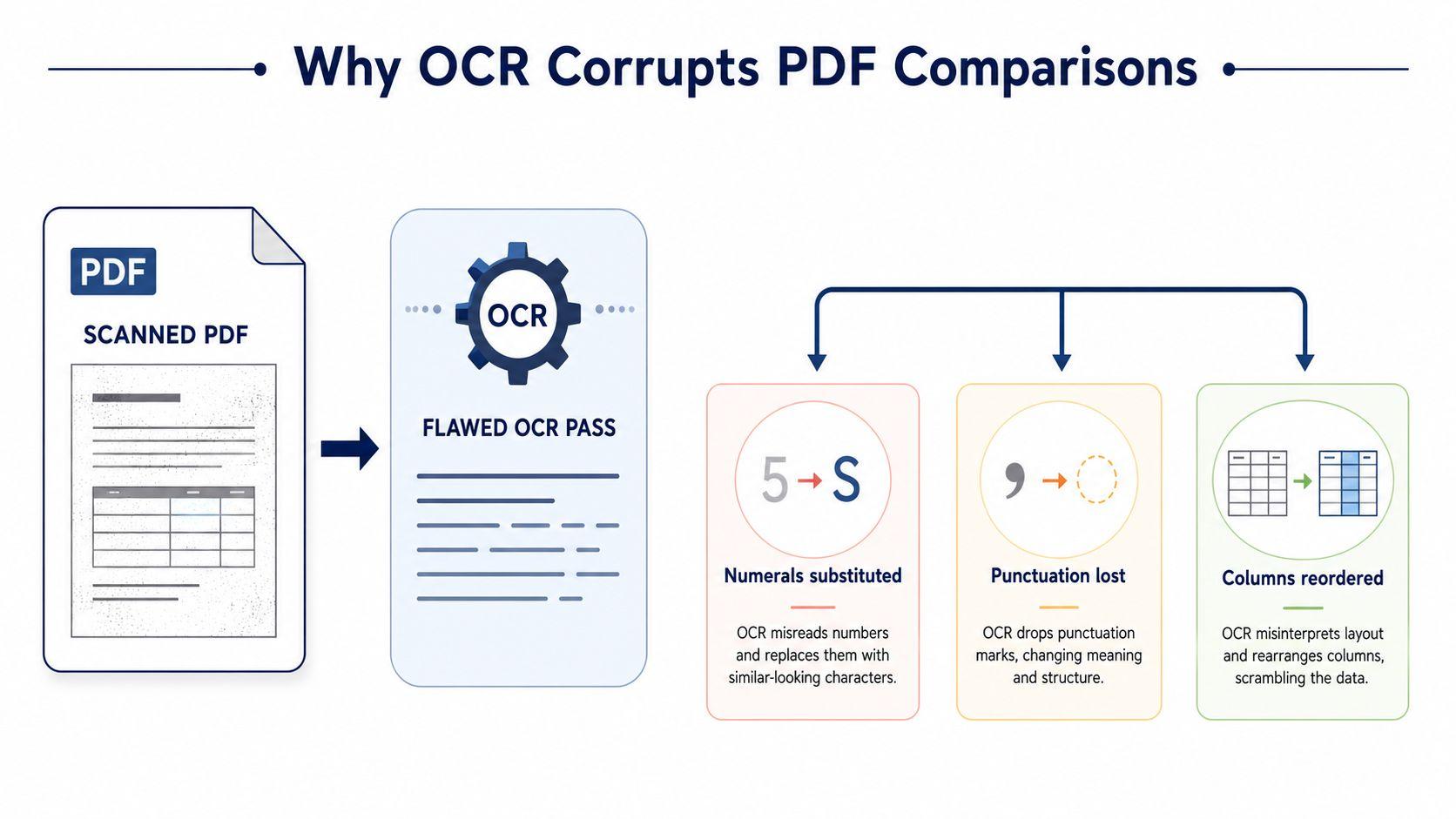
A scanned PDF has pages made from images, not characters. pdftotext may return empty output, and even a nonempty OCR layer can contain substitutions that change the meaning of a clause. Never interpret a silent text diff as proof that two scans match.
Run OCR before comparison, then verify its quality. Tesseract is a practical local option, but language packs matter for mixed-language files:
tesseract scan.pdf output -l eng
For a single-column contract page, --psm 6 can be more appropriate than the default page segmentation mode:
tesseract page.png output -l eng --psm 6
The setting isn't universal. Multi-column academic papers, tables, marginal notes, and mixed scripts may need a different segmentation approach or a commercial OCR application such as ABBYY FineReader. The benchmark guidance cited earlier warns that generic similarity metrics can miss formulas, tables, and reading-order problems, so inspect those elements separately.
Check the three OCR failure points
- Numerals substituted: OCR can confuse visually similar digits and letters. Check dates, clause numbers, amounts, references, and identifiers manually.
- Punctuation lost: A missing decimal point, parenthesis, quotation mark, or minus sign can alter meaning.
- Columns reordered: OCR may read across columns or merge headers with body text, creating a misleading diff.
Annotations create another blind spot. Comments, stamps, highlights, and drawing marks may not re-flow from one version into another. If version one contains important review notes, export them to an FDF file before replacing or comparing the document, or enable Acrobat's Include comments option in the Compare Documents workflow when that option is available.
OCR once, verify a sample page, then commit the comparison. Never trust a silent pass from an unverified text layer.
Quick Decision Checklist and Common PDF Comparison Questions
Choose the method from the document's construction and the consequence of missing a change.
- Scanned or image-only: Run OCR first, verify numerals and columns, then compare text and rendered pages.
- Mostly searchable text: Use
pdftotext -layoutand a diff utility. - Tables, graphics, or sensitive layout: Add visual comparison with DiffPDF or Acrobat.
- Annotations or stamps: Include comments deliberately, or preserve annotations separately before comparing.
- Confidential content: Keep the files on a controlled local machine.
- Large document with a narrow suspected change: Restrict extraction or comparison to the relevant page range.
- Mixed-language content: Install and select the correct OCR language packs, then inspect a representative page from each script.
Common questions
Can you compare a licensed PDF? Usually, yes, if you have authorized access and the file allows opening or extraction. Licensing terms and technical permissions are separate questions, so follow the document owner's rules.
Can you merge accepted changes into one clean PDF? A comparison report generally identifies differences rather than accepting them like a word processor's tracked changes. Make corrections in the source document where possible, then export a new PDF and compare that final output again.
How do you handle a password-protected PDF? Use the authorized password and the permitted export or comparison workflow. Don't remove encryption or bypass restrictions without permission. If extraction is blocked, ask the owner for an approved review copy.
Can free Acrobat Reader compare PDFs? Reader can view and annotate PDFs, but the Compare Documents feature requires the paid Acrobat product or an available trial. If you need only a quick local text check, Poppler and diff avoid that licensing barrier.
For broader questions about privacy-focused document and AI workflows, consult the 1chat FAQ, then apply your own organization's retention and access rules.
The reliable answer to how to compare PDF files is not a single button. Identify whether the files are text-native, scanned, layout-sensitive, or confidential, then combine extraction, OCR, structural review, and visual inspection as needed. That layered approach takes less time than investigating a missed clause after approval.
Before your next review, test the workflow on a copy of both PDFs, save the command output or comparison report, and manually inspect the pages containing tables, signatures, annotations, and critical numbers. For private documents, run the process locally. If you want a privacy-first workspace for analyzing documents and coordinating small-business or family workflows, try 1chat and start with files you're authorized to process.