Learning how to password-protect a PDF is surprisingly simple. Most of the time, it's just a matter of finding the "Export" or "Protect" option in whatever program you're using. But this one small step adds a massive layer of security, making sure only the right people can see what's inside.
Why You Absolutely Should Be Password-Protecting Your PDFs
We share documents with a single click these days, which is incredibly convenient but also risky. It’s never been easier for sensitive information to end up in the wrong hands. And I'm not just talking about top-secret corporate plans; this is about everyday files like client proposals, personal financial statements, or confidential HR reports. A password is your first, and honestly, your best line of defense.
This isn’t just some abstract security concept—it's a practical, essential skill. Think about it: a freelance designer can stop a client from forwarding a draft to a competitor. A financial advisor sending a wealth summary can rest easy knowing only the client can open it.
The Real-World Fallout from Unprotected Files
An unprotected PDF can cause some serious headaches, both professionally and personally. I've seen it happen.
- Losing Client Trust: Imagine accidentally sending an invoice with your banking details to the wrong person. That kind of mistake can instantly shatter a client's confidence in you.
- Painful Data Breaches: A leaked internal report with employee salaries or future business plans can cause chaos internally and give your competition a huge advantage.
- Costly Compliance Violations: If you work in healthcare or finance, you know the rules around data privacy are strict. Failing to protect a PDF with patient or client info can lead to some eye-watering fines.
A password is a digital gatekeeper. It means that even if a file gets lost in the digital shuffle or sent to the wrong inbox, the information inside stays locked down and safe from prying eyes.
This is exactly why we lock our documents—to keep them secure from anyone who shouldn't be seeing them.
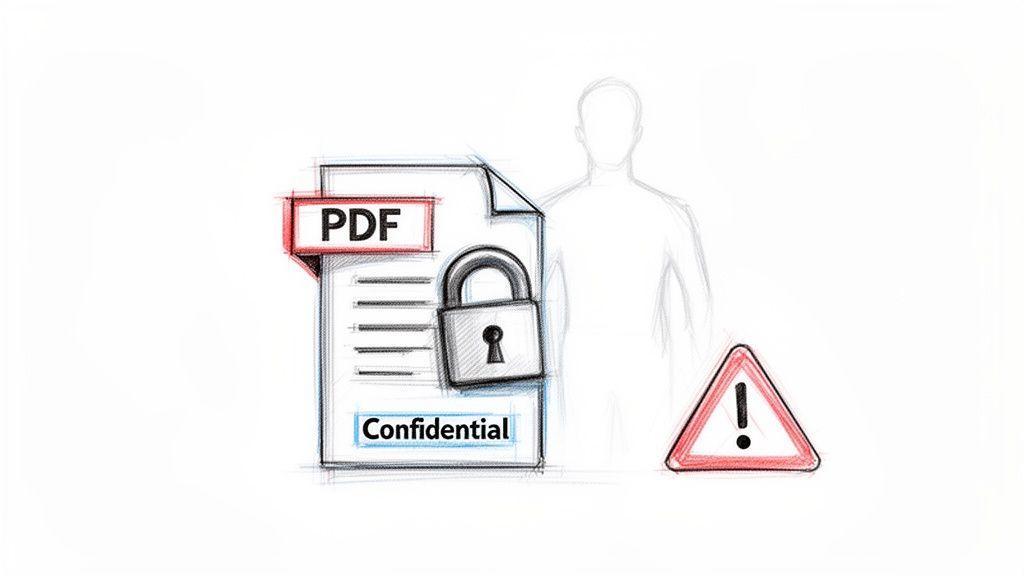
The lock really says it all. It represents the encryption that turns a vulnerable file into a secure one, making it a non-negotiable step for anyone handling sensitive info.
Document Security is No Longer Optional
The habit of password-protecting PDFs has exploded as people have become more aware of data security risks. You might be surprised to learn that back in 2005, fewer than 10% of shared PDFs were encrypted. Fast forward to 2023, and that number jumped to over 40%—a four-fold increase that shows just how seriously people are taking this. This shift is a clear sign that we've all woken up to the dangers of sharing unprotected documents.
Ultimately, locking your PDFs is a fundamental part of good digital hygiene. For a deeper dive into staying safe online, you can read our comprehensive guide on how to protect privacy online.
Securing PDFs with Adobe Acrobat and macOS Preview
When you need to lock down a PDF, you often don't have to look any further than the software already on your computer. For most people, the best tools are the ones you already have. If you’re a Windows or Mac user with Adobe Acrobat, or just a Mac user in general, you’ve got powerful security features baked right in. These native apps are my go-to for a reliable way to protect sensitive info without having to upload a private file to a random website.
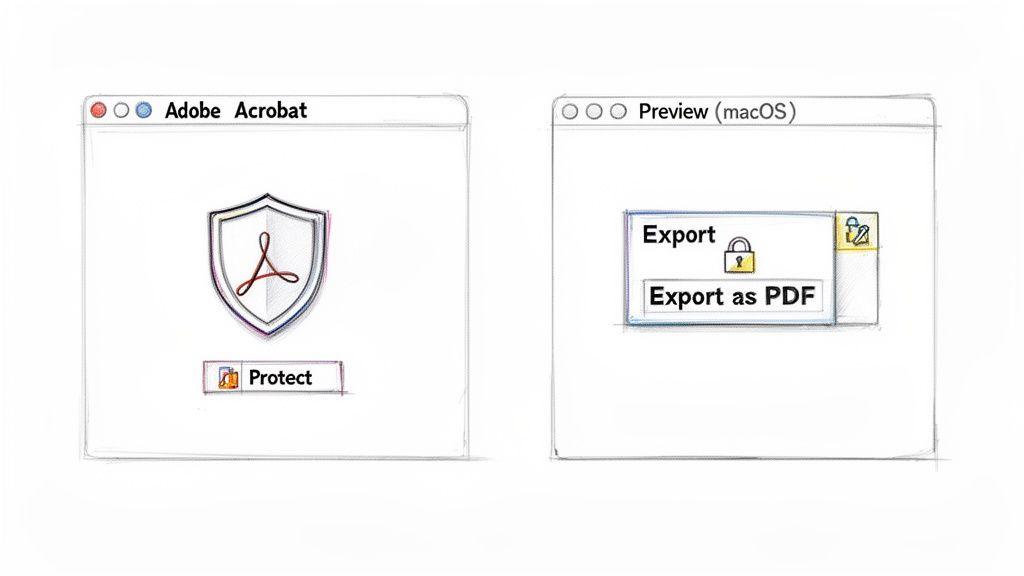
Let's dig into how you can use the industry-standard Adobe Acrobat for some serious control, and then I’ll show you a fantastic, often-overlooked feature in the Preview app that comes with every single Mac.
Using Adobe Acrobat for Granular Control
Adobe Acrobat is so much more than a simple PDF reader—it's a full-blown document management powerhouse, and its security tools are second to none. The real advantage here is the ability to set different passwords for different levels of access, which is incredibly useful in a professional setting.
You have the standard "Open Password," sometimes called a user password. This is the one most people think of; it's the key to the front door. No password, no entry.
But the real magic lies in the "Permissions Password," or owner password. This is where Acrobat shows its professional stripes. You can let anyone open and read the document, but if they want to do anything else, they’ll hit a password prompt.
This gives you incredibly fine-grained control over what happens to your document after you send it. For example, you can restrict specific actions like:
- Printing: Perfect for when you want someone to review a draft on-screen but not create physical copies.
- Editing: Stop anyone from altering text, adding rogue comments, or changing form field data.
- Copying: A great way to prevent someone from just lifting entire paragraphs or images out of your protected document.
Getting this set up is straightforward. Just open your PDF in Adobe Acrobat, head to the "Protect" tool (it's usually in the right-hand toolbar or under the main "Tools" menu), and click "Protect Using Password." A dialog box will pop up, letting you decide if you want to lock down viewing, editing, or both.
The Mac User’s Secret Weapon: Preview
If you're on a Mac, you can skip the extra software entirely. The ability to password-protect a PDF is built right into macOS through the humble Preview app. This is hands-down the fastest way to add a basic "open" password to a document.
I'm always surprised by how many Mac users have no idea this feature exists, even though they use Preview every day. Think about it: if you're a freelancer sending an invoice with sensitive bank details, you can lock it down in about 15 seconds before attaching it to an email.
Here’s all there is to it:
- First, open your PDF file in the Preview app.
- From the menu bar at the top of the screen, click "File."
- Choose "Export as PDF..." from the dropdown. It's important not to use "Save As" or the regular "Export" option.
- A dialog box will appear. If you don't see many options, click the "Show Details" button to expand the view.
- Now, just check the box next to "Encrypt."
- Two fields will appear for you to type and verify your password.
- Hit "Save," and you're done. Your new, encrypted PDF is ready to go.
This native macOS feature is a game-changer for quick security. It works on any file you can open in Preview, meaning you can convert and protect images or other document types in one smooth action.
Whether you need the detailed permission controls of a tool like Acrobat or just the quick, convenient lock provided by Preview, you’ve got everything you need right on your desktop.
Chances are, many of your most sensitive documents start out in Microsoft Word. Instead of finishing your work and then scrambling for another tool to lock it down, you can actually add a password the moment you create the PDF. It’s a simple, elegant way to build security right into your workflow.
This is especially handy for anyone regularly creating reports, invoices, or contracts. Once you know how to make a PDF document password protected from within Word, you close a common security gap. No more forgetting to open it in another app later—protection becomes a natural part of the creation process.
Finding the Encryption Option in Word
Microsoft Word has a surprisingly powerful PDF encryption feature, but it's a little tucked away. You can get to it using either the "Save As" or "Export" command, but the end result is the same. Personally, I find the "Save As" route to be a bit more direct.
Here's how you do it. Once your document is ready, go to File > Save As.
Pick where you want to save the file, and from the "Save as type" dropdown menu, choose PDF. Now, before you click Save, look for the "Options..." button at the bottom of the window. This is the key.
Clicking "Options" brings up a new dialog box. Down at the bottom, you’ll see the checkbox you're looking for: "Encrypt the document with a password."
Once you check that box, Word will ask you to set and re-enter a password. Hit OK, save the file, and you’re done. You've just created a PDF that requires that password to be opened by anyone, all without ever leaving your document.
The Practicality of Word's Built-In Protection
This built-in method is incredibly efficient. Imagine you're a consultant finalizing a confidential strategy document for a client. You can add the password right before saving the final version, ensuring it’s secure from the get-go. No more worrying about the file being opened if it’s accidentally forwarded or lands in the wrong folder.
- It’s a huge time-saver. You skip the clunky process of saving a DOCX, firing up a separate PDF editor, and then finally adding the password.
- The security is immediate. Your document is locked down the instant it becomes a PDF, leaving no window of vulnerability.
- There's no extra cost. This feature is already part of modern versions of Microsoft Word, so you don't need any special software or subscriptions.
Honestly, this is one of the most overlooked tools for everyday document security. It's perfect for anyone living in the Microsoft ecosystem who needs a fast, reliable way to password-protect a PDF. Making this a regular habit is a small change that pays huge dividends in protecting your information.
Protecting Files Anywhere With Online Tools and Mobile Apps
Sometimes, you're just not at your main computer. I've been there—trying to secure a contract from a coffee shop or adding a last-minute sensitive detail to a report while on the train. This is where online PDF tools and mobile apps really shine, letting you add a password to a document from pretty much anywhere.
But here's the trade-off: convenience versus privacy. The moment you upload a sensitive file to a free online service, you're placing a huge amount of trust in that company. You have to be sure they're handling your data responsibly.
How To Choose a Trustworthy Online PDF Tool
A quick search will show you a ton of free websites that promise to password-protect your PDF. While many are perfectly fine, others can have some pretty murky privacy policies. Before you even think about uploading a confidential client list or a financial statement, you need to do your homework.
A good online service is always upfront about its security. Spend a minute or two checking out their privacy policy and terms of service.
I always look for answers to these questions:
- How long do they keep my files? The best services will delete your files from their servers automatically, usually within an hour or two. Any longer than that is a red flag for me.
- Is the connection secure? Make sure the site uses HTTPS. This encrypts the file during the upload and download process, protecting it from prying eyes.
- What do they do with my data? A clear policy should state they don't view, copy, or analyze your content for any reason.
As you think about your workflow, it's worth noting how programs like Microsoft Word integrate this kind of protection from the very beginning.
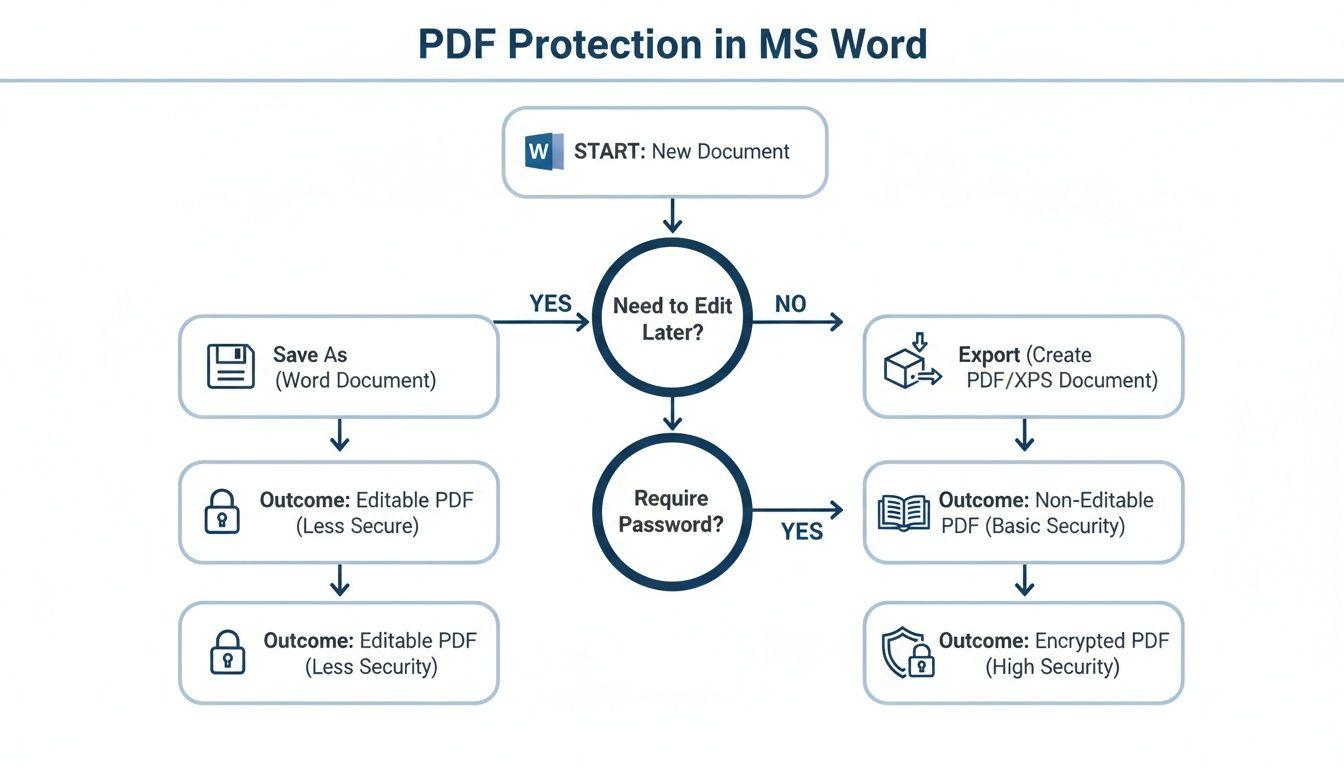
This shows that security isn't just an add-on; it can be part of the creation process itself.
A Quick Guide: Choosing Your PDF Protection Method
To help you decide which tool is right for you, here’s a quick comparison of the methods we've discussed. Think about where you're working, what your budget is, and what level of security you really need.
| Method | Platform | Typical Cost | Best For |
| Adobe Acrobat | Windows, macOS, Mobile | Paid Subscription | Professionals needing comprehensive editing, signing, and security features. |
| Microsoft Word | Windows, macOS | Included with Microsoft 365 | Creating and securing new documents directly within your existing workflow. |
| macOS Preview | macOS | Free (Built-in) | Mac users who need quick, basic password protection without extra software. |
| Online Tools | Web Browser (Any) | Often Free (with limitations) | Quick, one-off protection when you don't have access to dedicated software. |
| Mobile Apps | iOS, Android | Free or Paid | Securing documents on the go, directly from your phone or tablet. |
This table isn't exhaustive, but it should give you a solid starting point for finding the tool that fits your immediate needs without overcomplicating things.
Securing Documents Directly From Your Phone or Tablet
Mobile apps are another fantastic option for locking down documents from anywhere. Whether you're on an iPhone or an Android device, there are plenty of high-quality apps that let you add a password right on your device, which means you never have to upload the file to a random server.
From a security standpoint, this is often the better approach because the document never leaves your control. Apps like PDF Expert for iOS or the mobile version of Adobe Acrobat Reader have robust protection features built right in. You can literally open a file from an email, slap a password on it, and share it securely in less than a minute.
For anyone who works on the move, a reliable mobile PDF app is a total game-changer. It turns your phone into a secure, portable workstation for sensitive documents.
In the end, whether you lean on an online tool or a mobile app, the goal is the same: flexible, reliable security that fits your work style. These tools ensure you can always answer the question of how to make a PDF document password protected, no matter where you are. And if you're looking to go even further, our guide on encrypted document sharing covers more advanced strategies.
Creating Strong Passwords and Managing PDF Security
Slapping a password on a PDF is the easy part. The real security, however, hinges entirely on the strength of that password. Let’s be honest, using something guessable like "Invoice2024" or "password123" is like putting a screen door on a bank vault—it’s barely better than nothing. If you want to genuinely protect your information, you need a password that can stand up to modern cracking software while still being manageable for you and your team.
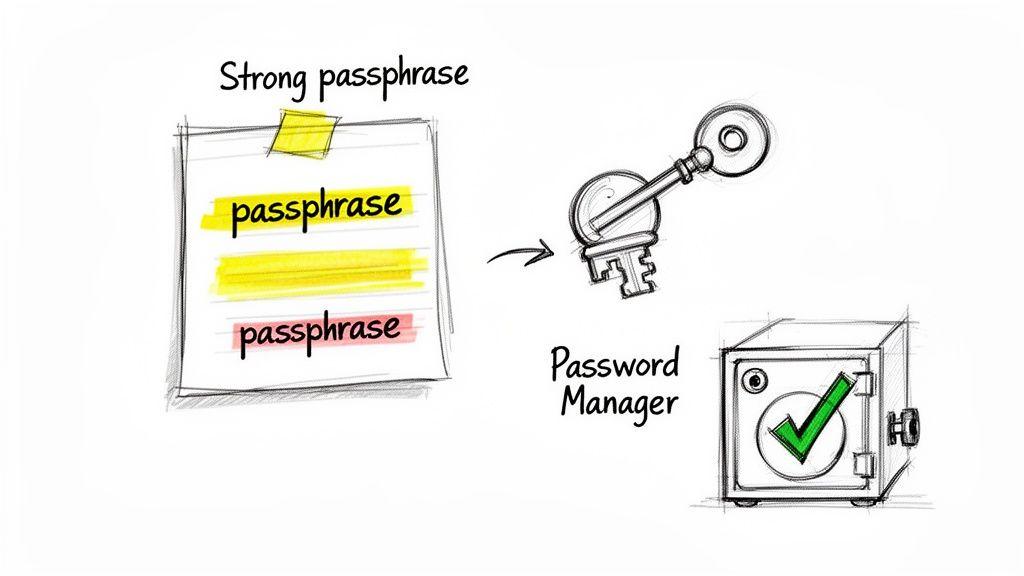
Here's my best advice: stop thinking in terms of "passwords" and start using passphrases. A passphrase is just a short, memorable sentence that you turn into a password. For instance, "My!First.Project-Was.In!2019" is infinitely stronger and, surprisingly, easier to remember than a jumble like "P@$$w0rd!Project." It’s a game-changer for security, and you can dive deeper into why this works so well in our guide on passphrase vs password.
Best Practices for Strong PDF Passwords
Crafting a rock-solid password doesn't have to feel like a chore. Just keep a few core principles in mind, and you'll dramatically improve your document's security.
A genuinely strong password has a few key ingredients:
- Length: Don't settle for less than 12-16 characters. Each character you add makes it exponentially harder for someone to crack.
- Complexity: Always use a mix of uppercase letters, lowercase letters, numbers, and symbols (like !, @, #, $). This variety is crucial.
- Uniqueness: Never, ever reuse passwords. If you use the same one for multiple documents and it gets compromised, everything is suddenly at risk.
The goal is to make your password completely random and unpredictable. Steer clear of personal details like birthdays, pet names, or dictionary words that are trivial to guess.
The Role of a Password Manager
Let's be realistic—remembering a unique, complex passphrase for every single PDF you protect is a nightmare. This is exactly why a password manager is no longer a "nice-to-have" but an essential security tool. These apps create and store incredibly strong, random passwords for you, so you don't have to.
The need for this is more obvious than ever. While people are getting smarter about security—with 86% of Americans using strong passwords for their home WiFi—a shocking 37% still don't use a password manager to automate security. This gap is a huge vulnerability that relies on weak human memory. Some of the scary security stats from 2023 research really drive this point home.
Changing or Removing a PDF Password
Security isn't always permanent. A confidential draft might eventually become a public document. Thankfully, most decent PDF editors, like Adobe Acrobat, make it simple to adjust the security settings later on.
To change or remove a password, you will always need the original one. That’s the key. Just open the PDF, enter the current password to unlock it, and head back to the security or protection settings where you first set it up. You’ll find options there to either update the password or remove the encryption altogether, ensuring only authorized users can make these changes.
A Few Common Questions About PDF Security
Once you start password-protecting your documents, you'll inevitably run into a few specific scenarios and questions. Getting these sorted out early will save you a lot of hassle down the road and help you manage your secure files more effectively.
Here are the answers to some of the most common questions people ask when they're learning the ropes of PDF security.
What’s the Difference Between an Owner and a User Password?
This is a big one, and it's a common source of confusion. The easiest way to think about it is like having two different sets of keys for a house.
- A user password (sometimes called a "document open" password) is the key to the front door. Anyone with this key can get inside and look around—that is, they can open and view the PDF. It's straightforward access control.
- An owner password (also known as a "permissions" password) is like the master key that controls what you can do inside the house. It dictates whether someone can print the document, copy text and images, or make changes.
You can actually set an owner password to restrict printing and editing while leaving the document open for anyone to view. This gives you much finer control, especially when you need to share information but protect your intellectual property.
I Forgot My PDF Password. What Can I Do?
This is the situation nobody wants to be in, and unfortunately, there's no magic bullet. Modern PDF encryption is strong for a reason—it's designed to keep people out. There’s no "Forgot Password" link to rescue you.
You might find third-party tools online that claim to crack or recover lost PDF passwords. Be warned: their success rate is a mixed bag. Most of these programs use "brute-force" attacks, trying millions of password combinations, which can take hours, days, or even weeks for a strong password. And often, they just don't work.
The best strategy here is prevention. Always, always save your document passwords in a reputable password manager. It's truly the only surefire way to avoid permanently locking yourself out of your own files.
Can a Password-Protected PDF Still Contain a Virus?
Yes, it absolutely can. This is a critical misconception that can get people into trouble. A password only handles encryption and access control—it doesn't scan the file for malware.
Think of it this way: the password puts the file's contents into a locked box. It doesn't check what's in the box. If a PDF was infected with a virus before you locked it, the virus is still there, just waiting inside the encrypted file.
When you (or anyone else) enter the correct password and open the document, the malicious code can activate just like it would in any other file. Always treat password-protected PDFs with the same caution you'd use for any email attachment or download. Only open files from sources you trust, and make sure your antivirus software is up to date. A password is a lock, not a bodyguard.