You're probably here because you have an email open right now with something sensitive attached. Maybe it's a signed contract, a tax document, a scan of an ID, or family medical paperwork. You know email is convenient, but you also know “just attaching it and hitting send” feels wrong.
That instinct is good.
When people ask how to send a password protected email, they usually want one of three things: keep the wrong person from opening it, make it easy for the right person to access it, and avoid turning the whole process into a support ticket. The third part gets ignored in most guides. In real life, the recipient matters as much as the encryption method.
A retired parent on an iPad, a client using a locked-down company laptop, and a vendor on a non-Google email system will all experience your “secure email” very differently. The best method isn't the one with the most security jargon. It's the one that matches the sensitivity of the file and the recipient's ability to open it.
Why Your Standard Email Is Not Secure
You feel the risk most clearly in the few seconds before clicking Send. The attachment is there. The subject line is written. Then you pause and think, “Should this really go through regular email?”
Usually, no.
Ordinary email was built for delivery, not confidentiality. Medical and cybersecurity literature notes that, in general, most email programs transmit messages without end-to-end encryption, so protection often exists only in transit unless stronger methods such as S/MIME or PGP are used, as explained in this medical informatics review of email encryption and secure messaging. That means your message may be protected for part of the journey, but not necessarily in a way that keeps the contents private from every system that handles it.
What that means in practice
If you send a normal email with a sensitive attachment, several weak spots can appear:
- The email body may still be exposed: Even if you lock the attachment, your message text might reveal what the file contains.
- The password can become the weak link: If you send the password in the same channel, you've undone much of the protection.
- Server-side exposure still matters: Without stronger end-to-end methods, the message can still be accessible at points outside your direct control.
Practical rule: If the file would be a problem in the wrong inbox, don't treat regular email like a secure vault.
This doesn't mean email is unusable. It means you need to be deliberate. A password protected attachment, Gmail confidential mode, Outlook encryption, or a secure file-sharing link can all help. But each one solves a different problem, and each creates different friction for the recipient.
For small businesses and families, the right baseline is simple: know what you're protecting, who's receiving it, and whether they can complete the steps you're about to impose. If privacy is part of how you handle customer or family information, your expectations should match that standard, just like the broader principles described in 1chat's privacy approach.
Using Your Email Client's Built-In Protection
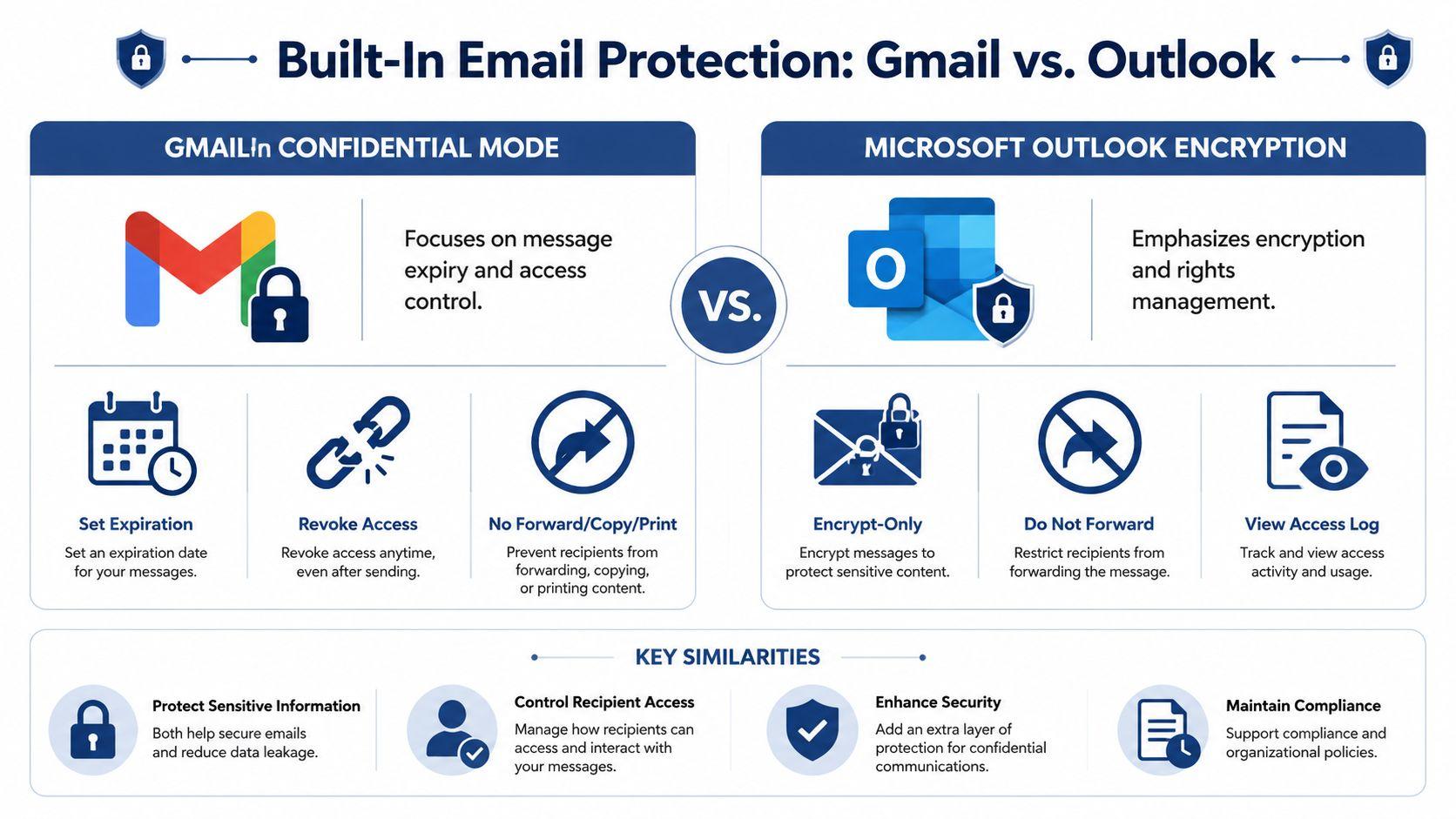
The easiest place to start is with the tools already inside Gmail or Outlook. These methods are convenient because you don't need separate file software before sending. But convenience for the sender doesn't always mean convenience for the recipient.
Gmail Confidential Mode
For Gmail confidential mode, the workflow is straightforward: open Compose, click the padlock-and-clock icon, choose an expiration window, optionally enable SMS passcode, save, then send. The recipient gets a link and must request or enter the passcode to view the message, as described in this Gmail confidential mode walkthrough.
If you want the fastest answer to how to send a password protected email in Gmail, these are the basic steps:
- Write the email first: Add your recipient, subject line, and message.
- Turn on Confidential Mode: Click the padlock-and-clock icon in the compose window.
- Choose an expiration setting: Pick the time window that fits the document.
- Decide on passcode use: If available, choose SMS passcode for stronger access control.
- Send the message: Gmail delivers access through a link instead of exposing the full message in the usual way.
That sounds simple. For the sender, it is.
For the recipient, it can feel less simple than expected. They may need to open a separate link, wait for a passcode, use a phone that can receive SMS, or deal with access steps that feel unfamiliar. That's manageable for many clients. It's annoying for some family members. It can also stall a time-sensitive exchange if the recipient is traveling, using a shared office number, or doesn't want to involve a mobile phone.
Outlook encryption
Outlook takes a different approach. Microsoft documents three stronger enterprise-focused options: Microsoft Purview Message Encryption, S/MIME, and Information Rights Management. In Outlook, users typically go to Options > Encrypt and choose an option, and those controls are enforced by policy and certificates rather than a user-created shared password, according to Microsoft's Outlook encryption guidance.
For a typical Outlook user, the visible workflow looks like this:
- Open a new message: Compose as usual.
- Select encryption settings: Go to Options > Encrypt.
- Choose the level: Common choices include basic encryption or Do Not Forward.
- Send and test carefully: If you're emailing someone outside your organization, make sure they can open it.
Outlook is often stronger in managed business environments because IT can enforce the rules consistently. That's the upside.
The downside is recipient compatibility and setup complexity. In business-to-business situations, Outlook encryption can work well when both sides already live in Microsoft-heavy environments. In mixed environments, it can create confusion fast. A client may receive a secure message portal they weren't expecting, or they may hit a permissions flow that makes them call you instead of replying.
The hidden cost of “secure email” is often time spent explaining how to open it.
When built-in protection works best
Use built-in email protection when:
- You need a quick sender workflow: You don't want to pre-encrypt files manually.
- The recipient is comfortable with the platform: They already use Gmail or Outlook regularly.
- You want controlled access instead of file handling: Expiration and restricted access matter more than long-term archival use.
Avoid relying on it when the recipient is likely to struggle with portal-style access, SMS steps, or unfamiliar prompts.
Password-Protecting Attachments Manually
If you want a more universal approach, protect the file itself before you attach it. This works across email providers because the security travels with the document rather than depending on Gmail or Outlook features.
Two practical file options
The most common choices are PDFs and ZIP files.
For a PDF, use a tool that lets you set an open password before sending. Many people do this in Adobe Acrobat or another PDF editor. For a ZIP file, place the document inside an archive and add password protection there. If you want a plain-language walkthrough for that process, this guide on how to securely encrypt ZIP files is a useful reference.
This method is attractive because it's provider-agnostic. The recipient can use Gmail, Yahoo, Outlook, Apple Mail, or something else entirely. They still just receive a file.
The password-sharing problem
A frequent mistake made at this point breaks the whole setup.
FlowCrypt explicitly tells senders not to share the message password over email and instead recommends another channel such as a phone call, WhatsApp, or Signal, in its guidance on sending password-protected emails safely. That advice applies just as much to protected attachments.
Good options for sharing the password:
- Phone call: Best for contracts, ID scans, and family records when you need certainty.
- Secure messaging app: Signal is a strong choice if both people already use it.
- In person: Best when the information is highly sensitive and timing isn't urgent.
Bad option:
- A second email in the same thread: That's convenient, but it weakens the point of protecting the file.
If the attachment is protected but the password travels through the same mailbox, you've created friction without gaining much security.
Recipient reality check
Manual attachment protection is often easier for the recipient than secure message portals. They download a file and enter a password. That's familiar.
But there are still support issues. Some recipients don't know how to open encrypted ZIPs on their phone. Others may have trouble with older PDF readers. Before sending, ask yourself a boring but important question: “What device will they use?” That one question prevents a lot of frustration.
If you regularly help less technical users, keep your instructions short and separate from the password. A simple note plus a quick callback usually works better than a long explanation. If you want a general consumer-friendly support reference to point people toward, the 1chat FAQ shows the kind of clear help structure that reduces back-and-forth.
Advanced Encryption with S/MIME and PGP
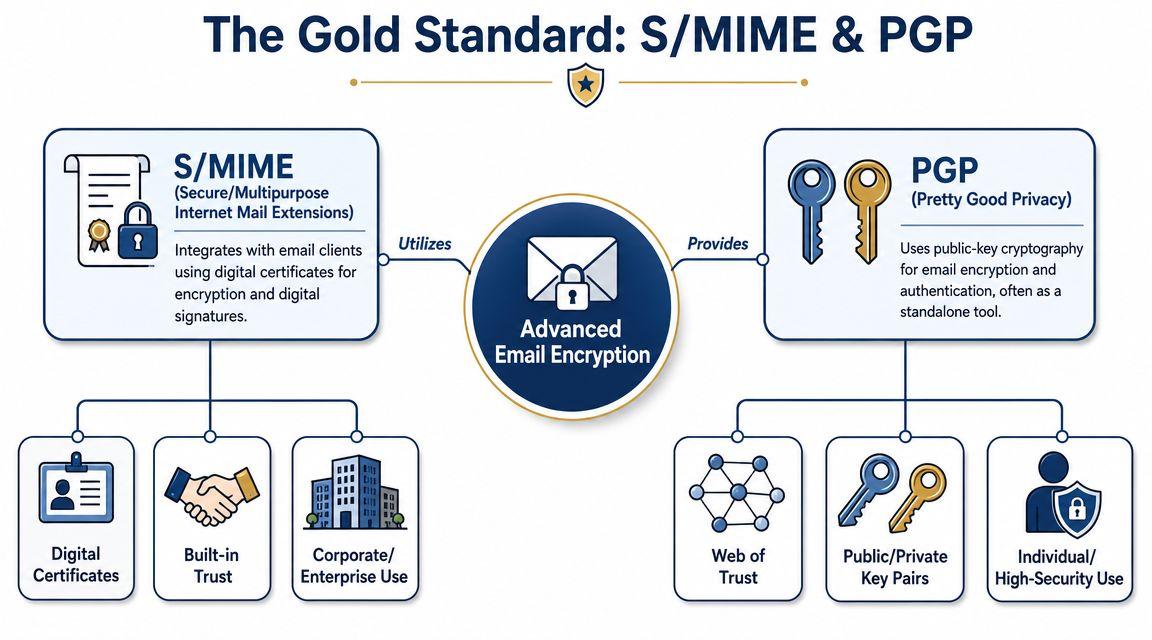
If you handle legal documents, regulated information, or sensitive business communications regularly, basic password protection starts to feel like a workaround. That's when S/MIME and PGP enter the conversation.
These are the closest thing to the gold standard in email security for many professional use cases.
What makes them different
Instead of protecting access with a shared password, these systems use public-key cryptography. In plain English, one key locks the message for the recipient, and a separate private key opens it. The sender doesn't need to invent and distribute a shared password for every message.
That solves a major weakness in manual password workflows.
The earlier medical and cybersecurity literature also notes that secure email depends on both a strong encryption system and strong, confidential keys. If the password protecting the key is intercepted or disclosed, the document is no longer secure. That's why modern secure email guidance points toward stronger cryptographic systems and careful key handling rather than casual password swapping. That larger context is why S/MIME and PGP exist in the first place, as discussed earlier.
Where Outlook fits
Outlook is often the business entry point here. Microsoft's documented enterprise options include Microsoft Purview Message Encryption, S/MIME, and IRM, which tells you something important. In business environments, “password protected email” often turns into policy-based encryption, certificate management, and access control rather than a simple lock icon.
That's better for consistency. It's worse for casual use.
Here's the trade-off in simple terms:
| Approach | Strength | Friction |
| S/MIME | Strong for managed business communication | Certificates and setup |
| PGP | Strong for users who can manage keys carefully | Steeper learning curve |
| Shared-password methods | Easy to explain at first | Ongoing password handling |
Who should use this
Choose S/MIME or PGP if these statements sound like your situation:
- You send sensitive material often: Not once a month. Routinely.
- Your organization can support setup: Someone can manage certificates, keys, and recipient compatibility.
- You need durable encrypted correspondence: Not just temporary document viewing.
- You care about signatures and authenticity: You want recipients to verify the message came from you.
For families and many small businesses, these methods are usually overkill unless someone already knows how to manage them. For firms with compliance pressure or formal security requirements, they're worth the effort.
Better security can create more failure points if neither side is prepared to use it correctly.
If you want to explore adjacent privacy and workflow topics for teams, the broader articles on the 1chat blog are the kind of operational reading that helps non-specialists think through tool choice more clearly.
Using Secure File-Sharing Links as an Alternative
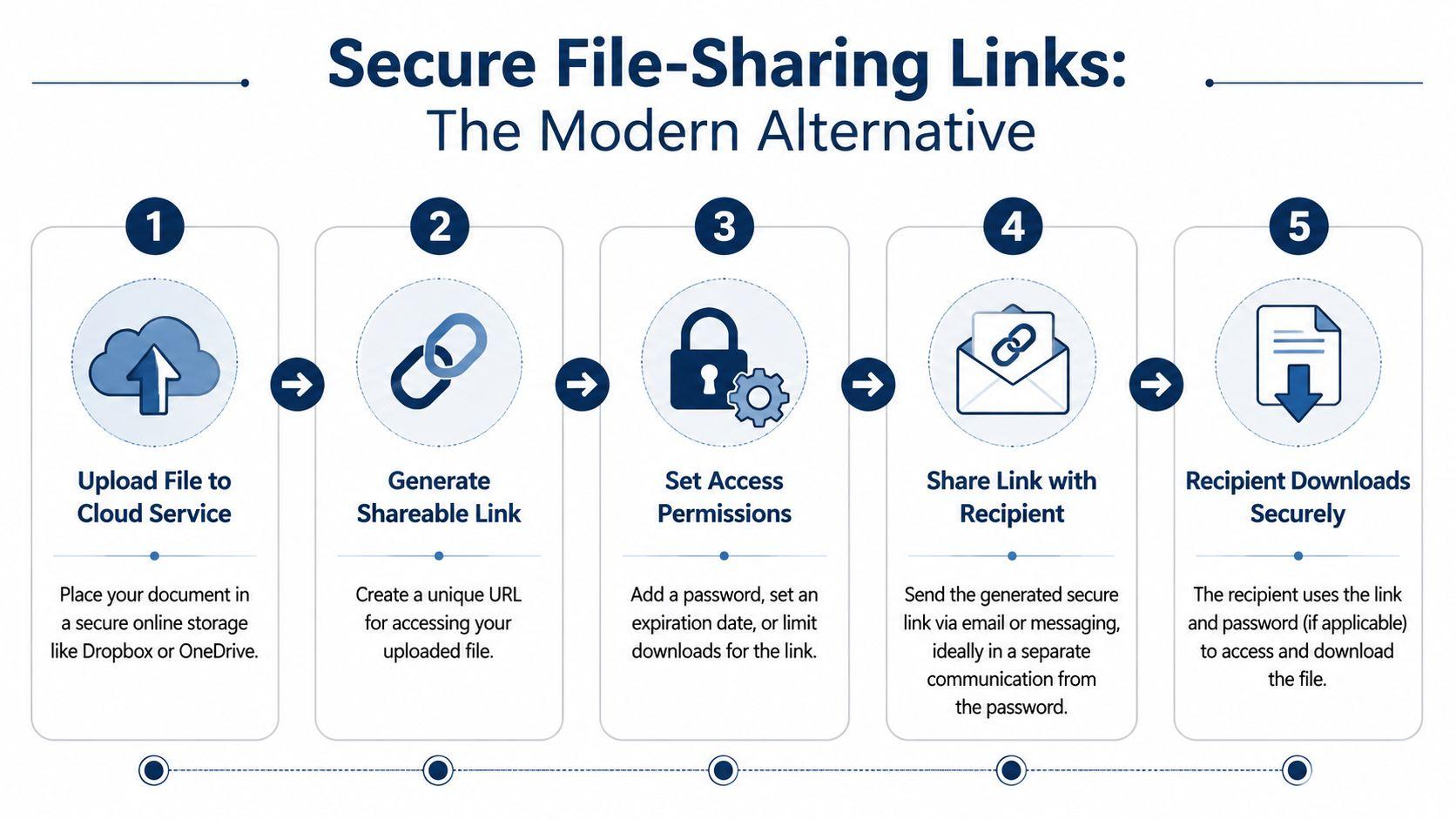
Sometimes the best answer to how to send a password protected email is: don't send the file inside the email at all.
Send a secure link instead.
Why links often work better for recipients
With cloud storage or secure transfer tools, the workflow shifts:
- Upload the file.
- Generate a share link.
- Add restrictions such as a password or expiration.
- Email the link.
- Give the password separately if needed.
That may sound similar to attachment protection, but the recipient experience is often smoother. They click a link, authenticate if required, and download the file. No wrestling with email client quirks. No special certificate setup. No trying to open an encrypted ZIP on a phone that doesn't handle it well.
Recipient friction is one of the biggest practical problems in secure messaging. As noted in the FlowCrypt guidance discussed earlier, secure workflows often depend on a second channel and can become awkward when the recipient sits outside your normal ecosystem.
Good use cases for secure links
Secure file-sharing links are usually my first recommendation when:
- You're sending larger documents or multiple files
- The recipient is external to your business
- You may need to revoke access later
- You want less dependency on a specific email platform
For example, sending diligence materials to outside parties is often better handled through controlled file access than through chains of protected attachments. If you work in startup fundraising or transaction prep, this overview from Pitch Deck Scanner on due diligence and data rooms is a useful example of how secure document access becomes an operational issue, not just a technical one.
The trade-offs
This method isn't perfect.
The file is now secured mainly through the host platform and its access controls. You also need to think about whether the recipient will keep long-term access, whether they can forward the link, and whether the password-sharing step is still required.
But for many small businesses, this is the sweet spot. It gives you decent control without forcing the recipient into advanced email encryption. For families, it's often easier too. A shared link with simple instructions usually beats “download this attachment, open it in the right app, then enter the password.”
Secure links are often the most practical option when the recipient is the bottleneck, not the sender.
Choosing the Right Secure Email Method for You
Most “password-protected email” tools aren't the same thing. Some behave more like temporary viewing portals than long-term encrypted correspondence. Gmail Confidential Mode access can be removed by the sender, and Proton's password-protected emails expire after 28 days, which is why the right method depends on whether you need temporary viewing or durable confidentiality, as reflected in Google's Confidential Mode help documentation.
That's the decision point often missed. Don't pick based on what's available in your toolbar. Pick based on what the recipient needs to do next.
Secure Email Method Comparison
| Method | Best For | Security Level | Recipient Ease |
| Gmail Confidential Mode | Quick one-off messages when the recipient can handle link access and possible passcodes | Moderate controlled access | Moderate |
| Outlook encryption | Managed business environments using Microsoft tools | Strong in the right setup | Moderate to difficult outside Microsoft-heavy environments |
| Password-protected PDF or ZIP | Sharing a specific sensitive file across mixed email providers | Good if the password is shared separately | Moderate |
| S/MIME or PGP | Ongoing high-sensitivity communication with prepared recipients | Strong | Difficult for most casual recipients |
| Secure file-sharing link | External clients, families, and mixed-device recipients | Good, depends on platform controls | Usually easiest |
Simple recommendations by scenario
If you want a practical answer fast, use this:
- Sending a contract to a new client: Use a secure file-sharing link with access controls. It's usually the easiest path for someone outside your system.
- Sending tax or ID documents to a family member: Use a password-protected PDF or ZIP, then give the password by phone.
- Sending regulated business information inside a managed company environment: Use Outlook encryption or S/MIME if your IT setup already supports it.
- Exchanging highly sensitive information on an ongoing basis: Use S/MIME or PGP only if both sides are ready for the setup and support burden.
- Sending something the recipient only needs to view temporarily: Gmail Confidential Mode can work, but treat it as controlled access, not the same thing as durable encrypted email.
My bottom line
For most small businesses and families, secure file-sharing links and password-protected attachments are the best balance of safety and usability. Built-in email client protections are fine when both sides are comfortable with the platform. Advanced encryption is best reserved for situations where the extra complexity is justified.
If you're choosing between “stronger on paper” and “usable by the recipient,” choose the method that gets the secure job done without creating avoidable confusion. That's what works in practice.
For teams that think carefully about secure access and user friction across tools, it's worth paying attention to newer approaches to lightweight cloud-native authentication, because identity and access often become the primary issue once file sharing leaves the inbox.
If you're comparing privacy tools for family use, schoolwork, or small business workflows, 1chat is a privacy-first option for using multiple leading AI models in one place without the usual complexity.