Setting up a Slack automatic reply is one of the smartest things you can do to manage expectations and get your focus back. You’ve got a few ways to pull this off: a simple status update, a custom response from Slackbot, or even a more sophisticated Workflow that shoots off direct messages for you when you’re away.
Why a Smart Slack Automatic Reply Is Non-Negotiable
Think of your "away" message as more than just a digital "be right back" sign. It's a crucial part of your productivity toolkit. It helps you set clear boundaries with colleagues and ensures that important messages get the attention they need—even if you're not the one giving it right that second.
A well-written auto-reply can turn a potential communication hiccup into a moment of perfect clarity. It tells your team you’re on top of things and respect both their time and your own. This guide will walk you through setting up the perfect response for just about any scenario you can think of.
Managing Expectations in a Digital-First World
That "always-on" feeling at work creates a subtle pressure to reply instantly. An auto-responder is your first line of defense. It proactively communicates your availability, heading off misunderstandings before they even start and letting teammates know exactly when they can expect to hear from you. It's a surprisingly effective way to lower anxiety for everyone.
This is especially true as Slack becomes the command center for so many teams. The platform's own growth highlights just how much we rely on tools to keep communication flowing smoothly. In fact, research shows that smart features like auto-replies can cut down on interruptions and email overload by a whopping 32%. You can dig into the full Slack research on Embryo.com to see the impact.
Choosing the Right Method for You
There’s no single "best" way to set up an auto-reply in Slack. The right choice really depends on why you're away and how much information your team needs.
- Simple Status: Perfect for quick breaks or when you're heads-down in a meeting. It's low-effort and gets the job done.
- Workflow Builder: The go-to for longer absences like vacations or conferences. This lets you send a detailed, automated DM to anyone who messages you.
- Third-Party Apps: Ideal if you want to sync your Slack status with your Google or Outlook calendar automatically. Set it and forget it.
Once you know your options, you can pick the right tool for the job. And if you're looking to really lean into automation, exploring how to use AI for business can open up a whole new world of efficiency for your team.
Which Slack Automatic Reply Method Should You Use?
Feeling a bit lost? This table breaks down the main methods to help you decide which one fits your situation best.
| Method | Best For | Complexity | Customization |
| Status Update | Short breaks, meetings, or heads-down focus time. | Low | Low |
| Slackbot | Answering common questions with keyword triggers. | Low | Medium |
| Workflow Builder | Vacations, parental leave, or other extended absences. | Medium | High |
| Third-Party App | Automatically syncing your status with your calendar. | Medium | High |
Ultimately, the best method is the one you’ll actually use. Start simple with a status update and explore the more powerful options like Workflow Builder as you get more comfortable.
Quick Wins with Slack Status and Do Not Disturb
Sometimes you just need a quick and easy way to let people know you're tied up. For that, nothing beats Slack's built-in Status and Do Not Disturb (DND) features. Think of them as the fastest way to set up a basic Slack automatic reply without digging into any complex workflows.
This is your go-to for short-term absences. It’s the digital equivalent of hanging a sign on your office door. You can jot down a quick status, pick an emoji that tells the story, and even set it to disappear automatically when you’re back.
Setting Your Slack Status Effectively
A good status does more than just say you're away—it communicates what you're doing. A clear, informative status can stop interruptions before they even happen.
Here’s how I make mine work for me:
- Get Specific: Instead of just "Busy," try something like "Heads down on the Q2 report until 3 PM." This tells your team you're not available and gives them a timeline.
- Lean on Emojis: Visual cues work wonders. A 📞 for a call or 🍽️ for lunch gives people the gist at a glance.
- Always Set an Expiration: This is a lifesaver. Slack lets you set a timer on your status, so you don't have to remember to clear it later. No more confusing your team with an outdated "On a call" status from yesterday.
The interface is super simple, which is exactly what you want for quick updates.
You can see how easy it is to pick a pre-written status or create your own, add an emoji, and tell Slack when to wipe it clean.
Combining Status with Do Not Disturb
This is where the real magic happens. When you pair your status with Do Not Disturb (DND), you create a genuinely protected block of time. Your status tells people you’re busy, but DND actively silences the notifications. It’s the key to real, uninterrupted focus.
Combining a clear status with DND is a game-changer. You’re not just passively unavailable; you’re actively guarding your time. It's a small habit that makes a huge difference in cutting down on distractions.
This tactic is especially crucial if you work with people in different parts of the world. With over 42 million daily active users across more than 180 countries, Slack is a global hub. Setting a clear status and enabling DND helps manage expectations when your workday doesn't perfectly align with everyone else's. You can find more stats on Slack's global user base on sqmagazine.co.uk.
This one-two punch is perfect for anything from client meetings to focused coding sessions, or even just making sure you get a real lunch break. Making it a habit is one of the simplest productivity hacks out there.
Building a Smarter Auto-Reply with Workflow Builder
When a simple status update just won't cut it, Slack’s Workflow Builder is your best friend for creating a truly powerful Slack automatic reply. This is my go-to tool for longer absences, like a week-long vacation or a conference. It lets you build a custom auto-responder that automatically pings a direct message back to anyone who tries to reach you.
The best part? No coding required.
Instead of your colleagues just seeing a status icon, a workflow actively engages them with the exact information they need. Think of it as a personal assistant that manages your DMs, ensuring urgent stuff gets handled and nobody is left hanging.
Triggering Your Automated Response
First things first, you need to tell your workflow when to spring into action. The most logical trigger for an out-of-office message is "When a person sends a direct message to you." This tells Slack to kickstart your workflow the moment someone reaches out.
But you don't want this firing off every single time someone messages you. The real magic is in adding a condition. For example, you can tell the workflow to only run if your current status emoji is set to 🌴. This is how you gain precise control, making sure your auto-reply only activates when you've explicitly set yourself to "away."
This flowchart gives you a good visual of how setting your availability lays the groundwork for a workflow trigger.
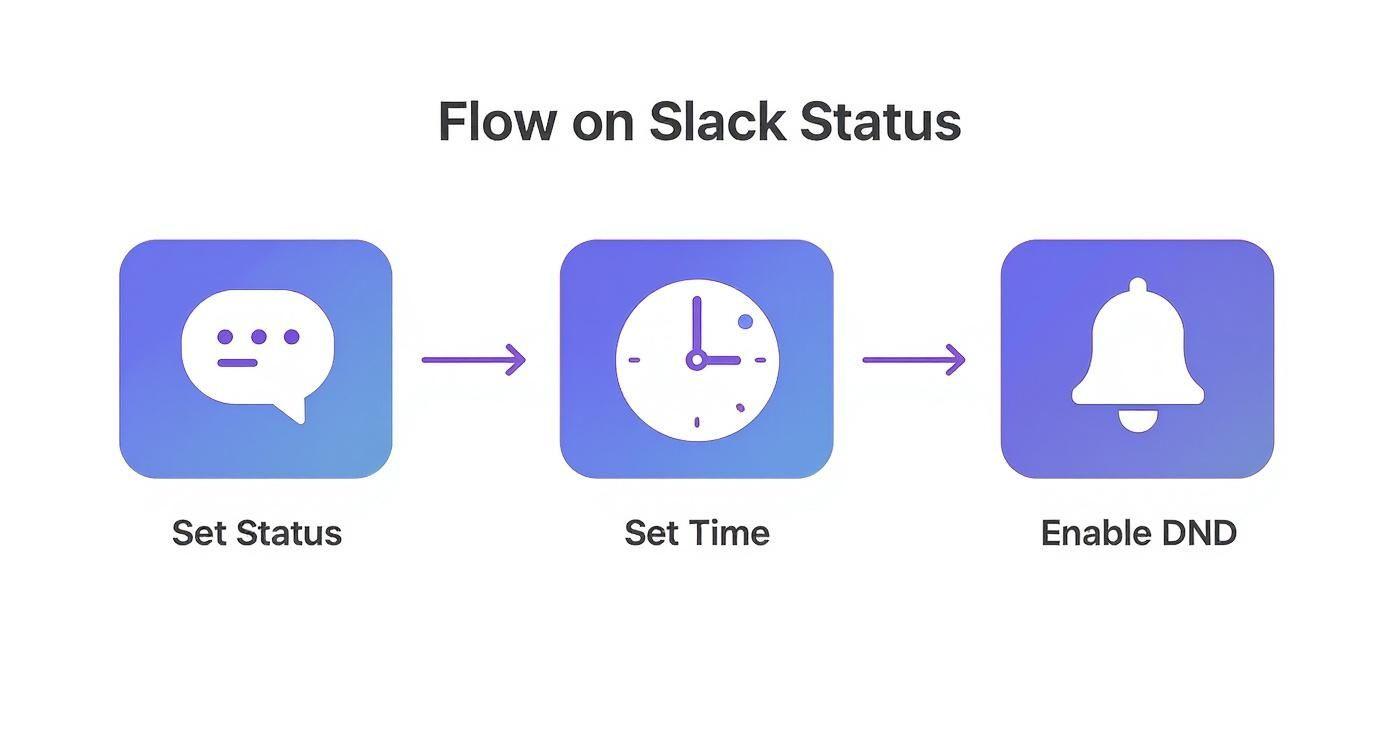
As you can see, combining your status, a specific timeframe, and Do Not Disturb creates a complete "I'm not here" signal that a workflow can easily latch onto.
Crafting a Personalized and Helpful Message
With your trigger in place, it’s time to write the actual message your workflow will send. This is your chance to make the automation feel a lot less, well, robotic.
A fantastic feature here is the ability to use variables. By popping in a variable for the sender's name, your automated message can start with a friendly "Hi [Person's Name]," which is so much better than a cold, generic greeting. It's a small detail that makes a big difference.
Here’s a template I've used that works great. Feel free to adapt it for your own needs:
Hi {{person who sent the message}}! Thanks for reaching out. I'm currently on vacation and will be back on [Your Return Date]. I'll have limited access to Slack and will get back to you once I return.
If your message is urgent, please contact @mention-colleague in the #team-channel for immediate assistance.
Thanks for your understanding!
Why does this template work so well?
- It’s Personal: It greets the sender by name.
- It's Informative: It clearly states when you’ll be back.
- It’s Actionable: It points people to exactly who can help with urgent matters.
Yes, setting up a workflow takes a few more minutes than just updating your status. But the payoff in seamless communication and peace of mind is huge. You can fully disconnect, confident that your team has everything they need to keep things moving.
Take Your Automation to the Next Level with Third-Party Apps
Slack’s built-in tools are great, but when you’re ready for some serious "set it and forget it" automation, the Slack App Directory is where the magic happens. These integrations can connect Slack to the other tools you use every day, creating a seamless system that keeps your status perfectly in sync without you even thinking about it.
If you live and die by your calendar, this is for you. Many apps can link directly to your Google or Outlook Calendar, which means your Slack status can change the instant a meeting or focus block starts. No more forgetting to manually set yourself to "away"—your calendar does all the heavy lifting.
Put Your Calendar in the Driver's Seat
Let's get practical. Imagine you've got a client call scheduled in your Google Calendar for 2 PM. With an integration like the official Google Calendar app, the moment 2 PM hits, your Slack status automatically flips to “In a meeting” with a 📞 emoji. Just like that, your team knows you're tied up and won't interrupt.
This calendar sync is an absolute game-changer for anyone with a packed schedule. It's not just about updating your status; many of these apps will also send you a daily rundown of your agenda right inside Slack, so you can manage your day without switching between apps.
Explore Powerful Apps for Smarter Workflows
Beyond just syncing your personal calendar, some dedicated apps are built to manage team-wide availability and complex schedules. If you're coordinating on-call rotations or just trying to keep track of a busy team, these are invaluable.
Here are a couple of popular choices I've seen teams use effectively:
- Vacation Tracker: This gives your whole team a central dashboard to see who's out of the office and when. It automatically updates someone's Slack status when their approved time off starts, so there's never any confusion about who’s available.
- Clockwise: I love this one for protecting deep work time. Clockwise analyzes your schedule to find uninterrupted blocks for focus and automatically sets your Slack status to “Focusing.” It’s a brilliant way to signal to your team that you really need to concentrate.
These apps do more than just send a slack automatic reply; they build an intelligent system that manages your whole team's expectations. For remote and hybrid teams, that kind of visibility is absolutely essential for respecting each other’s time and collaborating smoothly.
By bringing these tools into your workflow, you’re building a much smarter communication ecosystem. It's the same core idea behind efforts to automate customer service workflows—you're cutting out the manual work and closing communication gaps so everyone can focus on what really matters.
Crafting the Perfect Automatic Reply Message
The automation you choose is only half the battle; the message itself does the real work. A thoughtful Slack automatic reply is the difference between leaving someone confused and giving them a clear path forward. It’s all about managing expectations and keeping things moving while you’re away.
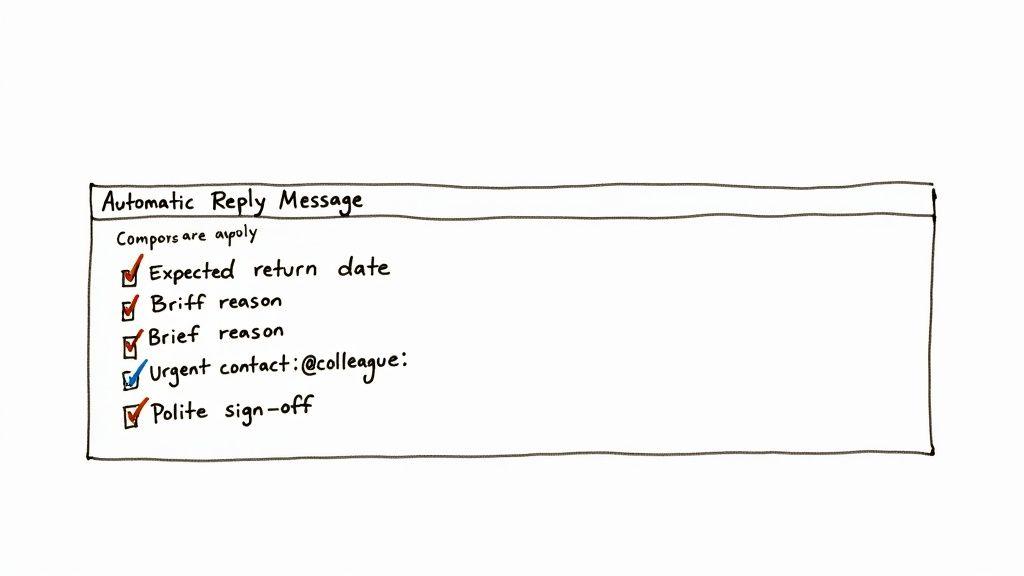
Every solid auto-reply I've ever used or seen boils down to three core elements. Nail these, and you've created a message that helps everyone out.
- Your Return Date: Be specific. "Next week" is vague, but "I'll be back online Monday, July 22nd" leaves no room for guessing.
- A Brief Reason: You don't need to share your life story. A simple "on vacation," "attending a conference," or "in a deep work session" is perfect.
- Urgent Contact Info: This is the most critical part. Always point people to a specific person or channel for urgent matters. Using an @mention is key here, as it sends a direct notification.
Get these components right, and your message transforms from a simple away notice into a real productivity tool.
Examples for Different Scenarios
The best auto-replies adapt to the situation. What you write for an internal team during a few hours of focus time is going to be very different from a formal out-of-office message for a two-week vacation.
Here are a couple of go-to templates I use all the time:
Formal Vacation Message:
"Thanks for your message. I am currently out of the office and will return on Monday, August 5th, with limited access to Slack until then. For anything urgent, please contact @sarah-jones. Otherwise, I'll get back to you when I return."
Casual Internal 'Deep Work' Message:
"Heads down on the Q4 budget until 3 PM today. If it's an emergency, please tag me in the #marketing-urgent channel. Otherwise, I'll circle back this afternoon!"
As you can see, adapting your slack automatic reply gives people just the right amount of context. If you want to dive deeper into crafting effective digital messages, our post on finding a great app for letter writing has some surprisingly relevant tips.
Remember, the goal of an automatic reply is to reduce friction and empower your teammates to find answers without you. A clear, actionable message is a gift to your colleagues and your own peace of mind.
Common Mistakes to Avoid
Even with the best intentions, a bad auto-reply can create more problems than it solves. I've seen it happen plenty of times. Here are a few common pitfalls to steer clear of.
- Vague Timelines: Avoid saying "I'll be back soon" or "I'm out for a few days." This just creates uncertainty and invites follow-up DMs.
- No Alternative Contact: This is the number one mistake. Never leave your colleagues at a dead end. Forgetting to include an urgent point of contact is a recipe for frustration.
- Overly Personal Details: Keep it professional. Sharing too much information can make people uncomfortable and is almost always unnecessary.
It's also worth noting how much AI is changing workplace communication. We're seeing a massive 233% surge in daily AI use among workers, and AI tool usage within Slack itself has jumped 24% quarterly. This trend is pushing auto-replies to become smarter and more context-aware, moving way beyond simple templates. You can discover more about these Slack usage trends on analyzify.com.
Got Questions About Your Slack Auto-Replies?
Once you start dabbling with Slack’s automatic replies, you’ll inevitably run into a few questions. It’s one thing to set it up, but another to make sure it behaves exactly how you expect it to. I've seen these same questions pop up time and again, so let's clear up the common sticking points.
Getting these details right means your auto-replies will be a helpful tool, not a source of confusion or, worse, channel spam.
Will My Workflow Start Replying in Channels?
This is probably the most common fear I hear: "Will this thing start spamming my team's channels?" The short answer is a resounding no—as long as you’ve configured it correctly.
The magic is in the trigger you choose. When you set up a workflow using the "When a person sends a direct message to you" trigger, it does exactly that. It only watches your DMs. It will completely ignore all the chatter in public and private channels, so you can rest easy.
Can I Have Different Replies for Different Situations?
Absolutely! This is where you can get really smart with your setup. The best way to do this is by creating multiple workflows, each one listening for a different status emoji. Think of it as having a custom out-of-office message for every occasion.
Here’s how that might look in practice:
- 🌴 On Vacation: A more detailed message explaining you're fully disconnected and providing an emergency contact.
- ✈️ Traveling for Work: A quick note that you're on the move and might be slow to respond.
- 🧘 Deep Work: A simple heads-up that you're focusing and will get back to everyone in a couple of hours.
All you have to do is set the right emoji in your status, and the corresponding workflow kicks in. It’s a simple, elegant way to keep everyone in the loop without having to rewrite your message every time.
Will My Auto-Reply Respond to Bots and Apps?
Thankfully, no. Slack is designed to tell the difference between a message sent by a person and an automated notification from an app like Asana or Google Calendar. Your workflow is specifically looking for a person to send you a DM.
This is a critical, built-in safeguard. Can you imagine the chaos if your auto-reply triggered a notification, which triggered your auto-reply again, creating an infinite loop? The system is smart enough to avoid that, so your automations only interact with real people.
The Bottom Line: Your workflow is built for human interaction. It won't get tripped up by bots or app notifications, which keeps your DMs from turning into a mess of looping alerts.
What if I Forget to Turn It Off?
We've all been there. You get back from a trip, dive into work, and completely forget your out-of-office message is still on. This is where using your status as a trigger really shines.
If your workflow is tied to the 🌴 emoji, it will stop the second you clear that status. Even better, when you first set your status, get into the habit of using the "Clear after..." option. You can tell Slack to remove it at the end of the day or on a specific date when you're back. That way, even if you forget, Slack remembers for you, and your auto-reply turns itself off right on schedule.