You've got three new PDFs in your inbox, a research paper open beside a contract, and a report waiting for your next meeting. Reading every page carefully would be ideal, but the deadline won't cooperate. The practical answer is to summarize PDF files in a way that saves time without losing qualifications, evidence, or sensitive details.
That requires more than uploading a document and accepting the first short answer an AI tool produces. The quality of the source file, the extraction method, the prompt, the document structure, and the final review all affect the result. This guide focuses on the messy PDFs people receive, including scans, multi-column reports, multilingual documents, tables, forms, and image-heavy files.
Why Summarizing PDFs Matters More Than Ever
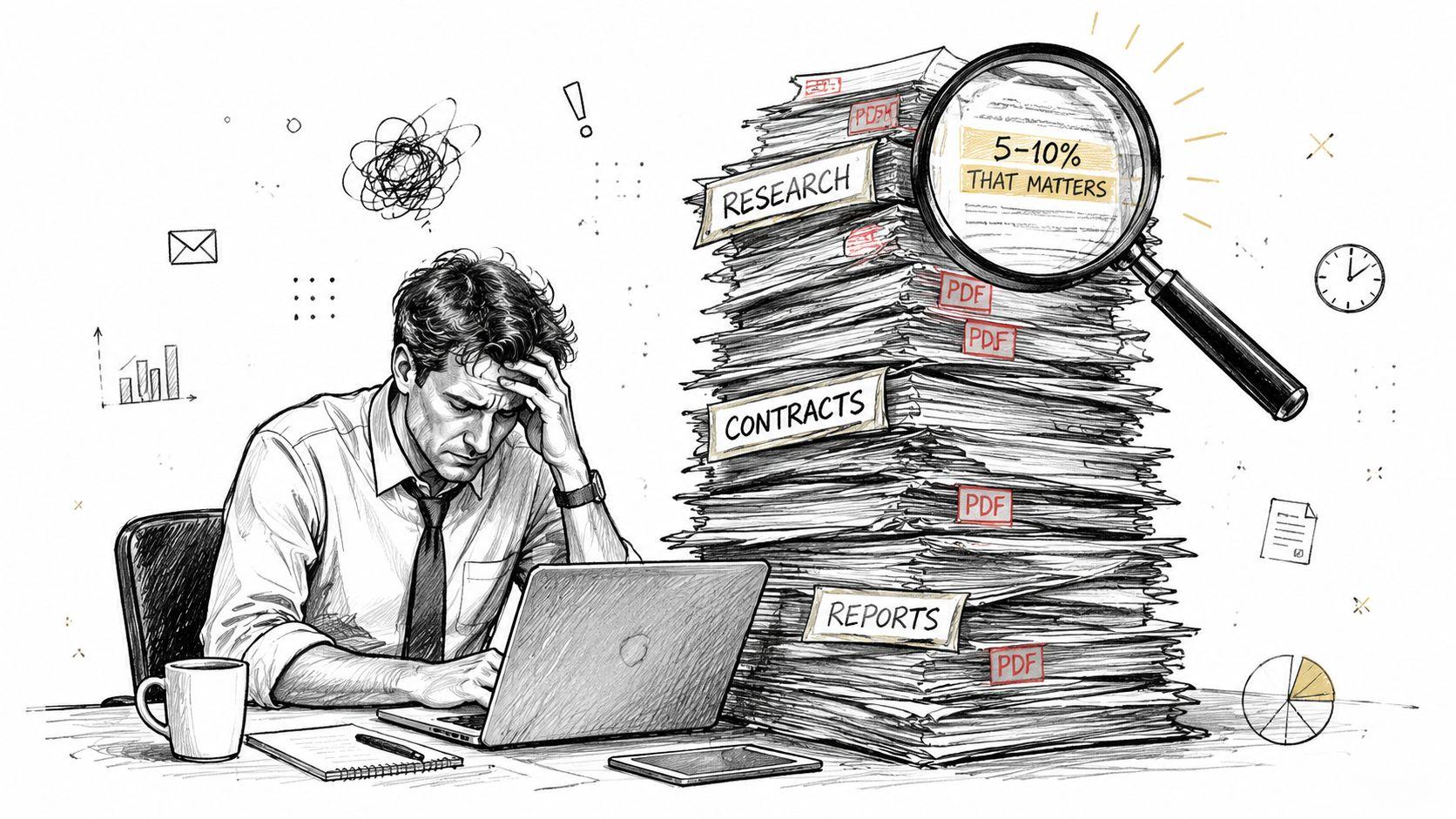
A PDF can look short in an email preview and still contain dense research, contractual obligations, financial assumptions, or instructions buried deep in the document. Students face the same problem with journal articles, textbook chapters, and theses. The challenge isn't just reading quickly. It's identifying what matters for a specific decision while preserving enough context to avoid a misleading conclusion.
PDF became a de facto universal document format before 2008, after Adobe published eight editions from PDF 1.0 through PDF 1.7 between 1993 and 2007. ISO later adopted it as ISO 32000-1, and PDF 2.0 was published as ISO 32000-2:2020 in December 2020, according to the PDF Association's history of the Portable Document Format. That long evolution explains why organizations hold such large libraries of PDFs across operating systems, devices, and industries.
Speed without false confidence
A quick summary can help you decide whether a document deserves a close read. It can also expose the main subject, apparent conclusion, important dates, and open questions. But a short output may miss a limitation in a footnote, a contradictory clause in an appendix, or a conclusion that appears much later than the introduction.
Practical rule: Use a summary to prioritize your reading, not to replace source verification when the document affects money, grades, compliance, legal obligations, or personal decisions.
For researchers, a workflow such as the Sensefold PDF summarizer for researchers can provide useful structure for reviewing papers. The same principle applies to business teams and families: begin with an overview, then return to the original pages that support any important action.
The strongest workflow balances coverage, traceability, readability, and privacy. A readable summary that invents details is dangerous. A perfectly faithful extract that no one can understand is inefficient. The right process gives you a fast orientation while keeping the document available for checking.
Extractive Versus Abstractive Summarization Methods
PDF summarizers generally use one of two approaches. Extractive summarization selects sentences from the original document, while abstractive summarization writes new sentences that express the source's meaning. Neither method wins in every situation.
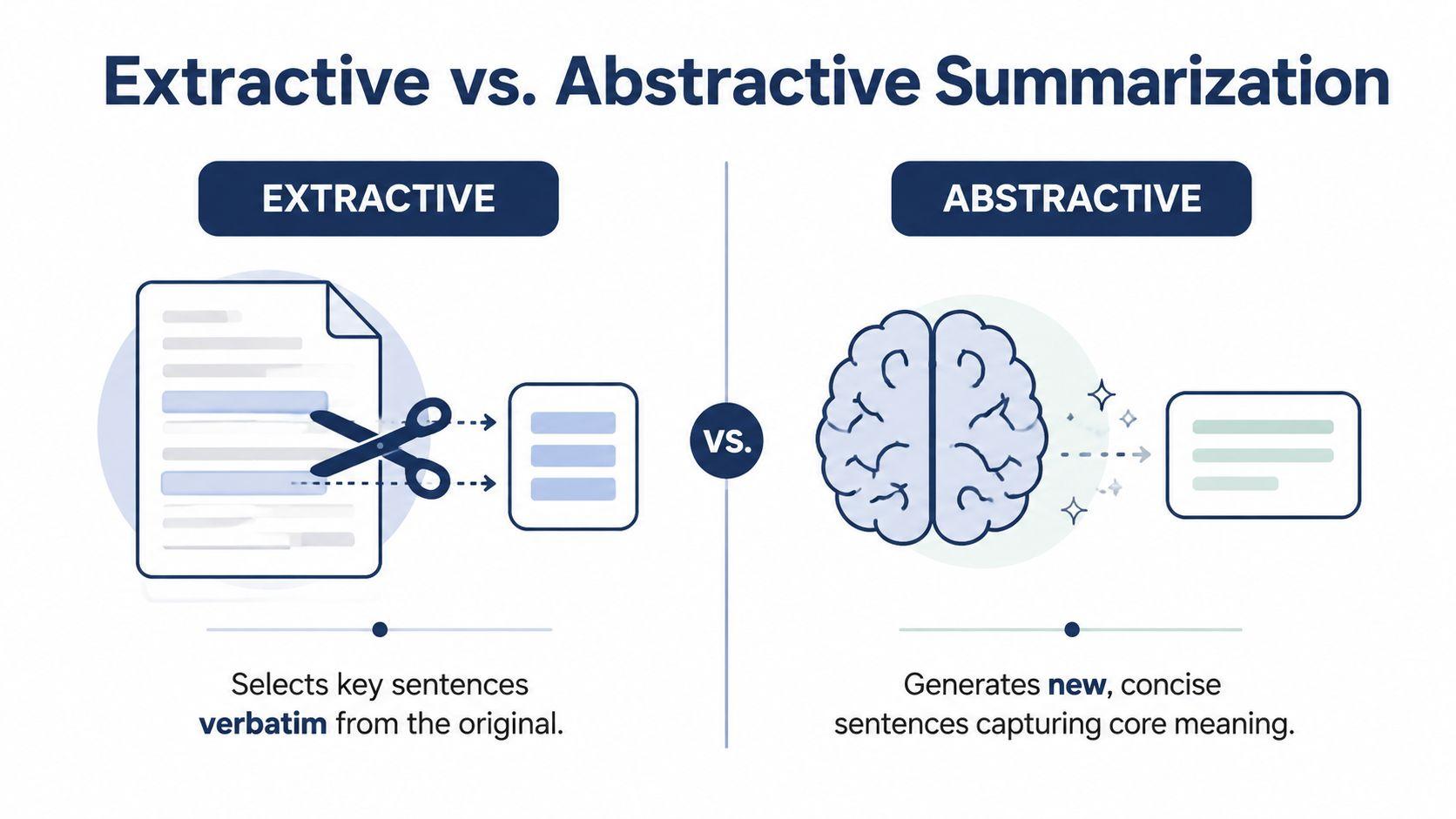
Suppose a report says that a proposed policy changes approval responsibilities, adds a review requirement, and leaves implementation timing unresolved. An extractive result might preserve the exact sentences describing the approval change and unresolved timing. An abstractive result might say, “The policy shifts approval duties and adds review steps, but the implementation schedule remains unclear.” The second version is easier to read, but it depends on the model preserving the original relationships accurately.
Choosing the safer method
Extractive output works well when wording matters. Legal agreements, academic papers, standards, compliance documents, and source-heavy research often benefit from verbatim sentences because citations, definitions, and qualifications remain visible. It can sound disjointed, though, especially when selected sentences come from different parts of a complex argument.
Abstractive output suits business briefings, explanatory notes, meeting preparation, and general reading. It can combine related ideas and adapt the tone for a manager, student, client, or family member. Its trade-off is that generated wording can blur distinctions or introduce an interpretation that the source never made.
| Feature | Extractive | Abstractive |
| Wording | Preserves sentences from the source | Creates new wording |
| Traceability | Usually easier to locate and verify | Requires closer source checking |
| Readability | May feel fragmented | Usually more natural |
| Best fit | Contracts, citations, evidence, definitions | Briefings, explanations, orientation |
| Main risk | Missing connections between passages | Distortion, omission, or hallucination |
A practical workflow often combines both. Ask for an abstractive overview first, then request the supporting passages, page references, definitions, exceptions, and unresolved issues. For a research workflow, the 1chat research workspace can be useful when you need to move from a broad summary to targeted questions about the source.
The summary method should follow the consequence of error. If a wrong paraphrase could change a legal interpretation, prefer source language and page-level verification. If the document is background reading, a readable abstraction may be more useful, provided you still check the claims that guide your next decision.
Preparing Your PDFs for Optimal Summarization
The best prompt can't repair text that the system never extracted correctly. Before you upload a PDF, inspect the document itself. Open it in a viewer and try selecting a sentence. If you can highlight individual words, it likely contains a usable text layer. If selection captures an entire page as one image, you'll need OCR before summarization.
A practical pre-flight check
Start by recording the document's purpose and the decision you need to make. “Summarize this report” produces a broad result. “Identify the author's conclusion, supporting evidence, limitations, and recommended actions for a nontechnical manager” gives the system a usable target.
Check these features before processing:
- Text layer: Test copying a paragraph and paste it into a plain-text editor to reveal missing characters or strange spacing.
- Layout: Look for columns, sidebars, footnotes, callout boxes, and text that flows around images.
- Tables and forms: Decide whether you need cell-level values, field completion instructions, or only the surrounding explanation.
- Visual material: Mark charts, diagrams, screenshots, signatures, and captions that a text-only extractor may ignore.
- Sensitive content: Identify personal records, student work, contracts, customer information, and internal business material before choosing a cloud service.
Headers, footers, page numbers, and repeated navigation text can pollute the extracted content. Remove them manually in a copy, use a document-cleaning feature, or instruct the extraction step to treat recurring page furniture as noise. Don't delete repeated text blindly, though. A repeated warning or legal notice may be meaningful.
Define the output before you begin
Choose whether you need a short orientation, a detailed study guide, a decision brief, a list of action items, or a section-by-section digest. Tell the tool to preserve uncertainty, distinguish source claims from interpretation, and identify missing or unreadable content instead of guessing.
Preparation also protects privacy. A document may be easy to summarize technically and still be inappropriate to upload to a service whose retention, training, access, or deletion practices you haven't checked. Treat document preparation and service selection as one workflow, not separate tasks.
Extracting Text from Scanned and Complex PDFs
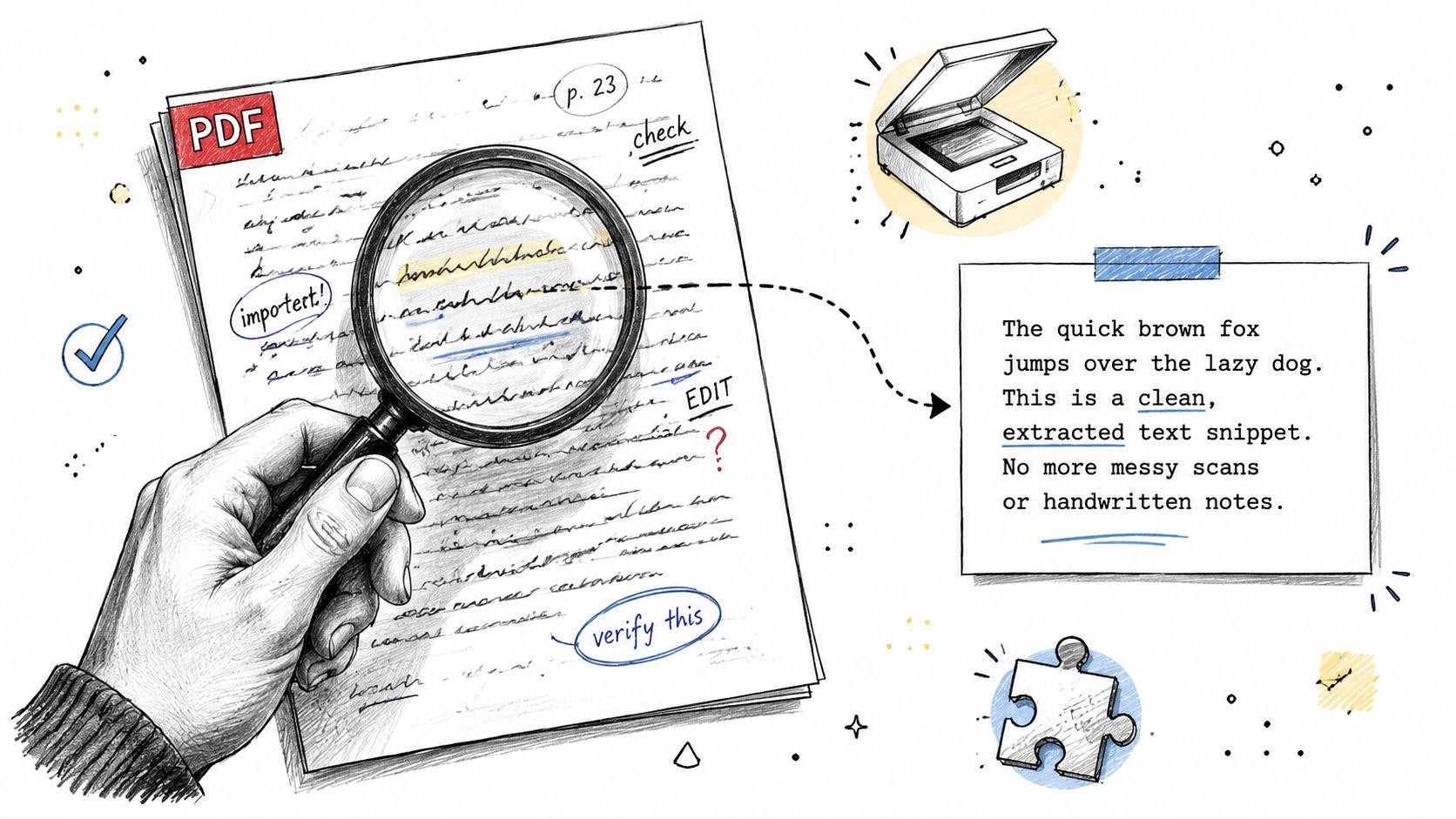
A scanned PDF is a collection of page images, not a normal text document. Copy-and-paste may return nothing, scrambled characters, or text in the wrong order. OCR, or Optical Character Recognition, converts visible characters into machine-readable text, but the result still needs inspection before an AI system summarizes it.
Matching OCR to the document
Adobe Acrobat is a practical choice for teams that already manage documents in a business environment and need an integrated review process. Online converters can be convenient for a disposable, non-sensitive file, but convenience doesn't answer questions about storage or data reuse. Open-source OCR tools are attractive for privacy-conscious users who can run processing in a controlled environment, although setup and language support may require more technical work.
Language selection matters. A multilingual document can produce plausible-looking errors when the OCR engine uses the wrong language model. Select all relevant languages where supported, and review proper names, technical vocabulary, accents, dates, and numeric fields separately.
A useful extraction sequence looks like this:
- Improve the scan. Straighten tilted pages, increase contrast, remove shadows, and crop dark borders.
- Run OCR with the correct languages. Keep the original page images available for checking.
- Inspect representative pages. Review a heading, a dense paragraph, a table, a footnote, and any page with unusual formatting.
- Clean layout artifacts. Repair broken words, repeated headers, misplaced columns, and line breaks that split sentences.
- Summarize only after extraction passes review. If the text is unreliable, the summary will be unreliable too.
Bank statements and other structured financial documents deserve extra caution because a misplaced digit or column can change meaning. A focused autobankstatement OCR guide offers useful context for thinking about OCR accuracy in records where layout and numeric fields matter.
Beyond text extraction
Charts, tables, screenshots, and forms create a second problem. OCR may read a chart title while missing the relationship shown by the lines or bars. It may extract table cells in reading order rather than row and column order. Multimodal systems can inspect visual content, but you should still ask them to describe what they can't read and identify the page containing each important figure.
Research on document summarization emphasizes that multi-column corruption, repeated headers and footers, and OCR noise can damage chunk boundaries and content coverage. The document summarization evaluation research also distinguishes intrinsic checks, such as coherence and informativeness, from task-based checks that test whether the summary supports a real use case. That distinction is valuable in practice. A fluent summary isn't proof that extraction worked.
Ready-to-Use Prompts and Templates for Every Scenario
A good prompt tells the summarizer what to preserve, what to ignore, and how you'll use the result. Avoid asking only for “the main points.” Specify the audience, structure, level of detail, uncertainty handling, and evidence format.
Academic chapter prompt
Use this for a textbook chapter, journal article, or thesis section:
Summarize the attached chapter for a student preparing for an exam. Organize the response under these headings: central question, key concepts, argument, evidence, limitations, definitions, and revision questions. Preserve technical terms and distinguish the author's claims from your interpretation. Include page references for important points. If the PDF is unclear or a passage is missing, say so instead of guessing.
For a faster reading pass, ask for bullet points. For deeper study, request a glossary, concept relationships, and questions that can be answered from the source.
Business report prompt
Create a decision brief from this report for [audience]. Include the purpose, findings, supporting evidence, risks, assumptions, unresolved issues, and recommended actions. Keep the summary focused on [business decision]. Separate facts stated in the report from reasonable inferences. Add page references for each major finding and flag tables or figures that require manual review.
If several reports cover the same topic, summarize each one using the same headings before requesting a comparison. That makes disagreements easier to locate.
Contract review prompt
Summarize this contract section by section. Identify obligations, deadlines, payment terms, renewal language, termination rights, liability limits, confidentiality requirements, exceptions, and ambiguous wording. Quote or reproduce the relevant source language for high-risk provisions, include page references, and do not provide legal advice. List questions a qualified reviewer should investigate.
For a long contract, process sections independently and ask for a final synthesis that removes repetition while preserving conflicting clauses.
A useful two-pass pattern
First request a structured summary. Then ask:
Audit the previous summary against the PDF. List every claim that needs source verification, every major section not represented, every caveat that was weakened, and any statement that isn't directly supported. Provide the page or section location for each issue.
This approach is more dependable than demanding a polished answer in one pass. For customer-facing workflows, examples of PDF summarization for customer support can help teams adapt prompts around recurring questions, escalation points, and response preparation. More practical AI workflow ideas are also available on the 1chat blog.
Working Around Large Files and Context Limits
A long PDF can exceed the amount of text an AI system can handle coherently in one request. Even when the tool accepts the upload, it may give disproportionate attention to the opening pages and underrepresent conclusions, appendices, or later qualifications. One recent analysis warns that PDF tools can miss material in documents past roughly 40 pages, particularly when users rely on quick browsing rather than source-grounded re-reading (long-document AI summarization coverage).
Preserve the document's map
Don't split a report at arbitrary character boundaries if you can avoid it. Use section titles, page order, chapter boundaries, and topic changes as chunk markers. Store each chunk with metadata such as its title, page range, and position in the document.
A reliable hierarchical process is:
- Divide by structure. Separate chapters, headings, appendices, or logical topics.
- Summarize each chunk. Ask for claims, evidence, caveats, decisions, and open questions.
- Compare neighboring chunks. Look for repeated ideas, contradictions, and terms used differently.
- Synthesize the chunk summaries. Preserve the original order and remove redundancy.
- Re-read high-risk passages. Check the final synthesis against the source, not only against intermediate summaries.
Match chunking to the task
A student reviewing a thesis may want a chapter-by-chapter study guide before a whole-document argument map. A small business owner may need each part of a financial report summarized separately, followed by a decision brief. A family reviewing an insurance or school document may care most about obligations, exclusions, dates, and questions to ask a professional.
For overlapping arguments, a sliding window can keep a short amount of adjacent context around each chunk. For highly structured documents, hierarchical summarization is usually cleaner. Research on long-document summarization supports preserving section titles and page order, then applying redundancy filtering during synthesis. It also cautions that overlap metrics alone don't capture semantic faithfulness or coherence well (long-document summarization survey).
The goal isn't to produce many small summaries. It's to create a controlled path from the complete document to a concise answer without losing the relationships between sections.
Quality Checks and Privacy Considerations
A summary is ready only when it survives a source check. Fluency can hide extraction errors, unsupported conclusions, and omissions. Review the output with the same care you'd apply to a colleague's draft that informs a consequential decision.
A compact verification checklist
- Coverage: Are the introduction, central sections, conclusion, appendices, and important figures represented?
- Faithfulness: Can you locate each major claim in the source?
- Qualification: Did the summary preserve words such as “may,” “subject to,” “limited,” “uncertain,” or “not established”?
- Numbers and names: Did OCR or generation alter dates, amounts, names, citations, or identifiers?
- Contradictions: Does another section qualify or conflict with the apparent conclusion?
- Usefulness: Can the intended reader identify the next action without mistaking interpretation for fact?
Ask the tool to produce page references and an “unsupported or uncertain claims” list. Then check the highest-impact items manually. For academic work, verify quotations and citations. For contracts, inspect definitions, exceptions, schedules, and exhibits. For personal records, compare extracted fields with the original image.
Privacy is part of accuracy
Uploading a student paper, customer file, medical record, bank document, or internal contract to a cloud service creates a data-handling decision. Review whether the provider explains retention, deletion, model training, employee access, encryption, account controls, and the treatment of uploaded files. Marketing language alone isn't enough. If the provider's policy is vague, choose a safer workflow or remove unnecessary personal information before processing.
Privacy-first processing can also improve trust inside a small team. People are more likely to use document automation consistently when they understand where files go and who can access them. A useful policy is to classify documents before upload, restrict sensitive files to approved tools, and retain the original source alongside the summary.
The 1chat privacy policy is a useful reference point when evaluating how an AI document tool communicates its handling practices. Whatever service you choose, don't treat a generated summary as the record. Keep the original PDF, the extracted text when appropriate, the prompt, and the reviewed final output together.
Final check: A fast summary is valuable only when you can trace important statements back to the document and trust the way the file was handled.
Start with one non-sensitive PDF today. Test whether the text layer works, extract or OCR the difficult pages, use a structured prompt, and audit the result against the source. When you're ready to handle private documents with a privacy-first assistant, try 1chat to analyze PDFs, ask grounded follow-up questions, and turn dense files into practical next steps without sacrificing review and control.