Most advice about Windows password protect folder starts with the wrong premise. Windows doesn't give you a universal, native “right-click, set a folder password” button in File Explorer. The tricks that promise one usually hide a folder, rename it with a batch script, or depend on third-party software. That isn't encryption, and it won't stop anyone who knows where to look.
The reliable answer is to choose the protection boundary that matches your risk. Windows offers account-linked EFS encryption, volume encryption through BitLocker, cloud protection with OneDrive Personal Vault, password-protected archives such as 7-Zip, and account access control through NTFS permissions. Each solves a different problem, and none is a universal replacement for the others.
Why Windows Has No Real Folder Password
Windows treats a folder as part of a file system, not as a separate vault with its own login screen. Its native security model relies on user accounts, permissions, and encryption, rather than a standalone password assigned to one directory. Microsoft community guidance describes the usual built-in route as opening folder Properties, selecting Advanced, and enabling “Encrypt contents to secure data” instead of entering a folder-only password (Microsoft community guidance on folder protection).
That distinction matters. A hidden folder is still readable, and a batch file that changes a folder's name doesn't encrypt the files inside it. On a shared computer, another administrator can often change ownership or permissions. A real protection method must either encrypt the content or deliberately control which Windows accounts can access it.
Practical rule: Stop searching for a missing File Explorer button. Pick the security model that fits the files and the people who need access.
The five legitimate approaches are straightforward:
- EFS: Encrypts selected files and folders for a Windows user profile. It's convenient for personal data on supported editions, but it depends on the user's encryption certificate.
- BitLocker: Encrypts an entire drive, removable disk, or a dedicated virtual disk. It protects the volume rather than presenting a password prompt for one ordinary folder.
- OneDrive Personal Vault: Adds an extra verification step to selected cloud-synced files and works well when access must follow you across devices.
- 7-Zip and similar archives: Places files inside an encrypted archive opened with a passphrase. This is portable and useful for transfers or infrequently accessed material.
- NTFS permissions: Controls which local accounts can read or modify a folder. It manages access, but it isn't encryption.
Windows Home editions also have feature limitations, particularly around BitLocker management and EFS availability. For a practical overview of account-based encryption versus a true password-gated container, the 1chat FAQ is a useful companion resource.
Using EFS to Encrypt a Folder in Windows
EFS, or Encrypting File System, is the closest native Windows feature to per-folder protection. Microsoft introduced EFS with Windows 2000, and its key is associated with the Windows user account rather than a separate password (background on EFS and certificate backup). That makes it straightforward for one person using one profile, but it also creates a recovery responsibility.
Turn on encryption
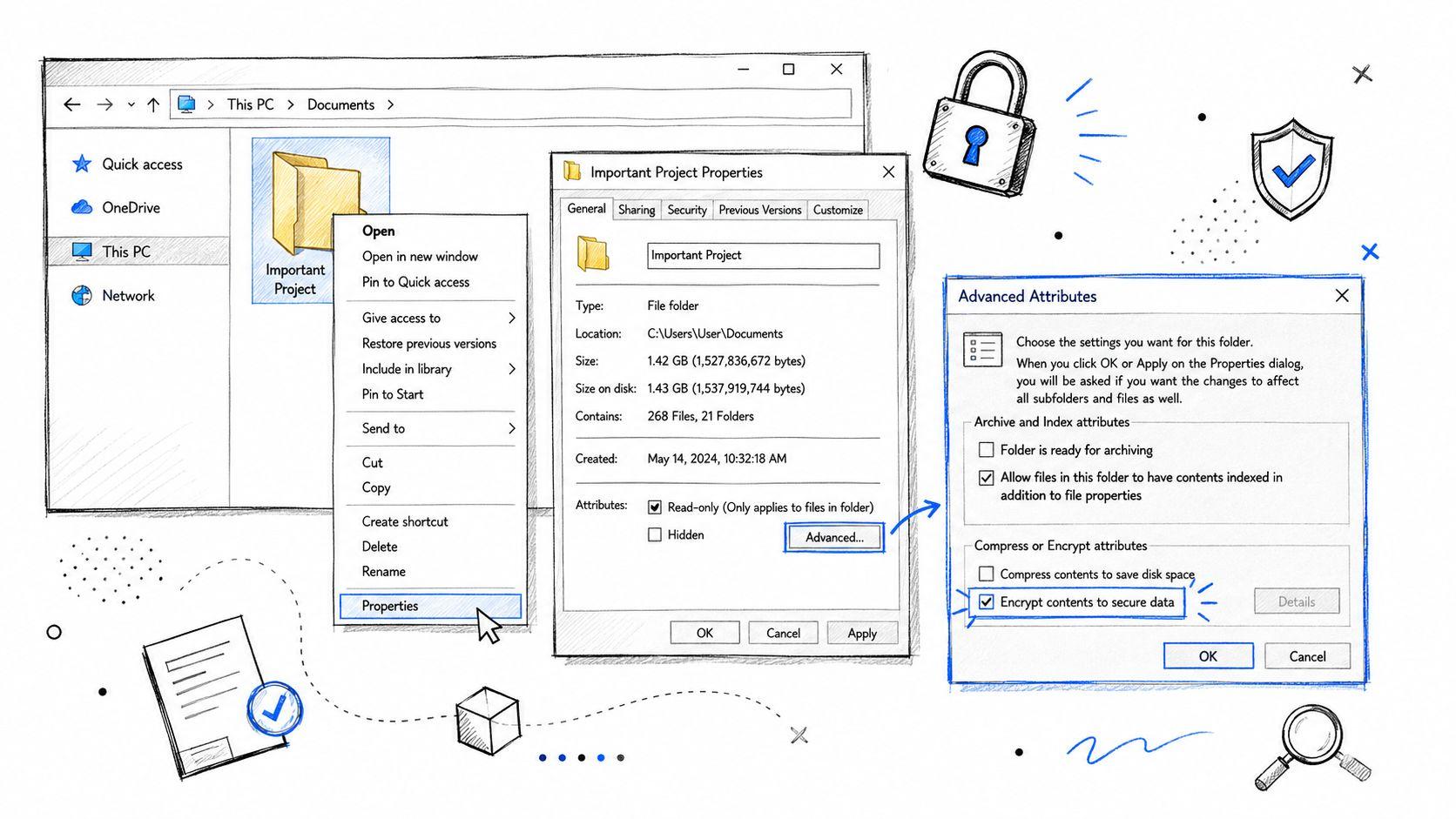
- Right-click the folder in File Explorer and choose Properties.
- On the General tab, select Advanced.
- Check Encrypt contents to secure data, then select OK.
- Apply the change to the folder alone or to the folder, subfolders, and files.
After encryption, Windows uses the EFS certificate in your profile to decrypt the content when you're signed in. Another local user won't automatically be able to open those files. EFS is available on supported Windows editions such as Pro, Enterprise, and Education, and it depends on an appropriate file system. If the encryption checkbox doesn't appear, edition or file system support is usually the first thing to investigate.
EFS isn't a shared folder password. If another person signs in using your account, they inherit your access. Protect the Windows account itself with a strong, unique sign-in credential, and lock the computer when you step away. EFS also isn't the right answer for moving a folder between unrelated computers, because the receiving profile won't automatically have your private key.
Back up the certificate immediately
The step many quick tutorials omit is certificate recovery. After enabling EFS, Windows may display a prompt asking you to back up the encryption certificate. Use that prompt, or open certmgr.msc, locate the certificate under Personal certificates, and run the Certificate Export Wizard. Export the private key as a .pfx file, protect the export with a strong password, and store it somewhere separate from the encrypted computer.
A failed disk, deleted Windows profile, or account migration can leave the files unreadable without that certificate. For broader context on how encryption supports efforts to protect client data with Cloudvara, focus on the same principle here: encrypted content is only recoverable when the key is managed properly.
Locking Down Entire Drives With BitLocker
BitLocker is the stronger choice when the threat is a lost laptop, stolen removable drive, or offline access to a disk. It encrypts a volume, so it doesn't create a password prompt around one ordinary folder. You can still get useful folder-level separation by placing sensitive material inside a dedicated virtual hard disk file, then encrypting that mounted volume with BitLocker.
Encrypt a drive or removable disk
Open Manage BitLocker from Windows search, select the target drive, and follow the setup wizard. For a USB drive, BitLocker To Go can protect the removable volume with an access password. Save the recovery key to a Microsoft account, print it, or put it on separate removable storage. Don't leave the only copy on the drive being encrypted.
On an internal system drive, a compatible TPM can handle the startup trust check. A startup PIN can add an interactive factor, but it isn't the same as a folder password. For a data drive, Windows may request a password when the volume is mounted. Either way, the recovery key is the critical fallback, and losing it can turn a locked volume into inaccessible data.
Use a VHDX as a dedicated secure container
For selective protection, open Disk Management, choose Action, then Create VHD. Choose a VHDX location and size, attach it, initialize the virtual disk, create a volume, and assign it a drive letter. Right-click the new volume in File Explorer and enable BitLocker from its context menu or through Manage BitLocker.
This gives you a separate encrypted volume that you can mount only when needed. Put the sensitive folder inside it, dismount the VHDX after use, and back up the VHDX and recovery material separately. It takes more setup than EFS, but it's a sensible design for a shared household computer where several Windows accounts use the same physical device.
BitLocker is primarily available on Pro, Enterprise, and Education editions, while Home users may encounter limited support or no management option. If your edition doesn't provide the required controls, VeraCrypt is the practical fallback for an encrypted container. Encryption can add some disk activity, although modern systems generally handle it without making ordinary file work feel dramatically different.
OneDrive Personal Vault, 7-Zip, and NTFS Permissions
These three options solve different operational problems, so comparing them as if they were interchangeable leads to poor decisions.
OneDrive Personal Vault is for cloud convenience. Open OneDrive, select Personal Vault, complete the additional identity verification, and place the sensitive files inside. The vault's extra access flow makes it useful when you need protected documents on multiple trusted devices, but you should understand its synchronization rules before making it your only copy. The documented service limits include three files and three devices for synchronization in the relevant setup guidance (Microsoft guidance on Personal Vault limits). Check your current Microsoft plan and client behavior before relying on the feature for a larger working set.
7-Zip is the better fit for portability or a cold archive. Right-click the source folder, choose 7-Zip, then Add to archive. Select an archive format that supports strong encryption, enter a long passphrase, and choose AES-256 where available. Before deleting the original, open the archive, extract a test copy, and confirm that the files work. An encrypted archive doesn't provide background updates, so you must rebuild or update it when the source changes.
NTFS permissions are useful on a shared family PC or a small office workstation when you want one Windows account blocked from a folder. Open Properties, select the Security tab, edit the relevant user or group, and assign only the access required. Deny rules need careful handling because they can create confusing access failures, and an administrator can often take ownership or reset permissions. Permissions therefore provide access control, not confidentiality against a privileged or offline user.
| Method | Encryption | Requires Password | Portable | Best For |
| OneDrive Personal Vault | Cloud service protection and account security | Extra verification and account access | Across supported devices | Frequently accessed sensitive files |
| 7-Zip encrypted archive | Yes, inside the archive | Yes | Yes, as an archive | Transfers and offline storage |
| NTFS permissions | No | Windows account access | No, tied to the file system | Separating users on one PC |
For sensitive PDFs, photos, spreadsheets, and scans, a service such as 1chat's secure file handling platform can also be considered alongside local encryption and archive workflows. It doesn't replace your Windows recovery plan, but it may fit teams that need to work with protected documents rather than store them.
Choosing the Right Method for Your Situation
The right choice depends on who needs access, where the files live, and whether you need to open them elsewhere.
A single-user home PC with supported Windows edition and files that stay on that computer is an EFS use case. It integrates with the account and doesn't interrupt normal file browsing. If the folder must move between computers, or you want a password independent of a Windows profile, use a 7-Zip archive instead.
For a shared family PC, don't rely on a hidden directory. Use separate Windows accounts, then choose a dedicated encrypted VHDX when the files need strong local separation. NTFS restrictions can reduce casual browsing, but they shouldn't be your only defense for confidential material. EFS layered over sensible account security can work when one person owns the files, while a mounted encrypted container works better when the protected area must remain distinct from ordinary documents.
Small teams handling client documents should encrypt work laptops with BitLocker where the edition supports it, then use an approved cloud workflow for controlled collaboration. OneDrive Personal Vault can suit sensitive files that need cross-device access, while 7-Zip is appropriate for a protected handoff or an archive that isn't edited frequently. Teams should document who holds recovery keys and how access is transferred when a staff member leaves.
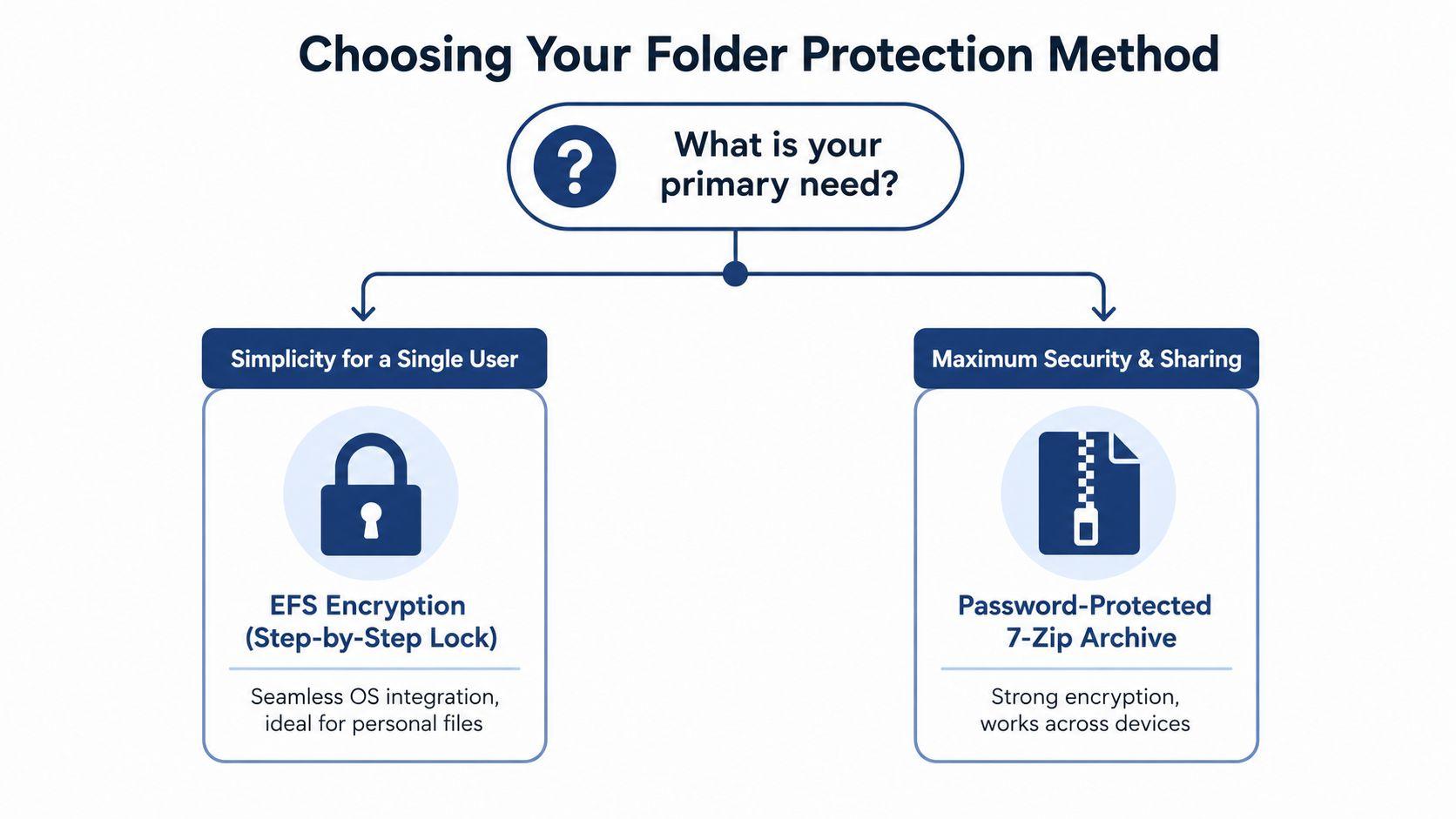
Decision point: If convenience matters most for one Windows user, choose EFS. If compatibility, sharing, or portability matters more, choose an encrypted archive or container.
For remote-only material, keep an encrypted archive on separately protected storage and maintain a recovery copy. The password, EFS certificate, BitLocker recovery key, and Microsoft account are not administrative details. They are the access mechanism. Before adopting any method for a household or team, use the 1chat blog to review related privacy and secure-document workflows.
Fixing Common Folder Protection Mistakes
Most failures come from recovery and coverage, not from the encryption switch itself.
A lost EFS certificate
If the original Windows profile is gone, the encrypted files may remain physically intact but inaccessible. Export the EFS certificate and private key through certmgr.msc before you need them. The Certificate Export Wizard creates a .pfx backup file, which should be stored separately and protected by its export password.
If you still have the certificate but need command-line recovery, Microsoft documents certificate and file recovery tools such as certutil. Don't improvise recovery commands on the only copy of the data. Work from a backup, identify the correct certificate, and test restoration before changing ownership or deleting profiles.
Files added later
EFS protects the items covered by the operation. A new subfolder dragged into an encrypted parent can require verification, and an existing item may not have inherited the expected state. Reapply encryption to the folder and select the option that includes subfolders and files. Advanced users can use cipher /e /s:path to encrypt a directory tree, then verify the result with File Explorer's encryption attributes or dir /a:h.
Keep an unencrypted staging area out of the protected directory. Otherwise, a copy left behind in Downloads, temporary extraction folders, or a backup location can undermine the protection you intended.
Access Denied isn't proof of encryption
An Access Denied message usually proves that a permission or ownership rule blocked the current account. It doesn't prove the file contents are encrypted. Review the Security tab, inspect effective permissions, restore inheritance where appropriate, and remove accidental Deny entries before testing again. Administrators and offline tools may still bypass ordinary NTFS restrictions.
For households organizing sensitive records, guidance on how to protect family documents online can complement local storage controls. Use it as a reminder to classify files, limit account access, and keep recovery material separate from the protected data. You can also consult broader privacy material through the 1chat research library.
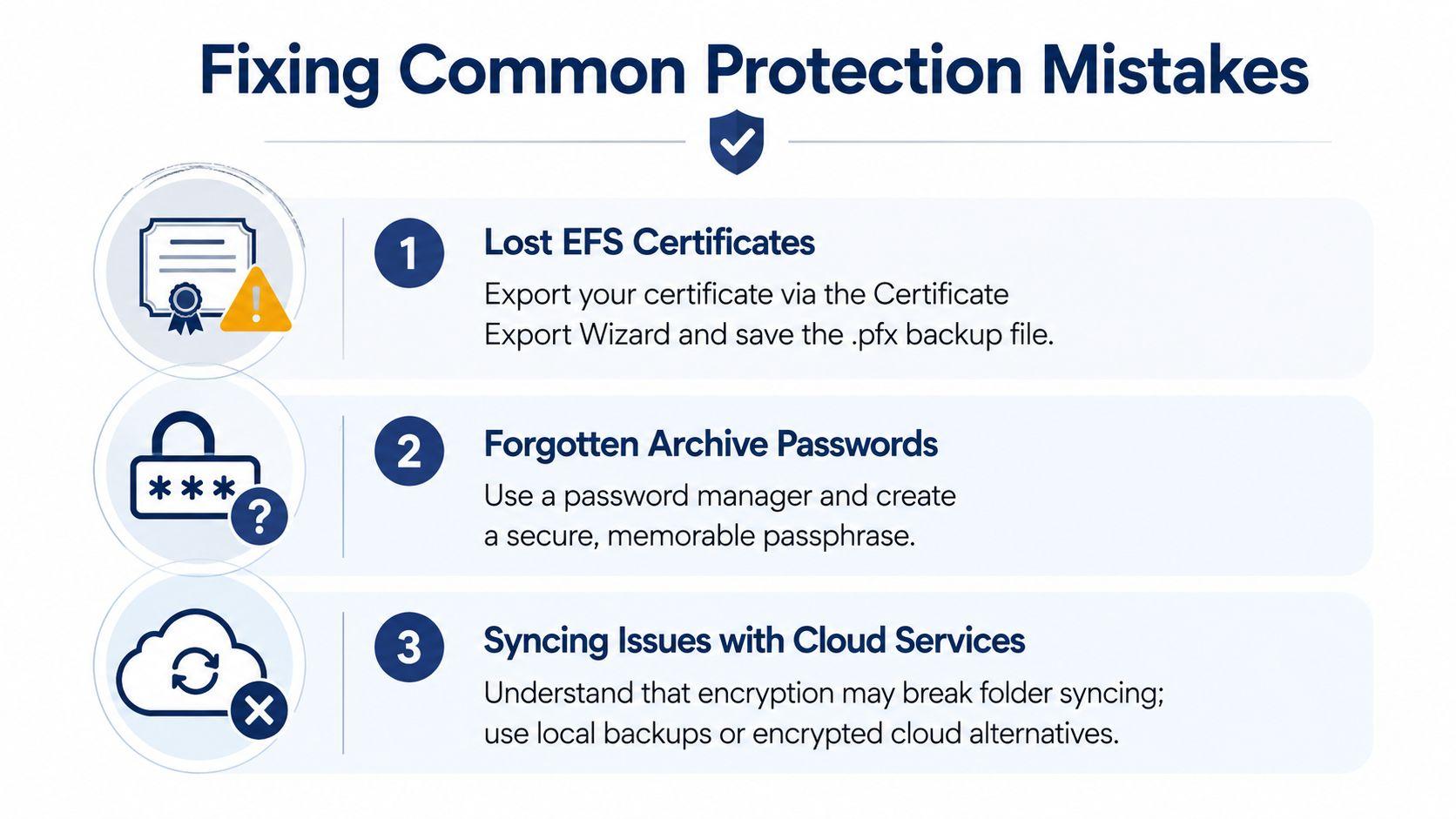
Use this preflight checklist before trusting a protected folder:
- Test recovery: Open a copy using the exported certificate, archive password, or BitLocker recovery key.
- Check scope: Confirm that existing files, subfolders, and newly created content receive the intended protection.
- Separate secrets: Store keys and passwords away from the encrypted folder and the computer it protects.
- Audit access: Review Windows accounts, group membership, inheritance, and ownership.
- Keep a backup: Maintain a separate recovery copy, and verify that it can be opened.
Final Thoughts on Windows Folder Security
A Windows folder doesn't become secure merely because its name changes, its icon disappears, or another account receives an Access Denied message. Choose encryption when confidentiality matters, permissions when you only need account separation, and an encrypted archive when portability is the priority.
Use this quick guide:
- Single home PC with supported Windows Pro: Choose EFS for files that stay with one Windows profile. Export the certificate immediately.
- Shared family PC: Use separate accounts and a dedicated BitLocker-protected VHDX when the files need strong separation. Use OneDrive Personal Vault when protected files need controlled access across devices.
- Small team with Microsoft 365: Use BitLocker for work laptops and an approved cloud workflow for collaboration. Use 7-Zip for protected transfers or less frequently edited archives.
- Offline archive storage: Use an encrypted 7-Zip archive on external media, keep a separate recovery copy, and document the passphrase securely.
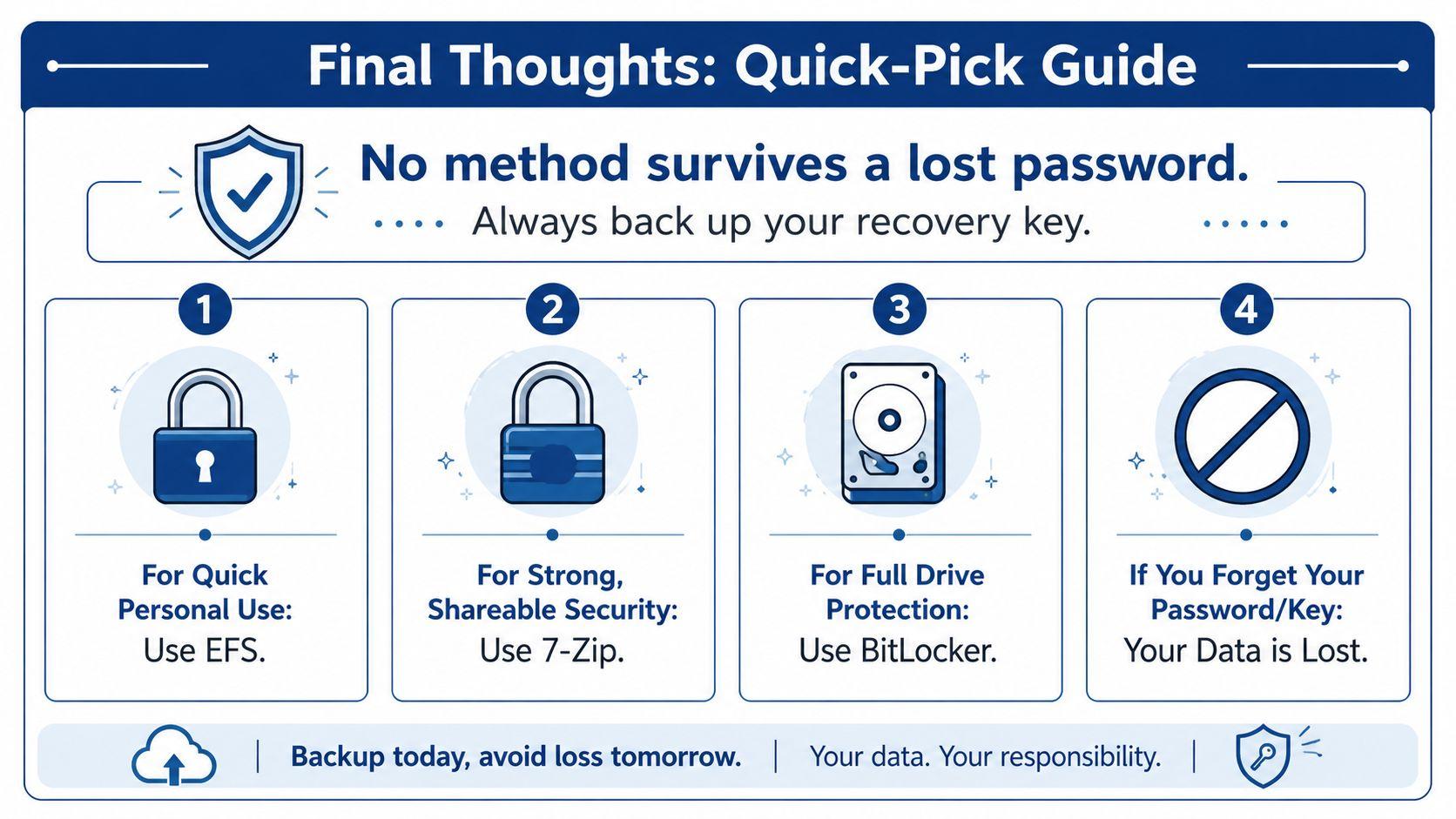
The load-bearing secret isn't the folder. It's the EFS certificate, BitLocker recovery key, archive passphrase, or Microsoft account credential that provides access to the content. Lose that secret and recovery may be impossible, so don't treat backups as an optional extra.
Audit your folders today. Pick EFS, BitLocker, OneDrive Personal Vault, 7-Zip, or NTFS permissions based on the scenario, then perform a real recovery test before moving sensitive files into production. Store recovery keys offline in two separate locations before relying on any Windows folder protection method.
If you need help choosing between EFS, BitLocker, encrypted archives, and permissions for a household or small team, create a short inventory of your files, users, Windows editions, and recovery locations, then have an IT professional review the plan before you encrypt the originals.