You’re probably here because you have files on a Windows PC that you don’t want the wrong person to open.
That could mean tax returns on a family laptop, payroll spreadsheets on an office notebook, a student’s research folder on a shared home computer, or customer documents on a machine that travels between meetings. The reason matters, because file encryption windows isn’t one single feature. Windows gives you more than one way to protect data, and the right choice depends on what you’re trying to defend against.
Users often make the same mistake. They start with the how. They click a checkbox, turn on encryption, and assume the job is done. In practice, the better question is simpler: who are you trying to keep out, and what happens if the device is lost, stolen, shared, or reset?
That’s where trade-offs show up. Some options are easy but narrow. Some are powerful but unforgiving. Some work well for a parent protecting a few folders. Others fit a small business that can’t afford a laptop theft turning into a data exposure problem.
Choosing Your Windows Encryption Method
A laptop gets left in a car after a client meeting. A teenager shares a home PC with siblings. An office manager needs to protect payroll files without creating a support mess six months later. Those are three different problems, and Windows does not solve them with one checkbox.
The right choice usually comes down to what you are protecting against, who needs access, and how confident you are about recovery if something goes wrong. For families and small businesses, that matters more than the feature list.
The short version
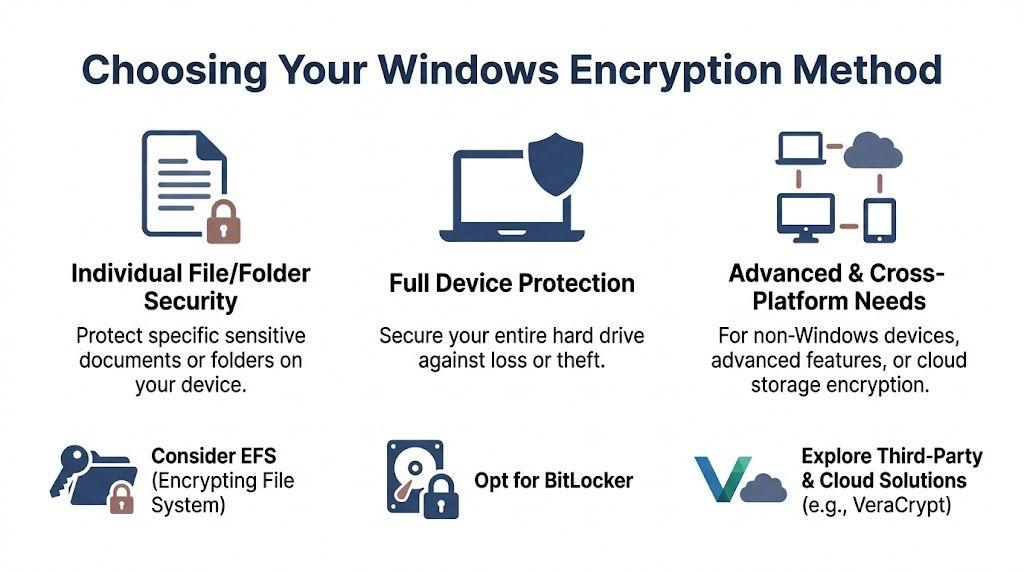
- Use EFS if one Windows user needs to protect a specific folder from other local users on the same PC.
- Use BitLocker if the main risk is a lost or stolen device.
- Use third-party tools such as VeraCrypt if you need encrypted containers, removable media protection, or use across different operating systems.
- Use cloud vault features if easy access, syncing, and account-based recovery matter more than local administrative control.
That summary is useful, but the better way to decide is to match the tool to the failure you can live with. Some people are comfortable managing keys and recovery steps. Others need the option that is harder to misuse.
Windows Encryption Options at a Glance
| Method | Best For | What It Protects | Ease of Use | Key Recovery |
| EFS | Specific files or folders on a Windows PC | Individual files and folders on NTFS | Moderate | Depends on user certificate backup or business recovery setup |
| BitLocker | Laptops and desktops that may be lost or stolen | Entire drive | Easy once enabled | Recovery key must be saved and stored safely |
| VeraCrypt | Cross-platform encrypted containers and removable storage | Encrypted volumes or drives | Moderate to advanced | Depends on password and any keyfile process you set |
| OneDrive Personal Vault | A small set of highly sensitive cloud files | Selected cloud-stored files | Easy | Tied to your account recovery options |
| Personal Data Encryption | Supported modern Windows 11 business setups | User data tied to sign-in state | Easy when supported | Built into the Windows Hello based model |
Pick based on risk, not branding
Built-in Windows tools are usually the right starting point because they are already on the machine, supported by Microsoft, and easier to hand off to the next person who manages the PC. That makes them a good fit for many homes and small offices.
But built-in does not always mean best.
EFS is precise. BitLocker is broader. Third-party tools give you more control and portability, but they also ask more from the person setting them up. Cloud options reduce local setup work, but you are trusting account security, provider controls, and internet access.
That trade-off is real.
If you are protecting a few tax documents on a shared home computer, folder-level encryption may be enough. If you run a business and employees carry laptops to client sites, full-drive encryption is the safer baseline. If you regularly move sensitive files between Windows, Mac, and external drives, a separate encrypted container can be easier to manage than trying to force a Windows-only method into a mixed-device setup.
Where each option fits in practice
EFS works best for narrow, user-specific protection. It is useful when the goal is keeping another local user out of selected files, not defending the whole machine if it disappears. It also asks for more care with certificates and recovery than many non-IT users expect. That is why I rarely recommend it as the first choice for a small business unless someone is responsible for managing those recovery details.
BitLocker is usually the safer default for business laptops and for families who mainly care about theft or loss. It protects the whole drive, which is the right control when the device itself falls into the wrong hands. It does not replace account security or permissions, but it covers the most common physical-risk scenario well.
Third-party tools earn their place when you need encrypted containers, removable media protection, or compatibility beyond Windows. VeraCrypt is a common example. It can be a better fit for consultants, freelancers, or anyone carrying sensitive files between systems. The cost is complexity. If the setup is too complicated for the person who will maintain it, the protection often fails in practice.
Cloud vault features are often the easiest option for a small set of sensitive files that need syncing and simple recovery. They are convenient, and convenience has value. They also shift some of the security model from device control to account protection, so strong passwords and multi-factor authentication matter a lot more.
If your main concern is office spreadsheets rather than whole folders, a narrower guide on how to encrypt an Excel file in Windows may be the better next step.
A practical framework
Use this simple filter before you turn anything on:
- Who am I keeping out? Another user in the house, a thief, a departing employee, or anyone without the password.
- What am I protecting? One file, one folder, an external drive, or the whole device.
- Where will these files live? Only on one Windows PC, across several devices, or in the cloud.
- Who handles recovery? You, a family member, an office manager, or nobody.
That last question decides more than people expect. I have seen businesses choose a technically strong option, then lose access because nobody stored the recovery key properly. I have also seen families avoid encryption entirely because they assumed every option would be too complicated, when BitLocker or a cloud vault would have covered their actual risk with very little effort.
Choose the method you can set up correctly, recover reliably, and explain to the next person who may need it. That is usually the right encryption method.
Using EFS for File and Folder Encryption
A common small-business setup looks like this: one Windows PC, two or three user accounts, and one folder that really should not be visible to everyone. Payroll files. Tax records. Client contracts. That is the kind of job EFS handles well.
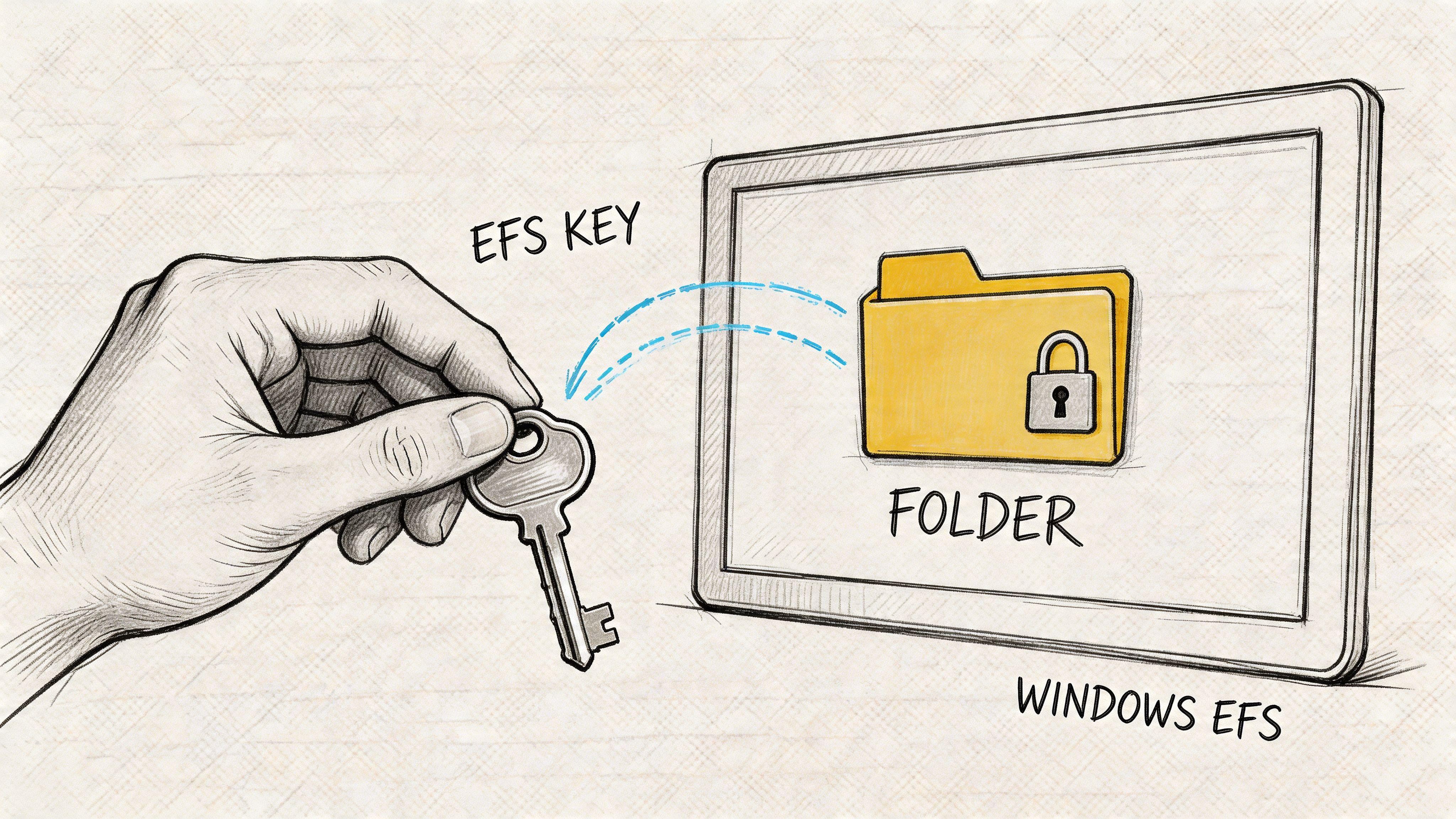
EFS, short for Encrypting File System, protects selected files and folders inside Windows instead of encrypting the whole drive. Access is tied to the Windows account and encryption certificate for that user. For the right situation, that is convenient. For the wrong situation, it creates support problems later.
Encrypt the folder, not just the file
Folder-level EFS is usually the safer choice.
Applications often save temporary copies, rename files, or replace an existing file during editing. If you encrypt one document but leave the surrounding folder unprotected, those app behaviors can leave a working copy outside EFS. Encrypting the whole folder reduces that risk and is easier to manage day to day.
Practical rule: If a file matters enough to encrypt, put it in an encrypted folder and work on it there.
On Windows Pro, Enterprise, or Education, the setup is straightforward:
- Right-click the folder you want to protect and choose Properties.
- Under the General tab, click Advanced.
- Check Encrypt contents to secure data.
- Click OK, then Apply.
- Choose whether to apply the setting to the folder only or to the folder, subfolders, and files.
For nearly every real-world case, apply it to the folder and everything inside it. That avoids inconsistent protection later.
If you prefer the command line, Windows also supports EFS through cipher, such as cipher /e "path" or cipher /e /s:"path" for a folder tree.
Back up the certificate immediately
This is the step that decides whether EFS is useful or dangerous.
After you turn on EFS, Windows usually prompts you to back up the encryption certificate. Do it right away. Export it as a password-protected .pfx file and store it somewhere separate from the computer, such as an encrypted USB drive in a safe or a secure company password vault with restricted access.
I have seen people assume their Microsoft account, local password reset disk, or general file backup would cover this. It does not. If the Windows profile is damaged, the PC is rebuilt, or the certificate store is lost and you never exported the EFS certificate, those encrypted files may be gone for good.
A simple export path looks like this:
- Open certmgr.msc
- Go to Personal
- Open Certificates
- Find the EFS certificate
- Export it with the private key
- Protect the export with a password
- Save it to external storage you control
Common EFS mistakes
EFS itself is not hard to turn on. The mistakes happen around it.
- Using the wrong Windows edition: EFS is not available on every consumer edition of Windows.
- Saving files to the wrong file system: EFS works on NTFS. If you copy files to FAT32 or exFAT media, the encryption does not go with them.
- Encrypting one file inside a busy work folder: Some programs save replacement files in ways that break your original plan.
- Assuming another user or a replacement PC can read the file: Access depends on the certificate, not just the file.
- Skipping certificate backup: This is the failure point that causes the most pain.
If you cannot show where the EFS certificate backup is stored and who can recover it, the setup is incomplete.
Where EFS fits, and where it does not
EFS works best when all four of these are true: the files stay on one Windows machine, the data belongs to one Windows user, the device is not changing hands often, and someone is willing to keep the recovery certificate organized.
That makes EFS a reasonable choice for:
- Parents protecting tax documents or account statements on a shared household PC
- A solo business owner keeping client records separate from other users on one workstation
- An office manager or team lead protecting a local HR or payroll folder on a desktop that stays in the office
EFS is a weaker fit for traveling laptops, shared staff devices, frequent employee turnover, or any setup where files move between PCs often. In those cases, certificate handling becomes the problem, not the checkbox in Windows.
If you only need to protect one workbook or a few documents, application-level protection may be simpler. For example, this guide on encrypting an Excel file in Windows is often a better fit than EFS for a single spreadsheet that needs its own password.
For families and small businesses, the decision usually comes down to support burden. Choose EFS when you need file or folder privacy on one Windows PC and you are willing to manage the certificate properly. Choose something else when recovery, device changes, or shared access matter more than fine-grained control.
Full Drive Protection with BitLocker
A stolen laptop creates a different problem than a nosy family member or coworker. If someone has the device in their hands, file-by-file protection is no longer enough. You need the whole drive encrypted before Windows even loads.
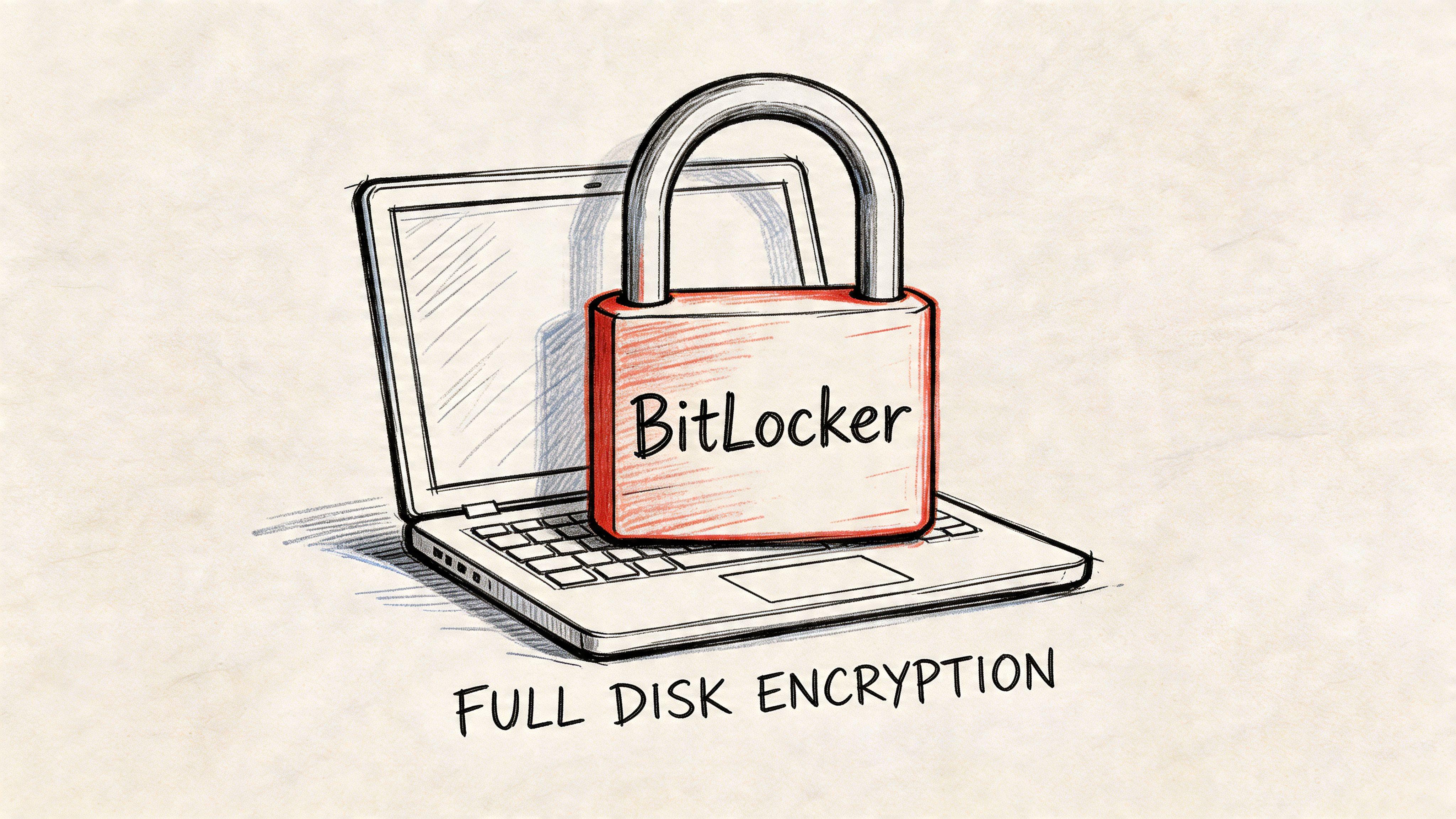
BitLocker is the built-in Windows option for that job. It encrypts the entire drive so someone cannot remove the SSD, connect it to another machine, and read the data offline. For a traveling business laptop or a home computer that carries tax records, saved passwords, and family documents, that is usually the right starting point.
Why BitLocker is the modern baseline
BitLocker solves the risk that matters most for many small businesses and families. Device loss. If a laptop disappears from a car, airport, school, or office, full-drive encryption keeps the storage unreadable without the proper startup checks or recovery key.
That is a different goal from EFS. EFS protects selected files for a specific Windows user. BitLocker protects the entire Windows installation, including temporary files, cached data, and documents you forgot to place in a protected folder. In practice, that broad coverage is why I recommend BitLocker first on laptops and only add file-level tools when there is a separate need for user-by-user privacy.
What BitLocker does well, and where it stops
BitLocker is a strong fit for:
- Staff laptops that travel between home, office, and client sites
- Family PCs that store financial records, scans of IDs, or school documents
- Shared small-business devices where theft is a bigger risk than internal snooping
- Windows Pro, Enterprise, and some business-class devices that already include the right hardware support
Its limits matter too. BitLocker does not protect data from an authorized user who is already signed in. If one employee logs in and leaves the laptop open, BitLocker has already done its job. At that point, your protection comes from Windows accounts, screen locks, permissions, and good device habits.
That trade-off is easy to miss. BitLocker is excellent against offline access after loss or theft. It is not a substitute for access control inside a running PC.
How to enable it without creating a recovery problem
The menu names vary a little by Windows version, but the safe setup process stays about the same:
- Open BitLocker Drive Encryption in Control Panel or the matching Windows settings area.
- Select the system drive and choose Turn on BitLocker.
- Save the recovery key somewhere separate from the device.
- Choose the startup and encryption options Windows offers for that hardware.
- Start encryption and let the initial process finish.
The recovery key is the part that deserves your attention. Hardware changes, firmware updates, TPM resets, and some boot issues can trigger a recovery prompt. If the person holding the laptop cannot produce that key, the data may as well be gone.
For small offices, I usually tell people to decide on key storage before they click anything. A printed copy in a locked file cabinet is boring, but boring works. A company password manager works too if access is restricted and at least one backup admin can reach it.
If you also share sensitive files outside the device, full-drive encryption will not help once those files leave the laptop. In that case, pair BitLocker with a file-sharing method that adds its own protection, such as an encrypted ZIP file for sending sensitive documents.
TPM, password, and USB startup choices
Most current business laptops use a TPM, short for Trusted Platform Module. That is usually the best option because it ties drive access to the device’s expected startup state and keeps daily use simple for the owner.
Some systems also allow a startup password or a USB key. Those methods can make sense on older hardware or in stricter environments, but they add support overhead. People forget passwords. USB keys get left in the laptop bag or lost entirely. For a family or a five-person office without dedicated IT, the best setup is usually the one that gives solid protection with the fewest daily steps.
That is the practical decision framework here. Choose TPM-backed BitLocker when you want broad protection with low effort. Choose a more manual startup method only when you have a specific policy reason and someone is prepared to support it.
Store the recovery key where future-you can find it
Do not leave the recovery key on the encrypted drive. Do not save it in a note on the same laptop and call it done.
Better options include:
- A printed copy in a secure location
- A business password vault with controlled access
- An account-linked location approved by your household or company policy
- A separate USB drive kept away from the laptop
The test is simple. If the laptop will not start normally at 7 a.m. before a flight or during payroll week, can the right person get the key in a few minutes?
When BitLocker should be your first pick
For small businesses, BitLocker is often the first Windows encryption tool to turn on because it reduces the fallout from the most common and expensive mistake. A missing device with readable data on it.
For families, it makes sense on any Windows laptop that travels, especially if it stores tax returns, account records, medical paperwork, or saved browser logins. You do not have to remember which folders were protected. The whole drive is covered, which is exactly why BitLocker is easier to live with than more selective tools.
Exploring Third-Party and Cloud Encryption Solutions
Windows covers a lot, but not everything. The gaps show up when you want encryption that moves cleanly across platforms, travels on external storage, or wraps around a small set of sensitive files in the cloud without much setup.
That’s where third-party and cloud options become practical rather than exotic.
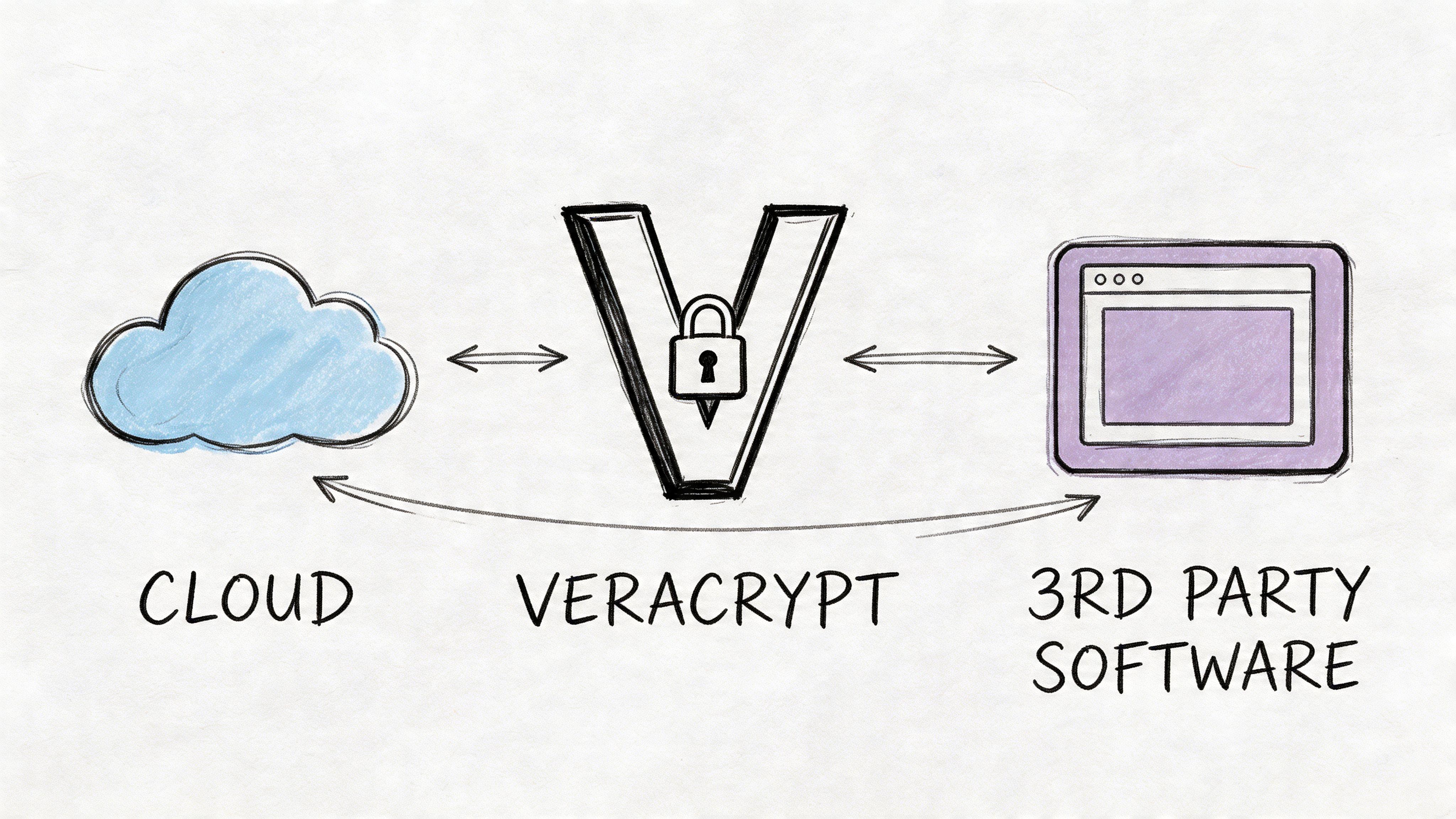
VeraCrypt for control and portability
VeraCrypt is the option I think of when built-in Windows tools feel too tied to one machine or one account.
Its strength is flexibility. You can create an encrypted container, mount it when needed, move it between supported systems, and keep the encrypted data separate from the rest of the device. That makes it useful for consultants, mixed-device households, and teams that exchange files outside a managed Windows-only environment.
The trade-off is usability. VeraCrypt asks more from the person using it. You have to understand mounting, unmounting, password discipline, and where the container file lives. If the user is casual or forgetful, that extra control can become the problem.
Cloud vault features for simplicity
For many people, the best security tool is the one they’ll use every day. That’s the case for cloud vault features such as OneDrive Personal Vault.
This kind of option is usually best for a small number of high-value files. Think passports, insurance records, legal scans, or sensitive client PDFs. It’s not a replacement for full local encryption. It’s a convenience layer that gives critical documents stronger account-based protection and easier access across devices.
If you need to package and move protected files more manually, this guide to creating an encrypted ZIP file is useful alongside cloud storage.
Personal Data Encryption in Windows 11
Microsoft has also pushed file encryption windows further with Personal Data Encryption. It was introduced in Windows 11 version 22H2 and ties file encryption keys to Windows Hello credentials, making data 100% inaccessible after sign-out on supported systems according to Microsoft’s Personal Data Encryption documentation.
That feature was enhanced in Windows 11 version 24H2 to auto-encrypt Desktop, Documents, and Pictures, which store over 95% of typical user data in the same Microsoft documentation. For the right business setup, that’s a strong improvement because it reduces the need for users to remember which folders need protection.
Which option wins in practice
The answer depends on your habits more than the branding.
- Choose VeraCrypt if you need cross-platform encrypted containers and you’re comfortable managing them.
- Choose a cloud vault if you want the easiest way to protect a handful of highly sensitive files.
- Choose Personal Data Encryption if your Windows 11 environment supports it and you want a more automatic local protection model.
The best alternative to built-in Windows encryption is usually the one that fixes a specific limitation, not the one with the longest feature list.
Essential Backup and Recovery Procedures
Encryption without recovery planning is a self-inflicted outage.
I’ve seen people spend more time picking an encryption method than deciding where the recovery material will live. That’s backwards. The recovery step is what determines whether your protection survives a forgotten password, profile corruption, device replacement, or an unexpected Windows reset.
The recovery plan for each method
Each tool has a different failure point, so each one needs a different backup habit.
- EFS: Export the encryption certificate with its private key to a password-protected file, then store it separately from the PC.
- BitLocker: Save the recovery key outside the encrypted device. A printed copy or secured administrative record is better than trusting memory.
- VeraCrypt: The password is the center of the system. If you also use keyfiles, those keyfiles need their own backup process.
- Cloud vault tools: Recovery usually depends on your account recovery methods, so secure the account first.
A recovery plan only counts if someone can follow it under stress. That means the storage location has to be known, documented, and reachable.
A simple storage rule
Use two separate recovery locations when the data matters. One can be physical, such as a printed key in a locked cabinet. The other can be a controlled digital location, such as a secure vault managed by the household or business.
Don’t store everything in one place. And don’t store the only recovery item on the same computer you’re trying to protect.
What to document
For families, the documentation can be simple. For a small business, it should be deliberate.
Keep a short record that answers these questions:
- Which tool protects this device or folder
- Who can decrypt it
- Where the recovery key or certificate backup is stored
- Who is allowed to access that backup
- When the backup was last checked
This doesn’t need to become a giant policy manual. A one-page internal record is enough for many small teams.
Recovery material should be boring to find. If someone has to guess where you saved it, the process is already broken.
Test before you need it
A backup you’ve never tested is only a theory.
For EFS, that means confirming the certificate export completed and is readable where it was stored. For BitLocker, it means making sure the saved recovery key is legible and associated with the correct machine. For any third-party tool, it means checking that the password or keyfile process is documented clearly enough for future you, not current you.
This is the difference between encryption as security and encryption as risk. The technology is rarely the part that fails first. The human process usually is.
Recommendations for Families and Small Businesses
Here’s the blunt version.
If you’re protecting everyday Windows devices, don’t build a complicated encryption setup unless you have a real reason. The strongest plan for general users is the one they’ll keep working six months from now.
For a family sharing a home PC
Use separate Windows accounts first. Then add EFS only for the folders that really need privacy, such as tax records, medical files, or a parent’s financial documents.
That combination makes sense because it matches the actual problem. On a shared household machine, you usually need to separate a few folders, not redesign the whole storage model. If the computer is a laptop that leaves the house, add full-device protection too.
For a small business with several laptops
If you have a handful of staff laptops, BitLocker should be standard. It’s the right protection for devices that travel, and it asks less from employees than file-by-file encryption.
I wouldn’t make EFS the primary control for a small business unless someone is ready to manage certificate backups and recovery. That administrative burden is where simple plans go sideways.
For sending or storing especially sensitive files
Use a cloud vault or a controlled encrypted archive when you need to exchange a limited set of sensitive documents with a client, accountant, or partner. If secure exchange is part of your routine, this guide on secure file sharing is a useful companion to local encryption.
My default recommendation
If you want the shortest decision path:
- Family desktop: Separate accounts plus EFS for the private folder
- Family laptop: Full-device protection first
- Small business laptops: BitLocker across the board
- Mixed-device or consultant workflow: VeraCrypt for container-based portability
- A few critical cloud files: Personal Vault style storage
That’s not the only valid setup. It’s the one I’d choose when the goal is strong protection without turning normal file access into a weekly support issue.
Your File Encryption Questions Answered
Will encryption slow down my computer?
A common concern is a family PC that already feels a little slow, or a small business laptop that staff use all day. In normal use, file encryption usually is not the part people complain about.
What people notice first is the extra step around the encrypted data. Opening a container, entering a password after a restart, finding a recovery key, or explaining the process to another user causes more trouble than raw performance on a modern system. On older hard drives or very large file transfers, you may notice some delay, but for documents, spreadsheets, photos, and routine office work, the trade-off is usually acceptable.
What happens if I reinstall Windows?
The answer depends on what you chose in the first place.
With BitLocker, the key question is whether you saved the recovery key before anything went wrong. With EFS, a reinstall can lock you out of encrypted files if you never exported the user certificate. With third-party encrypted containers, access usually comes down to the password and any keyfile tied to that container.
This is why I tell people to pick an encryption method based on how disciplined they are about recovery. The strongest option on paper is the wrong option if nobody will back up the keys.
Can I email an encrypted file to someone?
Yes, but only if the other person has a practical way to open it.
EFS is a poor fit for email because it is tied to a Windows user certificate. That works for protecting files on your own PC. It works badly for sending a tax document to your accountant or a contract to a client. For sharing, a password-protected archive, an encrypted container, or a cloud service with controlled access is usually the better choice.
The right question is not “Can I encrypt this?” It is “Can the recipient open it safely without a support call?”
What if I forget my password and lose the recovery key?
You may lose the file permanently.
That is the blunt reality. Encryption protects data by making it unreadable without the right credential. If the only credential is gone, recovery may not exist. Some business setups include managed recovery. Some consumer tools offer account-based recovery. Many do not.
Encryption protects you from thieves and snoops. It does not protect you from poor recovery habits.
Is file encryption windows enough by itself?
Sometimes. Often, no.
Encryption protects stored files. It does not fix weak passwords, shared Windows accounts, careless file sharing, missing backups, or a laptop left signed in on the kitchen table. For a household, that usually means separate user accounts and a simple recovery plan. For a small business, it usually means device encryption, screen lock policies, backup checks, and a clear rule for how sensitive files get shared.
Good security is not about adding every tool. It is about choosing the setup your household or team will use correctly.
If you’re comparing privacy tools, secure workflows, or better ways to handle sensitive documents with AI help, 1chat is a privacy-first option built for families, students, and small teams who want strong tools without unnecessary complexity.