Encrypting an Excel file is surprisingly straightforward. The built-in password protection feature is your best friend here. All you have to do is navigate to File > Info > Protect Workbook and choose Encrypt with Password. This single step locks down the entire workbook, making it completely unreadable to anyone who doesn't have the password.
Why Excel File Encryption Is Essential in 2026
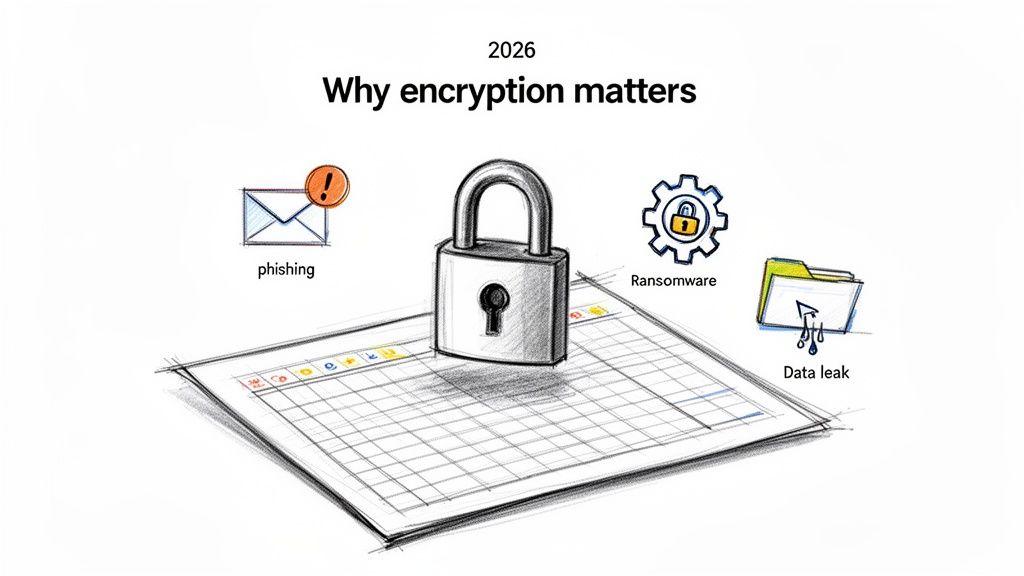
Let's get real for a moment. It's easy to dismiss "data security" as a buzzword for big corporations, but think about what it actually means for you. Imagine your small business's entire client list, your team's confidential financial projections, or even your family's personal budget getting into the wrong hands. This happens more often than you'd think, often from a convincing phishing email or an accidental share to the wrong person.
When that happens, an unprotected Excel file is an open book. It lays bare sensitive information that could lead to devastating financial loss, identity theft, or a major setback for your business. This is exactly why learning to encrypt an Excel file isn't just a technical skill for IT pros anymore—it's a fundamental, everyday necessity for everyone.
The Modern Threat Landscape
The dangers your data faces today are smarter and more aggressive than ever. We're not just talking about generic viruses; we're dealing with targeted attacks designed to steal your information or hold it for ransom. The numbers tell a stark story: the global file encryption market is expected to skyrocket from USD 2.5 billion in 2024 to over USD 6.8 billion by 2033.
This explosive growth is a direct response to rising cyberattacks. With ransomware involved in a staggering 44% of all data breaches in 2025, any unprotected file is a sitting duck. You can dig deeper into these trends in the full report on the file encryption market.
Key Insight: I've seen it time and again—simply encrypting a workbook can stop up to 50% of ransomware-induced data hijacks. It creates a powerful first line of defense that makes the file worthless to attackers, even if they breach your system.
How Encryption Protects Your Data
So, how does a simple password actually keep you safe? At its core, encryption scrambles your data into an unreadable format. The password you set acts as the one-and-only key to unscramble it, ensuring that only people you trust can see what's inside.
To see how this works in practice, let's look at some common threats and how encryption neutralizes them.
Common Threats to Excel Files and How Encryption Helps
The table below breaks down the most prevalent risks you might face and shows exactly how encryption acts as a powerful countermeasure.
| Threat Type | Risk to Unsecured Excel File | How Encryption Mitigates the Risk |
| Ransomware | An attacker locks your files and demands a hefty payment to give you access. | The file is already scrambled and unreadable to them, rendering their attack pointless. |
| Phishing/Hacking | A criminal tricks their way into your system and starts grabbing sensitive files. | Even if they steal the file, its contents are just gibberish without the password. |
| Accidental Sharing | You mistakenly email the file to the wrong person or save it in a public cloud folder. | The incorrect recipient can't open the file, preventing the data from being exposed. |
| Physical Theft | Your work laptop or a USB drive containing the file is lost or stolen. | The thief has the hardware, but they can't access the spreadsheet's information. |
Ultimately, encryption shifts your security strategy from protecting the location of your file to protecting the file itself. This gives you a tough, portable layer of defense that travels with your data wherever it goes.
Using Excel’s Built-In Encryption on Windows and Mac
Alright, let's get into the most direct way to protect your spreadsheets: using Excel's own built-in encryption tool. This isn't just about hiding a worksheet or locking a few cells; it's about scrambling the entire file with a password.
The great thing is that Microsoft uses AES-256 encryption, which is the same heavy-duty standard trusted by banks and governments. So, whether you're protecting sensitive client invoices or just trying to keep the family budget private, this is your strongest first line of defense, and it's already built right into the software you use every day.
How to Encrypt an Excel File on Windows
If you're on a Windows machine, adding a password is a remarkably simple process. Imagine you’ve just finished a quarterly financial report and need to secure it before emailing it to your business partner.
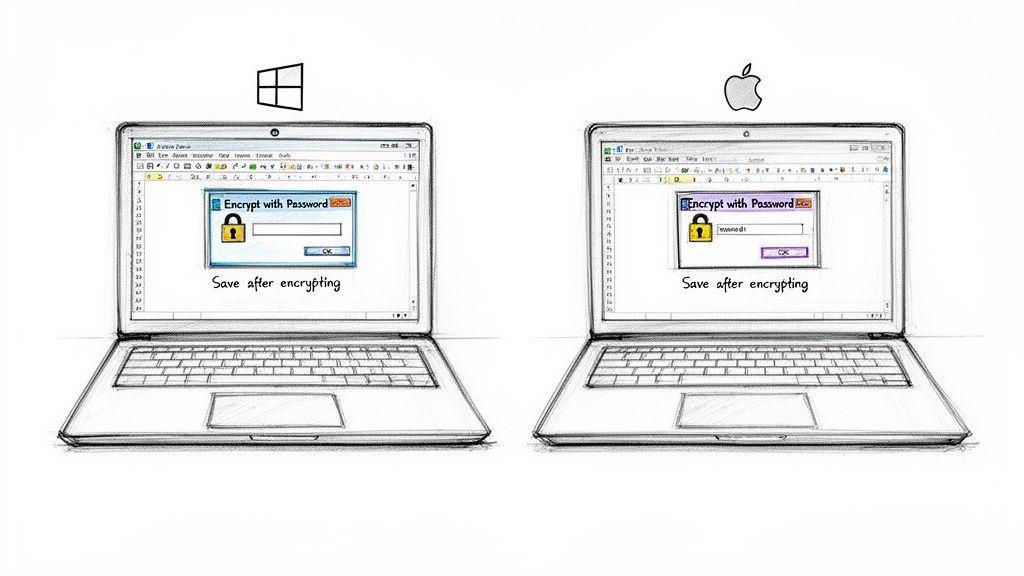
First, pop over to the File tab in the top-left corner of the Excel ribbon. From there, click on Info. This area is your command center for the entire workbook, showing its properties and, most importantly, its security settings.
You'll see a big button labeled Protect Workbook. Give that a click, and a menu will drop down.
From this menu, choose Encrypt with Password. A small dialog box will pop up, asking you to create a password. You’ll need to enter it twice to confirm you didn't make a typo—a simple but crucial step to avoid locking yourself out.
Critical Tip: After setting the password, you must save the file. I can't tell you how many times I've seen someone set a password, close the file without saving, and then realize it was never actually protected. The encryption only activates after you hit "Save."
Once you've saved it, that's it. The file is locked down. The next time anyone tries to open it, Excel will immediately halt them with a password prompt. No password, no data.
Navigating Encryption on a Mac
For those on a Mac, the process is just as easy, though the menus are in a slightly different spot. The core idea is identical: you're applying a password to lock the entire workbook.
Instead of the File > Info path, Mac users will find this feature under the Review tab in the main ribbon. Look for a button called Protect Workbook.
Clicking it opens the "Protect Workbook" dialog. Here’s the quick rundown:
- Check the box for Protect for Structure and Windows.
- Enter your desired password in the field provided.
- Re-enter it to confirm.
And just like on Windows, you have to save the workbook for the encryption to stick.
One of the best parts about this feature is its flawless cross-platform performance. A file I encrypt on my Mac will immediately ask for a password when my colleague opens it on their Windows PC, and vice-versa. This makes it an incredibly reliable choice for teams working on different types of computers.
Managing Encrypted Files in the Cloud
So, how does Excel's encryption feature play with cloud services like OneDrive and SharePoint? It's a common question, and the answer often surprises people. The process isn't quite what you might expect.
While you can open a password-protected Excel file in your web browser, you cannot actually set, change, or remove a password from within Excel for the Web. Your browser will ask for the password to let you view the contents, but all the encryption controls live exclusively in the desktop app. It's a critical distinction to understand for keeping shared files secure.
The Download-Encrypt-Upload Workflow
To correctly password-protect an Excel file that you plan to store in the cloud, you'll need to adopt a simple but effective workflow. I always tell people to think of their desktop version of Excel as the only place where you can securely manage the keys to your files.
Here’s the method I recommend:
- Download the File: First, if the spreadsheet is already sitting in OneDrive or SharePoint, pull a copy down to your local computer.
- Encrypt on Your Desktop: Open that local file in your full desktop version of Excel. Go to
File > Info > Protect Workbookand set your password just like you would for any other file. - Save and Re-Upload: After saving the now-encrypted file, upload it back to the original cloud folder. Make sure to replace the old, unprotected version.
This quick cycle ensures the spreadsheet is properly locked down before it gets shared or stored online. It’s a small habit, but it’s absolutely essential when you’re dealing with sensitive team data or personal finances in the cloud.
A mistake I see all the time is assuming that your cloud storage's built-in security is enough. While services like Microsoft 365 have their own powerful protections, file-level encryption gives you a personal layer of control that travels with the file, no matter where it goes.
Balancing Cloud Security with Personal Control
It’s true, platforms like Microsoft 365 come with impressive security features, including encryption for your data while it's stored (at rest) and while it's being transferred (in transit). This is great for protecting against an external breach of the service itself.
However, that built-in security won't stop a team member with legitimate access from accidentally sharing a sensitive file with the wrong person.
By adding your own password to the file, you’re creating a final, user-controlled security gate. For a small business, this is incredibly valuable. Imagine a contractor needs access to a project folder but definitely not the payroll spreadsheet inside it. File-level encryption solves that problem perfectly.
This is the best way to confidently use the cloud's convenience while keeping absolute control over your most critical information. For more ideas on protecting your documents, you can find great strategies in our guide on secure file sharing.
Exploring Advanced Encryption Strategies
While Excel’s built-in password feature is a solid first line of defense, some situations just call for more. When you're dealing with more than a single spreadsheet, or you need to manage who can do what with a file, it's time to look beyond a simple password.
Think of it as adding layers of security. You wouldn't use the same lock on your front door as you would on a high-security vault, right? The same logic applies to your data. Let's look at some more robust ways to protect your files.
Archiving and Encrypting with External Tools
One of the most practical things I do is bundle and secure multiple files at once using an archiver like 7-Zip. Say you’re a project manager sending a client a financial model, a proposal, and a few PDF reports. Encrypting each file individually is just tedious.
Instead, you can pack them all into a single, encrypted ZIP file. This creates a kind of digital safe. Anyone you send it to only needs one password to access the entire package, which is far more efficient. This is my go-to method for handling groups of related documents. You can learn more about how to create an encrypted ZIP file to get started.
Expert Take: I like to think of this as wrapping your files in an extra layer of armor. Even if someone gets into your cloud drive or email, the ZIP file itself is just a useless, scrambled block of data without the password.
This workflow is especially clutch when you're working with cloud storage. This chart lays out a simple decision-making process for handling files you plan to store in the cloud.
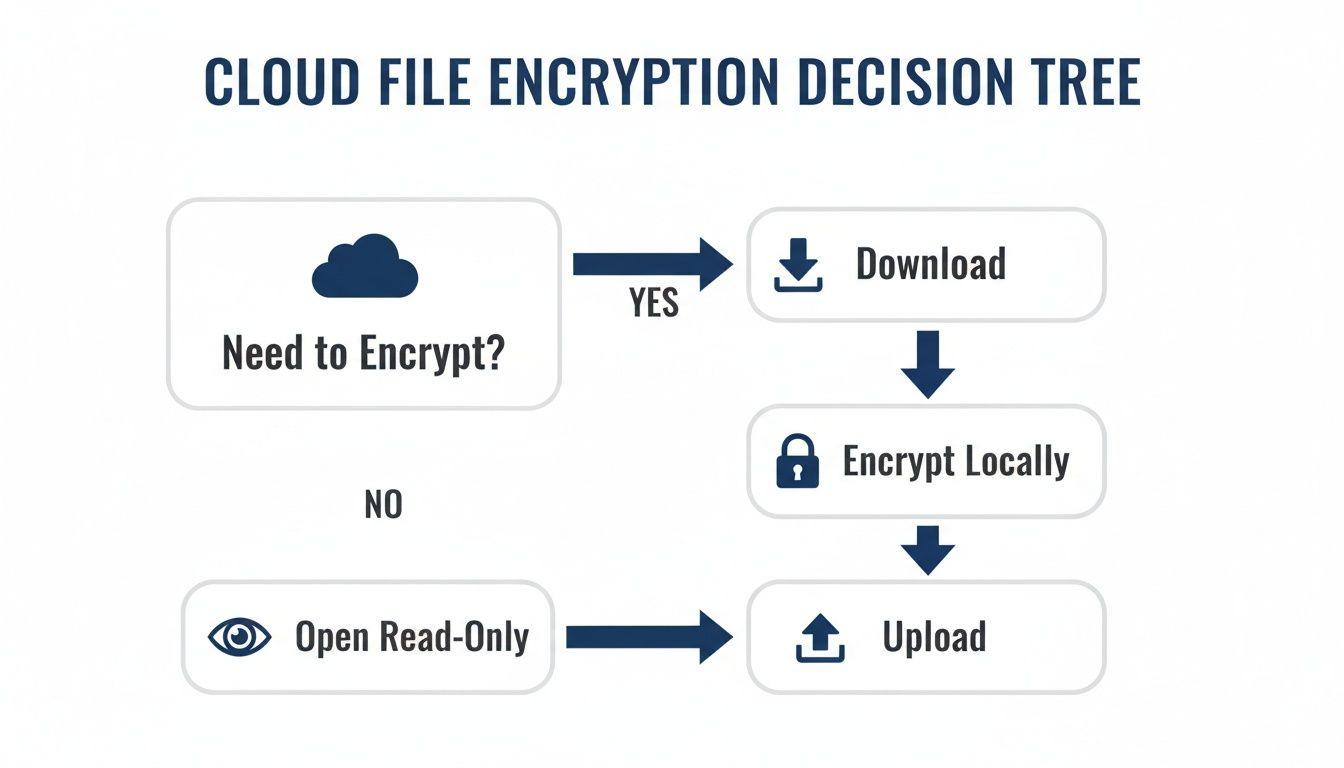
The flow is clear and simple: if a file needs encryption, always download it, encrypt it on your local machine, and then re-upload the newly secured version.
Using System-Level and Collaborative Protections
It's also really important to understand the difference between file-level and system-level encryption. Tools like BitLocker for Windows and FileVault for Mac encrypt your entire hard drive. This is absolutely critical for protecting your data if your laptop gets lost or stolen. But here’s the catch: it doesn't protect the file once it leaves your computer. For truly comprehensive security, you need both.
Recent data breaches in 2025 showed that over 80% of incidents involved sensitive data being stolen from unencrypted office files. With 70% of organizations also reporting insider incidents every year, just controlling who has access isn't enough. Adopting strong encryption, like Excel’s AES-256 standard, is a powerful countermeasure. These numbers come from some eye-opening cybersecurity statistics for 2026.
Finally, not all protection is about locking people out. Sometimes, you just need to prevent honest mistakes. For that, Excel has a couple of great collaborative tools built right in:
- Always Open Read-Only: You'll find this under
File > Info > Protect Workbook. It simply prompts users to open the file in a non-editable mode. They can still choose to edit, but it’s a fantastic guardrail against accidental changes. - Protect Workbook Structure: This feature, found on the
Reviewtab, is a lifesaver. It stops people from adding, deleting, or renaming worksheets, which is perfect for maintaining the integrity of a complex report with lots of interconnected sheets.
By mixing and matching these strategies—from archiving to system-level protection and collaborative safeguards—you can build a security plan that’s tailored to what you actually need.
Smart Password Habits and Mistakes to Avoid
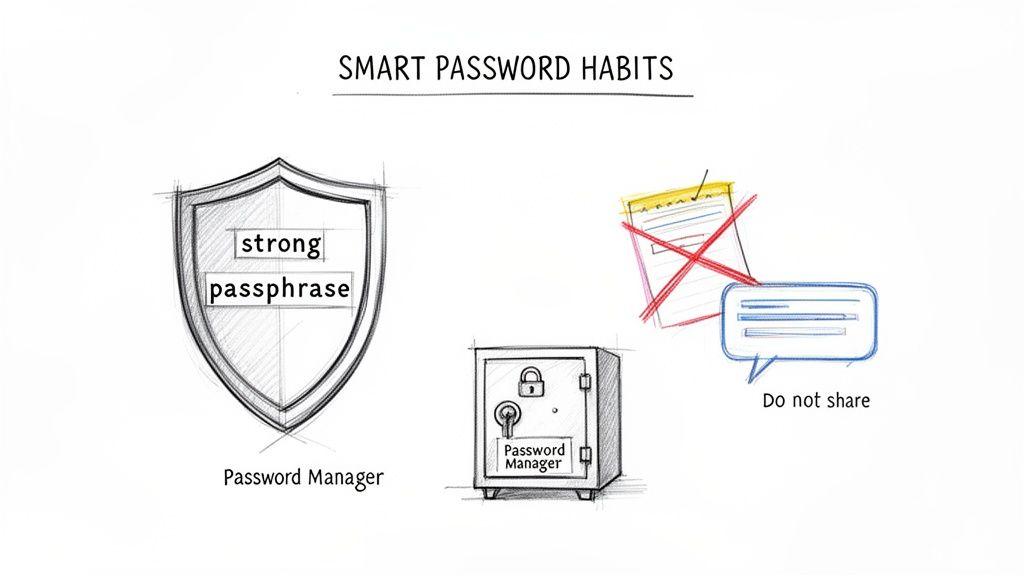
When you lock down an Excel file, the password you choose becomes the one and only key. A weak, guessable password is just security theater—it looks safe, but it won't stop anyone who's truly determined.
Let's be brutally honest about one thing: if you lose the password, your file is gone forever. There's no "Forgot Password" link or backdoor support from Microsoft. This isn't an oversight; it’s by design. It's the very thing that ensures no one but you can get in.
The stark reality is that a lost Excel password means that data is permanently unrecoverable. This is why having a solid password strategy isn't just a good idea—it's absolutely critical.
This means how you create and manage your passwords is just as important as the act of encrypting the file itself.
Rethinking What Makes a Strong Password
I’ve seen the advice on passwords change dramatically over the years. We used to be told that something like !8*gT$#pZ was the pinnacle of security. The problem? No human can remember that, so we’d write them on sticky notes or reuse them, completely defeating the purpose.
A far better and more modern approach is the passphrase. Instead of a short, complex jumble, you string together several unrelated words. Think of something like CorrectHorseBatteryStaple. It's incredibly long, easy for you to remember, and exponentially harder for a computer to guess than a typical eight-character password.
- Length is your best defense: Always aim for at least 15-20 characters. Every character you add makes it significantly harder to crack.
- Keep it impersonal: Steer clear of your kids' names, your anniversary, or the name of your company. Anything easily found on your social media is a bad choice.
- One password, one file: Never reuse passwords. If one file or account is ever compromised, the breach stops there.
Common Mistakes That Undermine Your Security
Even a great passphrase can be rendered useless by a few simple missteps. I see people share passwords over email or Slack all the time, but that creates a permanent, searchable record of your "secret" key. If you must share access, do it in a way that doesn't leave a digital trail.
Another habit to get into is digital cleanup. Is that project budget from three years ago still sensitive? If not, decrypt the file. Removing old, unnecessary passwords reduces your overall risk and cuts down on clutter.
Ultimately, your memory is not a secure vault. Trying to remember dozens of unique, long passphrases is a recipe for failure. This is where a password manager becomes your most valuable tool. These apps create and store incredibly strong passwords for you in a secure, encrypted database. You just need to remember one master password. To see why this is so effective, it's worth understanding how password managers work to safeguard your information.
Frequently Asked Questions About Excel Encryption
Once you've got the hang of encrypting an Excel file, a few common questions almost always pop up. It's one thing to know the steps, but it's another to understand the nuances. Let's tackle some of the most frequent queries I hear from people trying to secure their spreadsheets.
Workbook Encryption Versus Sheet Protection
This is probably the biggest point of confusion I see. People often mix up encrypting a workbook and just protecting a single sheet, but they are worlds apart in what they accomplish.
- Encrypting the Workbook (
Encrypt with Password) is the digital equivalent of locking the entire file in a safe. Without the password, no one can open it, period. This is your go-to for truly sensitive data like financial records or client lists. - Protecting a Worksheet, on the other hand, is like putting up a "please don't touch" sign. Anyone can still open the file and see all the data. All you're doing is stopping them from accidentally (or intentionally) changing the cells on that specific sheet.
Think of it this way: Encryption protects the file from being seen. Sheet protection just protects the content from being changed by someone who already has access.
Can You Recover a Lost Excel Password?
Here’s the tough truth: no. If you lose the password you used to encrypt an Excel workbook, that file is gone for good. There is no backdoor, no master key, and no "Forgot Password" link from Microsoft.
This is by design. The entire point of strong encryption is that only the password holder can get in. While some shady third-party tools might claim they can crack your password, the odds of them succeeding against the powerful AES-256 encryption used in modern Excel are practically zero—especially if you used a strong passphrase.
This is why having a system is non-negotiable. Use a password you can remember or, even better, store it securely in a trusted password manager.
Crucial Takeaway: You are 100% responsible for your password. Once it's lost, the data is irretrievable. Treat it with the same seriousness as the key to a physical safe.
Cross-Platform Compatibility Concerns
"What if I encrypt a file on my Mac and send it to a colleague who uses Windows?" That's a common worry, but you can relax.
The encryption is part of the file itself, not the operating system. An Excel workbook that you password-protect on macOS will open perfectly fine on a Windows PC (and vice-versa), as long as the other person has a compatible version of Excel and, of course, the correct password. It's a seamless and reliable way to share sensitive information across different hardware setups.
Performance Impact of Encryption
Does encrypting a massive spreadsheet bring Excel to a grinding halt? For almost everyone, the answer is no. The performance hit is barely noticeable.
Excel's encryption standard is incredibly efficient. On extremely large files—we’re talking over 100MB with thousands of complex formulas—you might notice an extra second or two of processing time when you open or save. For the average workbook, you won't feel a thing. It's a tiny price to pay for such a huge leap in security.