You’ve probably zipped up a bunch of files before. It’s a handy way to bundle documents, photos, or spreadsheets into one neat package, making them smaller and easier to send. But what if those files contain sensitive information?
That’s where an encrypted ZIP file comes in. Think of it as a digital safe—a container that doesn't just hold your files but locks them up tight with a password.
Understanding the Power of an Encrypted Zip File
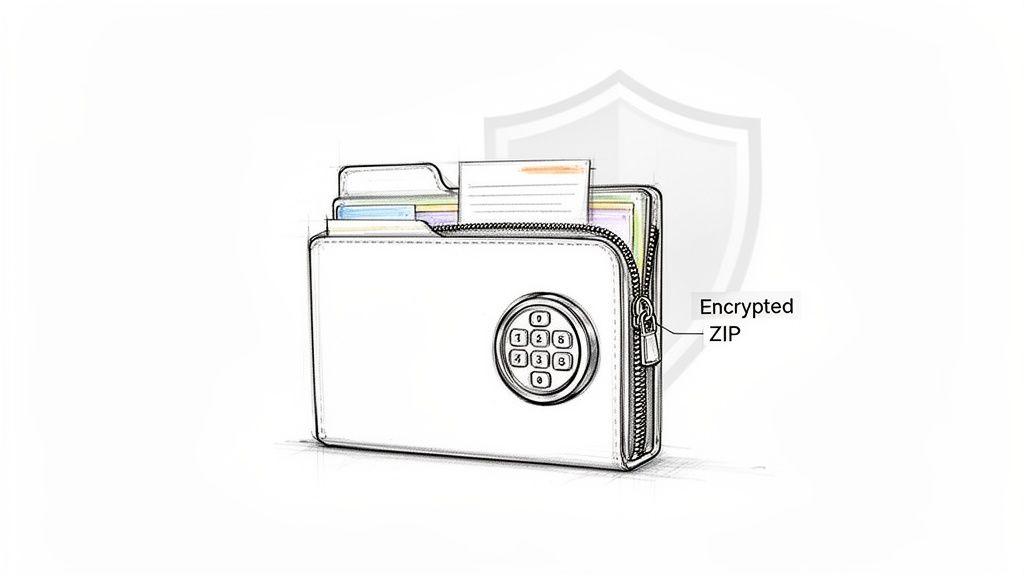
When you create a standard ZIP file, you're just organizing your digital clutter. But when you add encryption, you're building a serious wall of protection around your data.
The process uses a complex algorithm to scramble the contents, turning everything into unreadable gibberish. Only someone with the correct password can unscramble it. It’s a lot like putting sensitive papers into a locked briefcase before handing them off to a courier—the contents are safe even if the briefcase falls into the wrong hands.
Why This Security Matters Today
Protecting data isn't just for big corporations anymore. We all handle information that needs to stay private, from personal financial records to confidential business plans. This growing need for simple, strong security is driving huge growth in the encryption market.
The global market for encryption software was valued at USD 10.9 billion in 2021 and is on track to more than double to USD 22.1 billion by 2026. That’s a compound annual growth rate of 15.2%, which tells you one thing: everyone is realizing that protecting data is no longer optional. If you're curious, you can explore more on these encryption market trends to see how fast the industry is moving.
An encrypted ZIP file acts as your first line of defense in digital communication. It ensures that even if a file is intercepted, its contents remain completely private and inaccessible without the password.
This simple layer of security is vital in all sorts of everyday scenarios:
- Small Businesses: Sending client contracts, financial statements, or project plans full of confidential details.
- Families: Sharing personal photos, medical records, or financial documents securely with relatives.
- Students and Freelancers: Submitting proprietary work or research that must be protected from prying eyes.
Ultimately, using an encrypted ZIP file is a practical step toward controlling your own digital privacy. It’s not some complex technical chore; it’s a simple habit that provides powerful protection against both accidental leaks and determined snoops, making sure your sensitive information stays exactly where it belongs.
Choosing the Right ZIP Encryption for Your Files
When you go to create an encrypted ZIP file, the software will usually ask you to pick an encryption method. This isn't just a technical detail to gloss over; it's the difference between putting your files behind a rickety screen door and sealing them inside a bank vault. Let's walk through the options so you can be sure your data gets the protection it actually needs.
The two main choices you’ll almost always see are ZipCrypto and AES-256. The easiest way to think about them is as two completely different generations of security. One is a relic from the dial-up era, while the other is the modern gold standard for keeping data safe.
The Outdated Choice: ZipCrypto
ZipCrypto is the original encryption method that came bundled with the ZIP format way back when. It was a decent idea for its time, but its security was cracked long ago. With today's computers, a file protected with ZipCrypto can be broken into in a matter of hours—sometimes even minutes—using tools that are easy to find online.
Think of it like this: choosing ZipCrypto is like using a simple luggage lock to guard a family heirloom. It might stop a nosy toddler, but it provides zero real defense against anyone who actually wants to get inside. Its biggest flaw is a vulnerability to something called a "known-plaintext attack," a technical method that makes guessing the password far too simple.
For any file containing sensitive personal, financial, or business information, using ZipCrypto is not a safe choice. Its weaknesses are well-documented, making it completely unsuitable for modern security needs.
The Modern Standard: AES-256
On the other side of the coin, you have AES-256, which stands for Advanced Encryption Standard with a 256-bit key. This is the exact same encryption trusted by governments, banks, and intelligence agencies across the globe to protect classified information. For all practical purposes, it is unbreakable by brute-force with any technology that exists today.
The history of the ZIP format itself tells this story well. When it launched in 1989, the format was a game-changer, but its built-in encryption was deeply flawed. After security researchers showed just how easily its keys could be cracked, the industry scrambled to add stronger methods. By 2010, AES was a standard feature, and now secures an estimated 40% of all enterprise file transfers. You can dig deeper into the evolution of data encryption standards and see how far we've come.
Simply put, choosing AES-256 is the only move that makes sense for securing important data. It effectively turns your ZIP file into a digital fortress.
ZIP Encryption Methods Compared
So, how do these two methods stack up side-by-side? The choice really boils down to a trade-off between universal compatibility and actual security. This table makes the decision pretty clear.
| Feature | ZipCrypto (Legacy) | AES-256 (Modern Standard) |
| Security Level | Very Low | Extremely High |
| Vulnerabilities | Known and easily exploited | None publicly known |
| Best For | Non-sensitive files where you must have compatibility with ancient software. | All sensitive and confidential data. |
| Recommendation | Avoid for anything important. | Always choose whenever available. |
Unless you have a very specific, niche reason that forces you to use decades-old software, you should always select AES-256. The security it provides is robust and reliable, giving you genuine peace of mind that your encrypted files are properly protected.
How to Create an Encrypted ZIP File on Any Device
Alright, now you know the difference between strong and weak encryption. It’s time to put that theory into practice.
Creating a secure ZIP file is surprisingly straightforward. You don't need to be a tech wizard—most operating systems have built-in tools or trusted free software that can get the job done. Whether you're on a Windows PC, a Mac, or even your phone, securing your files is just a few clicks away.
Let's walk through the steps for each platform. My goal here is to make this process feel less like a chore and more like a simple, powerful security habit you can build.
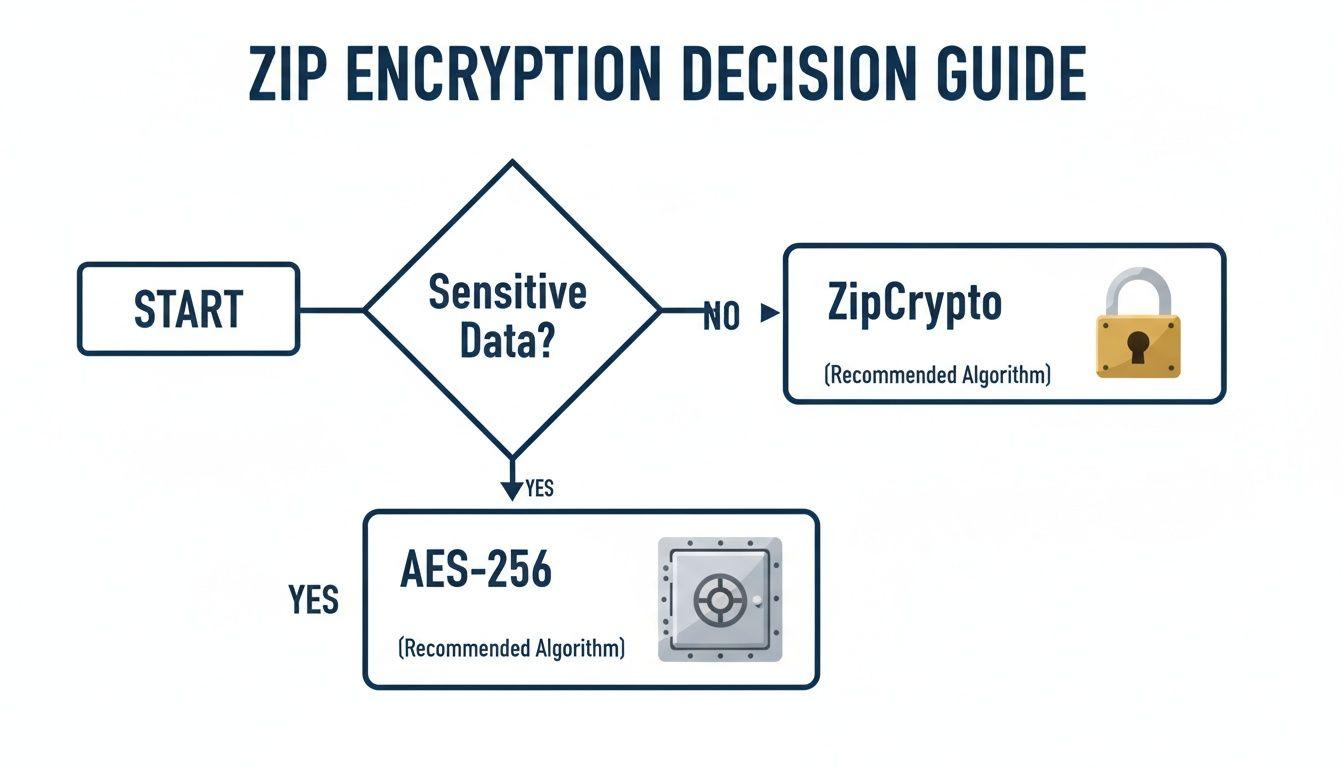
This flowchart sums it up nicely: for anything that truly matters, AES-256 is the only way to go.
Creating an Encrypted Zip File on Windows
If you're on Windows, you have a couple of solid options. The first is a built-in feature that’s quick and easy, while the second involves a fantastic free tool that gives you much more control—including the all-important AES-256 encryption.
Method 1: Using the Built-in Windows Tool
This method is super convenient but comes with a catch. It adds a password but doesn't let you choose the encryption type, and it often defaults to the weaker ZipCrypto. It's fine for files that aren't sensitive.
- Select the files or folders you want to archive.
- Right-click your selection, hover over Send to, and click Compressed (zipped) folder.
- Double-click the new ZIP file to open it in File Explorer.
- From the File menu in the top-left, choose Add a password.
- Enter and confirm your password, then click OK.
Method 2: Using 7-Zip for Stronger Encryption
For anything you genuinely want to keep private—like financial records or personal documents—7-Zip is the clear winner. It's a free, open-source workhorse that lets you explicitly select AES-256, the gold standard for file security.
Once you've installed it, the process is simple:
- Right-click the files you want to secure.
- Hover over the 7-Zip menu option and select Add to archive....
- A new window will pop up. Look for the Encryption section on the right-hand side.
- Enter and re-enter your password.
- This is the most important step: Make sure the Encryption method is set to AES-256.
- Click OK. You've just created a highly secure, encrypted ZIP file.
Creating an Encrypted Zip File on macOS
Mac users can create a password-protected ZIP right from the command line using the built-in Terminal app. Don't be intimidated if you're not used to the Terminal—it's fast, powerful, and uses strong encryption by default.
- Open the Terminal app (you can find it in
Applications > Utilities). - Type
zip -erfollowed by a space. This command tells your Mac to create a zip file (zip), encrypt it (-e), and include all files inside a folder recursively (-r). - Next, type the name you want for your new archive, like
SecureDocs.zip, followed by another space. - Finally, drag the file or folder you want to encrypt from your Finder window and drop it directly into the Terminal. The path to your file will appear automatically.
- Press Enter. You'll be prompted to enter and then verify a password.
Heads up: You won't see your password as you type it. This is a standard security feature to prevent "shoulder surfing." Just type it carefully and press Enter.
The great thing is that on modern versions of macOS, this command uses AES-256 encryption automatically. It's a quick and reliable way to get top-tier protection for your files.
The Human Element: Your Password Is the Key
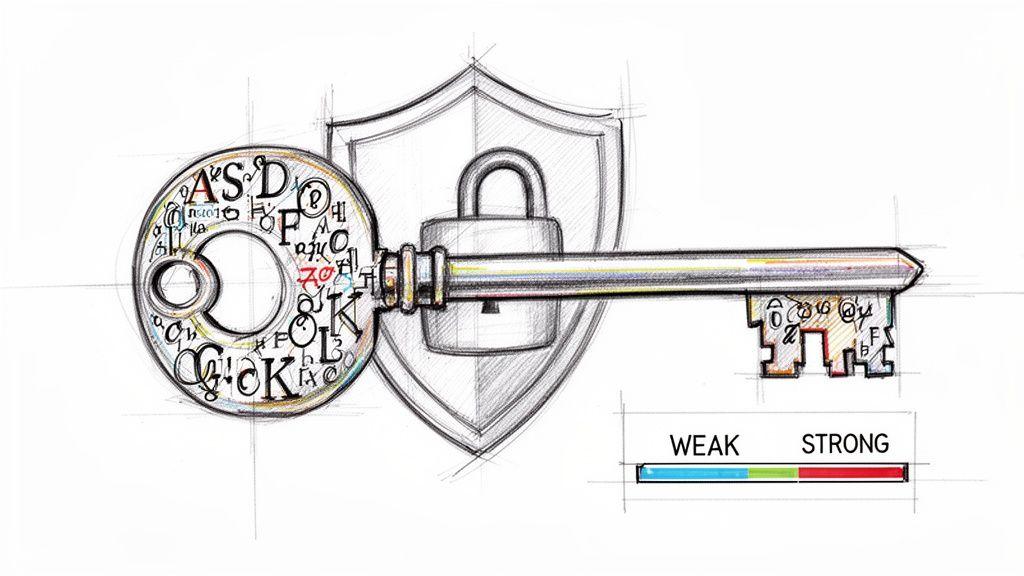
Choosing AES-256 encryption for your ZIP file is a great start—it’s like locking your data inside a bank vault. But that vault is only as good as its key. If you use a flimsy password, you might as well leave the key in the lock.
Your password is that key. It's the one thing standing between your private files and someone trying to break in. Attackers don't guess passwords one by one; they use powerful tools that can try millions of combinations a second. A password like "Password123" isn't just weak, it's a welcome mat for intruders. The entire security of your encrypted zip file comes down to the password you choose.
The encryption algorithm protects the file, but your password is what protects the encryption key itself. It's your first and most important line of defense.
So, how do you create a password that's truly secure? The best way is to shift your thinking from short, complex "passwords" to long, memorable "passphrases."
From Weak Passwords to Strong Passphrases
A passphrase is simply a string of words that’s easy for you to remember but practically impossible for a computer to guess. Think about it: a password like C0rr3ct! is hard to type and easy for a machine to crack. But a passphrase like PurpleMonkeyDishwasherLamp is far stronger and much easier to recall.
We have a whole guide exploring the passphrase vs password concept if you want to dive deeper.
For now, here are a few simple rules for creating a rock-solid passphrase:
- Length Is Everything: Aim for at least four unrelated words. Every word you add makes the passphrase exponentially harder to crack.
- Keep It Random: Don't use famous quotes, song lyrics, or anything predictable. The best passphrases are a jumble of random words that only make sense to you.
- Mix It Up (If You Want): Adding numbers or symbols can increase complexity, but honestly, a long and random passphrase is often more than enough.
Don't Try to Remember Them All—Use a Password Manager
Let's be realistic: you can't remember a unique, strong passphrase for every single file and online account. That's where a password manager comes in. Think of it as a secure digital vault for all your passwords and passphrases.
A good password manager generates incredibly complex credentials for you and stores them securely. All you have to do is remember one single, strong master password to unlock your vault.
For families or small teams, many managers offer shared vaults. This lets you give people access to specific encrypted files without ever sending a password over an insecure channel like email or chat. It's probably the single best investment you can make in your digital security.
Avoiding Common Compatibility and Sharing Issues
Great, you’ve created a secure, encrypted ZIP file. But that's only half the battle. If your recipient can't open it, all that security work is for nothing. Getting this right means sidestepping a few common pitfalls that can easily derail the process.
The most common snag? A simple software mismatch.
Imagine you carefully locked down your files using strong AES-256 encryption in 7-Zip, but the person you sent it to is trying to open it with the basic, built-in tool that comes with an older version of Windows. They'll probably be met with a frustrating error like "Unsupported compression method." The file isn't broken—their tool just doesn't know how to handle modern encryption.
The fix is surprisingly low-tech: just communicate. When you send the file, give them a heads-up. A quick message like, "Hey, I created this with 7-Zip using AES-256, so you might need that to open it," can save a lot of back-and-forth.
The Hidden Risk of Visible File Names
Here’s something that catches a lot of people by surprise: standard ZIP encryption often leaves a glaring hole in your privacy. While the file contents are securely scrambled, the file names themselves are often left completely visible to anyone who gets ahold of the archive, even without the password.
Think about it. A file named Confidential-Client-Acquisition-Plan-Q4.docx tells a story all on its own. That kind of metadata leak can be a significant security risk, giving away sensitive information before the file is even decrypted. It's precisely these kinds of gaps that are driving the secure file sharing market, which is projected to hit $15 billion by 2025. Businesses are scrambling for better tools, and you can get more insights on the demand for secure file sharing solutions to see why.
A key limitation of the standard ZIP format is that it typically encrypts the file content, not the file names. Always assume the file list inside your encrypted archive can be seen.
Best Practices for Sharing Securely
To make sure your files arrive both safely and accessibly, it helps to build a few good habits.
- Communicate the Method: Let your recipient know you used AES-256. This tells them they’ll need a modern tool like 7-Zip for Windows or Keka for macOS.
- Share Passwords Separately: This is non-negotiable. Never send the password in the same email or message as the file itself. Use a completely different channel, like an encrypted messaging app or a quick phone call.
- Mind the File Names: If the names of your files are sensitive, rename them to something generic (
file1.docx,image2.jpg) before you create the ZIP archive. Alternatively, switch to a format like 7z, which gives you the option to encrypt the file list too.
By thinking ahead and anticipating these common issues, you can turn a potentially frustrating process into a smooth and secure exchange. For a more detailed walkthrough, you can also check out our guide on sharing encrypted files effectively.
Exploring Alternatives to Encrypted Zip Files
Password-protecting a ZIP file is a fantastic and easy way to secure your files, but it’s not the only option out there. It helps to think of it like a toolbox—a standard screwdriver is useful for most jobs, but sometimes you need something more specialized for a tricky project.
If you’re looking for a serious privacy upgrade, the 7z format is an excellent choice. This format, created for the popular 7-Zip archiver, has a killer feature: it encrypts the file metadata along with the file contents. In plain English, this means no one can even see the names of the files inside the archive without the password. Standard ZIP encryption leaves that list visible, which can be a privacy leak all on its own.
When to Look Beyond ZIP
So, when does it make sense to reach for something other than a standard encrypted ZIP? It really boils down to what you're trying to protect and from whom. A regular encrypted ZIP is perfectly fine for casual, everyday security tasks. But for more sensitive situations, it’s worth considering a more robust tool.
You might want an alternative in these scenarios:
- Maximum Privacy: If the file names themselves are sensitive information (e.g., "Client_Acquisition_Strategy_Q4.docx"), the 7z format is the clear winner because it hides the entire file list.
- Highest Security: Need to lock down an entire hard drive or create a secure "digital vault"? Full-disk encryption tools like VeraCrypt are built for this, offering a level of security that goes far beyond a single compressed file.
- Better Compression: The 7z format often creates smaller files than ZIP. If you're trying to save space or reduce upload times, 7z’s superior compression is a nice bonus.
A standard encrypted ZIP file acts like a locked box for your documents. Stronger alternatives like 7z not only lock the box but also wrap it in plain paper so no one can even guess what's inside.
A Quick Comparison
Let's lay out the key differences so you can see which tool fits your needs.
| Feature | Standard ZIP | 7z Format | VeraCrypt |
| File Name Encryption | No (Visible) | Yes (Hidden) | N/A (Full Volume) |
| Best For | Quick, compatible sharing | Maximum privacy | Securing entire drives |
| Compression | Good | Excellent | N/A (Not an archiver) |
While an encrypted zip file is a great, reliable tool to have in your back pocket, knowing about these powerful alternatives gives you more options to choose the right level of protection.
And remember, this isn't just about ZIP archives. You can apply similar protection to other file types, too. For example, you can learn how to make a PDF document password protected in our step-by-step guide.
Your Top Questions About Encrypted ZIPs, Answered
As you start working with encrypted ZIPs more often, you’ll naturally run into a few common questions. Let's tackle some of the most frequent ones to help you use these secure files confidently and avoid common pitfalls.
What Happens If I Forget the Password to My Encrypted ZIP?
Unfortunately, you’re almost always out of luck. Robust encryption like AES-256 is built to be a one-way street; without the right key (your password), there's no way in. There's no back door, no reset button, no master key. This is a feature, not a bug—it’s what makes the encryption trustworthy.
This is exactly why using a password manager is non-negotiable. Get into the habit of saving your password in a secure vault before you even create the encrypted file. That way, you'll never lock yourself out of your own data.
Is Emailing an Encrypted ZIP Actually Secure?
It's certainly safer than emailing a plain, unprotected file, but there's a huge string attached. The real security of the whole exchange comes down to one thing: how you handle the password.
Never send the password in the same email as the ZIP file. That’s the digital equivalent of mailing someone a locked safe and taping the key to the outside.
To do it right, you have to share the password through a completely different, secure channel. Think of it as sending the safe by mail and sending the key by a trusted courier. Great options include:
- A quick phone call.
- An end-to-end encrypted messaging app like Signal.
- A secure password-sharing feature built into your password manager.
Are the Filenames Inside an Encrypted ZIP Hidden?
This is a critical detail many people miss. With most standard ZIP tools, the answer is no. While the content of each file is scrambled beyond recognition, the filenames themselves often remain perfectly visible to anyone who tries to open the archive, password or not.
This can be a major privacy leak if the filenames themselves contain sensitive information (e.g., "John Doe - Final Performance Review.docx"). In these cases, you’re better off using a different format. Tools like 7-Zip let you create a .7z archive and provide a specific checkbox to "Encrypt file names," hiding everything inside from view.