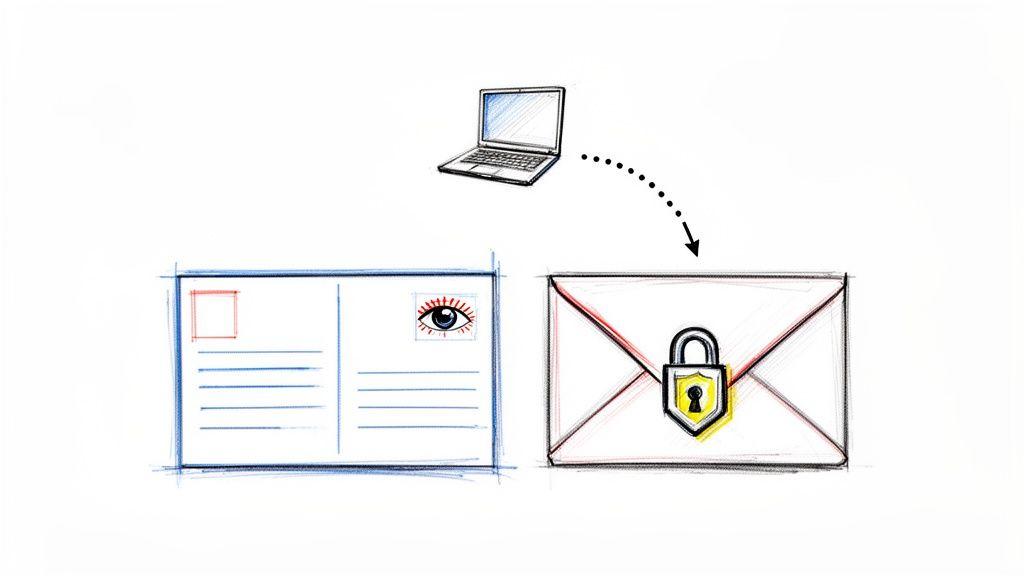
Sending a file without any protection is a bit like mailing a postcard. Anyone who gets their hands on it can read what's written on the back. When you're sharing encrypted files, you're effectively sealing that information inside a tamper-proof envelope before it ever leaves your computer. It's a simple step that turns a vulnerable piece of data into a secure package that only the right person can open.
Why Encrypted File Sharing Is a Must-Do Today
We all share digital files constantly—family photos, project drafts, client contracts. It's just part of modern life. But every time we hit "send" or "upload," we're opening that document up to risks like interception or someone snooping where they shouldn't be. This is exactly why encryption has become a critical, everyday practice, not just something for big tech companies.
What Is This Digital Lock, Really?
At its heart, encryption scrambles your data into a jumbled, unreadable mess using a sophisticated algorithm. The only way to unscramble it is with the correct key, which is usually a password or a special digital key file. This ensures that even if someone manages to intercept your file on its journey, the contents will be complete gibberish to them.
Think of it like a digital lockbox. You pop your document inside, lock it with a key that only you and the recipient have, and send it on its way. It's a straightforward concept that makes sharing encrypted files a cornerstone of modern data security.
The Real-World Risks of Skipping Encryption
The consequences of leaving your data unsecured are higher than ever. Cybersecurity threats are a constant concern, and the financial fallout is staggering. Some projections show cybercrime costs could rocket to $10.5 trillion annually by 2025. For businesses, the average cost of a single data breach now sits between $4.5 million and $4.88 million, turning robust security from a "nice-to-have" into an absolute necessity.
But it’s not just about the money. The personal and professional risks are just as serious:
- Identity Theft: Exposing personal documents like tax forms or bank statements is an open invitation for identity thieves.
- Compliance Violations: If you work in healthcare (HIPAA), finance, or law, you have a legal and ethical duty to protect client data. A breach can have severe professional consequences.
- Loss of Intellectual Property: For freelancers, creators, and small businesses, having project files or proprietary information stolen can be devastating.
The whole point of encryption is to make your data completely unreadable and unusable to anyone who shouldn't have it. It’s your first and best line of defense when your information is on the move.
Ultimately, getting the hang of secure file sharing offers real peace of mind. It’s a simple practice that puts a powerful lock on your most important information, ensuring your private data stays exactly that—private.
Picking the Right Encryption Tool for the Job
Finding the right tool to encrypt and share files can feel like a trade-off between iron-clad security and simple convenience. The best choice really boils down to what you're doing. A student protecting their thesis has completely different needs than a small business owner sending confidential client contracts.
Let's walk through the main options to figure out which one makes the most sense for you.
What Your Computer Already Offers
Believe it or not, your computer has some serious encryption power built right in. If you're on Windows, you have BitLocker. On a Mac, you've got FileVault. These are fantastic tools for what's called "full-disk encryption."
Basically, they lock down your entire hard drive. If your laptop gets lost or stolen, everything on it is unreadable gibberish to anyone without your password.
But here's the catch: they're not made for sharing. Encrypting your whole drive is like putting a giant vault door on your house—it’s great for protecting everything inside, but it doesn't help you securely mail a single letter. For that, you need a different approach.
The Do-It-Yourself Approach: Third-Party Apps
This is where dedicated file encryption software comes into play, and it’s my go-to for a lot of situations. Tools like the free and open-source 7-Zip, the powerful VeraCrypt, or the user-friendly AxCrypt give you pinpoint control over specific files and folders.
The most common way to use these is by creating an encrypted archive. Imagine you're a freelance graphic designer. You can take all your project files—mockups, source files, and the final invoice—bundle them into a single .zip or .7z file, and lock it with a strong password. Then you can attach that file to an email and send it on its way.
Here’s a look at the classic, no-nonsense interface of 7-Zip. It gets the job done without any fuss.
As you can see, you just select what you want to protect and add it to an archive with strong encryption.
This method is incredibly flexible because it doesn't lock you into a specific service. As long as the recipient has the password, they can open it. The encryption itself, usually AES-256, is military-grade. The only real work for you is making sure you share the password securely.
The All-In-One Solution: Secure Cloud Storage
If you're looking for something more streamlined, especially for collaboration, a secure cloud service is an excellent choice. I'm not talking about standard cloud storage here, but services built from the ground up for privacy, like Proton Drive or Tresorit.
These platforms use what’s called zero-knowledge encryption.
In plain English, this means your files are encrypted on your device before they're uploaded. The company has no way to see what you're storing—only you and the people you explicitly share with hold the keys.
This approach blends the convenience of cloud sharing with top-tier security. You just upload your files, create a secure link—often with options for password protection and automatic expiration—and send it over. It's perfect for a family sharing sensitive medical records or a team collaborating on a business plan.
Comparison of File Encryption Methods
Choosing between these options can be tough. This table breaks down the key differences to help you find the right fit for your specific needs.
| Method | Ease of Use | Cost | Best For |
| Third-Party Apps | Moderate | Free (mostly) | Sharing specific file sets with anyone, regardless of their platform. |
| Secure Cloud | Easy | Free & Paid Tiers | Ongoing collaboration, ease of use, and sharing with non-technical users. |
| OS Tools | Easy (for disk) | Included | Protecting your entire device from physical theft, not for sharing. |
Ultimately, third-party apps give you the most control and flexibility, while secure cloud services offer the smoothest, most user-friendly experience, especially for teamwork. And your built-in OS tools? They're your first line of defense for the device itself.
How to Encrypt and Share Your Files
Alright, enough theory. Let's get our hands dirty and actually walk through how to encrypt and share your files. I find the best way to learn is by doing, so we'll use a real-world example with a fantastic—and free—tool called 7-Zip.
This will show you just how simple it is to create a secure, password-protected package that you can send through all the normal channels you’re already using.
Creating Your First Encrypted Archive
The most common and straightforward way to do this is by bundling your files into a compressed archive, like a .zip or .7z file, and then locking that container with a strong password. Think of it as putting your sensitive documents into a digital safe before mailing them.
Let’s imagine you’re a freelance designer sending a final project to a client. You've got a PDF invoice, a couple of Photoshop files, and a Word doc with your project notes. Here’s how you’d lock them down.
- Gather Your Files: First, just select all the files you need to send in your file manager.
- Start the Archive: Right-click on the selected files and, in the 7-Zip menu, choose "Add to archive..." This pops up a window with all the settings you’ll need.
- Lock It Down: Now for the important part. Look for the "Encryption" section in that window. You'll need to enter a strong, unique password here. Right below that, double-check that the encryption method is set to AES-256. That’s the gold standard and exactly what you want to use.
- Create the File: Once you've set the password, just click "OK." 7-Zip will create a single encrypted file (something like
ClientProject.7z) right there in the same folder. That file is now completely unreadable without the password.
If you want to add another layer of security, especially for individual documents, you can also password-protect the files themselves. We have a great walkthrough on how to make a PDF document password protected in our guide that covers this in more detail.
Sharing Your Encrypted File Safely
You’ve got your encrypted archive, and it's locked down tight. The great news is that you can now send it pretty much anywhere. Because the security is built into the file itself, the delivery method doesn't have to be anything special.
Here are a few ways I do this all the time:
- Email: Just attach the
.7zor.zipfile to an email like you would any other document. Your email provider can't peek inside, and even if someone intercepted the message, all they'd get is a useless, scrambled file. - Cloud Storage: Upload the archive to Google Drive, Dropbox, or OneDrive. This is perfect for larger files that might hit email attachment size limits. Just share the link like you normally would.
- Messaging Apps: For quick deliveries, sending the file through an app like Slack, Microsoft Teams, or Signal works great.
The key takeaway is this: The encryption happens before you share. This separates the act of protecting the data from the act of sending it, giving you the flexibility to use any channel you prefer.
This flow chart gives you a good visual of the different paths you can take, from using tools built into your operating system to dedicated cloud services.
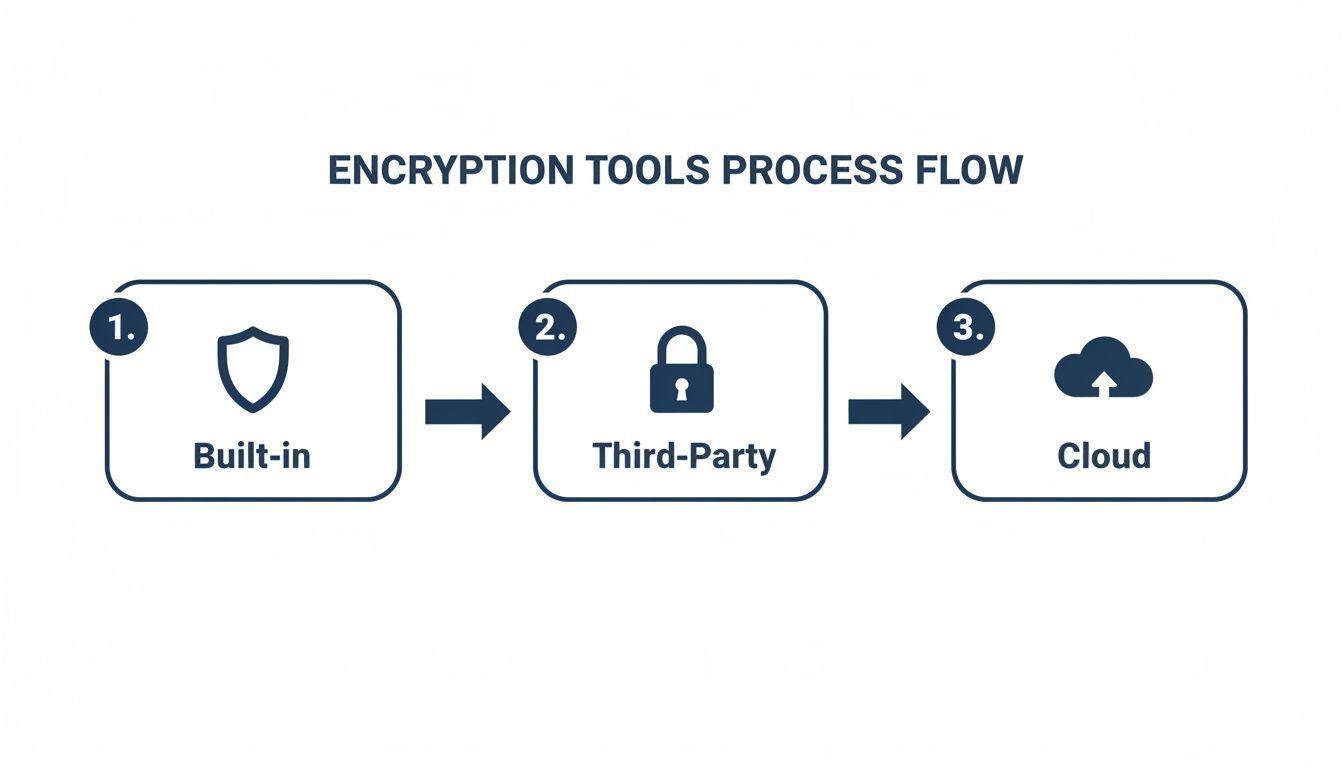
As you can see, the tool you pick—whether it's a feature on your computer, a third-party app like 7-Zip, or a secure cloud platform—really just shapes your specific workflow.
But here’s the most critical part, the step that comes after you’ve hit "send." How do you get the password to your recipient without blowing the whole thing? Because sending it in the same email as the file completely defeats the purpose. We’ll tackle that all-important piece of the puzzle next.
Securely Exchanging Passwords and Keys
You’ve done the hard part—you’ve locked your sensitive documents away inside a strongly encrypted archive. But now you're at the most critical, and often most overlooked, step in sharing encrypted files: getting the password to your recipient. It doesn't matter how strong your encryption is if the key falls into the wrong hands. How you share that password can make or break your entire security effort.
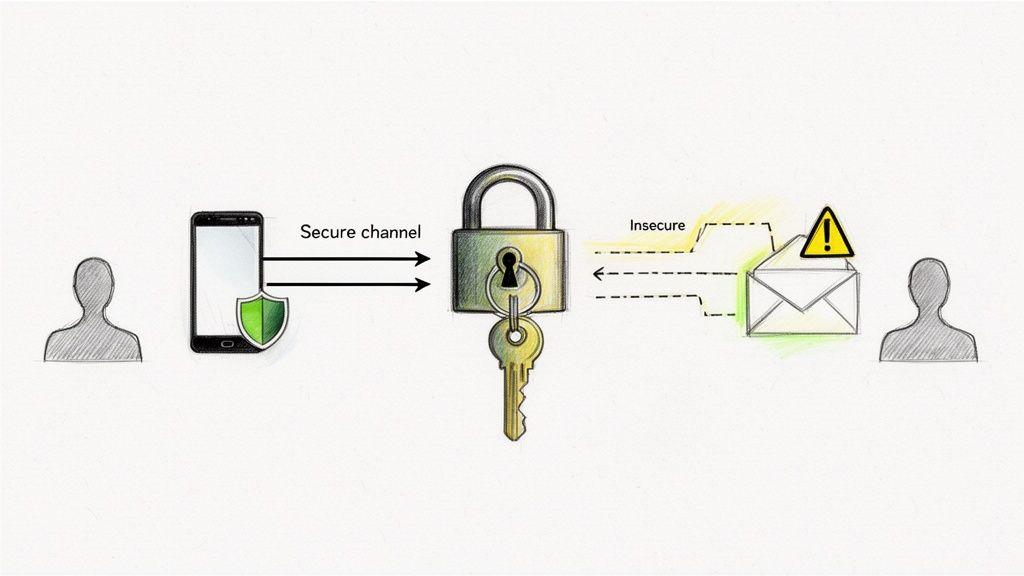
Sending the password in the same email as the encrypted file is the digital equivalent of mailing a locked safe with the key taped to the side. If someone intercepts that one message, they get everything they need. The only way to maintain real security is to keep the file and its key separate.
Use a Different Communication Channel
This is the simplest and most effective strategy you can use. The goal is to separate the two pieces of the puzzle, forcing a potential snooper to compromise two completely different channels to get access. It’s an easy move that dramatically boosts your security.
Here are a few practical ways this works in the real world:
- Email + Secure Messaging: Send the encrypted file as an email attachment, then use an end-to-end encrypted app like Signal or Wickr to send the password.
- Cloud Link + Text Message: Upload your encrypted file to a cloud service like Google Drive or Dropbox and share the link. Then, send the password over a standard text message (SMS).
- In-Person or Phone Call: For the most sensitive information, you really can't beat sharing the password verbally. A quick phone call or telling them face-to-face is as secure as it gets.
The core principle is simple: never put the key in the same box as the lock. By using two different methods of communication, you force any potential snooper to compromise two separate systems, not just one.
Leverage a One-Time Secret Sharing Service
Sometimes you need a more automated or hands-off method. That's where one-time secret-sharing services come in handy. Platforms like PrivateBin let you paste a secret—in this case, your password—and generate a special link.
This link is designed to self-destruct.
It can only be clicked once. The moment your recipient views it, the secret is permanently wiped from the server. It’s gone for good.
Many of these services also let you add an extra password to the link itself or set an expiration date, giving you even more control.
This growing need for better security is a clear trend. The global secure file transfer market was valued at around $2.49 billion in 2025 and is projected to hit $3.57 billion by 2034, according to research from The Business Research Company. It just goes to show how much people are looking for better ways to protect their data.
And if you want to create stronger credentials in the first place, have a look at our guide on the difference between a passphrase vs password.
The Little Habits That Make a Big Security Difference
Great security isn't about a one-time, complicated setup. It’s built from the small, consistent things you do every single day. When you're sharing encrypted files, it’s these habits that turn a good security plan into a truly solid one. This means looking beyond just the encryption itself and thinking about where that sensitive data goes and how long it lives there.
These practices aren't rocket science, but they help you build a powerful defensive mindset, making secure file sharing feel like second nature.
Get Your Password Game Right
Think of the password you set on an encrypted file as its only gatekeeper. A weak or recycled password is like putting a cheap luggage lock on a bank vault door. You absolutely have to create a strong, unique password for every single encrypted file or archive.
Forget simple words and start thinking in passphrases. Something like RedBike-SunLawn-37-Glass! is incredibly tough for a computer to guess, but it's still manageable for a human to remember and share securely. It’s a world away from the easily crackable ClientProject2024!.
A strong password is your first and most critical line of defense. Reusing the same password for different encrypted files or services completely defeats the purpose of your security efforts.
Double-Check Before You Hit 'Send'
This one is simple but so important. Before you fire off that encrypted file, take a second to confirm you've got the right recipient. A single typo in an email address could land your private data in a total stranger's inbox. This is especially crucial the first time you share something with someone.
Here are a couple of quick ways to do it:
- A quick text message: "Hey, just sent the encrypted project files. Let me know you got them."
- Use a trusted channel: If you already have a secure way of talking, like a work chat, use it to confirm their email address is correct.
This extra check takes literally seconds but can save you from a massive, embarrassing mistake. It's the best way to make sure your carefully protected file gets to the right person.
Keep Your Digital Space Tidy
Not all data needs to hang around forever, especially when it’s sitting in the cloud. Once you know your recipient has the file and has successfully opened it, ask yourself: does that encrypted copy really need to stay in my cloud drive or my email's "Sent" folder?
Get into the habit of periodically cleaning out old, sensitive files. This is often called data minimization, and it’s all about reducing your digital footprint. The less sensitive information you have lying around, the less there is to be exposed if one of your accounts ever gets compromised. It's the digital version of shredding old bank statements instead of letting them pile up in a corner.
Common Questions About Sharing Encrypted Files
Even with the best tools, a few questions always pop up when you start sharing encrypted files. It's totally normal to wonder if you're doing it right or if there’s an easier way. Let's clear up some of the most common sticking points so you can feel confident you're keeping things secure.
Is Password Protecting a Word Document Enough?
Using the built-in password feature in Microsoft Word or Adobe Acrobat is a decent first step, but it’s not really the same thing as true encryption. Think of it as a basic deterrent.
Dedicated tools like 7-Zip or VeraCrypt are in a different league. They use far stronger cryptographic algorithms—the gold standard being AES-256—to lock down the entire file container, not just what’s inside. This makes the file exponentially harder for an attacker to crack, giving you a much more robust defense. When the data is truly sensitive, dedicated encryption is always the way to go.
Here's an analogy I like to use: a password-protected document has a simple lock on the front door. A fully encrypted file is like a reinforced safe inside a locked room. Both offer some security, but one is clearly built for more serious threats.
Can I Share Encrypted Files Over Public Wi-Fi?
Yes, and honestly, this is one of the biggest reasons to encrypt your files in the first place. Because the file's data is completely scrambled and unreadable without the right password, it doesn’t matter if someone snooping on the coffee shop Wi-Fi intercepts it. The file itself is just a locked box of gibberish to them.
But remember, this security only applies to the file itself. You still have to be smart about sharing the password. The golden rule is to use a separate, secure channel for the key. Never, ever send the password over the same public Wi-Fi network right after sending the file.
How Do I Encrypt Files on a Mobile Phone?
You absolutely can. Securing your data isn't just for desktops and laptops anymore. Both Android and iOS have plenty of great apps for file encryption and management.
Many mobile file manager apps actually come with built-in tools that let you create password-protected ZIP or 7z archives right on your device.
It usually works like this:
- Find an App: Head to your device's app store and search for something like "file encryption" or "file manager with zip."
- Select and Compress: Open the app and pick the photos, documents, or whatever else you need to protect.
- Add a Password: Look for the option to create a compressed archive and make sure to find the setting to add a password. If you see an option to choose the encryption method, pick the strongest one available.
Once that's done, you've got a freshly encrypted file ready to share through email, messaging apps, or cloud services, just like you would from a computer. It gives you full security, even when you're on the move.