It’s a familiar, frustrating feeling. You're trying to log into an old account, but the password you thought you used isn't working. So you try a variation. And another. Finally, you give up and click "Forgot Password." This isn't just annoying; it's a huge security risk.
This is precisely the problem password managers were built to solve. Think of a password manager not just as a tool, but as your personal digital locksmith. It creates and holds a unique, unbreakable key for every single online door you use, all stored inside one master vault that only you can open.
Your Digital Fortress: How Password Managers Work
At its core, a password manager is an application that generates, stores, and automatically fills in your passwords. It brilliantly resolves the age-old conflict between security and convenience. Instead of juggling dozens of hard-to-remember passwords (or worse, reusing the same one everywhere), you only need to remember one: your master password.
This master password is the only key that unlocks your entire digital vault. Picture a high-security bank vault. You can't just stroll in; you need the correct key. Once you provide it, all your individual keys—for email, banking, social media, and everything else—are right there, organized and ready to use.
The Two Pillars of Password Security
The security of this whole system is built on two fundamental components that work in tandem:
- The Encrypted Vault: This is the secure digital container where all your sensitive data—logins, credit card numbers, secure notes—is stored. Everything inside is scrambled using powerful encryption, rendering it completely unreadable to anyone without your master password.
- The Master Password: This is the one secret phrase you create and memorize. It’s the only thing that can unscramble (or decrypt) the contents of your vault. Crucially, the password manager company never sees or stores this password, so only you ever have access.
This model is a game-changer for personal security. The system takes your master password and uses it to encrypt a vault filled with unique, strong credentials for every account you own. This vault is typically protected with AES-256 encryption, the same gold standard trusted by governments and financial institutions, making it practically impossible to crack.
The real-world impact is massive. Businesses that implement password managers can cut down on credential-stuffing attacks by up to 90%. That's a staggering improvement, especially when the average cost of a data breach continues to climb. You can dig deeper into the effectiveness and growth of these tools in the market by checking out recent industry reports.
Let's break down these core pieces into a quick summary.
Core Components of a Password Manager
Here’s a simple table that outlines the fundamental parts that make a password manager tick.
| Component | What It Is | Why It Matters |
| Encrypted Vault | A secure, scrambled database file that holds all your credentials and sensitive data. | It keeps your information unreadable and useless to thieves, even if they manage to steal the file itself. |
| Master Password | The single, strong password you create to unlock the vault. It is never stored by the service provider. | It ensures that you are the only person who can access your vault. If you lose it, no one can recover it for you. |
| Encryption | The process of scrambling your data (e.g., with AES-256) so it can only be read with the correct key. | This is the mathematical foundation of security, turning your sensitive data into gibberish without the master password. |
| Password Generator | A built-in tool that creates long, random, and unique passwords for each of your accounts. | It eliminates the human tendency to create weak or reused passwords, dramatically improving your overall security. |
Understanding these components makes it clear why this approach is so effective.
By generating a unique, strong password for every login, a password manager ensures that even if one site is breached, the rest of your accounts remain completely secure. It isolates the damage, preventing a single stolen password from becoming a key to your entire digital identity.
Ultimately, these tools transform a stressful, error-prone chore into a seamless and automated security habit. You get the benefit of ironclad protection without the mental gymnastics of remembering hundreds of random characters, finally making robust digital safety accessible to everyone.
The Unbreakable Vault: Encryption and Your Master Password
At the core of every password manager is a simple but powerful security duo: military-grade encryption and your one-of-a-kind master password. Think of it this way: the password manager takes all your sensitive info—passwords, credit card numbers, secure notes—and scrambles it into an unbreakable secret code. This scrambled data is called ciphertext.
To an outsider, this ciphertext is just digital gibberish. It's completely unreadable and useless to anyone who might get their hands on it. The only thing that can translate this secret code back into plain, understandable text is your master password. It's the one and only key.
What is AES-256? The Gold Standard of Encryption
Password managers don't mess around with just any kind of encryption; they use the best in the business. The industry standard is AES-256, which stands for Advanced Encryption Standard with a 256-bit key. This isn't just some fancy tech term—it's the same level of encryption trusted by governments, banks, and intelligence agencies to protect their most classified information.
So, what does the "256" mean? It refers to the length of the encryption key, and its size is mind-boggling. A 256-bit key has more possible combinations than there are atoms in the known universe. To put it plainly, even if you gave the world's most powerful supercomputers billions of years, they couldn't guess the right key. It's mathematically impossible to crack by brute force.
This is a crucial point: the security of your vault doesn't rely on keeping the encrypted file hidden. An attacker could literally steal a copy of your entire vault, but without your master password, all they have is a useless file of scrambled nonsense.
This simple flow shows how your master password is the gatekeeper to everything inside your vault.
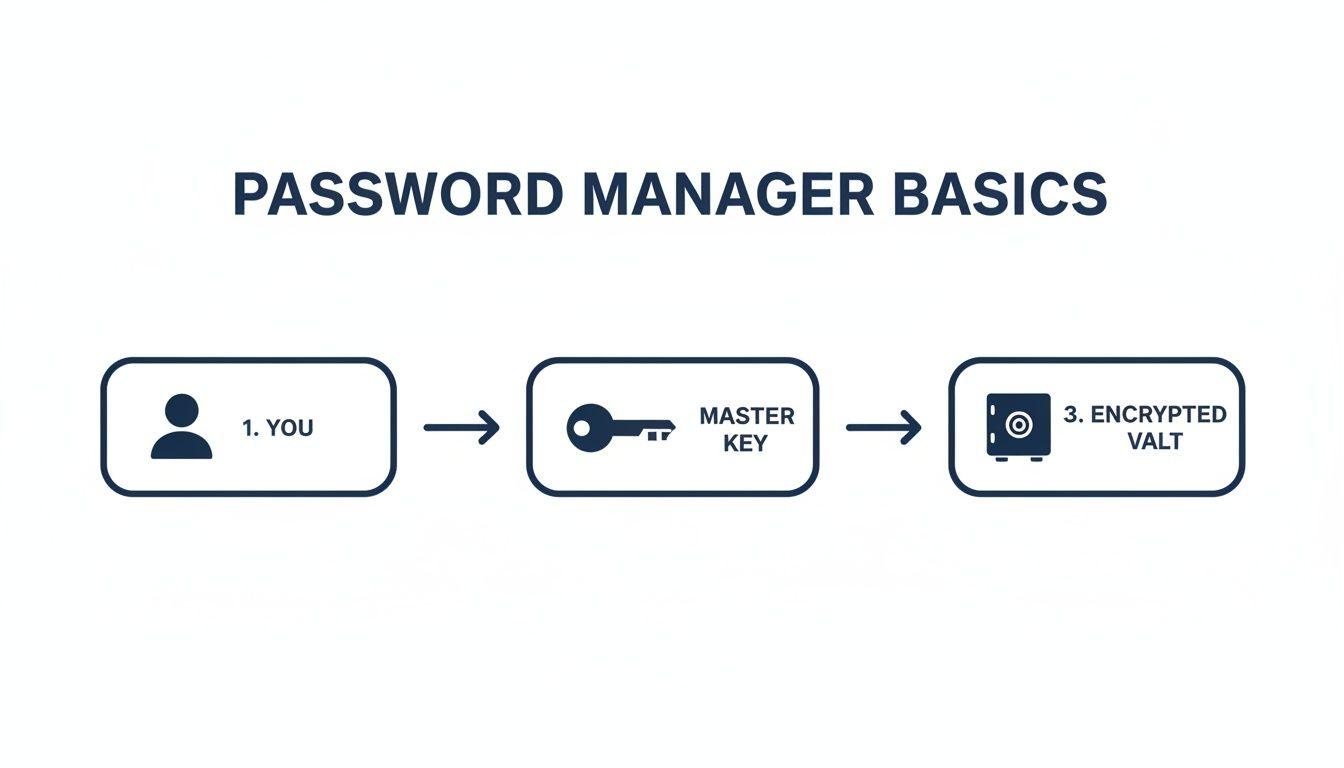
As you can see, you are the only person who holds the key. No one else—not even the password manager company—can unlock your data.
Your Master Password: The One Key to Rule Them All
Since the AES-256 encryption is practically unbreakable, the strength of your entire system rests on one thing: your master password. It’s the single key to your digital kingdom, so it needs to be incredibly strong. But what makes a password strong?
It’s not about cramming in a bunch of symbols like !@#$%. The most important factors are length and randomness. A long, unpredictable phrase is exponentially harder for a computer to guess than a short, complex one. For a deeper look at this, we've written a guide explaining the difference between a passphrase vs a password and why length always wins.
Just look at the difference:
- Weak:
P@ssw0rd1!(This is short and uses predictable character swaps.) - Strong:
correct horse battery staple(It’s long, random, and surprisingly easy to remember.)
That simple four-word phrase is vastly more secure. It would take a hacker trillions of years longer to crack than the "complex" but short password.
To make things even tougher for attackers, password managers add another layer of defense called key stretching. They take your master password and run it through a special algorithm, like PBKDF2, thousands upon thousands of times. This process intentionally makes the login check slower, which is a huge roadblock for brute-force attacks. Even if an attacker can try millions of passwords a second, this "stretching" ensures each attempt takes just long enough to make their efforts completely futile.
Zero Knowledge Architecture: Your Ultimate Privacy Guarantee
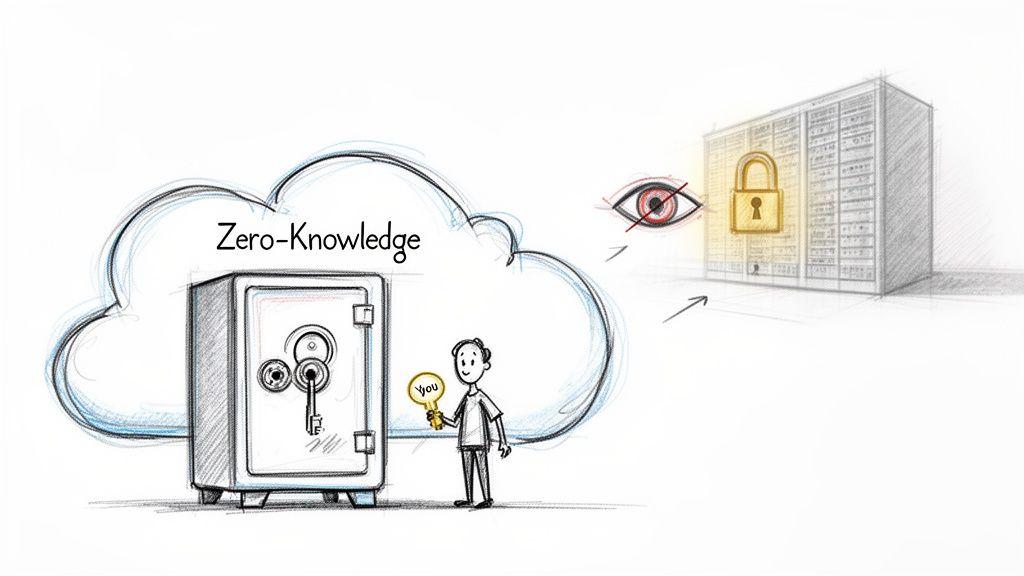
Strong encryption is a great starting point, but it begs an obvious question: what happens if the password manager company itself gets hacked? It’s a completely fair question, and this is where zero-knowledge architecture comes in as your ultimate privacy shield. It’s a security model built on one simple, powerful promise: not even the company that provides the service can see your data.
Think of it like renting a safe deposit box at a bank. But instead of using the bank's generic lock, you bring your own custom-built, unpickable lock and the only key in existence. You put your valuables inside, lock the box, and hand it back to the bank for safekeeping. They can guard the box, move it around, and protect it from theft, but they have absolutely no way to open it. Only you have the key.
That, in a nutshell, is how a zero-knowledge password manager operates.
Encryption Happens on Your Device First
The magic behind this architecture is that all the heavy lifting—the encryption and decryption—happens locally on your device. When you type in your master password, it’s your phone or computer that unlocks your vault, not some server in a data center. When you save a new login, your device encrypts that information before it ever gets sent to the cloud for syncing.
The password manager company only ever handles the scrambled, encrypted version of your vault. To them, it's just a meaningless jumble of digital gibberish. Since they never see, know, or store your master password, they can't do a thing with it.
This model tackles one of the biggest anxieties people have about cloud services. The provider simply becomes a storage locker, not a gatekeeper with the keys to your kingdom. It's a fundamental shift in how we approach security online.
Key Takeaway: With zero-knowledge, you don't have to trust the provider not to look at your data, because they physically can't. Your privacy is protected by math, not just a company's promises in a privacy policy.
This principle is a huge reason for the industry's success. The widespread adoption of zero-knowledge has built immense trust, with the North American market alone expected to command a 33.17% share by 2025, valued at $1.07 billion. That trust is well-earned; security audits have shown that even sophisticated attacks fail to crack vaults protected by this design. You can dig into the full password management market analysis to see more of these trends.
The Practical Benefits of Zero Knowledge
This security-first model isn’t just theoretical; it gives you real-world advantages and genuine peace of mind. Your privacy is protected by design.
- Immunity to Server-Side Breaches: If the password manager’s servers are ever compromised, the attackers only get their hands on encrypted files. Without your master password, that data is completely worthless to them.
- Protection from Insider Threats: A curious or malicious employee at the company can't access or leak your personal information. They simply don't have the key.
- Resistance to Government Subpoenas: If a government agency legally compels the company to hand over user data, the most they can provide is the encrypted vault—which the agency can’t open either.
This commitment to privacy is one of the most important things to look for when choosing a password manager. For more strategies on keeping your information safe, check out our guide on how to protect your privacy online. By prioritizing a zero-knowledge provider, you're making sure your digital fortress has no backdoors.
Seamless Logins With Autofill and Browser Integration
While the heavy-lifting of encryption and vault security happens under the hood, the feature you'll see and love every day is the autofill. This is where security meets sheer convenience, turning the headache of logging in into a simple, secure click. The magic behind this is the browser extension.
Think of the extension as a smart assistant that sits right inside your web browser. It's a small piece of software you install in Chrome, Firefox, or Safari, and it acts as the secure middleman between your encrypted vault and the websites you visit. In practice, this is what makes password managers feel so intuitive.
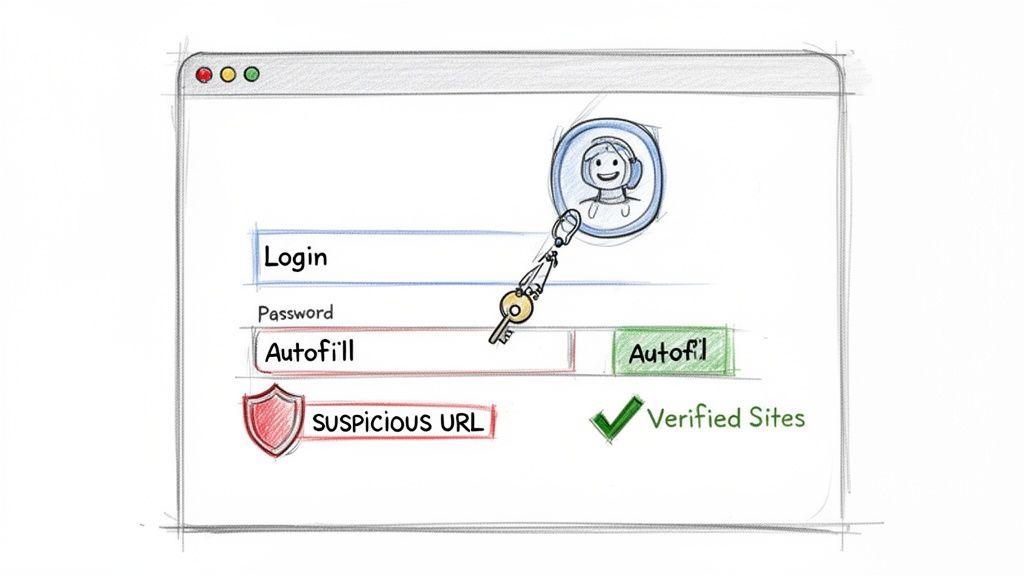
When you land on a login page, the extension wakes up. It scans the page’s code and URL, finds the username and password fields, and then checks your unlocked vault for a matching entry.
How Autofill Works Securely
This isn't a careless copy-and-paste job. The whole process is built around keeping your credentials safe from prying eyes.
First, the extension confirms the website's address (its domain) matches the URL saved in your vault for a specific login. If it finds a match, you'll see a little icon from your password manager appear in the login fields. Click it, and your username and password fill in automatically. That's it. You're in.
This completely bypasses the need to copy and paste passwords, which can briefly leave them exposed in your device's clipboard. By managing the whole login for you, the extension keeps your credentials locked down from start to finish. It turns a clunky, insecure chore into a single, safe click.
One of the biggest security wins here is protection against phishing attacks. A fake site might look exactly like your bank's login page, but its web address will be different. The browser extension will notice the mismatch and refuse to autofill your password—a huge red flag that you're on a malicious site.
Capturing and Updating Credentials
The browser extension does more than just log you in; it's also your partner in maintaining good password habits. It works to keep your vault up-to-date with almost zero effort from you.
Here’s how it keeps things in sync:
- Saving New Logins: When you sign up for a new service, the extension sees the registration form. As soon as you create the account, it pops up and asks if you want to save the new login to your vault. This is also the perfect time to use the built-in password generator to create a strong, unique password right then and there.
- Updating Existing Passwords: Let's say you change your password for an existing account. The extension detects this and will ask if you want to update the entry in your vault with the new one. This simple prompt ensures your vault never falls out of sync with your actual accounts.
This constant, quiet assistance makes password management an effortless background task instead of something you have to actively worry about. The result is better security, less frustration, and a surprising amount of time saved.
Of course. Here is the rewritten section, crafted to sound like it was written by an experienced human expert.
More Than Just Passwords: Your Digital Command Center
A modern password manager has grown far beyond a simple list of logins. Think of it less as a digital keychain and more as a central command center for your entire online life. While creating and storing strong passwords is its core function, the real power comes from the advanced features that help you manage security for your family or your team. These tools are what elevate a personal utility into a powerful, collaborative security asset.
One of the most useful features is secure sharing. We all share accounts—the family Netflix subscription, the home Wi-Fi password, or a team’s software license. For years, this meant texting or emailing the password, a method that’s not just clumsy but also dangerously insecure.
Password managers completely change the game. They let you grant someone access to a login without ever revealing the actual password. The other person can use the account, but the credentials stay safely hidden inside their own password manager. This is a massive improvement for both families and businesses.
What Happens If I Forget My Master Password?
This is the number one question people ask, and it’s a good one. Since providers with zero-knowledge architecture can't just reset your master password for you, what happens if you forget it? Fortunately, the best password managers have built-in safety nets to make sure you're never permanently locked out.
These recovery options are your ultimate backup plan:
- Emergency Access: This feature lets you designate a trusted person—a spouse, a business partner, a close friend—who can request access to your vault. You set a waiting period, say, 24 hours. If you don't reject their request within that time, they are granted access. It's a lifesaver if you ever find yourself locked out.
- Recovery Key: When you first create your account, many services give you a unique, one-time recovery code. Your job is to print this out or write it down and store it somewhere incredibly safe, like a physical safe or a bank's safety deposit box. Think of it as the master key to your digital life, to be used only in a true emergency.
These features offer tremendous peace of mind, ensuring a single forgotten password doesn't lock you out of your digital world forever.
A Hub for Your Entire Digital Identity
Your digital identity is made up of so much more than just passwords. It includes your credit cards, personal IDs, and even the answers to all those security questions. A great password manager brings all of this sensitive information together in one encrypted place, making your life simpler and more secure.
By gathering all your sensitive information in one spot, you create a single source of truth protected by powerful encryption. This is infinitely safer than leaving data scattered across insecure notes apps, spreadsheets, or browser autofill services that just don't have the same level of security.
You can store a huge range of information, all protected by the same AES-256 encryption as your passwords:
- Credit Card Details: Speed up online shopping by having your payment info stored and ready to go. The browser extension can fill in your card details securely, so you don't have to pull out your wallet every time you buy something.
- Secure Notes: This is a perfect place for anything you need to keep private. Think software license keys, Wi-Fi passwords, medical information, or even a scanned copy of your passport for travel emergencies.
- Two-Factor Authentication (2FA) Codes: Many password managers now have a built-in authenticator. This means they can generate the time-based one-time passwords (TOTP) you need for 2FA. It lets you store and autofill both your password and your 2FA code right from one trusted app, which is incredibly convenient.
By bringing all these pieces together, a password manager stops being just a simple tool and becomes an indispensable part of your security strategy. It simplifies how you manage your digital footprint while giving you powerful ways to collaborate securely with the people you trust most.
A password manager's features can be used in slightly different ways depending on whether you're securing a family or a small business. While the core technology is the same, the focus and application of these tools shift to meet different needs.
Here's a look at how some key features apply in each scenario:
Password Manager Features for Families vs Small Businesses
| Feature | Use Case for Families | Use Case for Small Businesses |
| Shared Vaults | Create a vault for household accounts like streaming services, utilities, and emergency contacts. | Create team-specific vaults (e.g., Marketing, Devs) for shared software licenses, social media accounts, and internal tools. |
| Secure Sharing | Share the Wi-Fi password with a guest or a specific streaming login with a child without revealing the password itself. | Grant a new employee access to necessary accounts without sending credentials over Slack or email. Revoke access instantly when they leave. |
| Emergency Access | Designate a spouse or trusted family member to access the vault in case of an emergency, ensuring bills can be paid and accounts managed. | Assign a business partner or senior manager as an emergency contact to ensure business continuity if a key person is unavailable. |
| Password Policies | Encourage strong password habits for kids and partners, but policies are typically informal and based on education. | Enforce strict password policies (e.g., minimum length, complexity) for all employee accounts to meet security compliance standards. |
| Activity Log/Audit | Check if a shared password was recently used or changed, helping keep track of family account usage. | Monitor who is accessing sensitive credentials, track policy compliance, and generate audit logs for security reviews. |
| 2FA/MFA | Secure the family's most important accounts (email, banking) with an extra layer of protection using the built-in authenticator. | Mandate MFA across the organization for all critical systems, significantly reducing the risk of a breach from stolen credentials. |
As you can see, the features are versatile. For families, the focus is on convenience, safety, and teaching good habits. For businesses, the same features are used to enforce security policies, ensure compliance, and manage access at scale.
A Practical Guide to Getting Started
Okay, so we've pulled back the curtain on how password managers work, from their encrypted vaults to the magic of zero-knowledge architecture. Understanding the "how" is one thing, but making it part of your daily life is where the real security gains happen. Let's walk through how to actually do it—for your family or your small business team.
This is about turning that nagging password anxiety into a quiet confidence in your digital security. We’ll cover everything from picking the right tool to building security habits that stick.
Choosing the Right Password Manager
Your first big decision is picking a provider. It feels like there are a million options out there, but they mostly break down into a few camps. You've got your dedicated, cloud-based services—these are the big players, packed with features. Then there are the managers built into your browser, which are handy but usually can't match the security and flexibility of a dedicated app.
When you're weighing your options, here's what really matters:
- Zero-Knowledge Architecture: This one's non-negotiable. It's the core principle ensuring all encryption happens on your device. If a provider doesn't shout this from the rooftops, walk away.
- Cross-Platform Sync: Life happens on more than one screen. You need your passwords to be instantly and reliably available on your laptop, phone, and tablet. No exceptions.
- Solid Recovery Options: What if you forget your master password? Look for thoughtful features like an emergency contact or a one-time recovery key. Think of it as a "break glass in case of emergency" plan.
- Third-Party Audits: Trust but verify. The best companies hire outside security experts to poke and prod their systems for weaknesses and then publish the results. This transparency is a huge green flag.
Moving Your Passwords Over
Once you’ve chosen your new digital vault, it’s time to move in. For most of us, this means gathering up all the passwords currently stashed in browser autofill, spreadsheets, or sticky notes. Don't worry, it's less painful than it sounds.
Nearly every password manager has an import tool. You can usually export your saved logins from browsers like Chrome or Firefox as a single .csv file. From there, you just upload that file into your new password manager, and it does the heavy lifting.
Crucial Next Step: Once you confirm your passwords are safely in their new home, you absolutely must go back and delete them from your browser's autofill. Keeping them there completely undermines the security you just worked to set up.
Think of this migration as a free security check-up. As you import everything, your new manager will almost certainly flag weak and reused passwords, giving you an instant, prioritized list of which accounts need attention first.
Setting Up a Plan for Your Family or Team
This is where a password manager goes from a personal tool to a collaboration powerhouse. Whether it's for your household or your business, shared, secure vaults are a game-changer.
For Families: Start simple. Create a shared vault for "Household" stuff—think Wi-Fi passwords, utility accounts, and streaming services. No more texting passwords back and forth. Another great move is to set up the Emergency Access feature right away. Designate a trusted partner or family member who can request access to your vault in a true emergency.
For Small Business Teams: A business setup needs a bit more structure. Start by organizing vaults by department or project, like "Marketing," "Dev Team," or "Finance." This lets you grant access to tools—like the company's social media accounts or software subscriptions—only to the people who actually need them.
Next, you'll want to set some ground rules. Business-grade password managers let you enforce company-wide policies, such as:
- Minimum master password strength and complexity.
- Mandatory two-factor authentication (2FA) for every team member.
- Rules that prevent sharing certain credentials outside the company.
These policies create a strong, consistent security posture for the whole team. When you do need to work together on sensitive projects, it’s important to know the right way to do it. You can learn more about the best practices for sharing encrypted files in our detailed guide.
By following these steps, you’ll trade password chaos for organized, automated security. It's a switch that brings some much-needed peace of mind to your digital life.
Frequently Asked Questions
Even after a deep dive into how password managers work, it's natural to have a few lingering questions. Let's tackle some of the most common concerns head-on.
Are Cloud-Based Password Managers Safe?
Absolutely, as long as they are built on a zero-knowledge encryption model. This is the single most important concept to understand. It means everything in your vault is encrypted on your device before a single byte of data is sent to the company's servers.
Think of it this way: the password manager provider only ever holds a locked box of your data. They don't have the key—your master password—so they can't open it. This ensures that even if their servers were breached, the attackers would only walk away with a pile of useless, scrambled data.
What Happens If I Forget My Master Password?
Forgetting your master password is a big deal. Because of the zero-knowledge model, the provider can't just reset it for you—that would defeat the entire security promise. However, any good password manager has planned for this and gives you a few lifelines.
Most top-tier services offer recovery options to help you get back in:
- Recovery Key: When you sign up, you'll be given a unique, one-time recovery key. Your job is to print this out or write it down and store it somewhere incredibly safe, like in a physical safe or a safety deposit box.
- Emergency Access: This feature lets you designate a trusted person—like a spouse or family member—who can approve an access request for you. Typically, there's a waiting period you set (e.g., 48 hours) before they can grant you access.
Is It Safe to Store My Credit Card Information?
Yes, it's just as secure as storing your passwords. Reputable password managers use the same powerful AES-256 encryption to lock down everything you put in your vault, from login credentials to credit card numbers and secure notes.
Storing your payment details in an encrypted vault is worlds safer than saving them directly in your browser, a plain text document, or an unprotected spreadsheet. None of those offer the robust, zero-knowledge protection a password manager provides.
Can a Password Manager Be Hacked?
While any service can be a target, hacking a modern, well-designed password manager is incredibly difficult. Because of how they're built, a successful attack isn't a single event. A hacker would have to pull off a nearly impossible two-part heist: first, steal your specific, individually encrypted vault from the provider, and second, guess your long, complex master password to unlock it.
Thanks to zero-knowledge architecture, the password manager company isn't the weak link. The security of your entire digital life truly comes down to how well you protect your one master password.