You’re probably here because you need to send something that feels risky over email. A contract. A tax document. Bank information. A school form with personal details. Outlook is open, the draft is ready, and the question hits right before you click Send: how do I password protect this email?
The frustrating answer is that Outlook doesn’t mean one thing by “password protect.” It can mean putting a password on a local Outlook data file. It can mean encrypting a message so only the intended person can read it. It can also mean using policy controls like “Do Not Forward,” which sounds strong but solves a different problem.
That difference matters. If you use the wrong method, you can feel protected while sending something in a way that’s still easy to mishandle, forward, or expose. For a small business owner, that usually shows up as a simple mistake: someone assumes a locked mailbox file equals a secure email, or they send a protected attachment and then text the password in an unsafe way.
Why "Password Protect Email Outlook" Is a Loaded Question
A lot of people use the phrase password protect email outlook when they mean one of three different tasks.
First, they might want to lock down emails stored on their own computer. That’s the old Outlook .pst password approach. Second, they might want to protect a message while it travels to a client, accountant, or vendor. That’s where Office 365 Message Encryption fits. Third, they might need higher assurance that the message came from them and wasn’t altered. That points to S/MIME.
The confusion gets expensive because these methods don’t protect the same thing.
A local file password protects a file sitting on your device. It doesn’t securely package your outgoing message for the recipient. By contrast, email encryption is about controlling access to the content after it leaves your screen. Those are different security jobs, and Outlook mixes them under one brand umbrella, which is why so many users pick the wrong tool.
That misunderstanding lands in a threat environment that’s already rough. In a major exposure incident, an unsecured database containing nearly 149 million login credentials in plain text was found, affecting over 1 million Outlook accounts, and the data came from infostealer malware on infected devices rather than a direct Microsoft breach, according to CertPro’s report on the Outlook credential exposure.
Practical rule: If your goal is “keep someone else from reading this email,” start by asking whether you need to protect a local file, the message itself, or both.
For most small businesses and families, the safest path is to stop thinking in terms of one magic password button. Think in terms of use case.
- Shared family or office computer: a local file password may help with casual access.
- Sensitive message to an outside recipient: use message encryption.
- Regulated or high-trust communication: look at certificate-based signing and encryption.
- One-off sharing with nontechnical recipients: sometimes a protected attachment is the cleaner choice.
Once you split those use cases apart, Outlook security starts making sense.
The Classic Method Protecting Your Outlook Data File (PST)
The most literal version of password protecting Outlook is adding a password to an Outlook Data File (.pst). This is the old-school method many people still find in tutorials, and yes, it still exists.
If you use a POP account or another setup that stores mail in a PST file locally, Outlook lets you add a password to that file. If your concern is a shared home computer or a workstation multiple people can access, this can add a basic speed bump.
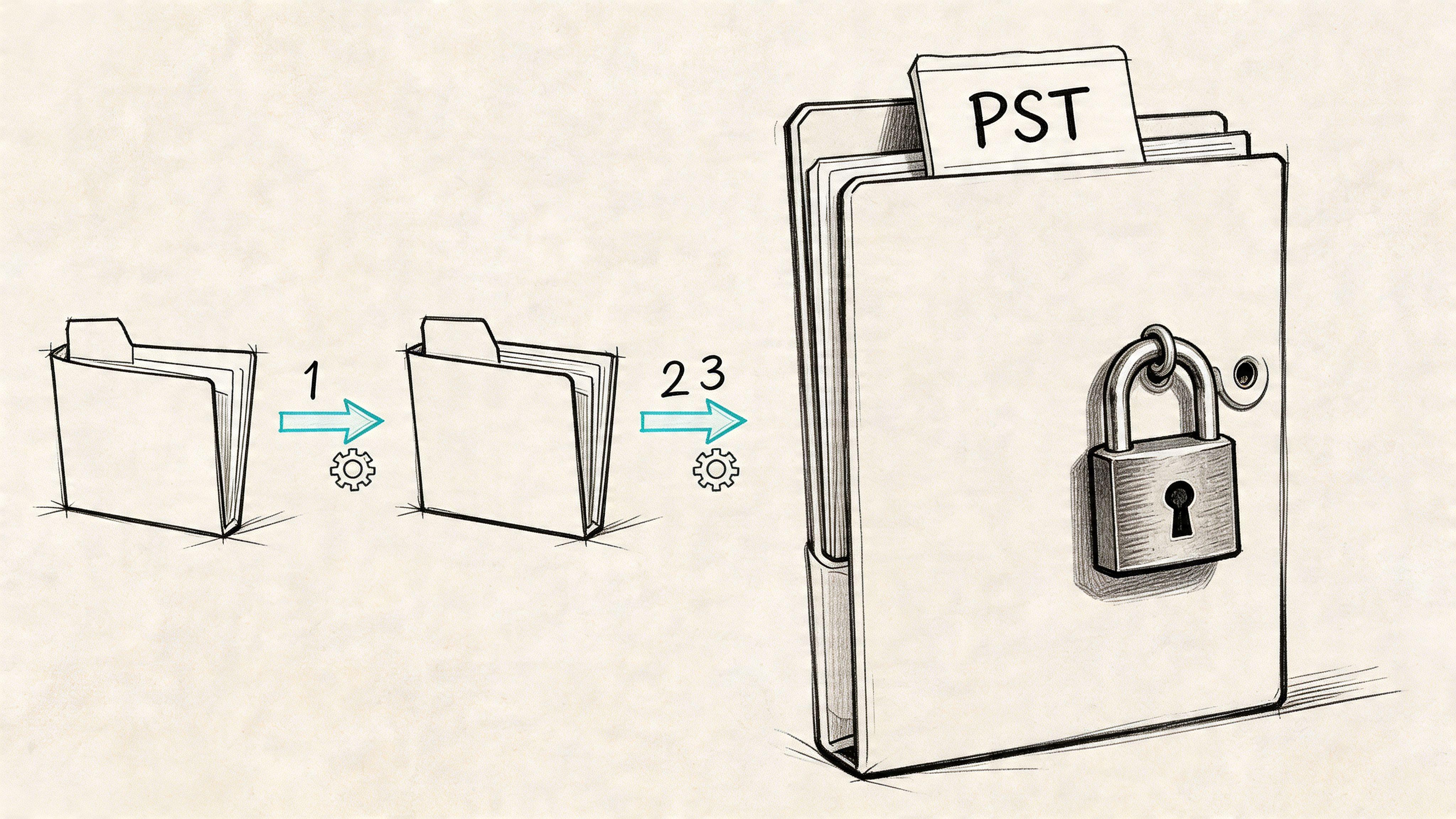
How to set a password on a PST file
In Outlook, the usual path is:
- Go to File
- Open Account Settings
- Choose Account Settings again
- Select the Data Files tab
- Click the PST file you want to protect
- Open its settings and choose Change Password
- Enter the new password and save it
If you want Outlook to prompt consistently, make sure the correct data file is the one you actively use as your local store.
Microsoft’s support guidance also notes a practical limit here: the PST password is capped at 15 characters, and Microsoft documents that feature as ineffective against intentional, malicious attacks. Its purpose is to stop accidental access on a shared computer, not provide strong encryption, according to Microsoft’s Outlook PST password documentation.
What this method actually protects
This is the part commonly missed. A PST password does not mean you’ve secured an outgoing email.
It only affects access to the local Outlook data file on that machine. If you send a message to someone, the recipient doesn’t receive a “password protected Outlook email” just because your PST file has a password. The email leaves your mailbox through your mail system as usual.
It's comparable to locking a filing cabinet in your office. That can help if someone sits at your desk. It does nothing to protect the photocopy you mail across town.
A PST password is a local access control feature, not a transport security feature.
When it’s still useful
I don’t recommend PST passwords as a primary security control for sensitive business communication, but I also wouldn’t call them useless.
They still make sense in narrow cases:
- Shared PC environments: If a family computer or front-desk machine has multiple users, a PST password can reduce casual snooping.
- Legacy Outlook setups: Some older workflows still rely heavily on local PST archives.
- Archived mail separation: It can help keep one archive from being opened accidentally by another user on the same machine.
Where it falls apart
For modern threats, this method is weak because the threat isn’t usually “my coworker clicked around in Outlook.” It’s credential theft, malware, account compromise, or unsafe forwarding.
A few trade-offs matter:
| Issue | What it means in practice |
| Local only | It protects the file on your device, not the email you send |
| Weak threat model | It’s meant for accidental access, not serious attack resistance |
| No recipient protection | The person receiving your message gets no added security |
| Easy misunderstanding | Users often think they’ve encrypted email when they haven’t |
Better baseline habits than relying on PST passwords
If you’re using Outlook on a business machine, stronger basics matter more than this feature:
- Use separate Windows accounts: That’s cleaner than relying on one Outlook file password for multiple people.
- Turn on MFA for the mailbox account: This addresses account takeover risk more directly.
- Scan for malware regularly: Saved credentials on infected devices create much bigger problems than an unprotected PST.
- Use actual email encryption for sensitive messages: That’s the control that matches the risk.
If your real question is how to protect the message you’re sending, stop here and skip the PST route. It’s the wrong tool for that job.
Modern Encryption with Office 365 Message Encryption
For most businesses using Microsoft 365, the practical answer to password protect email outlook is Office 365 Message Encryption, often surfaced in Outlook as the Encrypt option.
This is the method I usually point people to first because it fits the practical problem. You want to send a message or attachment to someone else and make them authenticate before reading it. That’s different from locking a file on your own machine.
What OME does well
OME protects the email content and attachments in transit and at access time. In practice, recipients using Microsoft accounts may have a smoother experience, while recipients on Gmail or other providers usually get directed to a Microsoft-hosted portal to verify identity and read the message.
That’s why it works far better across different mail systems than old certificate-heavy approaches for routine business use. According to Valimail’s Outlook encryption guide, Office 365 Message Encryption achieves a 95-98% success rate for cross-provider delivery because it uses a portal-based system rather than requiring pre-exchanged certificates. The same guide notes that a 22% failure rate can occur from unverified recipient domains, which is why setup and recipient checking matter.
How to send an encrypted email in Outlook on the web
If you use Outlook on the web, the flow is usually straightforward:
- Sign in to your Microsoft 365 Outlook account.
- Start a new email.
- Open the additional apps or add-ins area if your organization uses an encryption add-in.
- In the compose window, choose Options.
- Select Encrypt.
- Pick the policy that fits your need, usually Encrypt-Only or Do Not Forward.
- Send a test message to yourself or a colleague before using it for critical communication.
Some Microsoft 365 environments expose the encryption button directly in the compose ribbon. Others depend on admin configuration, add-ins, or policy labels. If you don’t see the option, that’s often a licensing or admin setup issue, not user error.
How to send an encrypted email in Outlook desktop
On the desktop app, the workflow is similar:
- Open a new message.
- Go to the Options tab.
- Click Encrypt.
- Choose the policy your organization allows.
- Attach files if needed, then send.
The two most common choices are:
| Option | Best use |
| Encrypt-Only | When you want message confidentiality but still need normal collaboration |
| Do Not Forward | When you want to restrict forwarding and certain sharing actions |
What the recipient sees
At this stage, individuals should pause and consider practical implications.
A Microsoft recipient may open the message inside their normal mailbox experience with minimal friction. A Gmail, Yahoo, or other non-Microsoft recipient will often receive a notification with a button or link that opens the message in a secure Microsoft portal. They then verify identity, usually through their email account or a one-time code, and read the message there.
That means OME is not really a classic “I made a password and emailed it to you” system. It’s an identity-verification system wrapped around encrypted access.
What works best: Before sending something urgent, tell the recipient they’ll receive a protected message and may need to open it through a Microsoft page.
That one sentence prevents a lot of confusion.
The trade-offs people discover too late
OME is the best default for many organizations, but it isn’t magic.
First, the user experience depends heavily on the recipient’s device and email app. If someone is opening mail on a phone, switching between mail apps, browser windows, and passcodes can create friction. Second, “Do Not Forward” sounds stronger than it is. It can block certain actions inside supported environments, but it doesn’t stop someone from taking a photo or screenshot.
Third, Microsoft manages the underlying service and access flow. For many businesses, that’s acceptable and practical. For some privacy-sensitive teams, it won’t meet their preferred trust model.
Simple ways to reduce OME failures
OME works best when the sender treats it like a process, not a button.
- Verify the address first: A typo is harder to recover from when the message is protected.
- Test with new recipients: Send a harmless pilot message before sending the sensitive one.
- Keep the subject line generic: Don’t put the sensitive details in the one part that may remain broadly visible.
- Choose the lightest restriction that fits: If “Encrypt-Only” is enough, don’t force “Do Not Forward” just because it sounds stronger.
- Warn mobile users: Tell them opening the message may be easier from a browser than from some mobile mail apps.
When OME is the right answer
Use OME if you’re sending:
- client financial documents
- contracts
- employee paperwork
- family records that shouldn’t sit in plain email
- attachments you want protected without requiring certificate management
For a small business, this is usually the sweet spot. It’s more realistic than PST passwords and far easier to operationalize than S/MIME.
Advanced Security Using S/MIME for Digital Signatures
If OME is the practical business default, S/MIME is the more formal system for environments that care about identity, integrity, and controlled encryption workflows.
The simplest way to explain it is this: S/MIME gives your email a digital passport. It can encrypt the message, and it can also digitally sign it so the recipient can verify it really came from you and wasn’t altered after sending.
That’s why S/MIME still matters in legal, government, healthcare, and heavily regulated workflows.
Why people choose S/MIME
S/MIME is attractive when the relationship is stable and the communication standard is strict. If the same firms, departments, or professionals exchange sensitive messages regularly, the certificate setup pays off.
You obtain a certificate, configure it in Outlook’s Trust Center, and exchange public keys with the people you communicate with. After that, Outlook can encrypt messages and add digital signatures in a way many compliance-focused environments prefer.
The upside is strong assurance. The downside is operational overhead.
The first-contact problem
S/MIME works best inside ecosystems where certificates are already exchanged and maintained. That’s where it’s strong. According to IDManagement.gov guidance on Outlook and S/MIME, S/MIME has a 92% interoperability rate within certified ecosystems, but it drops to 65% when certificates haven’t been pre-exchanged. The same source says this first-contact issue accounts for 35% of S/MIME decryption failures in enterprise environments.
For a small business, that one detail changes the decision.
If you need to send one secure message to a new client tomorrow, S/MIME can become a support ticket generator. If you exchange protected mail every week with the same law firm or agency, it starts to make more sense.
Use S/MIME when both sides can commit to the setup. Don’t use it just because it sounds more advanced.
Outlook setup in practical terms
The rough process usually looks like this:
- Get an S/MIME certificate from your organization or a certificate authority.
- Install it on the device you use for Outlook.
- Open File, then Options, then Trust Center.
- Go into Email Security and select the certificate for signing and encryption.
- Exchange signed emails with the recipient so public keys are available.
- Encrypt future messages once that trust path exists.
That’s manageable for an IT-supported office. It’s often too much for a family, solo consultant, or small team without admin support.
When it’s worth the hassle
Choose S/MIME if these points describe your situation:
- You need digital signatures as well as confidentiality
- You exchange mail regularly with the same trusted contacts
- Your industry expects certificate-based controls
- You can manage certificate renewal and user setup
If those don’t apply, OME is usually the better fit.
Practical Alternatives When Outlook Encryption Is Overkill
Not every message needs Microsoft portal access or certificate management.
Sometimes the easiest secure workflow is to keep the email itself plain and protect the attachment instead. That works especially well when you’re sending a tax form, a school record, a scanned ID, or a simple document to someone who isn’t comfortable with encrypted email portals.
The attachment-first approach
Two common options work well:
- Password-protected PDF
- Encrypted ZIP file
This approach is platform-agnostic. The recipient doesn’t need Outlook, Microsoft 365, or special trust-center settings. They just need the file and the password.
That simplicity is the whole advantage.
When this is the better choice
Protected attachments are often the right call when:
- the recipient is nontechnical
- the recipient uses a mix of phone, tablet, and webmail
- you need a one-time transfer, not an ongoing secure messaging workflow
- the content is sensitive, but the process must stay simple
In these cases, I’d rather see a business send an encrypted ZIP and share the password properly than fumble a more advanced Outlook option the recipient can’t open.
If you want a practical walkthrough, 1chat has a useful guide on sharing encrypted files securely.
The part most people handle badly
The weak point isn’t usually the protected file. It’s the password-sharing step.
If you email the attachment and then reply to the same thread with “Password is 1234,” you’ve defeated the whole idea. If you send the password over a channel the recipient doesn’t control well, you may only be moving the problem.
A safer habit is to use a separate channel. Call them. Use a secure messaging app you already trust. Tell them the password in person if that’s realistic.
Don’t send the protected file and its password through the same pathway.
What this method doesn’t solve
Be honest about the limits.
A password-protected PDF or ZIP doesn’t give you mailbox-level controls like revocation, portal auditing, or policy enforcement. Once the recipient opens the file, they can still store it, re-share it, or capture it unless other controls exist around the workflow.
That’s why I treat this as good operational security for everyday sharing, not a replacement for enterprise email protection in high-risk environments.
A practical rule of thumb
Use protected attachments when ease of access matters more than centralized mail controls. Use Outlook encryption when the message itself needs protection and the recipient can handle the workflow.
That keeps the security proportional to the task instead of turning every message into an IT project.
Choosing Your Security Method and Avoiding Common Pitfalls
The best method depends on what you’re protecting, who you’re sending to, and how much friction the recipient can tolerate.
A family sending a school form has different needs than a business sending employee records. A finance team working with the same outside counsel every week has different needs than a sales rep sending one protected proposal to a new prospect.
This comparison makes the trade-offs easier to see.
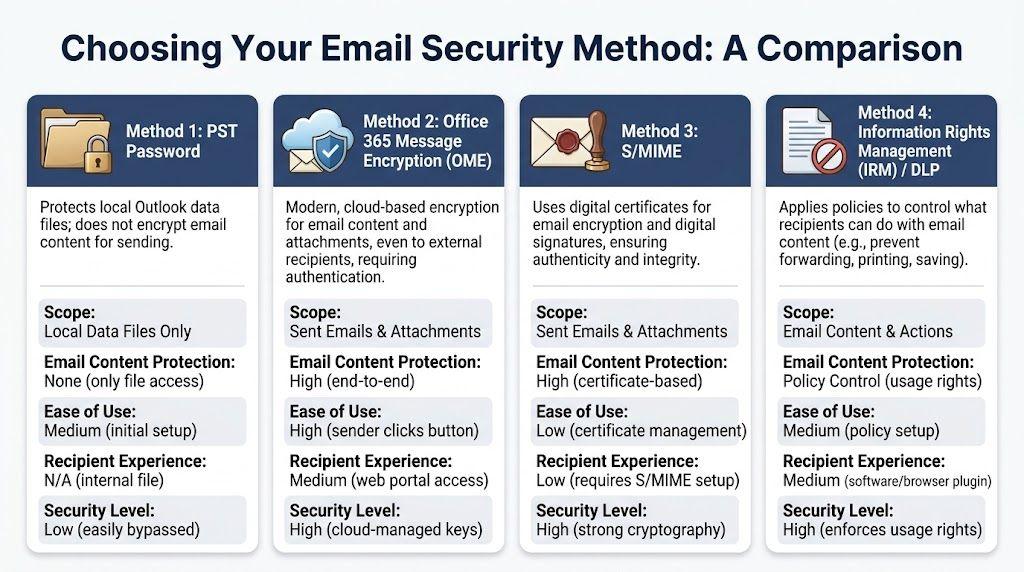
Quick decision guide
| Method | Best for | Main strength | Main weakness |
| PST password | Shared local computer | Basic local file access control | Doesn’t secure sent email |
| OME | Most Microsoft 365 business use | Practical encrypted delivery to outside recipients | Recipient experience can vary |
| S/MIME | High-assurance recurring workflows | Strong signing and certificate-based encryption | Setup is heavier |
| Protected attachment | One-off file sharing | Simple and cross-platform | Password-sharing can be mishandled |
Pitfall one assuming policy equals privacy
A lot of users see Do Not Forward and assume the message is now impossible to copy or leak. That isn’t how it works in real life.
A major limitation with encrypted Outlook mail for non-M365 users is cross-client compatibility. For those recipients, the success rate of opening the message can drop by 45% on mobile apps, and one widely discussed weakness is that “Do Not Forward” can still be bypassed with a simple screenshot, according to Proton Mail’s analysis of password-protecting email in Outlook.
That doesn’t make the feature useless. It just means you should treat it as a behavior control inside supported software, not a guarantee that humans can’t capture what they see.
Pitfall two using the strongest tool for every email
Over-securing routine communication causes users to work around security. They forward mail to personal accounts, switch to consumer apps, or start asking for screenshots of protected messages.
Small businesses should avoid creating that pattern. Use the lightest method that still fits the risk.
Here’s a simple model:
- Low sensitivity: ordinary email
- Moderate sensitivity: protected attachment or OME
- Higher sensitivity with routine outside recipients: OME with a test message first
- High-assurance recurring professional exchange: S/MIME
Pitfall three ignoring password hygiene
No Outlook protection method makes weak credentials safe. If the mailbox password is reused, stored carelessly, or captured by malware, everything else gets shakier.
That’s why I always pair email protection advice with better credential habits. If your team needs a plain-English explanation of the basics, this 1chat article on how password managers work is a good resource to share internally.
Pitfall four forgetting the recipient experience
The sender often thinks about security. The recipient thinks about inconvenience.
If the recipient is a client, vendor, grandparent, or school administrator, ask one practical question before choosing the method: Can this person open what I’m about to send without calling me?
That question prevents more failure than most technical tweaks.
The most secure workflow is the one both sides can use correctly on the first try.
My default recommendations
For most readers, I’d choose like this:
- Use PST passwords only for local archive access on shared machines.
- Use OME for routine protected business email in Microsoft 365.
- Use S/MIME when your sector or partner expects certificate-based trust.
- Use protected attachments when the human side matters more than mail-system elegance.
That’s the practical path. Security that matches the task usually beats security that looks impressive on paper.
Frequently Asked Questions About Outlook Email Security
Why can’t my recipient open my encrypted Outlook email
Start with the basics. Confirm you sent it to the correct address, and ask what device and app they’re using.
With non-Microsoft recipients, protected Outlook mail often works best when they open the message through the browser flow Microsoft provides instead of trying to force it through a mobile mail app. If this is a first-time recipient, send a harmless test message first. For urgent documents, a protected PDF or ZIP may be the faster fallback.
Can I password protect a single Outlook folder
Not in the way it is commonly understood.
Outlook’s built-in password feature applies to a PST data file, not to an individual mailbox folder like “Finance” or “HR.” If you need folder-level access control, the better answer is account separation, mailbox permissions, or document-level protection outside Outlook.
Is Outlook encryption fully private
It depends on your standard for “private.”
OME is practical and useful, but it isn’t the same thing as a system where only sender and recipient control all decryption keys independently of the provider. For many businesses, Microsoft-managed encryption is a reasonable trade-off because it’s easy to deploy and recipients can usually access it without certificate setup. For others, especially privacy-focused teams, that trust model may not be enough.
What’s the safest way to share a password for a protected attachment
Use a different channel from the one carrying the file.
A phone call is simple and effective. A secure messaging app can also work if both people already use it. Avoid sending the attachment and password in the same email thread, and avoid predictable passwords.
If you need help with the file side of that process, 1chat’s guide to creating an encrypted ZIP file is a good companion.
Should I use OME or S/MIME
Use OME if you need the most practical option for everyday protected email, especially with outside recipients.
Use S/MIME if both sides can manage certificates and you need stronger identity assurance through digital signatures. In other words, choose OME for usability and S/MIME for formal trust relationships.
Does a PST password protect the emails I send
No.
It protects the Outlook data file stored on your device. It does not encrypt outgoing email for the recipient. This is one of the biggest points of confusion around password protect email outlook, and it’s why so many people think they’ve secured email when they’ve only secured a local archive.
Need help writing security policies, comparing privacy tools, or explaining technical choices to your team in plain English? 1chat gives families, students, and small businesses one place to work with top AI models, analyze documents, and get practical answers without the clutter of juggling multiple tools.