You’re usually not checking word count out of curiosity. You’re checking because a limit matters.
Maybe you’re trying to get an essay over the minimum without padding it. Maybe a client gave you a hard cap for a proposal. Maybe your team is editing the same Google Doc and two people swear the count is different. In all of those cases, you don’t need a vague estimate. You need the fastest accurate answer Google Docs can give you, and you need to know when that answer can be misleading.
Google Docs makes this easy on the surface. The useful part is knowing which method to use on desktop, what changes on mobile, and how to handle counts in shared documents where live edits and suggestions can throw people off.
Why Accurate Word Counts Matter
Word count sounds simple until a deadline turns it into a requirement.
A student aiming for a minimum length needs to know whether the body of the essay meets the target. A small business owner drafting a pitch needs to stay inside a limit without cutting the strongest points. Parents helping a child polish homework need a quick way to check progress without turning the writing session into a formatting exercise. If you need a quick benchmark for assignments, this guide to how long a 500 word essay really is helps frame what the number means in practice.
Google Docs has earned its place here because the tool is built directly into the writing flow. The feature traces back to Google Docs’ evolution from Writely in 2006 and became a foundational part of the product by 2010. Google’s own help documentation says the word count view shows pages, words, and characters, while excluding headers, footers, and footnotes from the full-document count unless you select text first. Google also notes the standard access paths through the menu and keyboard shortcut in its Google Docs word count help page.
That matters because the count isn’t just administrative. It shapes decisions while you write.
Who benefits most from getting this right
- Students: They can check whether an introduction is too long before it steals space from the argument.
- Teams: Shared drafts stay tighter when editors can verify length instead of guessing.
- Families: Reviewing homework gets easier when everyone can see the same basic document metrics.
- Writers and freelancers: Submission limits stop being a last-minute problem.
Practical rule: Treat word count as a drafting constraint, not a final cleanup task. It’s much easier to steer a document as you write than to cut it brutally at the end.
Google Docs is also widely used at scale. The verified data provided for this piece states that the platform supports productivity for over 1 billion Google Workspace users and is used by 70% of Fortune 500 companies for collaborative editing, which helps explain why this seemingly small feature has become standard in school and work writing.
Finding the Word Count on Your Computer
If you write mostly on a laptop or desktop, this is the version of Google Docs worth mastering first. It’s the fastest, clearest, and least frustrating way to count words in google docs.
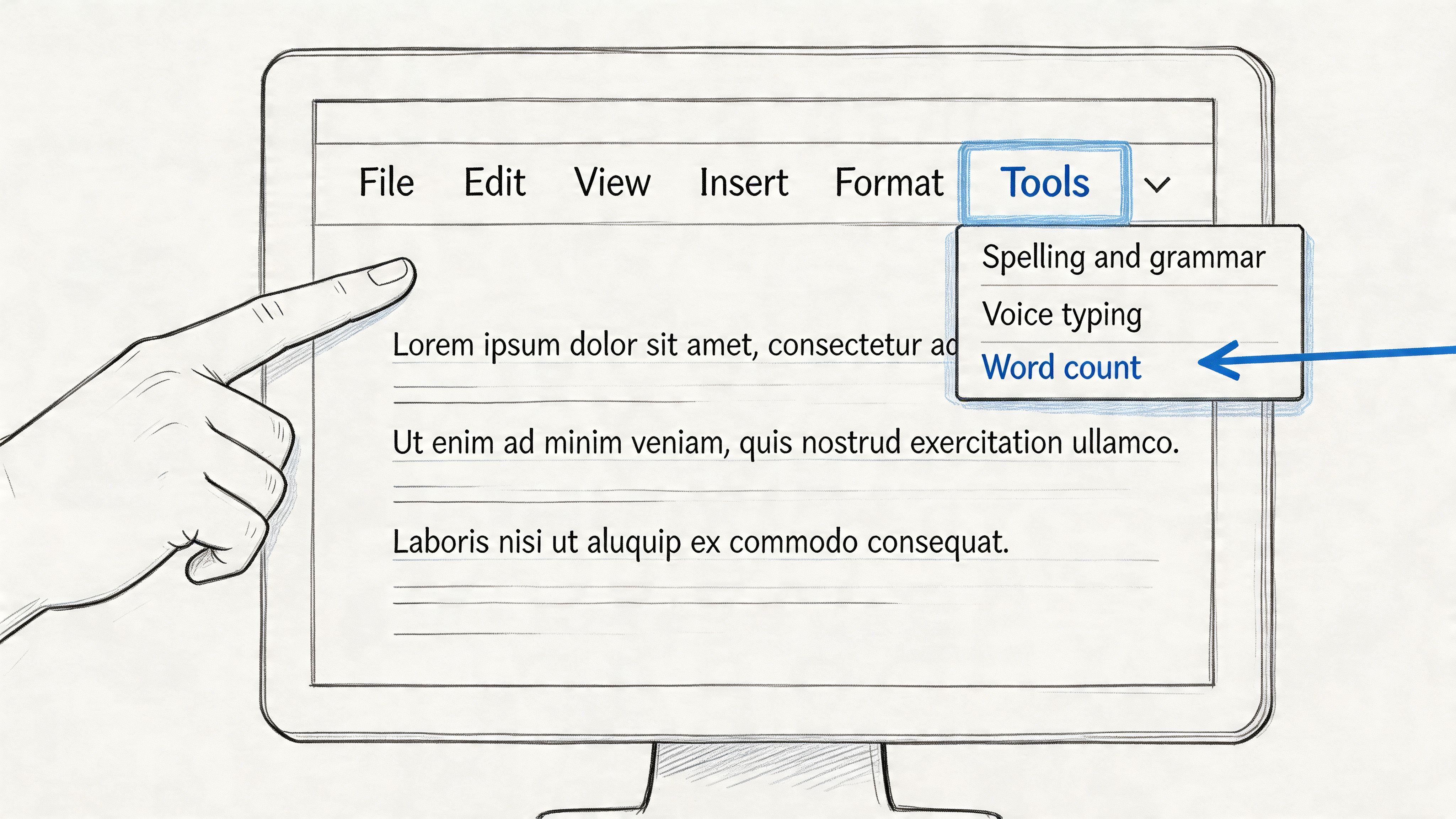
Use the menu when you want the full stats box
Open your document in Google Docs. Then go to Tools > Word count.
That opens a small dialog with the generally useful metrics:
- Words
- Pages
- Characters
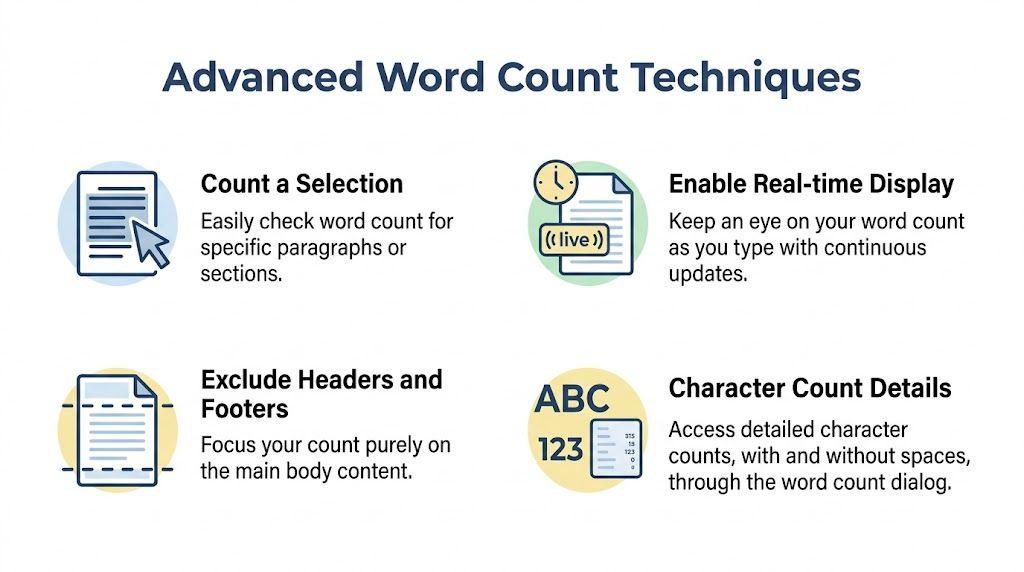
- Characters excluding spaces
This is the best option when you want a clean snapshot before submitting, sharing, or editing. It’s also the easiest way to verify that you’re looking at the document’s body text rather than manually guessing based on page length.
Use the shortcut when speed matters
If you check count often, skip the menu.
On Windows, press Ctrl+Shift+C. On Mac, press Cmd+Shift+C.
That shortcut is the habit that saves the most time over a long week of writing. Menu navigation is fine once. It gets old when you’re checking every few minutes during revision.
On desktop, the shortcut is the method I recommend people memorize first. It removes friction, and friction is what makes writers stop checking until it’s too late.
Turn on the live counter
The most overlooked feature on desktop is Display word count while typing.
When you open the word count dialog, check that box. Google Docs will then show a live count in the bottom-left corner of the document. For short-form work like essays, blog drafts, and news-style copy, this is much better than opening the dialog again and again.
Here’s when the live display helps most:
| Writing task | Best reason to use live count |
| Essay drafting | Stay above a minimum without breaking concentration |
| Proposal writing | Watch length while trimming repetition |
| Blog posts | Pace sections so one part doesn’t dominate |
| Homework review | Give kids visible progress without constant interruptions |
What works best on desktop
Three habits make desktop word counting easier:
- Use the shortcut for checks during revision.
- Keep the live display on for target-driven writing.
- Use the full dialog before final submission.
The desktop version is where Google Docs feels most complete. If you need accuracy and speed, start there.
Counting Words on the Go with the Mobile App
Mobile word count is useful, but it’s not as polished as desktop. That’s the main thing to understand before you rely on it.
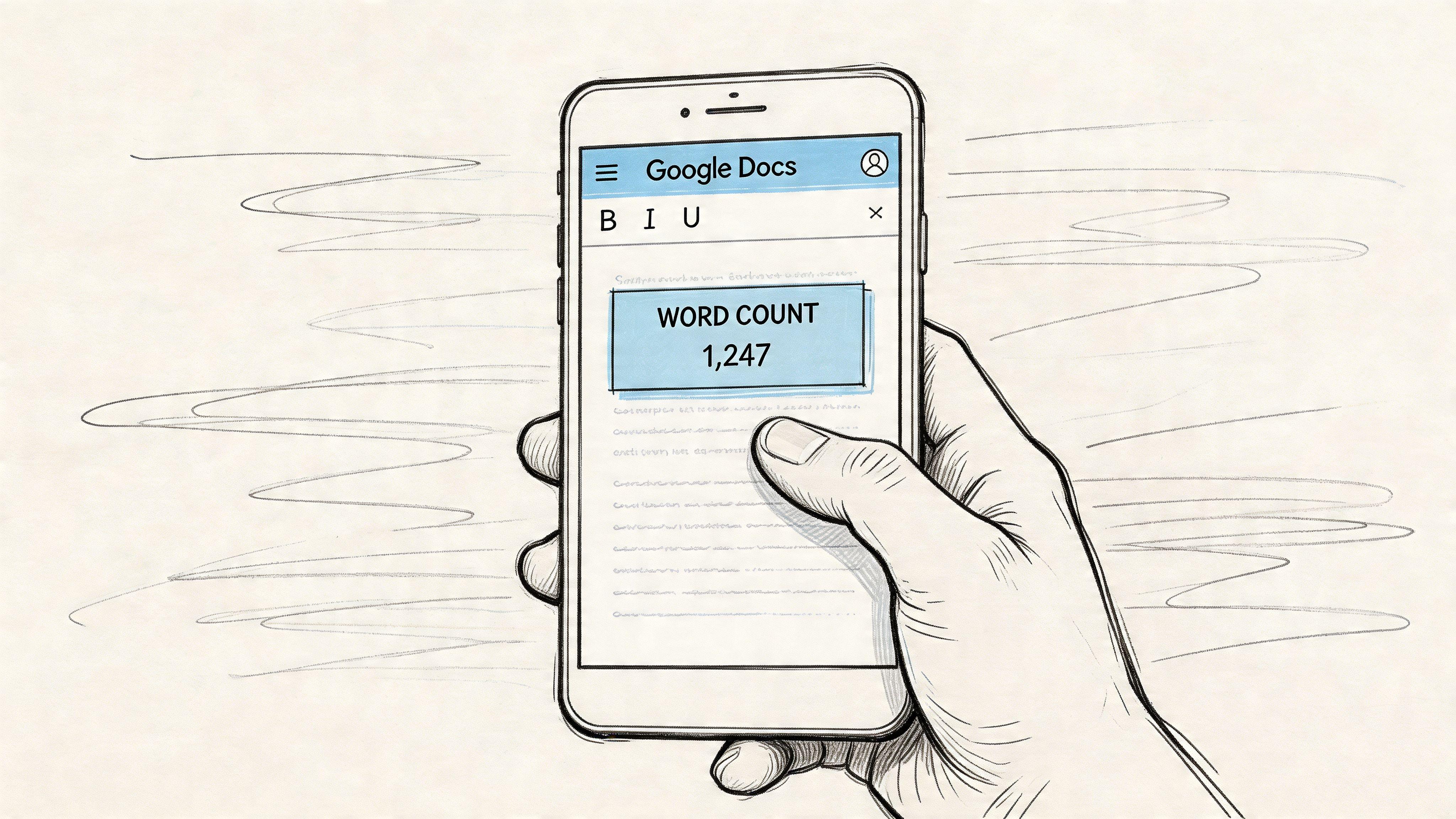
If you’re editing on a phone or tablet, open the document in the Google Docs app and look for the three-dot menu in the upper corner. From there, tap Word count. Both Android and iPhone follow that general pattern, even if the interface spacing and menu styling look a little different.
Android and iPhone steps
For Android:
- Open the doc in the Google Docs app.
- Tap the three dots.
- Choose Word count.
- Read the document stats.
For iPhone or iPad:
- Open the document.
- Tap the three-dot menu.
- Select Word count.
- Review the numbers, then return to the draft.
The trade-off on mobile
Mobile is convenient when you’re away from your computer, reviewing a class paper in the car, or making quick edits between meetings. It’s less convenient for steady monitoring.
What usually doesn’t work as well on mobile:
- No persistent live counter like desktop
- Less comfortable text selection for section-specific checks
- More room for tap errors in shared docs
- Harder troubleshooting when a count looks off
If you only need a quick answer, mobile is fine. If you need to manage a document against a strict target while actively rewriting, desktop is the better tool.
That distinction matters. Mobile is great for checking where you stand. It’s not the best environment for careful pacing, structural editing, or collaborative cleanup when several people are touching the same document.
Advanced Word Count Techniques and Tips
A total word count helps with compliance. A section count helps with editing.
Count a selection instead of the whole document
The fastest way to trim a draft is to measure the part that is causing the problem. In Google Docs, highlight a paragraph, heading section, or quoted block, then open Tools > Word count or use the shortcut. Docs shows the selection relative to the full document, which is much more useful than staring at one big total.
This is the method I use for real editing decisions:
- Students can check whether the introduction is eating too much of a 1,500 word paper.
- Managers and teams can compare an executive summary against the body of a report.
- Content teams can isolate quoted material, disclaimers, or long transitions that inflate a draft without adding much value.
- Editors can test whether a conclusion repeats points already made earlier.
Selection count is also the safer option in messy files. If a shared doc includes pasted tables, notes, or text pulled from scans, isolate the part you need to measure. If the source material came from screenshots or PDFs, converting it first with an image to text workflow makes the count easier to trust.
Use word count to diagnose structure
Word count is not only a submission metric. It is a pacing tool.
A strong draft usually has proportional sections. If the background section is longer than the analysis, the document often feels slow before the main point even arrives. If a conclusion takes 250 words to restate what the body already proved, that is usually easy word count to recover.
A simple review pass works well:
- Count the intro.
- Count the middle section that feels slow.
- Count the conclusion.
- Compare those numbers to the job each section is supposed to do.
That approach works especially well in collaborative docs, where several people may add “helpful” context that the final reader does not need. Teams often miss this because they watch the total count rise without checking which section grew.
Whole-document count answers whether you are over the limit. Section count shows where the excess lives.
Know where Google Docs counts cleanly, and where it gets messy
Google Docs handles standard prose well. Essays, reports, blog drafts, and meeting recaps usually count the way people expect.
Problems show up in less standard material:
| Document type | Practical expectation |
| Essays and reports | Usually dependable for normal paragraphs |
| Marketing copy | Helpful for tightening headlines, CTAs, and body text |
| Heavily formatted docs | Check sections separately if layout elements are involved |
| Code, symbols, or pasted source text | Verify manually because the result may not match your intended count |
The trade-off is straightforward. The more your document behaves like ordinary writing, the more useful the built-in count will be. The more it behaves like a mixed workspace with comments, symbols, pasted snippets, or imported text, the more you should verify only the relevant selection.
Automate counts only if the workflow repeats
Some teams ask whether they should script word counts. Usually, no.
Automation makes sense when the same type of document shows up every week, one person owns the process, and the team needs repeatable checks across templates or review stages. In that case, a simple Google Apps Script can provide a rough count from the document body:
doc.getBody().getText().split(/\s+/).length;
That can save time in classrooms, content operations, or proposal teams with standardized documents. It also creates maintenance work. Scripts can break, count the wrong text, or confuse colleagues who only need a quick answer inside Docs.
For one-off papers, client drafts, or shared documents that change shape constantly, the built-in tool is still the faster choice.
Troubleshooting Common Word Count Issues
A student submits a paper at 1,498 words. Their professor opens the same Google Doc and sees 1,472. In a team setting, the same thing happens with proposals, briefs, and shared meeting docs. The count is not always wrong. It is often catching the document at a different moment.
The pattern is usually easy to spot once you know where counts drift. Shared editing, suggestion mode, mobile sync, and messy pasted content are the common trouble spots. In practice, I trust the number more in a quiet single-author draft than in a live document with three people typing and one person reviewing suggestions.
Why shared docs produce confusing counts
During simultaneous editing, Google Docs does not always show every collaborator the same total at the same time, and pending suggestions can also muddy what should count as final text, as described in this video discussion of shared Google Docs count issues.
That creates a few predictable problems:
- The count updates a moment after edits stop
- Two collaborators see different totals
- Suggested edits make the visible text and counted text feel out of sync
- Mobile shows an older total during active collaboration
For students, this matters near hard assignment limits. For teams, it matters when a proposal, product brief, or legal draft has a word ceiling and several people are editing at once.
In a shared doc, treat word count as something to verify after the document settles, not something to check mid-edit and assume is final.
Quick fixes that actually help
When the number looks off, use the shortest path first.
- Pause editing for a moment
If several people are typing, stop and let Docs catch up. - Refresh your own view
A stale tab can keep showing an old total, especially after heavy edits or unstable internet. - Check selection state carefully
This trips people up more than they expect. A partial selection gives a partial count, and on touchscreens that selection can disappear without much visual warning. - Resolve or review suggestions before final counting
Teams often argue about counts when they are really arguing about version state. - Verify on desktop if the number matters
Desktop is still the cleaner environment for precise checking, especially for section-by-section review. - Use a clean copy for messy drafts
If formatting, pasted snippets, or imported content are making the document unpredictable, copy only the body text into a temporary doc and count there.
Mixed-source documents deserve extra caution. Text pulled from PDFs, screenshots, and scans often brings hidden formatting or recognition errors with it. If the draft started from an image, clean the text before you judge the count. This guide on converting an image into editable text before counting words is a practical place to start.
When to question the first number
Be skeptical of the first count if the document is actively shared, loaded with suggestions, checked on mobile, or built from several pasted sources.
In those cases, one quick glance is not enough. Recheck after edits stop, confirm you are counting the right selection, and use desktop for the final answer if the limit matters. That extra minute saves students from accidental undercounts and saves teams from passing around the wrong number in review.
Mastering Your Document Metrics
The fastest way to count words in google docs depends on what you’re doing.
Often, the desktop shortcut is the everyday answer. The live counter is the best tool for writing toward a target without breaking concentration. Selection count is what sharp editors use when a draft feels uneven. Mobile works when you need a quick check away from your desk, but it’s not the version to trust most for detailed review or collaborative cleanup.
The bigger point is that word count isn’t just a number on a dialog box. It’s a control panel for pacing, structure, and compliance. A student uses it to hit assignment length. A small business team uses it to keep proposals tight. A parent uses it to help a child finish a draft without guessing whether it’s done. If you also need a page-to-word sanity check, this reference on how many words five pages usually contains is handy.
Once your count is right, the next job is improving the writing itself.
If your draft is finished and you want help polishing it, 1chat can help you proofread, refine tone, and review clarity in a privacy-first workspace built for families, students, and small teams.