Got a picture with text you need to pull out? The quickest way to get it done is by using a tool that has this feature built right in. For instance, you can just drag a screenshot or a photo into a platform like 1chat, and its AI will instantly rip the text out for you.
This bit of magic is powered by Optical Character Recognition (OCR), a technology that’s gotten incredibly good at recognizing and digitizing letters and words straight from an image file.
Why Converting Images to Text Is a Game Changer
It might sound like a small technical trick, but being able to convert an image into text is a massive productivity booster. It solves a ton of common, everyday headaches. At its heart, this technology frees you from the mind-numbing task of manually typing out information you can see in a picture—a process that’s both slow and full of potential typos.
With a good OCR tool, that static information becomes searchable, editable, and ready to be shared in seconds.
Everyday Scenarios Where OCR Shines
Think about this: you're in a meeting and snap a quick photo of a whiteboard full of brainstorming notes. Instead of spending 20 minutes typing everything up later, you just convert the image to text. Boom. You've got a digital, editable copy of the team's ideas.
The same idea works for all sorts of things, from digitizing a pile of receipts for an expense report to grabbing a key paragraph from a physical book without having to type a single word.
This is a lifesaver for so many people:
- Students: Quickly capture text from lecture slides or textbook pages to create searchable study guides.
- Professionals: Digitize business cards on the fly or pull crucial stats from a presentation screenshot.
- Families: Finally get around to archiving those old handwritten family recipes or important paper documents.
The real power here is turning locked-in, static information into something dynamic and useful. It’s not just about saving a few minutes of typing; it's about making information truly accessible and ready for action.
Ultimately, knowing how to do this well removes a common digital roadblock. It’s a simple skill that connects our physical and digital worlds, letting you capture information wherever you find it and put it to work right away.
Let's dive into the best tools and techniques to get this done, starting with the most convenient options out there.
Picking the Right Tool for Image-to-Text Conversion
So, you need to pull text out of an image. Which tool should you grab? With a ton of options available, the best choice really comes down to what you're trying to do. The perfect app for snagging a quote from a textbook isn't the same one you’d use for digitizing a pile of business receipts.
Ultimately, you're juggling a few key things: speed, accuracy, privacy, and cost.
This simple decision tree can help you figure out if you need a quick, integrated AI tool right now or if it makes more sense to weigh your options for a specific project.
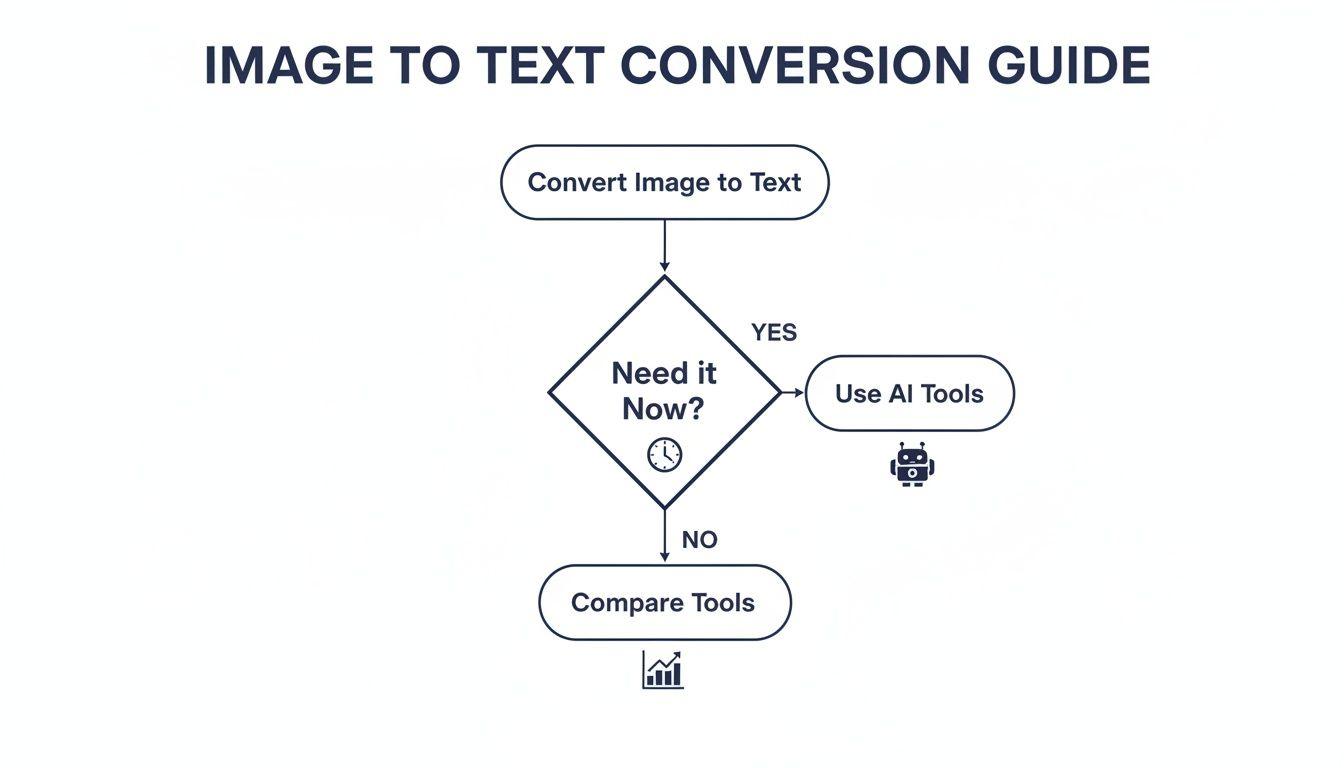
As the flowchart shows, urgency is a huge factor. When you're in a hurry, nothing beats an integrated AI that can get you from image to text in seconds.
Comparing Your Main Options
Let's walk through the most common types of tools. Each one shines in different scenarios.
- Integrated AI Platforms: Think of tools like 1chat. They're built for a smooth, all-in-one workflow. You just drag a screenshot into your chat, and the text is pulled out instantly inside a private space. This is a game-changer for teams and families who need efficiency without sacrificing security.
- Free Web-Based OCR Tools: You’ll find countless websites offering free image-to-text conversion. They're handy for quick, non-sensitive tasks—like pulling text from a photo of a public sign. Just be careful what you upload, as their privacy policies can be murky.
- Built-in Smartphone Features: Your phone is already a fantastic scanner. Apple’s Live Text and Google Lens are incredibly useful for capturing text on the fly, letting you copy text straight from your camera or photo gallery.
- Productivity Suite Features: Don’t forget about the software you probably use every day. Both Google Docs and Microsoft OneNote have solid OCR features that can extract text from images and PDFs you drop into a document.
It's not about finding the one "best" tool, but the best tool for the job you have right now. For a quick personal task, your phone is often all you need. For collaborative projects or sensitive information, a private, integrated platform is the way to go.
Why Secure OCR Is More Important Than Ever
The need to turn images into text has skyrocketed. What began as specialized hardware back in the 1920s became a standard office scanner feature by the 1990s. Today, cloud-based OCR has put this power in everyone's hands.
In fact, projections show that by 2026, roughly 80% of companies will use some form of automated document processing. This isn't just a trend; it's a massive shift away from tedious manual re-typing. AI-driven pipelines are now cutting down processing time for back-office work by 50–80%.
For privacy-first platforms like 1chat, this is huge. It means teams and families can convert screenshots, worksheets, or notes into searchable text without worrying about their data being sold or used for ads. This blend of powerful OCR and a strong privacy promise is what makes modern image-to-text tools so useful for anyone balancing productivity with security. You can dig deeper into OCR tech and its business impact at Veryfi.com.
At the end of the day, the best method is the one that slots seamlessly into your workflow. Once you understand these core options, you'll be able to pick the right tool every time.
Getting Clean and Accurate Text from Your Images
Extracting text from an image is one thing, but getting usable text is another game entirely. The initial scan is just the raw material; it’s the small, expert tweaks that make it polished and ready to go without a ton of editing.
The final quality of your text is almost entirely dictated by the quality of the image you start with. A blurry photo taken in a dark room will trip up even the smartest OCR software. Taking a moment to get the capture right will save you a world of frustration on the back end.
Before You Snap the Picture
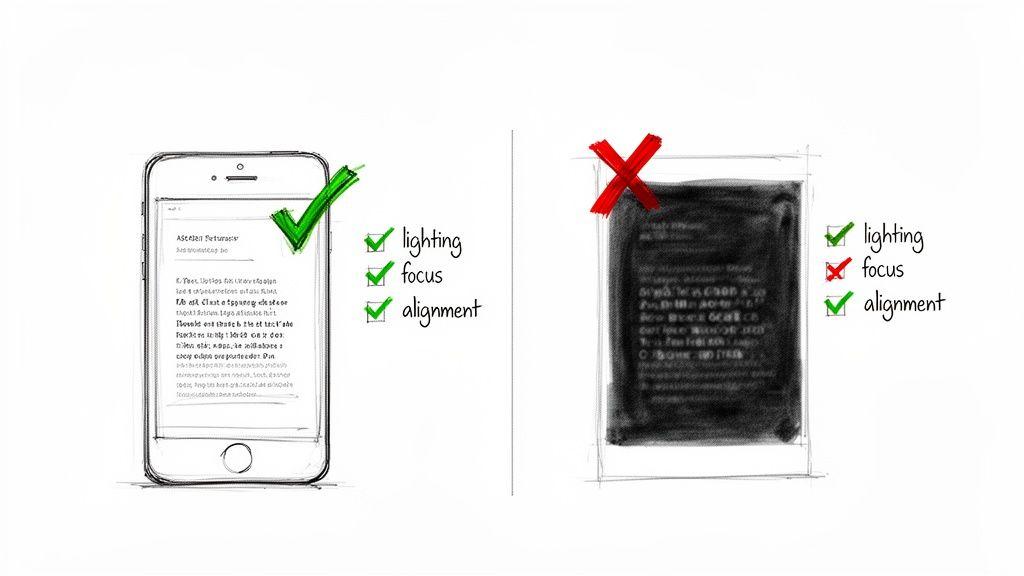
Think like a photographer for a second. A few simple adjustments before you even hit the shutter button can make a massive difference in your results.
- Good Lighting is Key: Find a spot with plenty of even, diffused light. Harsh overhead lights create glare, and dim rooms are a recipe for grainy, unreadable images. Natural light from a window is usually your best bet.
- Watch Out for Shadows: It’s easy to accidentally cast a shadow from your phone or your own body right over the text you’re trying to capture. A quick glance is all it takes to avoid this common pitfall.
- Keep it Straight: Hold your camera parallel to the page. Shooting from an angle skews the letters, making them much harder for the software to identify correctly. Think of it as taking a picture of a picture—you want it perfectly aligned.
- Tap to Focus: Don’t just point and shoot. Tap on the text on your screen to make sure your camera is focused squarely on the words. A slightly blurry image can introduce a surprising number of errors.
Your camera is the first line of defense against bad OCR. A sharp, evenly lit, and straight-on shot gives the software its best chance to deliver text that’s nearly perfect.
The Post-Extraction Proofread
No matter how pristine your image is, you should always give the extracted text a once-over. OCR tech has come a long way, but it's not foolproof. The trick is knowing what kinds of mistakes to look for.
Most OCR errors happen with characters that look alike. Keep an eye out for these classic mix-ups:
- The letter 'l' being mistaken for the number '1'.
- An uppercase 'O' getting confused with a zero '0'.
- Two **'v'**s ('vv') being misinterpreted as a 'w'.
- The letter 'S' sometimes showing up as the number '5'.
- Sloppy punctuation, like a semicolon turning into a colon.
If you’re working with a long document and spot a recurring mistake, don't waste time hunting down each one. Just use your text editor’s Find and Replace tool (Ctrl+F or Cmd+F). For example, if "innovate" keeps appearing as "inn0vate," you can fix every single instance in seconds.
Once the text is clean, you can take it a step further. You might run it through an AI paragraph writer to summarize the key points or rephrase the content for a different audience.
Finally, check the formatting. This is especially important for documents with tables, columns, or complex layouts. OCR tools can sometimes strip all that away, leaving you with a wall of jumbled text. You may need to pop in a few line breaks or tabs to restore the original structure. It only takes a minute, but it ensures your final document isn't just accurate—it's actually usable.
Why Data Privacy Matters with OCR Tools
Ever used a free online tool to convert an image to text and wondered, "Where did my file just go?" It's a valid question. The sheer convenience of these services can easily make us forget about the potential privacy risks lurking just beneath the surface. It pays to think before you upload.
Many free OCR websites have murky, hard-to-find data policies. They might hang onto your images forever or, more commonly, use your uploaded files to train their AI models. That's probably fine if you're digitizing a recipe from a magazine, but it's a huge problem if that image contains a signed contract, a client's invoice, or personal ID.
The real issue boils down to a lack of control. Once your file is on someone else's server, you have no real say over who sees it, how it's protected, or if it ever truly gets deleted. This opens the door to your private information being exposed in a data breach or used for things you never intended.
Think of it like this: an unknown online service is like a public dropbox, whereas a secure platform is a private, locked safe.
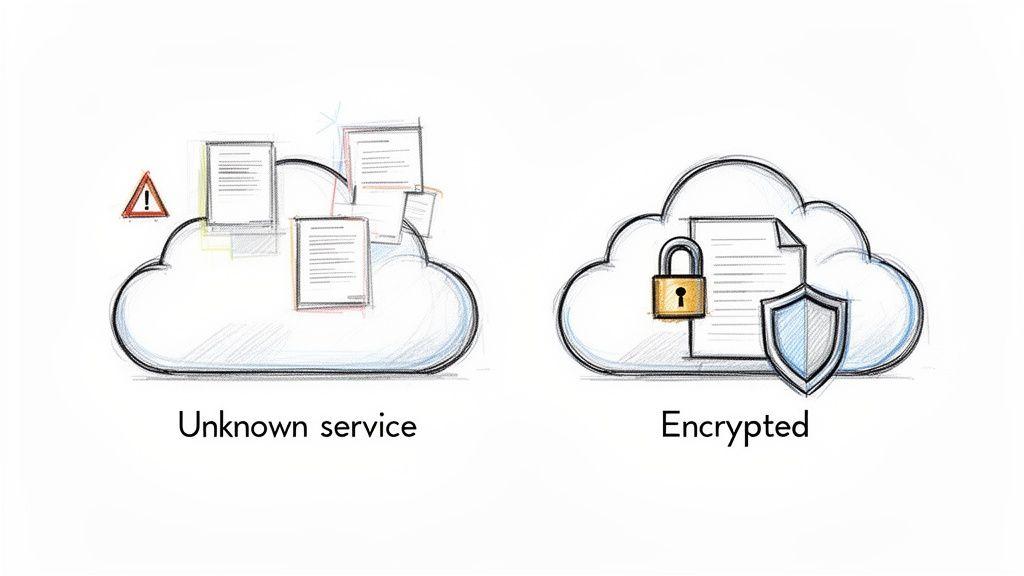
The only way to guarantee your information stays yours is by picking a service that's built with security at its core.
Choosing a Privacy-First Platform
This is where privacy-focused platforms really shine. They operate on a completely different principle: your data is your property, not a product. These services are built from the ground up on a foundation of security, making sure your information is protected at every step.
When you're evaluating a tool, here's what to look for:
- End-to-End Encryption: This is the gold standard. It means your files are scrambled from the moment they leave your device until they reach the recipient. Even the service provider can't peek inside.
- Transparent Terms of Service: A trustworthy company will be upfront about how it handles your data. Vague, jargon-filled policies are a massive red flag.
- Clear Data Deletion Policies: You should always have the power to permanently erase your data from a company's servers whenever you want.
By making a conscious choice to use services that are open about their security, you can get the convenience of OCR without gambling with your privacy. It's about taking control of your digital footprint.
Platforms like 1chat are designed with exactly this mindset. You get powerful OCR features inside a secure, private environment that’s built for teams and families who can't afford to take risks. For anyone regularly handling sensitive files, learning the basics of encrypted document sharing is essential for a secure workflow. In the end, it’s about making sure convenience never comes at the cost of your security.
A Quick Look Back: How OCR Came to Be
It’s easy to think that turning a picture into editable text is a brand-new trick, but the technology behind it—Optical Character Recognition (OCR)—has been around for a surprisingly long time. This isn't a Silicon Valley invention from the last decade. Its roots stretch back over a hundred years, showing a steady, determined journey from clunky mechanical devices to the slick AI tools we use today.
Knowing where this tech came from gives you a whole new appreciation for the magic happening when you drop a screenshot into a chat window and get back perfect, searchable text.
From Telegraphs to Typewriters
The story of OCR actually begins way before the first computer. It all started in 1914 when a physicist named Emanuel Goldberg developed a machine that could read characters and convert them into standard telegraph code. Think about that for a second—a century ago!
By the 1920s, he had even created a "Statistical Machine" that could search for documents on microfilm using a basic form of optical recognition. It was a very early version of what we now do when we search a scanned PDF.
Fast forward to the 1950s, and you'd find early OCR systems being put to work by banks and postal services. They were a game-changer for sorting mail and processing checks automatically, but these machines were incredibly specialized. They could only read one or two specific fonts and were wildly expensive. This fascinating journey is detailed more over at OneAdvanced.com.
The real challenge was teaching a machine to read the way a person does—to recognize any letter, in any font, on any page.
The breakthrough finally arrived in the 1970s with the development of omni-font OCR. For the first time, a machine could read and understand nearly any printed typeface, which kicked off the massive effort to digitize libraries and business archives.
Putting OCR in Everyone's Hands
As computers became cheaper and more powerful in the 90s and 2000s, OCR made the leap from dedicated hardware to software you could run on your own desktop. Suddenly, it wasn't just for massive corporations anymore. Students, small businesses, and researchers could scan documents and make them editable right on their personal computers.
Today's tools are the direct descendants of that evolution. They've been supercharged with AI to achieve incredible accuracy, understand complex page layouts, and even decipher messy handwriting. That’s why a platform like 1chat can build OCR directly into its private workspace as a seamless, everyday feature.
So, the next time you snap a photo of a whiteboard or a class worksheet, you’re not just using a cool tool. You’re tapping into over a century of innovation, all refined down to an instant, powerful function that delivers searchable text right where your team works.
Got Questions About Converting Images to Text?
Once you start using OCR, you'll inevitably run into a few specific situations that make you wonder. I've pulled together the most common questions I hear from people to give you straightforward answers and help you get better results.
We'll tackle everything from messy handwriting to the best file formats, so you're ready for whatever document comes your way.
Can I Convert Handwritten Notes into Text?
You absolutely can. Modern OCR tools, especially the ones with a bit of AI smarts, are getting surprisingly good at reading real handwriting. The secret to getting a good result, though, comes down to how clear the original writing is.
For the best shot at an accurate conversion, the handwriting needs to be as neat as you can get it. A clean, well-lit photo also makes a huge difference. Tools like Microsoft OneNote and Google Lens are known for being pretty strong in this area. Just be prepared to do a little proofreading afterward—it’s still way faster than typing it all out by hand.
What Is the Best Image Format for OCR?
If you're aiming for perfection, a lossless format like PNG or TIFF is technically the top choice. These formats keep every single pixel of the original image without any compression, giving the OCR software the most data to work with.
But let's be realistic—a high-quality JPEG from your smartphone will work just fine for almost everything. The real key isn't the file extension, it's the resolution. You should always aim for at least 300 DPI (dots per inch). This ensures the letters are sharp enough for the software to read them without guessing.
The takeaway here is that a crisp, high-resolution JPEG will beat a blurry, low-resolution PNG every time. Focus on the quality of the image itself, not just the file type.
How Do I Handle Images with Graphics?
Most modern OCR tools are smart enough to tell the difference between a block of text and a photo or logo next to it. They'll typically zero in on the words and ignore the other visual fluff.
But what if you have a really cluttered page and the tool is getting confused? The fix is simple. Just use any basic photo editor to crop the image before you upload it. Isolate the exact chunk of text you want to convert. This little bit of prep work can make a massive difference in the accuracy of the output.
Are Free Online Image-to-Text Converters Safe?
This is a big one, and the answer is: it depends entirely on what's in the document.
If you're converting something non-sensitive—a recipe from a magazine or a quote from a book—a free online tool is perfectly fine and convenient.
However, you have to assume that many of these free services might save your data or use it to train their models. If you're dealing with anything confidential like contracts, invoices, or personal records, you should never use them. For those situations, stick to an offline app or a secure, trusted platform that prioritizes your privacy. And for an extra layer of security on sensitive PDFs, take a look at our guide on how to make a PDF document password-protected. This keeps your information where it belongs: with you.