
You’ve got a video you need to send. Maybe it’s a client walkthrough, security footage, a school recital, or a family clip shot on a newer phone in high resolution. You try the obvious move first: attach it to an email.
It fails, or the upload hangs, or the recipient gets a blurry version after a messaging app compresses it.
That’s when people often start trying random tools. Google Drive. WeTransfer. Dropbox. Maybe a USB stick if the internet is slow. The problem isn’t that there are no options. It’s that each option makes a different trade-off between speed, privacy, convenience, storage, and cost.
For everyday users, families, and small businesses, the smartest way to handle this isn’t picking the fanciest service. It’s choosing the method that fits the file, the connection, and the sensitivity of the video.
Why Sending Large Videos Is So Hard (And How to Fix It)
The core problem is simple. Email was never built for modern video files. Most email platforms still cap attachments at roughly 20 to 25MB, while cloud services such as Dropbox and Google Drive support uploads up to 250GB, which is a 10,000-fold increase in capacity according to Sysax’s overview of large video transfer limits.
That gap explains why people feel stuck. A phone, camera, or screen recorder can produce a file that’s far too large for email in minutes. The old workflow no longer matches the files we create every day.
Why the old methods break
Email works well for documents and short clips. It breaks down fast with:
- High-resolution phone video that captures more detail and creates bigger files
- Business footage like product demos, training videos, and meeting recordings
- Security or event recordings that run longer than a few minutes
- Raw or lightly edited media that hasn’t been compressed yet
Years ago, many teams leaned on FTP servers. That still works in some technical environments, but many now use cloud storage, dedicated transfer services, or physical media because they’re easier to access and easier to share.
Practical rule: If the file is too large for email, stop trying to force email to work. Send a link, not an attachment.
What actually fixes the problem
There are only a few reliable ways to handle how to send large video files without a headache:
- Make the file smaller first if quality requirements allow it.
- Use cloud storage when people need to view, download, or collaborate.
- Use a dedicated transfer service for one-off sends.
- Use a USB drive or external SSD when the file is huge or your internet is weak.
- Check sharing permissions before sending anything sensitive.
Most failed transfers come from using the wrong tool for the situation. A family video and a legal deposition file should not be shared the same way. A casual birthday clip can tolerate convenience-first sharing. Client footage, internal training videos, and anything involving children or private spaces need tighter control.
That’s the key fix. Match the method to the stakes.
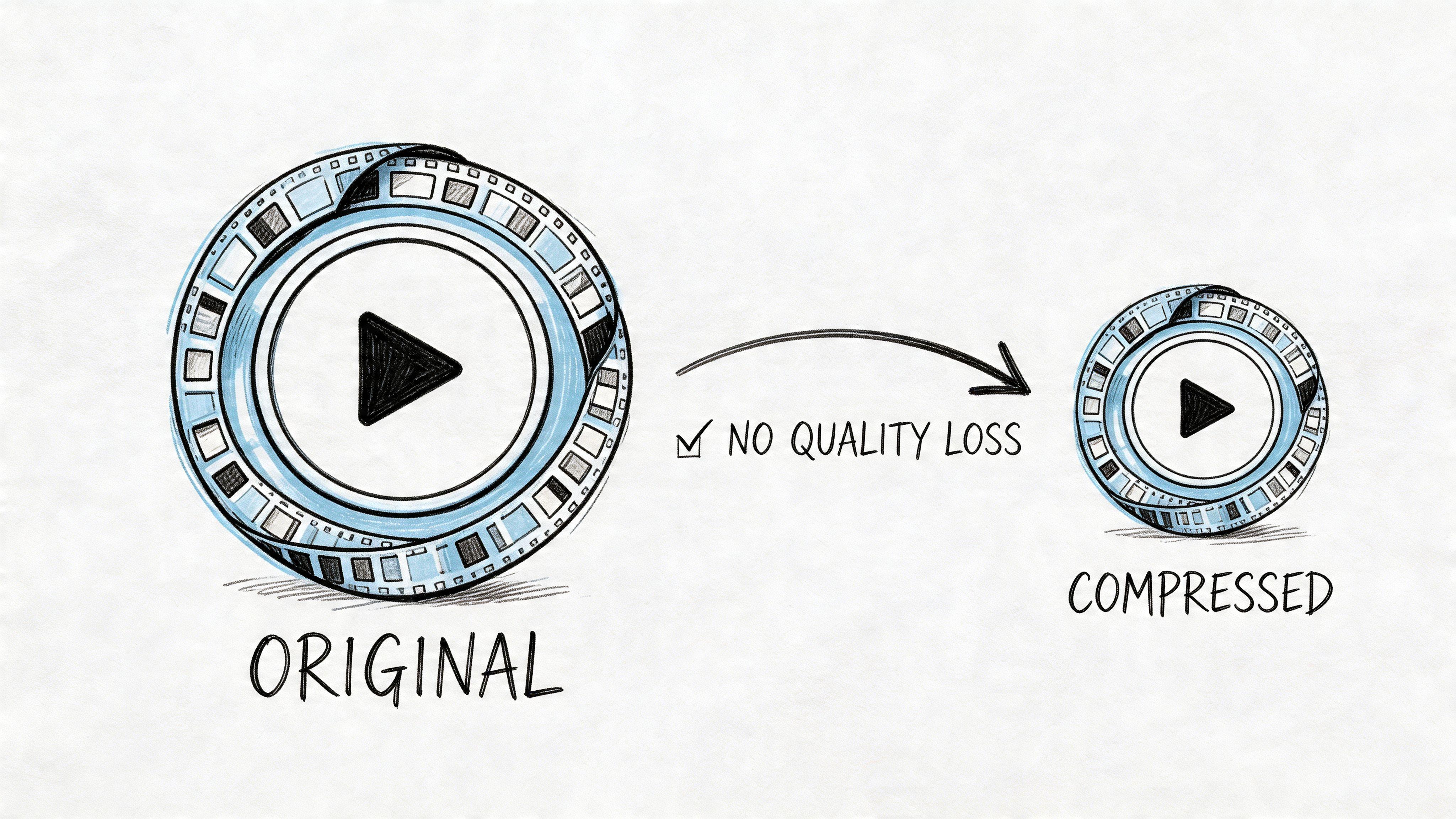
Shrink Your Video File Without Losing Quality
A five-minute phone video can be the difference between a quick send and an hour of failed uploads. The fix is often simple. Make the file smaller before you send it.
That saves time on both sides. Smaller videos upload faster, download faster, eat less cloud storage, and are less likely to choke on older phones or slow home internet. For families and small businesses, it also reduces the temptation to use whatever app is fastest, even if its sharing settings are too loose for private footage.
One of the best free tools for this job is HandBrake. I recommend it often because it gives you real control without forcing you into pro-level editing software.
Know the two terms that matter
Two settings do most of the work.
Codec is the compression method. It determines how efficiently the video is packed down. The two formats people run into most are H.264 and H.265.
Container is the file type, such as MP4 or MOV. It affects compatibility more than picture quality.
For everyday sharing, MP4 with H.264 is still the safest default. It plays on almost everything, from office laptops to older family phones. H.265 usually gives you a smaller file at similar visual quality, but some devices, apps, and browsers still handle it less reliably. That trade-off matters if the recipient is not technical.
A simple HandBrake workflow
Use this approach when the goal is easy delivery and viewing.
- Open HandBrake and load the video.
- Pick a general preset that matches your output size and device type.
- Set the format to MP4 unless you have a specific compatibility reason to keep MOV.
- Choose H.264 if you want the least trouble for recipients.
- Reduce resolution only when it serves the use case. A training clip watched on laptops rarely needs full 4K.
- Run a short test export before you compress the full file.
- Play the exported version on a second device before sending it out.
That last step catches a lot of avoidable problems.
What to keep and what to change
A few settings are usually worth preserving. Others are fair game.
- Keep the frame rate the same unless you know why you are changing it.
- Keep audio in stereo for normal sharing. Multi-channel audio adds size without helping most viewers.
- Trim dead space at the start and end before exporting.
- Switch to MP4 if the original file is MOV and the recipient only needs to watch it.
- Lower resolution before you lower everything else if the video was shot far above the viewing need.
If you are sending a private family clip or internal staff training, compression can also reduce exposure. A smaller file is easier to send through a controlled channel instead of bouncing between public links, messaging apps, and personal inboxes. If the footage is sensitive, send it with a service built for sharing encrypted files securely.
When compression is the wrong move
Compression has limits. Sometimes it creates more problems than it solves.
Avoid heavy compression when:
- A client needs a master or near-master file
- The recipient will edit the footage
- You are sending legal, insurance, medical, or evidentiary video
- Small on-screen text must stay sharp
- The file has already been compressed once and looks soft or blocky
I also avoid re-compressing originals unless I have a clean backup. Export a share copy, keep the source file untouched, and label them clearly. That protects quality and prevents a common privacy mistake, sending the wrong version later because every file is named “final.mp4.”
The best mindset
Choose the smallest file that still does the job.
If someone only needs to review the message, compress aggressively enough to make delivery easy. If they need to inspect details, edit, archive, or preserve a chain of custody, protect the original and send a higher-quality version through a more controlled method.
Comparing Your Best Options for Sending Videos
A parent trying to send a recital video and a small business owner delivering a client cut often face the same problem. The file is too large for email, the internet connection is uneven, and the easy option is not always the private one. The right method depends less on the file itself and more on who needs access, how long the file should stay available, and how much risk you are willing to accept.
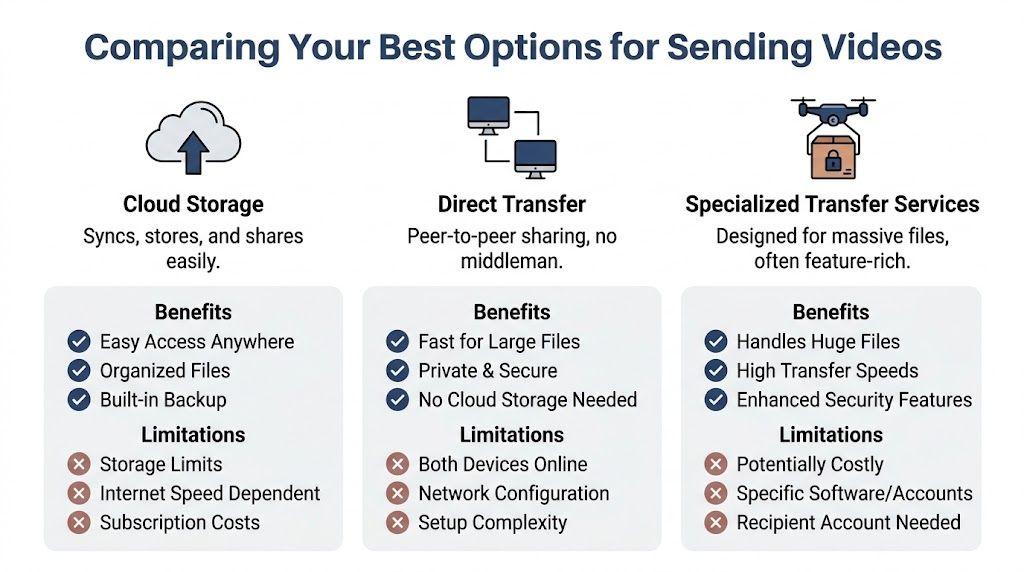
Comparison of Large Video Transfer Methods
| Method | Max File Size (Free Tier) | Typical Speed | Best For | Privacy Note |
| Cloud Storage | Varies by service and plan | Usually steady, depends on upload speed | Ongoing access, shared folders, collaboration | Check link permissions carefully |
| Dedicated Transfer Service | Varies by service | Often simple and fast for one-off delivery | Sending one file quickly to one person or a small group | Some services favor convenience over tighter access control |
| Specialized Media Transfer | Free tier varies by product | Often better for very large files and interrupted transfers | Big projects, frequent transfers, professional workflows | Better controls in many cases, but setup can take more work |
| Physical Media | Depends on the drive | Fast locally, no upload required | Massive files, weak internet, hand delivery | Strong if encrypted and physically controlled |
Cloud storage works best for ongoing access
Google Drive, Dropbox, iCloud, and similar services are practical when the recipient may need the file again next week, not just today. They also make sense if several people need the same asset, or if you expect revisions and want one current version in one place.
The trade-off is exposure over time. A file that sits in a general cloud account for months is easier to reshare by accident, especially if link settings are broad or the folder is messy. For family videos or internal business footage, that matters more than many people realize.
Use cloud storage when:
- The recipient may need to download later
- Several people need the same file
- You expect version updates
- You want one shared folder instead of multiple send links
Dedicated transfer services fit one-time delivery
WeTransfer is a common example. It is built for quick delivery, short-term access, and minimal setup. That makes it useful for a one-off client proof, a school performance clip, or a large file you do not want sitting in your everyday storage account.
These services are usually simpler than cloud folders, but they are not all built with the same privacy priorities. Before sending sensitive footage, check whether the link expires, whether access is email-restricted, and whether the service scans or stores files longer than you expect. If privacy is the main concern, it helps to compare your options for sharing encrypted files securely before defaulting to the fastest tool.
Dedicated transfer services make sense when:
- You are sending one project
- The recipient only needs a download link
- You want less clutter in your storage account
- You do not need shared folders or long-term collaboration
Specialized media transfer is built for bigger jobs
Tools aimed at media production handle large files, failed uploads, and repeat professional transfers better than consumer services. They are a stronger fit for video teams, freelance editors, and production companies moving large source files or delivery packages on a regular basis.
For a family clip or a short marketing video, they can be more tool than you need. For raw footage, long-form edits, or recurring client delivery, the extra control is often worth the setup time and added cost.
Physical media still solves problems the internet cannot
A USB drive or external SSD is often the fastest option when upload speed is poor or the file is too large to move comfortably online. I still use physical delivery for sensitive footage, local client handoffs, and situations where waiting on a slow upstream connection would waste half a day.
Physical transfer has its own risks. Drives can be lost, copied, or left unencrypted in a bag or office drawer. If you use this route, label clearly, encrypt the drive when possible, and hand it to a specific person instead of leaving it at a front desk.
This option is often the best fit when:
- The file is extremely large
- Your internet connection is unstable or slow
- The footage is sensitive enough for hand delivery
- The recipient is local
How to Use Popular Video Transfer Services
Knowing the categories is useful. Users still need a concrete checklist they can follow in a few minutes.
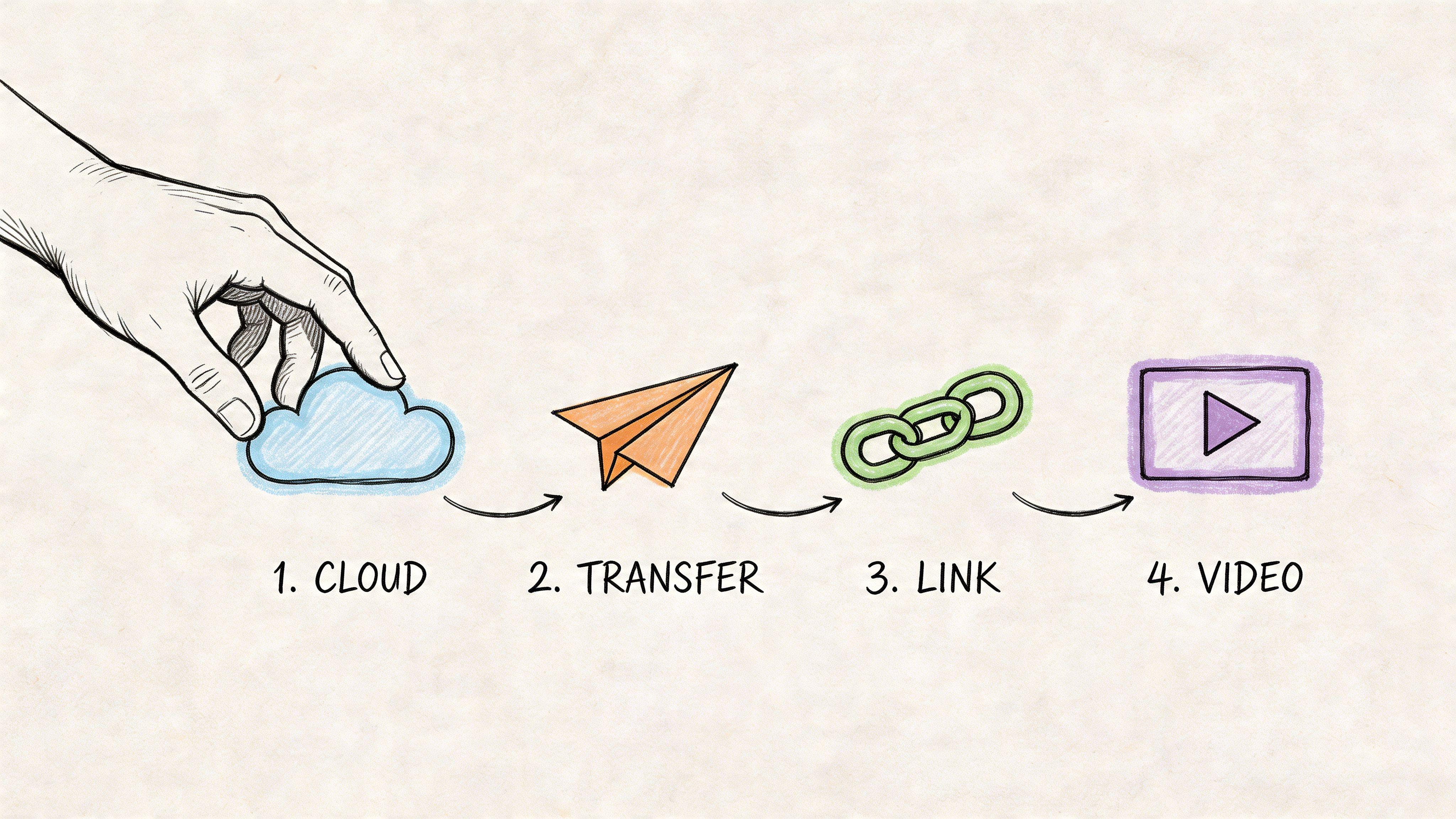
Send a large video with Google Drive
Google Drive works best when you want the file to stay available after the first download.
Basic workflow
- Open Google Drive and sign into the account you want to use.
- Upload the video into the correct folder. Don’t dump sensitive files into a messy root directory where they’re easy to share by accident.
- Wait for upload completion before copying any link.
- Open the sharing settings for that file.
- Set access intentionally. If only one person should see it, share directly with that person instead of using a broad link.
- Send the link separately with a short note telling the recipient what they’re opening.
If the video is for a client or family member who isn’t technical, add one line like: “Click the link, then use the download button in the top right.”
Send a large video with WeTransfer
WeTransfer is often the easiest route for a one-time send, especially after you’ve compressed the file.
Simple steps
- Go to WeTransfer
- Add the video file
- Choose link delivery or email delivery
- Double-check the recipient address if using email
- Upload and wait for confirmation
- Test the link before sending it onward if the platform provides one
This method is good when the file doesn’t need to live in a shared folder and you don’t want to manage cloud storage permissions.
A quick transfer tool is great for delivery. It’s not always great for long-term control.
Send by USB drive or external SSD
This is the old-school method, and it still solves a lot of real problems.
Use a USB drive or SSD when upload speed is the issue, not the file itself.
What to do
- Copy the final video to the drive.
- Format the drive as exFAT if it needs to work on both Windows and Mac.
- Label the drive clearly
- Test the file on another machine
- Deliver it by hand or courier
For sensitive footage, don’t hand over the only copy. Keep the source file stored elsewhere.
Add protection before you send
If you need an extra privacy layer, put the video into a password-protected archive before uploading or copying it. That way, even if the link gets forwarded or the drive goes missing, the file itself has another barrier.
This walkthrough on creating an encrypted ZIP file is useful if you want a simple extra layer before sending video.
Keep Your Videos Private and Secure
A parent sends a recital video to relatives. A contractor sends a walkthrough clip to a client. A small business owner shares staff training footage with a new hire. In each case, the video itself may be harmless, but the wrong sharing setting can expose names, faces, home interiors, schedules, or customer information.
Privacy problems usually come from convenience settings, not from the video format. According to Proton, media stored in the cloud can be exposed through unintended sharing when permissions are set too broadly, which is a good reminder to review access settings before sending sensitive footage, as discussed in Proton’s article on sharing large video files privately.
The privacy risk that causes the most trouble
The common mistake is simple. Someone uploads the file, copies the default link, and sends it without checking who can open it.
That can create a few problems fast:
- Anyone with the link may be able to watch or download it
- Recipients can forward the link without meaning to create a wider audience
- Old links may stay live long after the project is finished
- Copies may sit in cloud storage longer than you intended
I see this most often with family videos, internal company clips, and client review files. People focus on getting the file delivered. They forget to limit access after delivery.
A safer routine for sensitive videos
Use stricter sharing settings any time the video shows children, private property, employee activity, customer details, internal operations, or anything you would not post publicly.
- Share with specific people when possible: Named access is safer than a public link.
- Add a password if the service allows it: This helps if the link gets forwarded.
- Set an expiration date: Short-lived links reduce long-term exposure.
- Remove access after download or approval: Keep the window open only as long as needed.
- Keep the original in a separate archive: Do not treat a transfer folder as your master storage.
The easy setting is often the broadest setting.
Which services make sense for privacy-conscious users
Convenience-first platforms are fine for low-stakes clips, especially if speed matters more than strict control. For example, a casual product demo or a family vacation montage usually does not need the same protections as HR training footage, a home security clip, or a customer testimonial that includes personal details.
For private material, choose tools that offer tighter permission controls, password protection, expiration settings, or end-to-end encryption. That extra setup takes a minute or two, but the trade-off is better control over who sees the file and how long it stays available. For many families and small businesses, that is a good trade.
If secure delivery is part of your regular workflow, this guide to secure file sharing for sensitive documents and media is a useful next read.
Troubleshooting Common Video Transfer Problems
You export a client video, hit upload, walk away, and come back to an error at 97%. Or a family member says the link works on your laptop but not on their phone. These are the problems that waste time, and they usually come down to three things: unstable internet, file compatibility, or sharing settings.
Large transfers are fragile on ordinary home and office connections. Services with resumable uploads help because they pick up where the transfer stopped instead of forcing you to start over. That matters because, as discussed in Hashe’s overview of transfer challenges, many large file transfers fail on the first attempt when the connection is unstable.
If uploads keep failing
Check the simple failure points first.
- Confirm file size: A service may allow video uploads but still reject files above a certain limit.
- Shorten the filename: Very long names, symbols, or unusual characters can trip up some platforms.
- Pause backups and sync tools: Dropbox, iCloud, Google Drive sync, streaming, and system updates compete for the same upload bandwidth.
- Switch from Wi-Fi to Ethernet if you can: Wired connections are usually steadier for long uploads.
- Use a service that resumes interrupted uploads: On weak internet, that feature matters more than peak speed.
I also recommend keeping the browser tab open until the upload finishes. Some services handle background uploads well. Others do not, especially on older laptops or phones that go to sleep aggressively.
A few professional transfer tools use faster file transfer methods built for unreliable networks. Everyday users do not need to learn the technical details. The practical takeaway is simple: if your connection drops often, pick a tool that resumes cleanly and shows upload progress clearly.
If the recipient can’t open the file
This is often a permissions problem, not a video problem.
Run through these checks:
- Make sure they have the right access: Viewing and downloading are not always the same setting.
- Check whether the service requires an account: That can block customers, older relatives, or anyone opening the file on a work-managed device.
- Use a common format: MP4 with H.264 video is still the safest default for broad compatibility.
- Test the link in a private browser window: That shows what the recipient will see.
- Review expiration dates and passwords: Tight settings are good for privacy, but they also create support issues if the recipient misses the access window.
For sensitive videos, this trade-off matters. Stronger restrictions protect the file, but they also increase the chance that a busy client or family member gets locked out. Match the sharing method to the situation. A public promo clip can be easier to access. A staff training video, legal recording, or home security clip deserves stricter controls, even if that means one extra step for the recipient.
Test the file exactly as the recipient will receive it. That catches bad permissions, expired links, and account requirements before anyone calls you.
A quick pre-send checklist
Before sending an important video, check:
- File size
- Format compatibility
- Upload stability
- Link permissions
- Expiration settings
- Local backup
One more practical step helps a lot. Tell the recipient what they are getting. A short note such as “Large MP4 file, best downloaded on Wi-Fi, link expires Friday” prevents confusion and reduces the chance that they forward a private link without understanding what it is.
Frequently Asked Questions About Sending Large Videos
What’s the fastest free way to send a large video?
For many people, the fastest free option is to compress the video first, then use a simple transfer service or cloud link. If the file fits within the service’s free limit, that’s usually easier than setting up anything more advanced.
Can I send a large video through WhatsApp or iMessage?
You can send videos through messaging apps, but they’re often better for convenience than quality. In practice, they may compress video or make large clips awkward to send. For anything important, use a proper file-sharing method and send a link instead.
Does sending a video reduce its quality?
Sending a file directly by cloud link, transfer service, or USB doesn’t automatically reduce quality. Compression before sending can reduce quality if you push it too far. Messaging apps are more likely to alter the video than a standard file-sharing workflow.
Should I use Google Drive or WeTransfer?
Use Google Drive when you want ongoing access, folders, or repeat sharing. Use WeTransfer when you want a quick one-time send with less setup.
What’s the safest way to send a private video?
Use a privacy-first service when possible, or encrypt the file before uploading it. Also check link permissions manually. The biggest mistake isn’t usually the transfer itself. It’s sending a link that’s more open than you realized.
What if my internet is too slow?
Compress the file, upload during off-hours, or use a resumable transfer service. If the file is very large and the connection is poor, a USB drive or external SSD may be the better answer.
Need help working through privacy, file prep, or secure sharing steps with an AI assistant? Try 1chat, a privacy-first AI workspace for families, students, and small teams.