You’ve finished a draft in Google Docs, or you’re reviewing a student paper, team memo, or blog post, and one question keeps nagging at you: is this original?
That question matters for more than grades. Plagiarism can damage trust, trigger academic penalties, create legal headaches, or weaken the quality of the work. In 2026, there’s also a second layer of concern. Some text isn’t copied from a webpage at all. It may be generated by AI, then lightly edited to look human.
If you’re trying to figure out how to check for plagiarism in google docs, the good news is that you have several workable options. The catch is that each one handles privacy, accuracy, and ease of use differently. Some methods stay fully inside Google’s ecosystem. Others require add-ons. And some of the safest checks are still manual.
Exploring Google's Native Checking Tools
A common initial inquiry is simple: does Google Docs have its own plagiarism checker?
For most users, the answer is no. Google Docs does not include a built-in plagiarism checker for general personal or business use. That’s why many people end up using third-party tools or manual search methods.
There are, however, two Google tools worth knowing about. They solve different problems, and readers often confuse them.
Originality Reports in Google Classroom
If your school uses Google Workspace for Education, Google Classroom includes Originality Reports. According to Google Classroom Originality Reports documentation, these reports compare student submissions in Google Docs, Google Slides, and Microsoft Word files against web pages and books to identify uncited content.
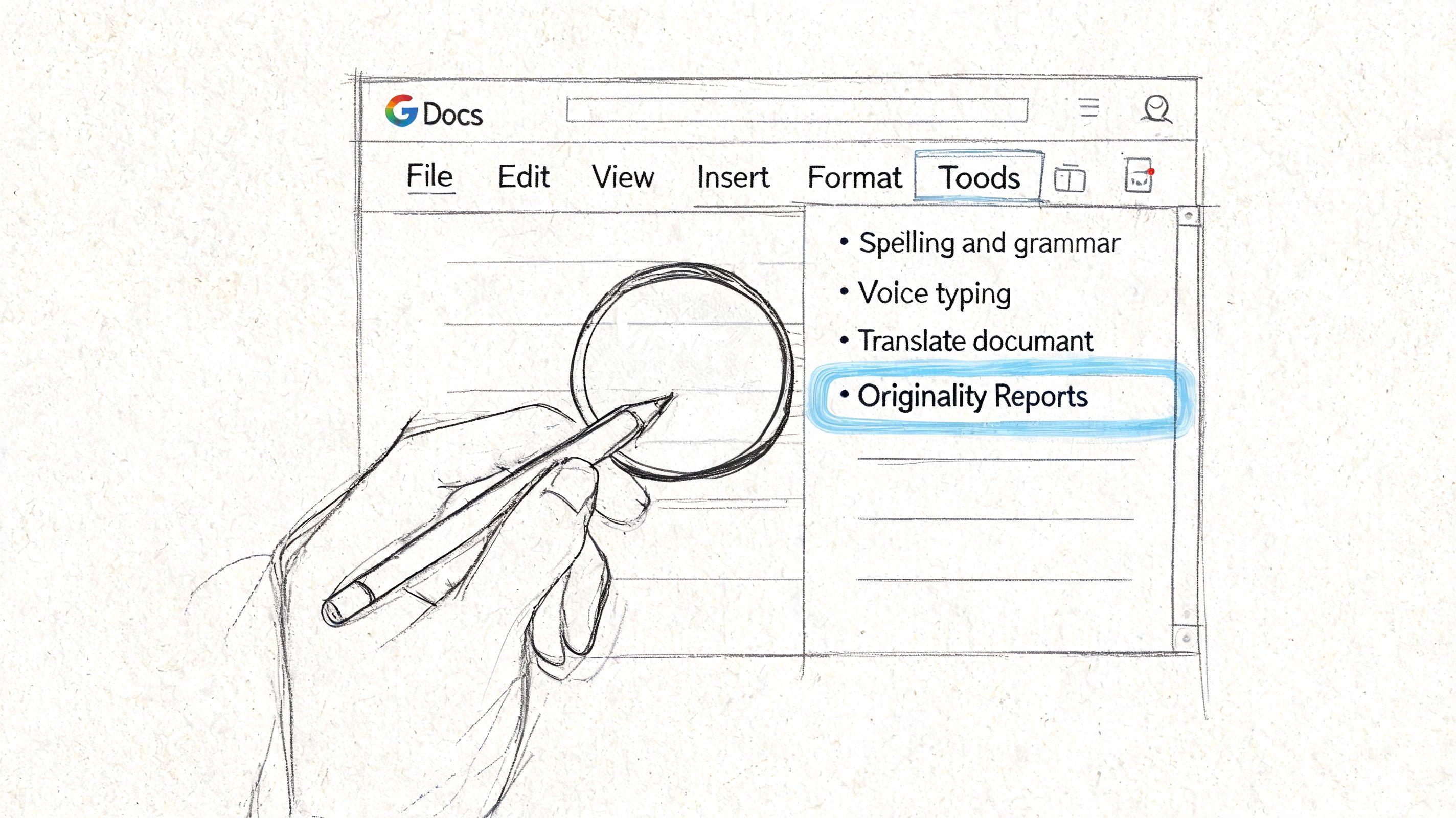
That makes Originality Reports useful in classrooms, but it’s not a universal Google Docs feature. Students writing in a personal Gmail account won’t automatically have it. Neither will most freelancers, small businesses, or families using Docs outside an education account.
A practical use case looks like this:
- A student writes an essay in Google Docs.
- The assignment is submitted through Google Classroom.
- The teacher opens the submission and reviews the Originality Report.
- The report flags passages that match public sources and books.
This is helpful because it gives both students and teachers a chance to catch citation problems before they become discipline problems.
Practical rule: Originality Reports are strongest when the goal is to spot uncited borrowing from public sources, not to settle every authorship question by themselves.
Compare documents in Google Docs
Google Docs also includes Compare documents, found under the Tools menu. This feature doesn’t check the web. Instead, it compares one document against another and highlights differences, with timestamps and editor attribution available in the comparison workflow.
That’s useful when you already have a suspected source. For example, if a student essay seems very close to an older essay, or if a manager thinks a draft may have been lifted from an internal document, you can compare the two files directly.
This method works best for one-to-one checking:
- Known source comparison when you already have the original text
- Revision review to see what changed between drafts
- Internal document checks where privacy matters and you don’t want to upload content to an outside service
Where Google’s built-in options fall short
Google’s native tools are useful, but limited.
- Originality Reports are education-specific. Many readers will not have access.
- Compare documents is not a web plagiarism scanner. It only works when you already have both files.
- Neither tool fully solves AI-authorship questions. Google does offer one strong clue, though. As noted in the Google Classroom help documentation, authentic student writing usually shows gradual, incremental changes in version history, while AI-generated submissions often appear in large blocks with minimal edits.
That version history clue matters because it shows process, not just final wording. If you’re checking originality in a school setting, looking at the report alone isn’t enough. Looking at how the document was built often tells a clearer story.
Using Google Docs Add-ons for Plagiarism Checks
You finish a draft in Google Docs, click submit, and then wonder what happened to the text the moment you used a checker. That question matters as much as the similarity score.
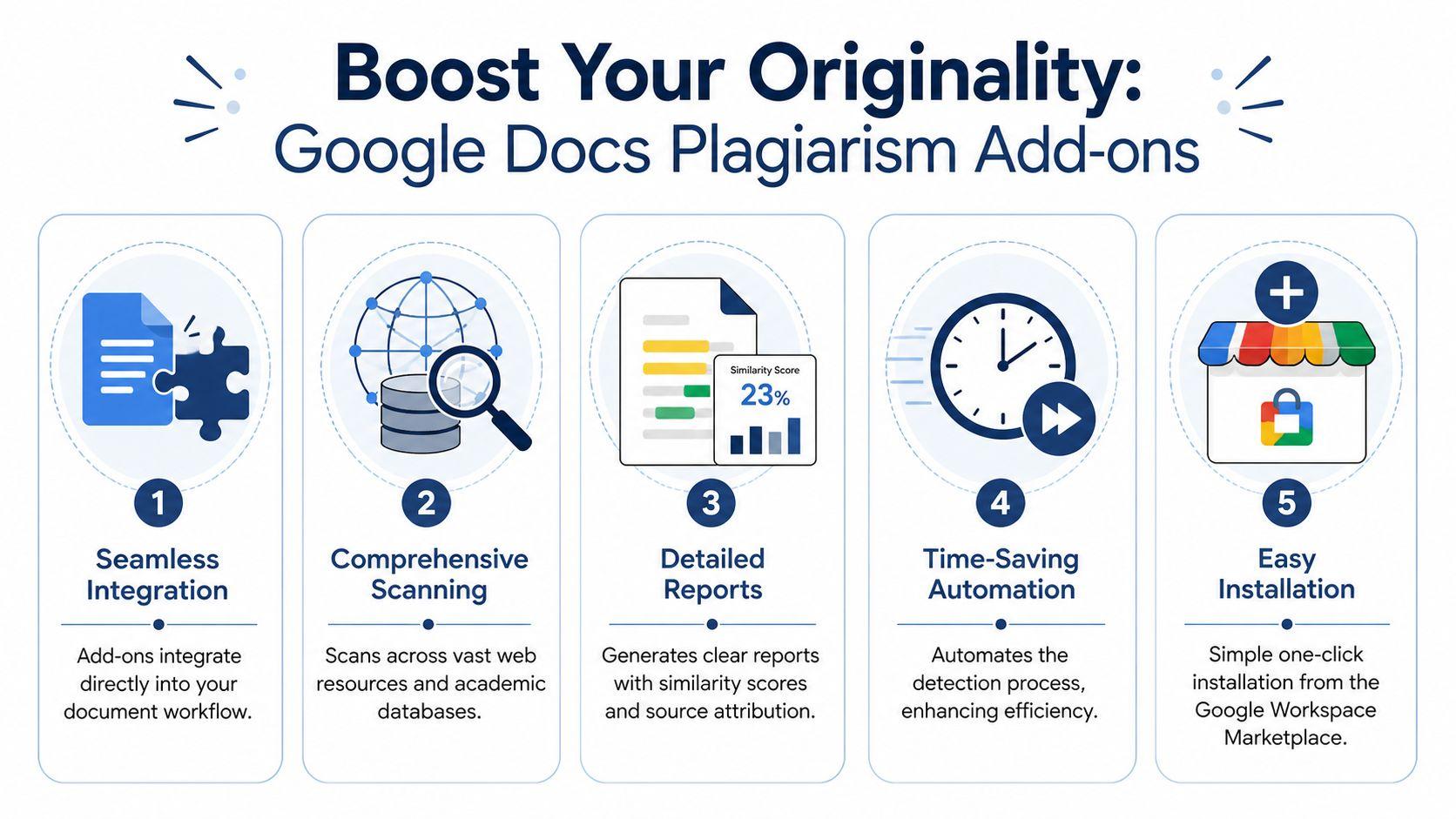
Add-ons are convenient because they work inside the document you are already editing. For many writers, that feels easier than copying sections into a separate website. But convenience has a tradeoff. Some add-ons only read the selected text you choose. Others may send larger portions of the document to their own servers to compare against outside sources.
How to install and run an add-on
The setup is simple, but the permission screen is where you should slow down.
Open your Google Doc and go to Extensions > Get add-ons. Search for a plagiarism checker, install it, and read the access request before approving it. After that, return to Extensions, open the add-on, and start a scan on selected text or the full document, depending on what the tool allows.
A careful workflow looks like this:
- Open the Google Workspace Marketplace from the Extensions menu.
- Search for a plagiarism tool by name.
- Read the permissions request before clicking allow. Access to the current document is different from broad access to Drive files.
- Choose a small sample first if the add-on supports selected-text scanning.
- Run the scan from the sidebar and wait for the report.
- Review the matched passages and sources, not just the headline percentage.
That last step matters. A checker works like a spellchecker for borrowed language. It can point to suspicious spots, but it cannot reliably decide whether a quotation is properly used, whether a citation is enough, or whether repeated wording is just standard phrasing in a technical field.
What add-ons do well, and where they miss things
Many add-ons are strongest at finding direct matches. If someone copied a paragraph from a website and changed little or nothing, a decent tool often catches it quickly. Reports usually highlight the passage, link to possible sources, and assign a similarity score.
The harder cases are paraphrasing and patchwriting. Someone may swap a few words, change sentence order, and keep the original idea structure. That can reduce what the scanner catches, even though the borrowing is still a problem. If your work involves rewriting source material regularly, this guide on how to paraphrase for content creators is a useful companion because it shows the difference between legitimate paraphrasing and wording that stays too close to the source.
AI adds another layer of confusion. A plagiarism tool may show a low similarity score on text that was still generated by a chatbot. That does not mean the writing is fully original in the human-authorship sense. If you want a clearer picture of that difference, this free AI essay checker guide helps explain where plagiarism matching stops and AI review begins.
Privacy questions to ask before you install anything
This is the part many quick tutorials skip.
Before you trust an add-on with a student essay, a client draft, or internal company writing, ask what happens to the text after the scan. Some tools process content temporarily. Others may store submissions, keep reports, or use uploaded text to improve their systems. If the document contains grades, private business details, legal material, or unpublished research, that distinction matters.
Check these points first:
- Requested permissions. Broad Drive access deserves extra scrutiny.
- Upload scope. Selected-text scanning exposes less content than full-document scanning.
- Storage policy. Look for clear language on whether text or reports are retained.
- Data location and sharing. Some organizations need to know where content is processed and whether third parties are involved.
- Institution rules. Schools and companies often approve specific tools for privacy and compliance reasons.
A practical habit helps here. Test any new add-on on a harmless sample document first. That gives you a chance to see how the interface works, what gets uploaded, and what kind of report comes back before you use real material.
Comparing common types of add-ons
The market is mixed. Some tools are free but limited. Others are part of a paid writing suite. The right choice depends less on branding and more on your use case.
| Add-on type | Best for | Main strength | Main caution |
| Free basic checkers | Quick one-off scans | Easy access | Privacy policies and match quality vary widely |
| Premium plagiarism tools | Frequent academic or professional checks | Better reporting and source review | Ongoing cost |
| Writing-suite add-ons with plagiarism features | Users already paying for editing tools | One workflow for grammar and similarity checking | Plagiarism checking may be a secondary feature |
| Education-focused tools | Schools with approved access | Better fit for classroom workflows | Often unavailable to general users |
As noted earlier, Google Docs itself does not include a universal built-in plagiarism checker for every user. That is why add-ons remain popular. They are often the fastest option inside Docs, but they are not interchangeable. Choose one the way you would choose a cloud storage app or password manager. Look at what it can do, then look just as closely at what it can see.
Manual Checking Without Any Add-ons
Sometimes the safest choice is the low-tech one.
If you don’t want to install an add-on, manual checking gives you more control over privacy because you decide exactly what text leaves the document. That matters for confidential drafts, student work, and one-time checks where installing software feels excessive.
The best way to do a manual search
The weak version of manual checking is copying an entire paragraph into Google and hoping for the best. The better version is more selective.
Use this process:
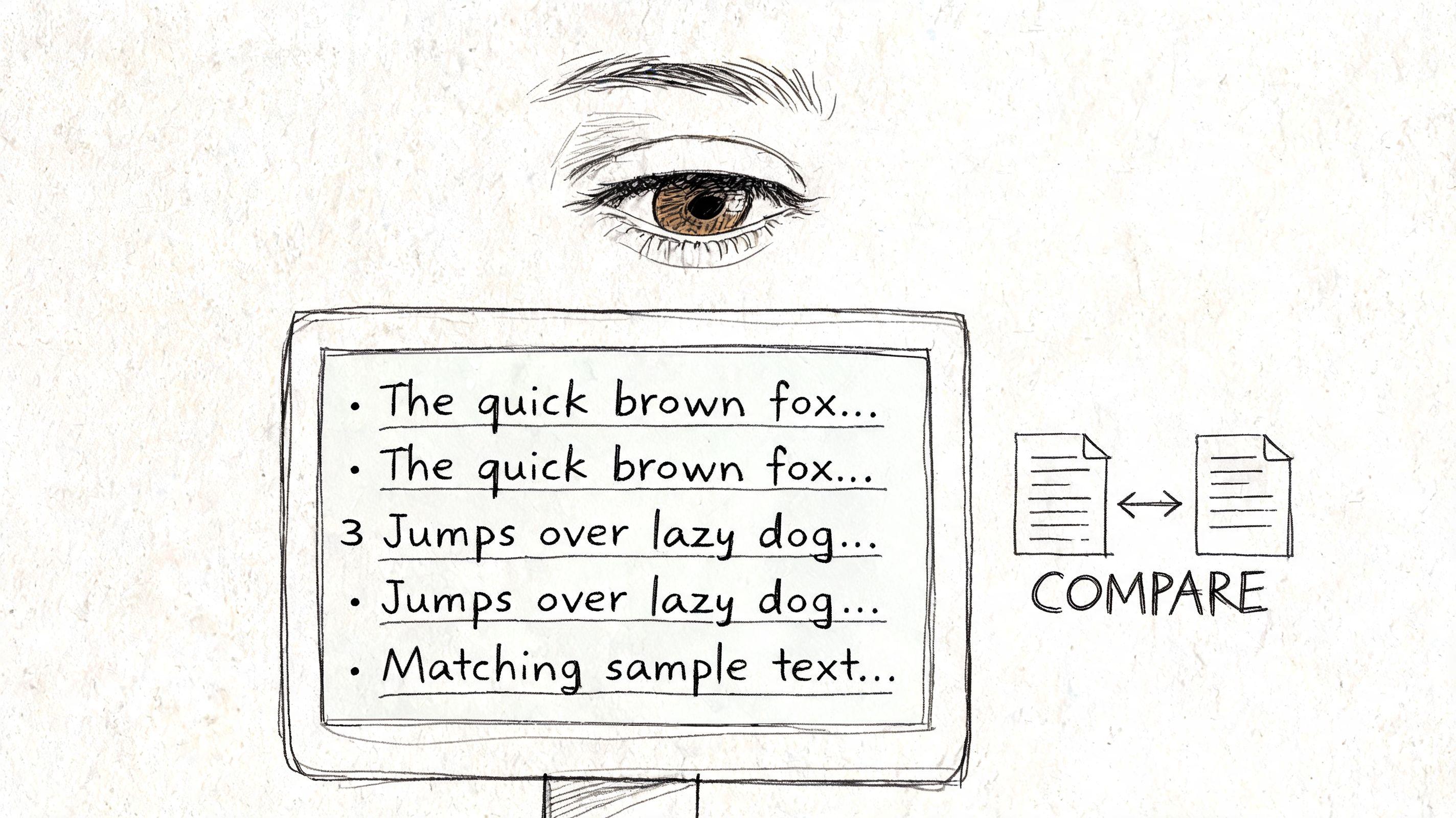
- Pick unusual sentences first. Generic lines like “technology is changing education” won’t tell you much.
- Search exact phrases in quotation marks. That helps you find direct matches.
- Try distinctive fragments if the full sentence returns nothing.
- Search two or three passages from different parts of the document.
- Open suspicious results and compare wording, not just topic overlap.
This works because copied text often survives in chunks. Even when someone edits lightly, they usually leave behind a few signature phrases.
How to catch paraphrased borrowing
Paraphrased plagiarism is harder because the wording changes. You’re no longer looking for an exact sentence match. You’re looking for a pattern of borrowed structure, unusual phrasing, or identical sequence of ideas.
A few ways to improve your odds:
- Search rare word combinations instead of full paragraphs
- Look for unusual examples or metaphors that seem too polished or oddly specific
- Compare the voice of the suspicious paragraph with the rest of the document
- Check whether citations are missing where they should obviously appear
Writers who are trying to fix flagged passages often need help with ethical rewriting, not just warning messages. This guide on how to paraphrase for content creators is useful because it focuses on changing understanding and structure, not just swapping words.
When manual checking is the better choice
Manual review isn’t perfect, but it shines in a few situations:
- Privacy-sensitive documents where you don’t want a full upload to a third party
- Spot checks when only one paragraph feels suspicious
- Teacher review when you already know the likely source
- Early drafting when you want a quick sanity check before formal scanning
If you want another practical walkthrough focused specifically on this workflow, this article on checking for plagiarism using Google can help you build a repeatable habit.
The manual method is slower, but it gives you two things automated tools can’t always provide: discretion and judgment.
How to Spot AI-Generated Content in a Document
A clean plagiarism report doesn’t always mean the writing is original.
That’s the uncomfortable reality in 2026. A document can be freshly generated by AI, contain no copied sentences from the web, and still raise serious questions about authorship, learning, or authenticity.
Why AI detectors need caution
AI detection tools are tempting because they promise a quick answer. The problem is reliability.
A video discussing AI detection in plagiarism tools cites a 2025 Stanford study in which 45% of student essays were flagged as AI, and it also notes that free plagiarism add-ons often have weak AI detection. In the same discussion, Copyleaks scored 2.0 in independent tests. That doesn’t mean every detector is useless. It means you shouldn’t treat a detector score as proof.
This is especially important in schools and workplaces, where a false accusation can do real harm.
The writing signals worth examining
Human review still matters because AI-generated writing often leaves stylistic clues even when it avoids direct copying.
Watch for patterns like these:
- Overly even tone with very little personal voice
- Perfect grammar paired with vague substance
- Paragraphs that sound polished but say little
- Repeated sentence rhythms
- Generic transitions that make everything flow but flatten meaning
- Examples that feel plausible yet oddly unspecific
None of those signs proves AI use on its own. Plenty of human writers sound formal. Plenty of students overwrite. The point is to treat these as prompts for closer review, not as automatic evidence.
Version history is often more revealing than style
In Google Docs, Version history can be more useful than an AI detector.
When someone writes naturally in Docs, the file usually develops over time. You’ll see additions, revisions, deletions, and gradual shaping. When text is pasted in from an AI system, the document often shows large sections appearing all at once with very little editing afterward.
That pattern doesn’t answer every case, but it gives you process evidence instead of just a probability guess.
A better question than “Does this sound like AI?” is “How was this document produced over time?”
Schools and families trying to set healthy expectations around this issue may also find broader policy guidance useful. This overview of AI in K-12 education for teachers is a good companion resource when the core objective is responsible use, not just detection.
If you’re also evaluating claims about “undetectable” writing tools, this breakdown of whether undetectable AI works is a useful reality check.
Interpreting Scan Results and Taking Action
You run a scan, see a similarity score, and your stomach drops. That reaction is common. It is also why this step matters so much.
A plagiarism report is closer to a smoke alarm than a courtroom verdict. It tells you where to look. It does not tell you, by itself, whether someone copied improperly, cited poorly, reused approved language, or pasted in text from somewhere else.
Start with the passages, not the percentage
The big number is tempting because it feels clear. In practice, the highlighted text is where the actual answer lives.
Read each flagged section in context and ask:
- Is this a correctly quoted passage?
- Is the match coming from the bibliography, footnotes, or title page?
- Is the wording a standard phrase for the topic?
- Is the source credited, but the paraphrase still too close to the original?
- Do the matches appear across the whole document, or only in one low-risk area?
That last question helps more than many readers expect. A single match in a reference list is very different from repeated close phrasing throughout the body of an essay or report.
Tool quality also varies. Some scanners catch obvious copy-paste overlap well but miss patchwriting or weak paraphrasing. Others cast a wider net and flag harmless material. As noted earlier, the gap between free and paid tools can be noticeable, so treat the report as a review aid, not a final judgment.
A practical response plan
Once something is flagged, work through it like an editor cleaning up a draft.
- Open the matched source and confirm the overlap is real.
- Label the match clearly: quote, common wording, citation issue, template text, or likely unattributed borrowing.
- Fix the passage if the wording tracks the source too closely.
- Add or improve attribution if the idea came from another author.
- Run the check again on the revised section.
This process is slower than glancing at the score, but it is more reliable. It also lowers the chance of overreacting to harmless matches, which matters if you are reviewing student work, client drafts, or internal documents.
Privacy deserves a place in this step too. If your checker sends document text to an outside service, avoid uploading sensitive material unless you have reviewed the tool’s permissions and data policy. Student records, legal drafts, HR files, and unpublished business content need extra care. In those cases, a manual review or a Google-controlled workflow is often the safer first move.
What to do when AI is part of the concern
Plagiarism and AI detection answer different questions.
A plagiarism checker looks for overlap with existing sources. An AI detector estimates whether the writing resembles machine-generated text. A document can be original in the plagiarism sense and still raise concerns about AI authorship. The reverse is true too.
That is why style flags should never stand alone. If you are evaluating suspiciously polished writing, combine the scan report with context: the citations, the prompt, the student or writer’s usual voice, and the revision trail inside Google Docs. For a grounded overview of how one widely used system handles those probabilities, read Turnitin AI detection accuracy and limits.
Decide on the right next step
Different results call for different actions.
If the report shows harmless overlap, document that and move on. If it shows weak paraphrasing, revise and cite better. If it shows repeated unattributed copying, pause before accepting the document as final. If AI use is the concern, ask for process evidence, such as notes, drafts, or version history, instead of relying on a detector score alone.
The goal is not to catch people out. The goal is to end up with writing that is clearly sourced, responsibly produced, and safe to submit, publish, or share.
Frequently Asked Questions
Can Google Docs check plagiarism by itself?
Not for most users. Google Docs does not include a general built-in plagiarism checker. Educational institutions using Google Workspace for Education may have access to Originality Reports in Google Classroom, but that’s not the same as a universal Docs feature.
What’s the easiest way to check for plagiarism in Google Docs?
Generally, the easiest route is a Google Docs add-on. You install it from Extensions > Get add-ons, run a scan, and review the report. If privacy matters more than convenience, manual phrase searching may be the better first step.
Are free plagiarism checkers good enough?
Sometimes. Free tools can be useful for quick reviews and obvious copy-paste matches. They tend to be less dependable for nuanced cases, especially paraphrased borrowing or AI-related concerns. If you use one, review every flagged section yourself instead of trusting the output blindly.
Is it safe to use a plagiarism add-on with private documents?
It depends on the tool and the document. Before installing anything, read the requested permissions and think about the content involved. Student essays, contracts, internal strategy docs, and health or legal materials deserve extra caution. If the document is sensitive, use Google’s internal comparison tools or manual checks first.
Can Google Classroom compare student submissions against each other?
This is a major frustration for teachers. According to a Google Docs support thread on plagiarism among Classroom submissions, there is no native Google tool or common add-on for batch-checking student submissions against each other, and a 2025 EdTech survey found that 68% of K-12 teachers want this feature. That means teachers often have to rely on pairwise comparison, manual review, or external systems.
Can plagiarism checkers detect paraphrasing?
Some can catch weak paraphrasing, but none should be treated as perfect. Automated tools are strongest on direct copying. Once someone rewrites heavily, human judgment becomes much more important.
Can plagiarism tools detect AI writing?
Some claim to, but results are inconsistent. AI detection is best treated as one clue among many. Version history, writing voice, source use, and drafting behavior usually provide a better basis for judgment than a single AI score.
What should I do if my own writing gets flagged?
Don’t panic. Open the matched passages and check what triggered them. You may need to add quotation marks, improve attribution, or rewrite a passage in your own structure and language. A flag is often an editing signal, not an accusation.
Is manual checking still worth doing?
Yes. It’s slower, but it’s still one of the best methods for confidential documents, one-off checks, and situations where you already suspect a specific source. It also helps you build better editorial instincts, which no add-on can fully replace.
If you want help reviewing writing, comparing drafts, or thinking through AI use more privately, 1chat offers a privacy-first AI workspace for families, students, and small teams who want a more controlled alternative to mainstream chat tools.