You can absolutely convert a PDF to a CSV for free. The real question is which free method is right for you. For a quick one-off conversion, an online tool might be perfect. But if you're dealing with sensitive data or a huge batch of files, you'll want to look at offline apps or even a bit of code. It all comes down to what's inside your PDF and how much of it you have.
Why Bother Converting PDFs to CSV?
Let's face it: PDFs are great for sharing documents that look the same everywhere, but they're a nightmare for data analysis. That financial report, sales ledger, or contact list is essentially trapped. The whole point of converting it to a CSV (Comma-Separated Values) file is to break that data free. A CSV is a simple, plain-text format that virtually any spreadsheet program, database, or data analysis tool can understand instantly.
This guide will walk you through the best free ways to make that happen, matching the right tool to the right job.
First, Know Your PDF
Before you even think about choosing a tool, you have to figure out what kind of PDF you're working with. This is the most important step, and it dictates everything that comes after.
There are really only two types you'll encounter:
- Native PDFs: These are the good ones. They were created digitally, probably from a program like Word or a financial application. You can click and drag to select the text, just like on a webpage. This makes extracting the data clean and reliable.
- Scanned PDFs: These are just pictures of paper. Someone ran a document through a scanner, and the result is a PDF that contains an image. You can't select any text because, to the computer, it's just a photo. These require a special process called Optical Character Recognition (OCR) to turn the image of the text back into actual, usable text.
A tool designed for a native PDF will give you nothing but gibberish from a scanned one. If you want to dive deeper into this, our guide on how to extract information from PDF has more detail.
This flowchart can help you visualize the best path forward.
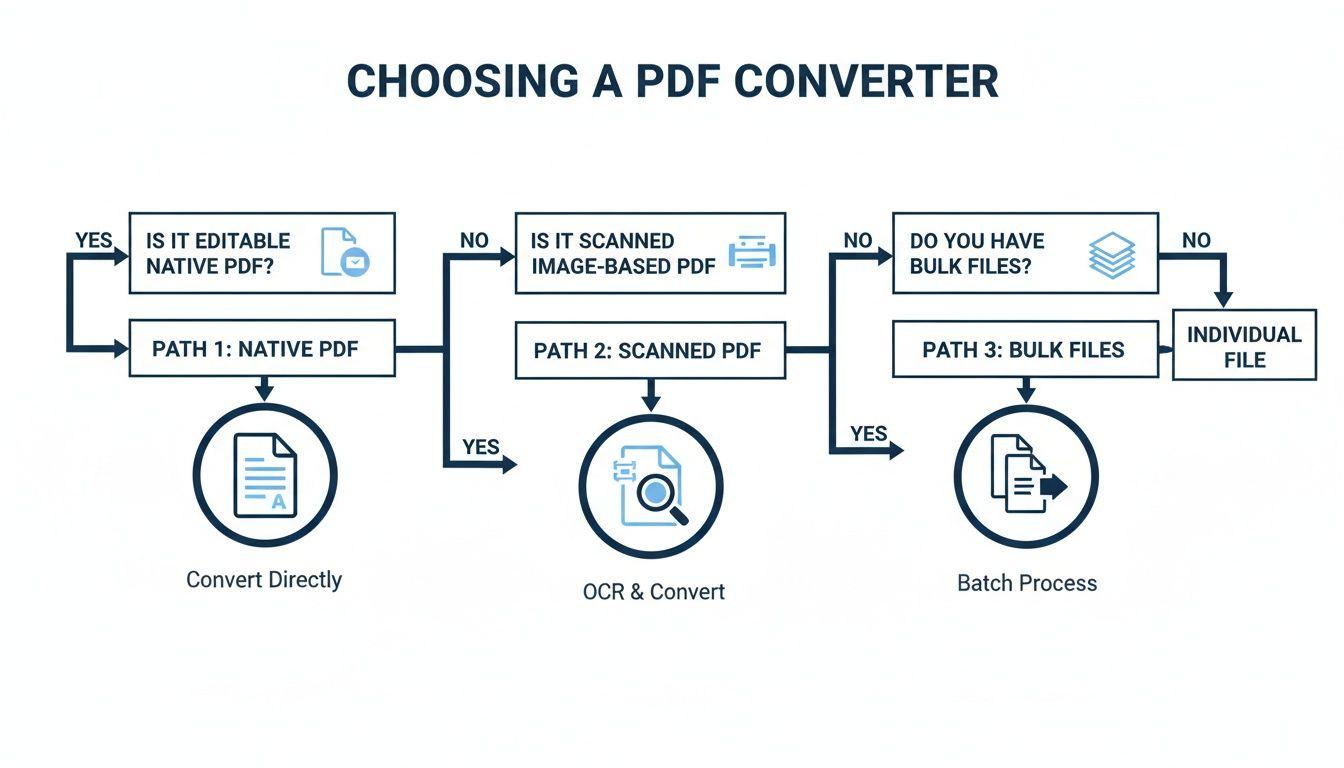
As you can see, native PDFs give you more straightforward options, while scanned files or large batches push you toward more powerful solutions.
The Problem Is Bigger Than You Think
This isn't just a niche technical task. In data-heavy industries like finance, it's a daily hurdle. Think about it: banks, regulators, and companies share mountains of data locked in PDF reports. In fact, a recent analysis found that 65% of financial documents are still PDFs, which means getting that data out efficiently is a massive bottleneck.
The Bottom Line: Getting data out of a PDF and into a CSV isn't just about changing a file format. It’s about making information useful. Picking the right free tool for the job saves you a ton of time and, more importantly, avoids the inevitable errors that sneak in when you resort to manually retyping everything.
Comparing Free PDF to CSV Conversion Methods
To help you get started, here's a quick breakdown of the methods we'll cover. Think of this as your cheat sheet for choosing the right approach based on what you need to accomplish.
| Method | Best For | Technical Skill | Privacy Level | Speed |
| Online Converters | Quick, single-file conversions of non-sensitive data | None | Low | Fast |
| Desktop Apps (Tabula) | Sensitive data, complex tables, offline processing | Basic | High | Moderate |
| Python/CLI | Bulk conversions, automation, custom workflows | Intermediate | High | Very Fast |
| OCR Tools (Tesseract) | Scanned PDFs (image-based) | Intermediate | High | Slow |
| Spreadsheet Software | Simple, well-formatted PDFs that can be copy-pasted | Basic | High | Slow |
Each of these has its place. An online tool is great for a public report, but you wouldn't upload a confidential financial statement. For that, a desktop app or a script you run on your own machine is the only safe bet.
Using Online Converters for Instant Results
When you need data out of a PDF right now, a free online converter is your best friend. These web-based tools are all about speed and simplicity. It's usually a simple drag-and-drop affair, and you'll have a CSV file in your hands in seconds. For something like a marketing analyst quickly grabbing competitor pricing from a single PDF catalog, this is the perfect no-fuss approach.
The workflow is pretty much universal. You land on the site, upload your PDF, make sure the output is set to CSV, and click "Convert." Moments later, you get a download link. It’s this dead-simple accessibility that makes them so popular for quick, one-off jobs.
The Trade-Offs of Convenience
But that speed comes with a few strings attached, and the biggest one is data privacy. When you upload a document, you're handing it over to a third-party server. This is a massive red flag if your PDF contains anything sensitive—think financial records, customer lists, or internal company data.
Before you upload anything, take a minute to glance at the site's privacy policy. I always look for a few key things:
- How long do they keep my file? Reputable services usually state they delete files automatically after a few hours.
- What can they do with my data? The policy should be clear that they don't view, share, or use the contents of your documents.
- Is the connection secure? Look for signs that your files are encrypted during the upload and download process.
If you wouldn't feel comfortable emailing the document to a stranger, don't upload it to a free online tool. An offline method is the only safe bet.
My rule of thumb is simple: if the data is already public or completely non-sensitive, online converters are fantastic. If it's even remotely confidential, I immediately turn to an offline solution.
Navigating Common Limitations
Beyond the privacy concerns, free online tools almost always have practical limits. It's how they manage their servers and nudge you toward a paid plan. Knowing these limitations upfront can save you a lot of frustration.
You'll almost certainly run into restrictions like:
- File Size Caps: Most free versions won't let you upload a PDF larger than 10-20 MB. This can be a deal-breaker for those huge, high-resolution reports.
- Daily Conversion Limits: You might be cut off after converting just a handful of files from the same IP address. If you've got a whole folder of PDFs to process, this will stop you in your tracks.
- Weak OCR Support: These tools are built for native PDFs, where the text is already selectable. They often choke on scanned, image-based documents or don't offer Optical Character Recognition (OCR) at all on their free tier.
Accuracy with Complex Tables
Another place where these quick-and-dirty tools often stumble is with messy table structures. A simple table with clean rows and columns? No problem, it'll probably convert flawlessly. But what happens when you're dealing with merged cells, headers that span multiple lines, or nested tables?
That's where the automated algorithms can get confused. You end up with a jumbled CSV that requires a ton of manual cleanup—data from one column spills into the next, or entire rows get mangled. While some online tools are smarter than others, you just don't get the fine-tuned control that a desktop app or a script can offer.
If your first try with an online converter spits out a garbled spreadsheet, take it as a sign. Your PDF's layout is likely too complex for that tool's simple approach, and it’s time to try a more robust method.
Mastering Desktop Tools for Offline Conversions
While hopping on a website for a quick conversion is tempting, it’s not always the best move. When you're dealing with sensitive information—like a small business owner pulling transaction data from a bank statement—online tools can introduce privacy risks and often lack the precision you need.
This is where desktop applications really shine. By working offline, your data never leaves the safety of your computer, giving you a secure sandbox to convert a PDF to a CSV for free.
One of the best-kept secrets for this kind of work is Tabula. It's a free, open-source tool built with one purpose in mind: liberating tabular data trapped inside PDFs. Since it runs locally on your machine, it's the perfect choice for any confidential document you'd rather not upload to a random server.
Getting Started with Tabula for Precision Extraction
Tabula succeeds where many online converters stumble. It gives you a simple, visual way to manually tell it exactly which table areas you want to extract. This hands-on approach is a lifesaver for PDFs with wonky layouts, multiple tables on one page, or random text that might throw off an automated tool.
The whole process is surprisingly intuitive. Once you install and launch Tabula (it runs in your web browser but processes everything locally), you just need to feed it your PDF.
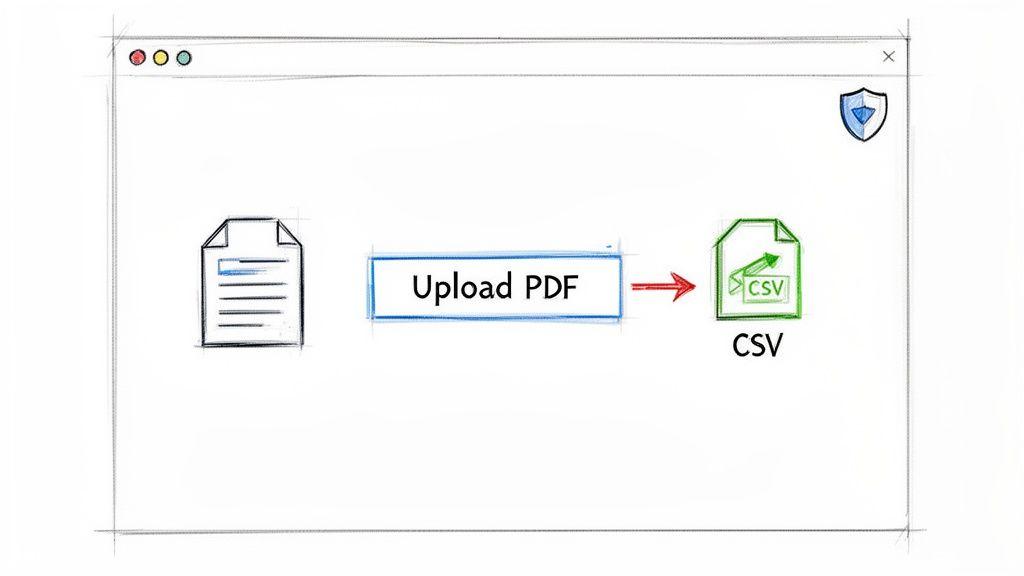
The real magic is in its simplicity. You literally draw a box around the table you need, check the preview to make sure it looks right, and export. This manual selection gets rid of the guesswork and prevents the messy, jumbled output you often get from automated online services.
Here’s how a typical workflow in Tabula looks:
- Upload Your Document: Open Tabula and choose the PDF file stored on your computer.
- Select the Table Area: Click and drag your mouse to draw a rectangle that perfectly frames the data you want to grab. You can make this selection as tight or as broad as you need.
- Preview and Refine: Hit the "Preview & Export Extracted Data" button. Tabula will immediately show you what your structured data will look like. If something’s off, just go back and adjust the box.
- Export as CSV: Once you’re happy with the preview, pick CSV from the export format dropdown and download your clean, ready-to-use file.
This level of control is what guarantees a much higher degree of accuracy, especially when you're wrestling with non-standard table formats.
Clever Workarounds with Spreadsheet Software
Sometimes, the best tool is the one you already have. If your PDF is well-structured and natively created (not a scan), you might be able to get the job done with software like Microsoft Excel or Google Sheets. This is a great route to take when you want to avoid installing a new program for a quick, one-off task.
Newer versions of Excel actually have a built-in feature designed for this.
Pro Tip: In Excel, go to the Data tab and follow this path: Get Data > From File > From PDF. This opens a navigator window that scans your PDF, identifies any tables it finds, and lets you choose which one to import directly into your spreadsheet.
This built-in importer can work surprisingly well, but be prepared for a bit of cleanup afterward. For instance, you might need to use Excel's "Text to Columns" feature to fix data that got jammed into a single column.
Why Offline Methods Matter for Business Workflows
The need for secure and reliable data extraction is a huge deal in industries like logistics and supply chain management. These fields run on a constant flow of manifests, invoices, and inventory lists—almost all of which arrive as PDFs.
The efficiency gains from a solid conversion process are massive. Consider that 75% of logistics firms are swimming in PDF-heavy workflows. By switching to reliable offline methods, they can speed up database updates by 60% and cut human error rates by a staggering 45%. You can read more about data extraction's impact on logistics to see just how critical this is.
Moving away from manual data entry isn't just a minor convenience; it's a major operational upgrade.
Whether you're firing up a specialized tool like Tabula for a complex financial report or using a quick Excel import for a clean price list, desktop methods give you the security and control that online tools just can't promise. They empower you to handle your data responsibly and achieve a far more accurate result in the end.
When a one-off conversion just won't cut it, it's time to roll up your sleeves and write some code. If you find yourself repeatedly needing to convert a PDF to a CSV for free, Python offers a powerful, scalable way to automate the entire process. For data analysts, developers, or anyone comfortable in a terminal, this is where you can truly take control.
This is the best route for batch-processing hundreds of files or building a PDF extraction step directly into a larger data workflow.
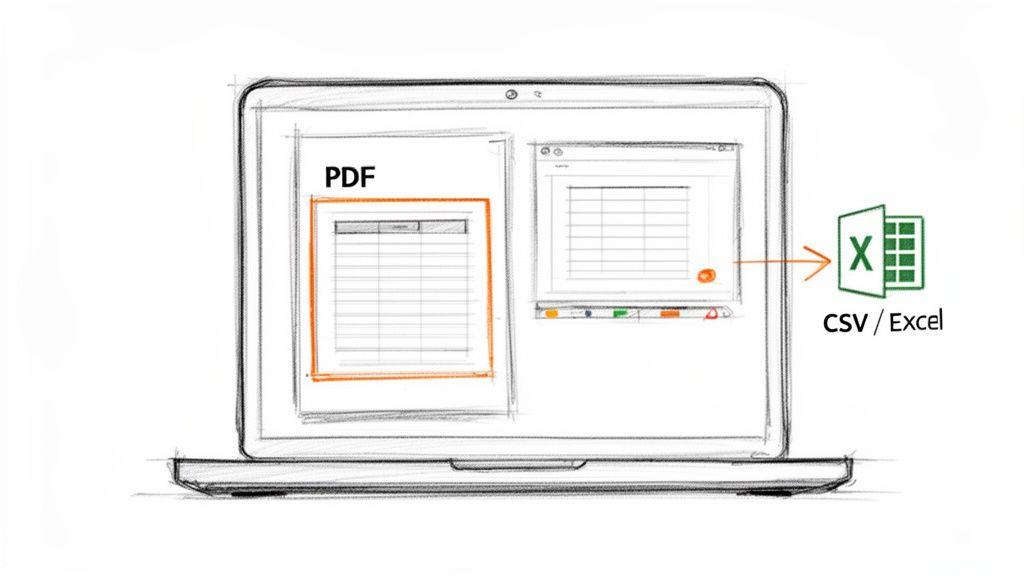
Unlike point-and-click tools, a script gives you pinpoint control. You can define the exact extraction area, loop through multi-page documents, and even schedule the job to run overnight. It turns a mind-numbing manual task into an efficient, hands-off system.
Choosing Your Python Library
The Python world is full of incredible libraries, but for pulling tables from PDFs, three names consistently come up: tabula-py, Camelot, and pandas. Each has its own personality and is suited for slightly different challenges.
tabula-py: This is a Python wrapper for the Tabula desktop app. It's my go-to for quick and dirty extractions from clean, well-structured PDFs. If you're just getting started with programmatic extraction, this is the place to begin.Camelot: When things get messy,Camelotshines. It’s known for its accuracy and has more knobs to turn, making it great for tricky tables with merged cells or inconsistent spacing. It uses two different parsing algorithms, "Lattice" and "Stream," which gives you a better shot at nailing complex layouts.pandas: This isn't a PDF parsing library itself, but it's the undisputed king of data manipulation in Python. You'll almost always usepandasto take the raw data extracted bytabula-pyorCamelot, clean it up, and write it to a perfect CSV file.
In most of my own projects, tabula-py or Camelot does the initial extraction, and pandas handles everything after that.
Simple Extraction with tabula-py
Getting up and running with tabula-py is refreshingly simple, which is why I love it for quick scripts. Once you have it installed, you can pull every table from a PDF and save it as a CSV with just a couple of lines of code.
Let’s say you have a folder full of monthly sales reports. A quick tabula-py script could run through each PDF, grab the main sales table, and save it as a cleanly named CSV. This is a massive improvement over doing it by hand.
Here’s a basic script you can adapt right away:
import tabula
Tell the script where your files are
pdf_path = "financial_report.pdf"
output_csv_path = "report_data.csv"
This one line does all the work
tabula.convert_into(pdf_path, output_csv_path, output_format="csv", pages='all')
print(f"Success! Converted {pdf_path} to {output_csv_path}")
This little script saves a surprising amount of time, especially when you have dozens of documents. If you want to dive deeper into building these kinds of workflows, check out our guide on how to automate data entry for more advanced strategies.
Achieving Higher Accuracy with Camelot
When tabula-py hits a wall because of a weird table layout, I turn to Camelot. It gives you much more granular control and tends to produce cleaner results on PDFs that weren't designed with data extraction in mind.
Camelot's "Lattice" mode is perfect for tables with visible grid lines, almost like a spreadsheet. Its "Stream" mode is smarter, using the white space between columns to figure out the table structure. Having both is a game-changer.
Camelot’s visual debugging features are also a lifesaver, letting you see exactly what the library is "seeing" on the page. This can save you hours of guesswork when dealing with a problematic file.
Here's how you might use Camelot for a more complex invoice:
import camelot
import pandas as pd
Read the tables from just the first page
tables = camelot.read_pdf('complex_invoice.pdf', pages='1')
The extracted data is now in a pandas DataFrame
Let's assume the first table it found is the right one
df = tables[0].df
Now, save that DataFrame to our CSV
df.to_csv('invoice_output.csv', index=False)
print("Invoice data successfully saved to invoice_output.csv")
Notice that this approach brings the data into a pandas DataFrame first. This is huge. It gives you a chance to clean, filter, or restructure the data before you save the final CSV, giving you a far more powerful and flexible workflow.
Dealing with scanned PDFs is a whole different ballgame. So far, we've been talking about "native" PDFs, the kind where you can easily highlight text. But what if your PDF is just a picture of a document? This is the reality for countless scanned invoices, old reports, and archived files.
When you can't select the text, that's your cue that you're working with an image. Regular converters will just throw their hands up. To get data out of these files, you need a special technology called Optical Character Recognition, or OCR. Think of it as a smart system that looks at the image of each letter and number, figures out what it is, and turns it into real, usable text.
Your Go-To Free OCR Engine: Tesseract
Plenty of paid tools have OCR built-in, but one of the most powerful and respected engines on the planet is completely free: Tesseract. It started at Hewlett-Packard back in the day and is now maintained by Google, making it the workhorse for developers and data pros everywhere.
Now, Tesseract isn't a simple app with a big "Convert" button. It’s a command-line tool, which means you'll need to get comfortable with a terminal or command prompt. While it takes a little setup, the payoff is incredible accuracy and fine-grained control over the whole process.
The image below shows the official Tesseract project page, which is the central hub for its documentation and ongoing development.
This isn't some abandoned project; it’s an actively developed engine backed by a massive community.
The Real Work Begins After the Scan
Getting the raw text from Tesseract is just the first step. Don't expect a perfectly formatted table to just pop out. OCR is essentially a high-stakes guessing game; it makes an educated guess for every single character, and it’s not always right, especially with messy scans or weird fonts.
You'll usually get a text file that has all the data you need but none of the structure. A '5' might be misread as an 'S,' and all the careful column spacing from the original document will likely be gone. This is where you have to roll up your sleeves and start parsing this jumbled text to get it into a clean CSV format.
I can't stress this enough: the quality of your scan is everything. A crisp, high-resolution document scanned perfectly flat will give you far better OCR results than a blurry photo you snapped with your phone. "Garbage in, garbage out" is the absolute golden rule of OCR.
This whole process of turning a picture into structured data can be a challenge. For a closer look at the core techniques involved, check out our guide on how to convert an image into text. The principles there apply directly to cleaning up your OCR output.
How to Structure the Messy OCR Output
Once Tesseract gives you the raw text, you need a plan to whip it into shape. This usually means a bit of manual work combined with some smart scripting or spreadsheet wizardry.
Here are a few common tasks you'll face:
- Splitting Columns: You'll probably find yourself using your spreadsheet program's "Text to Columns" feature. This lets you split the jumbled text into proper columns using spaces or other delimiters.
- Fixing Mistakes: You have to manually hunt for common OCR errors. Look for 'O's that should be '0's, or 'l's that should be '1's, and correct them.
- Getting Rid of Junk: OCR often picks up random specks, page headers, or footers as text. You'll need to delete this noise to keep your dataset clean.
This cleanup phase is non-negotiable if you want to convert a PDF to a CSV for free when dealing with scanned documents. The healthcare industry faces this exact problem all the time. Researchers often have to digitize massive volumes of scanned clinical trial data locked in PDFs. Using specialized tools built on OCR engines, they can turn these dense tables into organized CSVs, with some reporting time savings of up to 90%. You can find more real-world examples of this on NoteGPT's blog.
Common Questions About PDF to CSV Conversion
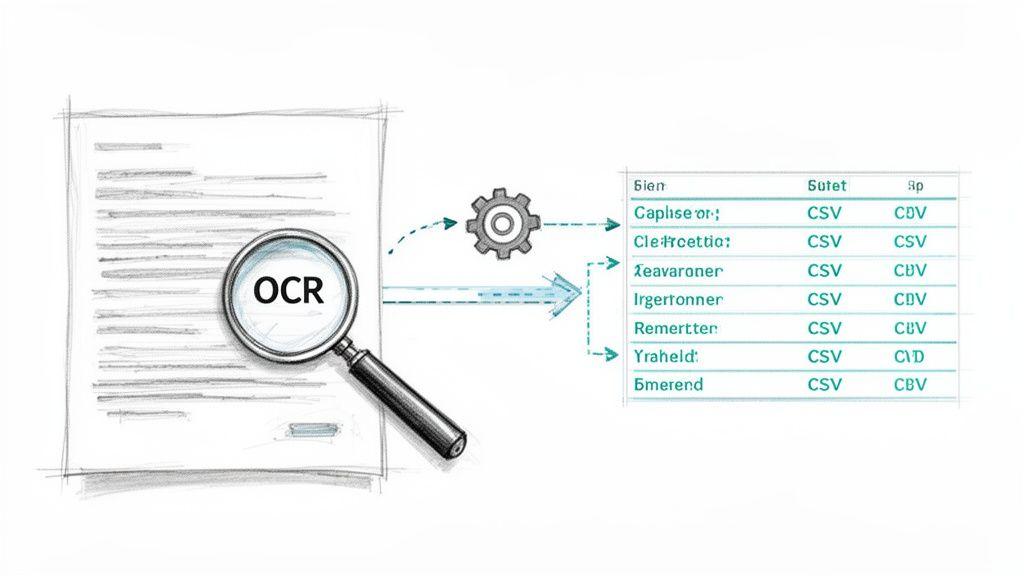
Even with the right tools, the path from PDF to CSV can have a few bumps. You might end up with jumbled data, or maybe you're worried about the security of that online tool you just found. Let's tackle some of the most common questions and sticking points I've seen over the years.
Getting a handle on these issues will help you get clean, usable data every single time, without the headache.
Why Does My CSV File Look Messy After Converting?
This is, without a doubt, the most common frustration. You run a conversion, open the CSV, and it’s a total mess. 9 times out of 10, the problem isn't the tool—it's the original PDF.
Think about what the converter sees. If the PDF table has merged cells, text that wraps onto multiple lines within a single row, or funky formatting, the software gets confused. It struggles to figure out where one column ends and the next begins, causing data to spill over and creating that jumbled output.
Scanned documents are particularly bad for this. The OCR process can introduce weird characters or misread the spacing between columns, resulting in pure chaos.
When this happens, don't give up. First, try a different tool. If a simple online converter failed, something more robust like the Tabula desktop app might be the answer. It lets you manually draw a box around the exact table area, which often solves the problem instantly. If that still doesn't work, you'll have to roll up your sleeves for some cleanup.
The most reliable fix for messy data is often a quick trip to a spreadsheet program. In Excel or Google Sheets, the 'Text to Columns' feature is your best friend. It lets you manually split data that got mashed into a single column, giving you the final say on structure.
Is It Safe and Legal to Use Free Online Converters?
When you convert a PDF to a CSV for free using a web-based tool, you're really asking two separate questions: one about safety, the other about legality.
On the safety front, you have to assume there’s a privacy risk. Uploading a document to a random website means you're trusting a third party with your information. If that PDF contains sensitive financial data, personal details, or proprietary business info, using an online tool is a gamble. Always check the privacy policy—if you can find it—to see how long they store your files.
For anything confidential, the choice is clear: use an offline tool. A desktop app or a local Python script keeps your data on your machine, period.
As for legality, converting a file you own is perfectly fine. The grey area involves the content inside the PDF. If you’re extracting data for your own internal analysis, academic research, or personal use, you're almost certainly in the clear. But if you plan to republish or distribute that extracted data, you could run into copyright issues if you don't have the rights to it.
Can I Convert Multiple PDF Files at Once?
Yes, absolutely! Batch conversion is a lifesaver, but how you do it depends on the tool. Most free online converters are built for one-off jobs, forcing you to upload and process each PDF individually. That gets old fast.
For anyone dealing with a high volume of files, you need a more powerful approach. While some desktop apps offer batch processing, the most efficient and scalable solution is a bit of code.
A simple Python script using a library like tabula-py or Camelot is the gold standard here. You can write a few lines of code to do all the heavy lifting for you:
- Find all the PDF files in a specific folder.
- Loop through each one, applying the same table extraction rules.
- Save the data from each PDF into its own cleanly named CSV file.
Sure, it takes a few minutes to set up, but it turns what could be hours of tedious clicking into a hands-off process that’s over in minutes. It's the go-to strategy for anyone who needs to process dozens (or hundreds) of similar reports on a regular basis.