If you've ever tried pulling information out of a PDF, you know it can be a real headache. Sometimes it's a simple copy-paste, but other times you end up with a jumbled mess of text. It all comes down to what kind of PDF you're working with.
Figuring this out upfront is the most important step. It dictates the tools you’ll need and can save you from a ton of frustration down the road.
Why Getting Data Out of a PDF Can Be So Tough
Ever wonder why copying from a PDF feels so clunky? The Portable Document Format (PDF) was originally designed to be a digital snapshot. Its goal was to preserve a document's exact look and feel—fonts, images, layout—no matter what device or operating system you opened it on. It was built for viewing, not for editing or data extraction.
This "locked-in" nature is why we run into problems. To get at the information inside, we first need to understand the two main flavors of PDFs you'll encounter.
Text-Based PDFs (The "Easy" Ones)
These are the PDFs you get when you save a document from something like Microsoft Word or Google Docs. The text inside is genuine, machine-readable text. You can click and drag to highlight a sentence, search for a specific word, and copy a paragraph with no issues.
Think of a student highlighting passages in a digital textbook or a colleague searching for a specific clause in a contract. That’s a text-based PDF in action.
Image-Based PDFs (The Tricky Ones)
These are PDFs created by scanning a physical document or taking a picture of a page. To your computer, each page is just a single flat image, like a JPEG. There's no actual text to select because the computer only sees pixels.
This is what happens when a business scans a stack of old invoices or a researcher digitizes archival records. You can look at the page and read the words, but trying to copy them will get you nowhere. You need a different set of tools for this job.
The flowchart below breaks down this initial decision-making process. It’s a simple but powerful way to visualize your first move.
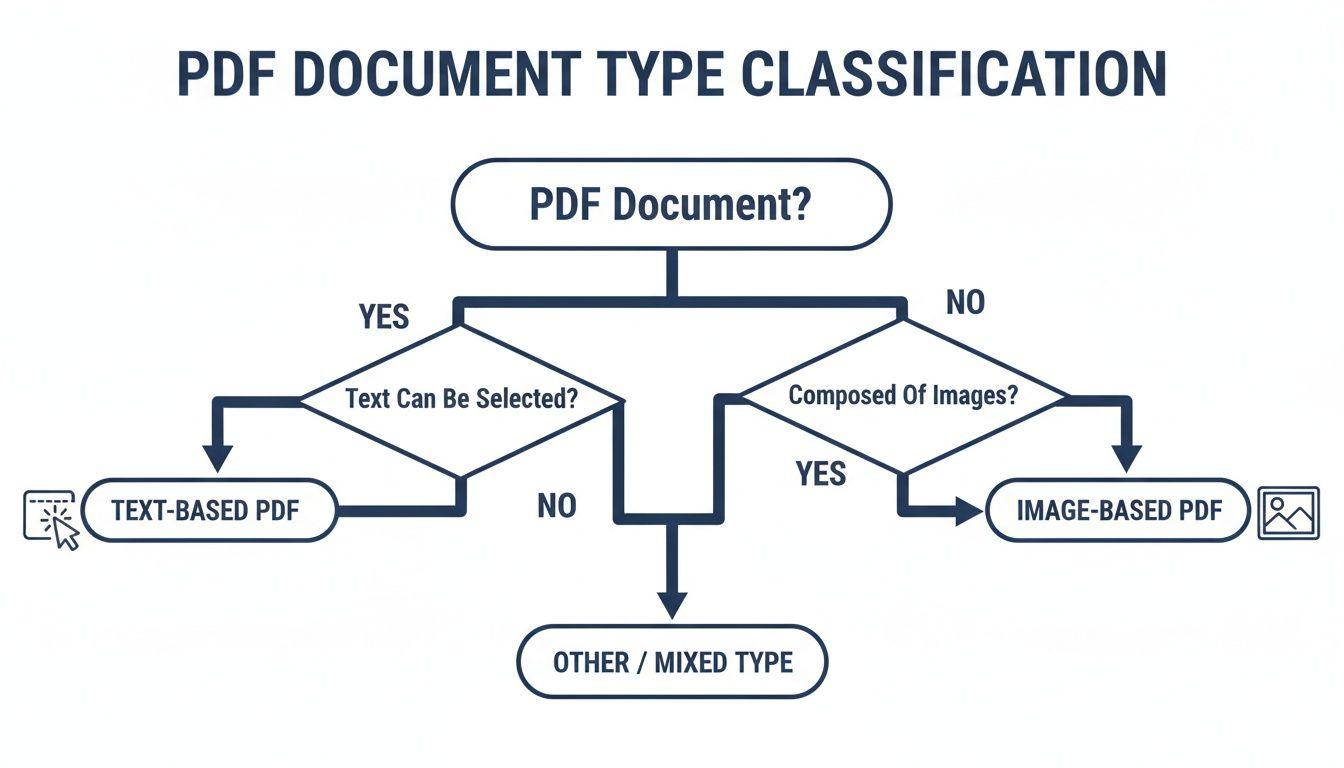
As you can see, the first thing you should always do is try to select some text. This simple test immediately tells you which path to take.
A Quick Guide to Choosing Your Method
To make it even clearer, this table breaks down which extraction methods work best for different PDF types and skill levels. Think of it as a cheat sheet for getting started.
Choosing Your PDF Extraction Method
| Method | Best for PDF Type | Technical Skill | Use Case Example |
| Simple Copy/Paste | Text-Based | Beginner | Copying a paragraph from a report for an essay. |
| Command-Line Tools | Text-Based | Intermediate | Batch-extracting text from 50 research papers. |
| Python Libraries | Text-Based & Mixed | Intermediate/Advanced | Building a script to pull specific data points from invoices. |
| OCR (Tesseract, etc.) | Image-Based & Mixed | Intermediate/Advanced | Digitizing a scanned, historical book. |
| Table Extraction Tools | Text-Based & Mixed | Beginner/Intermediate | Pulling sales figures from a PDF financial statement into Excel. |
This isn't an exhaustive list, but it covers the most common scenarios you'll face whether you're a student, a researcher, or a small business owner.
The Foundation for Smart Extraction
Taking a moment to identify the PDF type is the difference between a five-minute task and a five-hour headache. It's a fundamental step that makes everything else easier.
This challenge has become so common that it’s fueled a massive industry. The global PDF Software Market was valued at USD 2,158.06 million and is expected to climb to over USD 5,734.37 million by 2033. This isn't surprising, given that over 70% of small businesses rely on PDF tools for their daily work. You can find a full analysis of the PDF software market to see just how essential these tools have become.
Key Takeaway: The core problem is the PDF's structure. A text-based PDF holds its content like a normal document, while an image-based PDF holds it like a photo. Knowing which one you have is the first and most critical step to getting the data you need.
Simple Extraction Methods for Quick Wins
Sometimes, the best solution is the simplest one. Before you get bogged down in specialized tools, it's always worth trying the low-tech methods first. You'd be surprised how often they solve the problem in just a few seconds, especially when you're dealing with a standard text-based PDF.
The most obvious technique is, of course, the classic copy and paste. For a huge number of everyday tasks, this is all you'll ever need.
If you're a student grabbing a quote for an essay or a team member pulling a client's address from a contract, simply highlighting the text (Ctrl+C or Cmd+C) and pasting it (Ctrl+V or Cmd+V) into your document usually works just fine.
But we've all been there—you paste the text and it's a complete mess. It's often riddled with awkward line breaks, extra spaces, or garbled formatting. This happens because PDFs often store text line by line, not as cohesive paragraphs, which can wreak havoc when you try to move it somewhere else.
Cleaning Up Pasted Text
When your pasted text looks like a disaster, a quick cleanup is usually all it takes. Instead of painstakingly fixing it by hand, let your text editor's "Find and Replace" function do the heavy lifting.
For example, many PDFs will stick a hard return at the end of every single line. In Microsoft Word, you can often find these paragraph breaks (using ^p) and replace them with a single space to stitch your sentences back together properly.
For really stubborn formatting, try pasting the text into a plain text editor first—think Notepad on Windows or TextEdit on Mac. This simple step strips away all the problematic styling, leaving you with clean, unformatted text that you can then move into your final document.
My Personal Tip: I almost always paste messy PDF text into a plain text editor first. It acts as a filter, getting rid of hidden formatting that even a word processor might hang onto. This one extra step has saved me countless hours of manually fixing weird line breaks and font issues.
Another fantastic built-in option is the Save as Text or Export feature you'll find in most modern PDF readers. Both Adobe Acrobat Reader and even the PDF viewers in web browsers have this. This function is designed to convert the entire document's text into a clean .txt file, neatly sidestepping the line-by-line formatting headaches that plague copy-pasting.
This approach is perfect when you need to pull large blocks of text, like an entire chapter from a report or all the content from a long article. It's a true quick win for getting the raw information you need without any of the usual fuss.
Unlock Scanned Documents with OCR Technology
Ever opened a PDF and found you can't select, copy, or search for any text? That's a classic sign you're dealing with a scanned document. It’s not really a text file; it’s more like a photograph of a page. Your computer just sees one big, flat image, not individual letters and words. This is where Optical Character Recognition (OCR) comes to the rescue.
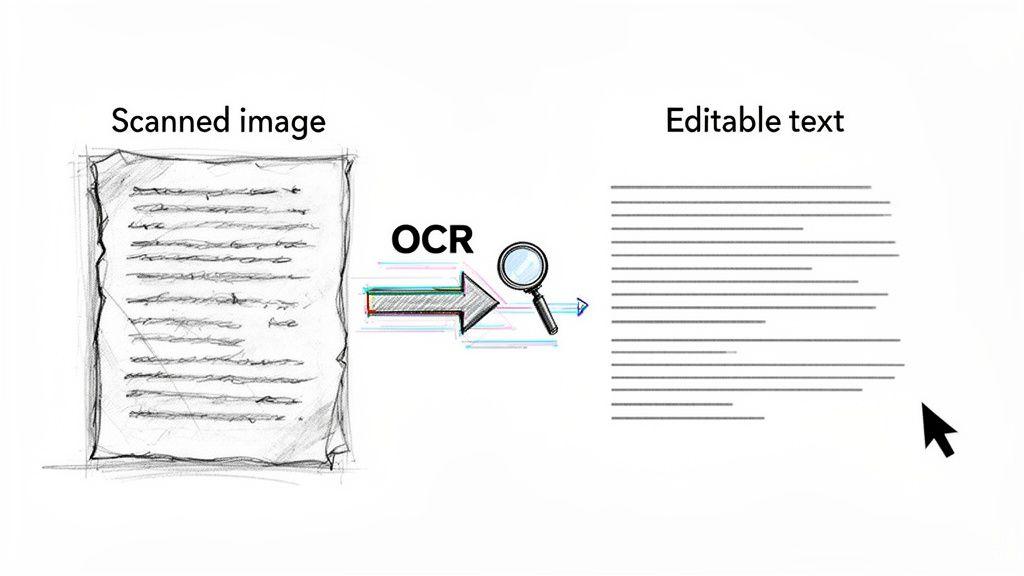
OCR technology acts like a digital translator. It scans the image, recognizes the shapes of letters and numbers, and converts them into actual, machine-readable text you can work with. It's the magic that lets a historian digitize old, typewritten archives or a small business automatically pull data from scanned invoices.
Choosing Your OCR Tool
The right OCR tool really depends on your technical skills and how many documents you need to process. The options range from simple web tools to powerful command-line engines.
- Online OCR Converters: Perfect for quick, one-off jobs. You just upload your PDF to a website, and it spits back a text-based version. These are fantastic if you just need to convert a single scanned contract or a few pages from a textbook.
- Desktop OCR Software: For those who work with scanned documents regularly, applications like Adobe Acrobat Pro have robust, built-in OCR features. They give you much more control over things like language settings and output formatting.
- Open-Source Tools: If you're comfortable with the command line, Tesseract is an incredibly powerful and accurate OCR engine. Originally built by HP and now maintained by Google, it’s a go-to for developers and anyone needing to automate the conversion of large batches of files.
Pro Tip: OCR isn't just for PDFs. This same technology can pull text from any image file. Got a photo of a whiteboard from a meeting or a screenshot of a presentation slide? You can use OCR to make that text searchable and editable.
Beyond Basic Text: Intelligent Document Processing
Modern OCR has evolved far beyond just recognizing characters. The field of Intelligent Document Processing (IDP) now uses AI to understand the context and structure of a document. It can distinguish a header from a table, identify key-value pairs like "Invoice Number," and even decipher handwritten notes with surprising accuracy.
This isn't just a niche technology; it's a rapidly growing market valued at USD 2.3 billion, largely because it can reduce manual data entry by up to 80%. You can dig deeper into how AI is powering this market growth.
For a student, this means being able to pull notes from a scanned, handwritten study guide. For a business, it's the key to automatically processing thousands of differently formatted invoices without a human touching each one. If you're curious about the broader applications, our guide on how to convert an image into text explores these concepts in more detail.
When you're staring down a mountain of PDFs—say, hundreds of research papers or a folder overflowing with supplier invoices—the idea of copy-pasting your way through them is a non-starter. It’s not just tedious; it's completely impractical.
This is where a little bit of automation makes a world of difference. And for this kind of work, Python is your best friend.
Even if you're not a seasoned developer, you can use simple Python scripts to tear through files in bulk. You'll save an incredible amount of time by letting the machine do the grunt work. The secret is tapping into powerful, beginner-friendly libraries built specifically for handling PDFs. They take care of the complicated bits, so you can focus on the data you actually need.
Finding the Right Python Library for the Job
Diving into code can feel daunting if you're new to it, but Python is known for its straightforward, readable syntax. The real power comes from its massive collection of libraries that do most of the heavy lifting. You can often get a script up and running with just a handful of lines.
Here are a few of the most popular libraries, each with its own strengths:
- PyPDF2: A fantastic starting point. It's a pure-Python library perfect for basic tasks like pulling out raw text, splitting or merging documents, and reading file metadata. If you have simple, text-based PDFs, this is a great tool to begin with.
- pdfplumber: My personal go-to when I need more precision. Built on the robust
pdfminer.sixengine, it excels at extracting not just text but also tables and identifying the exact coordinates of elements on a page. - pdfminer.six: The powerhouse behind pdfplumber. It’s incredibly detailed and can analyze the exact layout of a PDF, including fonts and locations, which is crucial for complex documents where structure matters.
These tools transform a monumental task into something manageable. Think about a small e-commerce business that gets weekly product catalogs from suppliers as PDFs. Instead of someone manually keying data into a spreadsheet, a simple script could run through the folder, pull out all the product names and prices, and generate a clean CSV file, all on its own.
Here's a real-world example: A graduate student I know needed to scan 200 academic papers for specific keywords and phrases. Opening each one, searching, and copying the results would have taken days of mind-numbing work. With a basic Python script using PyPDF2, they processed the entire batch in less than 10 minutes, ending up with a neat summary file of every mention.
Popular Python Libraries for PDF Extraction
Choosing the right tool can feel overwhelming, so here's a quick breakdown of the most common Python libraries, what they do best, and how easy they are to pick up.
| Python Library | Key Feature | Best For | Ease of Use |
| PyPDF2 | Easy text extraction, splitting, and merging. | Quick and simple text extraction from basic PDFs. | Very Beginner-Friendly |
| pdfplumber | High-precision text and table extraction. | Pulling structured data like tables and reports. | Beginner-Friendly |
| pdfminer.six | Detailed layout analysis (fonts, coordinates). | Complex documents where text flow and position matter. | Intermediate |
| PyMuPDF (fitz) | High-speed rendering, text, and image extraction. | Performance-critical tasks and extracting images. | Intermediate |
Each library has its place. For most people just starting out, pdfplumber offers the best balance of power and simplicity, especially if you anticipate needing to extract tables down the road.
A Simple Code Example to Get You Started
Let's see just how easy this can be. Here’s a quick script using pdfplumber to pull all the text from a single PDF. You definitely don't need a computer science degree to follow along.
import pdfplumber
The name of the PDF file you want to process
pdf_file = "your_document.pdf"
Open the PDF file
with pdfplumber.open(pdf_file) as pdf:
# Loop through each page in the PDF
for page in pdf.pages:
# Extract the text from the current page
text = page.extract_text()
# Print the extracted text to the console
print(text)
That's it. This short script opens your file, goes through it page by page, and prints out all the text it finds. From here, you could easily tweak it to save the output to a file, search for specific patterns, or even process every PDF in an entire folder.
This is the first step toward true efficiency. If you want to explore this topic further, our guide on how to automate repetitive tasks provides a broader look at building smart workflows. These Python tools are a fantastic piece of that puzzle.
How to Extract Tables and Complex Data
Copying a simple paragraph is one thing, but tables are often the final boss of PDF extraction. Anyone who has tried knows the pain: a perfectly structured table in a PDF becomes a chaotic jumble of text and numbers the moment you paste it. This happens because PDFs don't really store tables as grids; they just place text in specific locations on the page.
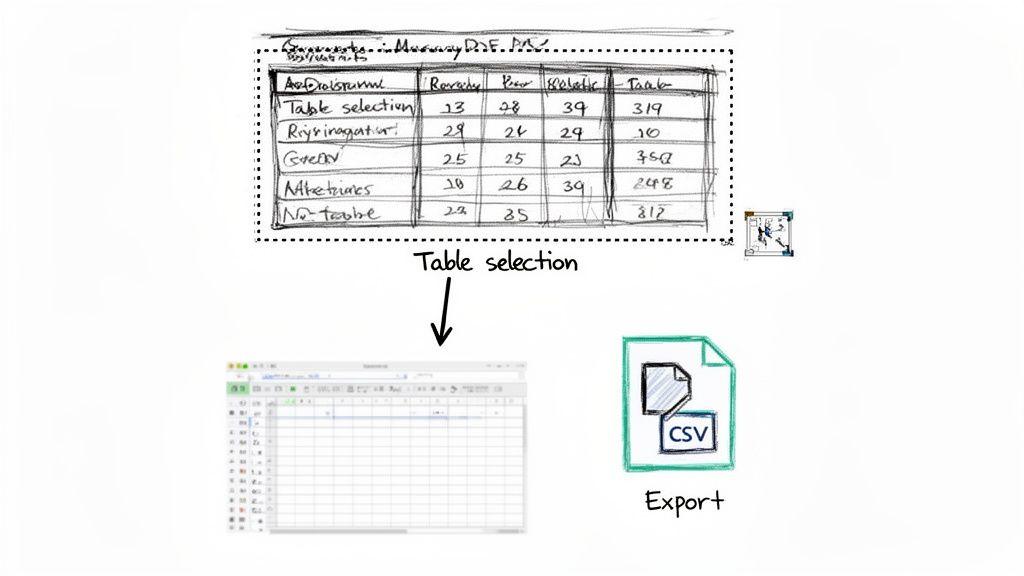
When the standard methods fail, it’s time to bring in tools designed specifically to understand and reconstruct tabular data. These can accurately parse rows and columns, saving you from hours of manual cleanup.
Specialized Tools for Table Extraction
For most people, the best place to start is with tools that have a visual interface. They let you see what you’re doing and make adjustments on the fly, which is perfect for one-off tasks.
- Tabula: This is a fantastic free and open-source tool. It gives you a simple interface where you can literally draw a box around the table you want to pull out. Tabula then does its best to figure out the rows and columns within that selection and lets you export the data to a clean CSV or spreadsheet file.
- Camelot: If you need more power and are comfortable with Python, Camelot is an excellent choice. It’s a library that offers granular control over the extraction process. This makes it ideal for automating the extraction of tables from hundreds of documents, like pulling financial data from a batch of annual reports.
Real-World Scenario: Imagine you’re a student working on a research project. You have a scientific paper with several tables of experimental results. Instead of retyping everything, you could use Tabula to select each table and export it directly into Excel for analysis. What would have taken an hour now takes just a few minutes.
Going Beyond Tables to Metadata and Images
Extracting information from a PDF isn't always about the visible text and tables. Sometimes, the most valuable data is tucked away inside the file itself. This "data about data," known as metadata, can be incredibly useful for organization and record-keeping.
Most PDF readers let you view a document's properties, where you can find things like:
- Author: Who created the document.
- Creation Date: When the file was originally made.
- Subject: A brief description of the content.
- Keywords: Tags that can help with searching and categorization.
Python libraries like PyPDF2 can also access this metadata programmatically, which opens up possibilities like automatically renaming or sorting files based on their author or creation date.
In a similar vein, specialized libraries like PyMuPDF (fitz) can be used to extract embedded images from a PDF, saving them as separate image files. This is perfect for archiving graphics or photos from reports.
The demand for these capabilities has driven significant growth in the Data Extraction Market, valued at USD 2.33 billion in 2023. Automated solutions are proving much faster and more accurate than manual methods, with some tools achieving up to 98% accuracy on structured data like tables. You can discover more insights on the data extraction market's rapid expansion.
Protecting Your Data During Extraction
Let's talk about security. When you're pulling information from a PDF filled with sensitive details—think client contracts, financial reports, or personal records—how you do it matters just as much as what you extract.
The web is full of free, convenient PDF tools, but they often come with a hidden cost. Many of these platforms might store, scan, or even misuse the files you upload. It's a risk you can't afford to take with confidential information.
Keep It Local, Keep It Safe
The single best way to protect your data is to use tools that process everything locally on your own machine. This simple step ensures your documents never leave your computer, completely cutting out the risk of a third-party data breach.
For this, your best bets are:
- Command-line utilities
- Python libraries
- Reputable desktop software
These options give you full control, so you're never left wondering who else might have access to your information.
What to Look for in an Online Tool's Privacy Policy
Sometimes, an offline tool just isn't practical. If you absolutely have to use an online service, it's time to do some homework and dig into their privacy policy. Don't just skim it—look for clear answers on data handling.
Specifically, you need to know:
- Data Encryption: Does the service use encryption while your file is being uploaded and while it's sitting on their server?
- Retention Period: How long do they keep your files? The best services delete them immediately after processing. Anything longer is a red flag.
- Data Usage: Does the policy explicitly state they won't share or sell your data to third parties?
A strong privacy policy isn't just a wall of legal text; it's a promise to protect your information. If a service doesn't have a clear, easy-to-find policy, the safest bet is to assume your data isn't private and find another tool.
For another layer of defense, you can also lock down the document itself. Learning how to make a PDF document password protected creates a crucial barrier, protecting the file even if it falls into the wrong hands.
At the end of the day, the goal is to minimize your data's exposure. Always know where your files are being processed, and if you use an online platform, delete the documents the second you're done. A little proactive caution goes a long way.
Got Questions? We've Got Answers
Diving into PDF data extraction often sparks a few questions, especially when you hit a snag. Let's tackle some of the most common ones I hear from folks trying to pull information from their documents.
What's the Best Free Tool for Ripping Tables Out of a PDF?
If you're looking for something with a straightforward visual interface, you can't go wrong with Tabula. It’s a fantastic open-source tool that lets you literally draw a box around a table in a PDF and export it as a CSV. It’s perfect if you're not a programmer and just need to get data into a spreadsheet.
For those who are comfortable writing a bit of Python, you have even more power. Libraries like pdfplumber and Camelot are the go-to choices for automating table extraction, especially if you have a whole stack of PDFs to process.
Is It Possible to Get Text from a Handwritten PDF?
Yes, but this is where things get tricky. It requires a more advanced form of OCR, often called Intelligent Character Recognition (ICR), which is specifically trained to read handwriting. Be prepared for mixed results—the accuracy really depends on how neat the handwriting is.
Your standard free OCR tools will probably fall flat here. You’ll need to look at more sophisticated AI-driven platforms or specialized OCR APIs that explicitly support handwriting.
A Word of Advice: Pulling text from handwritten notes is a tough job. The quality of your scan and the power of the OCR engine are everything. For critical documents, I'd recommend investing in a service that specializes in ICR.
Why Does Text Turn to Gibberish When I Copy-Paste from a PDF?
Ah, the classic copy-paste scramble. This is incredibly common, and it usually boils down to a few things. Sometimes, it’s a simple security setting on the PDF that's blocking proper copying.
More often, though, the problem is how the text is encoded in the file itself. The PDF might be using custom fonts or weird character maps that your computer can't decipher. Another culprit is a PDF that looks like text but is actually just an image of text—in that case, you're just copying an image, not the words.
Instead of a simple copy-paste, try using your PDF reader’s "Export to Text" function or run it through one of the command-line tools we talked about earlier. You’ll almost always get a cleaner result.