Here's the thing about citing a PDF: the biggest mistake people make is trying to cite the PDF file itself. The secret isn't some complicated rule; it's realizing that you should never actually cite the PDF.
Instead, you need to identify what kind of document you're looking at. Is it a journal article, a government report, an ebook, or a dissertation? That single detail is what determines the citation format you need to use.
Your Guide to Citing Any PDF
Staring at a PDF and wondering how to credit it is a classic roadblock for students and researchers. Think of the ".pdf" file as just a digital wrapper. What really matters is the document inside that wrapper.
Once you know whether you're dealing with a scholarly article, a company white paper, or a book chapter, the citation process becomes a whole lot clearer. You're simply following the established rules for that specific document type, not for the PDF format. This shift in thinking is the most important step. Stop searching for "how to cite a PDF in APA" and start searching for "how to cite a journal article in APA." It immediately puts you on the right track.
The Most Important Citation Details
Before you can even think about specific style guides, you need to do a little detective work and gather the basic information from your document. These are the building blocks for any citation you'll ever create.
Look for these key details:
- Author(s) or Organization: Who actually wrote or published it?
- Publication Date: When did it come out? Look for a year, and sometimes a month and day.
- Title: What is the full title of the article, report, or book?
- Source Information: For a journal article, this means the journal's name, volume, and issue number. For a book, it's the publisher. For a report, it might be the organization that issued it.
- DOI or URL: A Digital Object Identifier (DOI) is a permanent link and is always the best choice for online sources. If you can't find a DOI, use the URL where you found the PDF.
Sometimes, you can get a head start on this. AI tools, for example, can scan a document and pull out this metadata for you. The image below shows how an AI assistant from 1Chat can analyze a PDF and instantly extract the key citation info.
This kind of analysis can save you a lot of time you'd otherwise spend hunting through the document's pages.
Key Takeaway: Your goal is not to learn a special rule for citing PDFs. It's to identify the document type inside the PDF and apply the standard citation rules for that specific source—be it an article, report, or book.
To give you a quick reference point, we've put together a cheat sheet for the most common PDF types—journal articles and reports—across the big three citation styles.
PDF Citation Cheat Sheet For APA, MLA, and Chicago
This table provides a quick look at the core components and a basic reference list example for citing a journal article found as a PDF.
| Citation Style | Core Components | Basic Reference List Example (for a Journal Article) |
| APA 7 | Author, A. A. (Year). Title of article. Title of Periodical, volume(issue), pages. https://doi.org/xxxx | Sanchez, D. (2020). The impact of remote work on productivity. Journal of Business Studies, 45(2), 112–124. https://doi.org/10.1234/jbs.2020.5678 |
| MLA 9 | Author, First Name Last Name. "Title of Article." Title of Journal, vol. #, no. #, Date, pp. #-#. Database, DOI or URL. | Sanchez, Daniela. "The Impact of Remote Work on Productivity." Journal of Business Studies, vol. 45, no. 2, 2020, pp. 112-24. JSTOR, doi.org/10.1234/jbs.2020.5678. |
| Chicago 17 | Author Last Name, First Name. "Title of Article." Title of Journal Volume, no. Issue (Year): pages. DOI. | Sanchez, Daniela. "The Impact of Remote Work on Productivity." Journal of Business Studies 45, no. 2 (2020): 112–24. https://doi.org/10.1234/jbs.2020.5678. |
Keep this handy as you work, but remember that specific cases (like missing authors or dates) might require slight adjustments, which we'll cover next.
Mastering the Core Citation Styles for PDFs
Alright, so you've figured out what your PDF actually is—a journal article, a report, an ebook. That’s the most important first step. Now it’s time to get down to the nitty-gritty of formatting it correctly for the “big three” academic citation styles: APA, MLA, and Chicago.
Each style has its own quirks and priorities. Think of them as different dialects. They all use the same core information you gathered—author, date, title—but arrange and punctuate it in a way that reflects their discipline's focus. Getting this right isn't just about following rules; it's about showing you're a careful researcher who speaks the language of your field.
This flowchart can help you visualize that initial thought process. Before you even think about formatting, you have to know what kind of source you're holding.
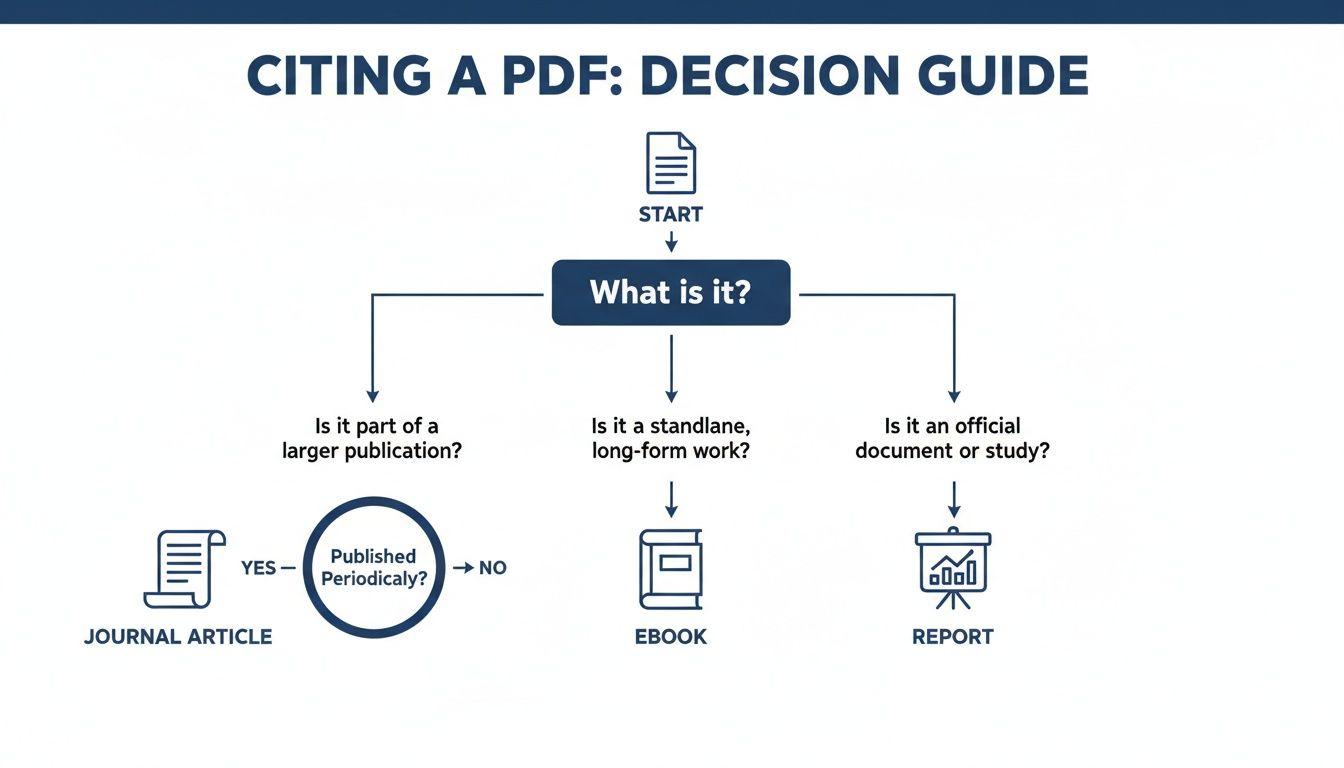
As you can see, the path always starts with identifying the content inside the PDF, not the file format itself. Let's walk through how to cite the most common find—a journal article—in each style.
Citing a PDF in APA 7th Edition
If you're writing in the social sciences, education, or business, you're almost certainly using APA style. The big thing to remember with APA 7 is its emphasis on timeliness. That's why the publication date comes right after the author's name.
For a journal article you found as a PDF, the structure is clean and predictable. The key is having a DOI (Digital Object Identifier). This is the persistent link that ensures anyone can find the exact article you used, so always include it when it's available.
Here’s the anatomy of an APA 7 reference list entry:
- Author: Last name, followed by first and middle initials.
- Date: The publication year, snug in parentheses.
- Article Title: In sentence case. Only capitalize the first word and any proper nouns.
- Journal Info: Italicize the journal title and the volume number. The issue number goes in parentheses (not italicized), followed by the page range.
- Location: The DOI, presented as a full, clickable URL.
Example APA 7 Citation Reference List: Mounier-Kuhn, P. (2012). Computer science in French universities: Early entrants and latecomers. Information & Culture: A Journal of History, 47(4), 414-456. https://doi.org/10.7560/IC47402
In-Text Citation (Parenthetical): (Mounier-Kuhn, 2012)
In-Text Citation (Narrative): Mounier-Kuhn (2012) observed that...
Citing a PDF in MLA 9th Edition
Working in the humanities—literature, languages, or the arts? You'll be using MLA 9. MLA thinks in terms of "containers." The article is the source, and the journal it was published in is its container. This logic guides the entire citation format.
Unlike APA, MLA uses the author's full name and puts the article title in quotation marks. The publication date also appears much later in the citation.
The key ingredients for an MLA Works Cited entry are:
- Author: Last Name, First Name.
- Article Title: In title case, wrapped in quotation marks.
- Journal Title: Italicized, followed by the volume and issue numbers.
- Publication Details: The publication date and page range.
- Location: The DOI, formatted as a direct link.
Example MLA 9 Citation Works Cited: Mounier-Kuhn, Pierre. "Computer Science in French Universities: Early Entrants and Latecomers." Information & Culture: A Journal of History, vol. 47, no. 4, 2012, pp. 414-56. https://doi.org/10.7560/IC47402.
In-Text Citation: (Mounier-Kuhn 420)
Citing a PDF in Chicago 17th Edition
The Chicago Manual of Style is a favorite in history, art history, and some other humanities fields. It’s known for its flexibility, offering two different systems. We'll focus on the most common one: Notes and Bibliography, which uses footnotes for in-text citations.
Properly citing your sources is always important, but the sheer volume of PDFs in modern research makes it critical. For context, one detailed analysis found that journal articles, which we mostly access as PDFs, accounted for 57.0% of all citations in a sample of dissertations.
With Chicago, you'll create two related citations for each source: a footnote and a bibliography entry.
Here’s how the pieces fit together for a journal article:
- Bibliography Entry: Starts with the author's last name, and major elements are separated by periods. It includes the article's full page range.
- Full Footnote: Used for the first mention of a source. It starts with the author's first name, uses commas as separators, and includes the specific page number you're referencing.
- Shortened Footnote: A condensed version used for all subsequent mentions of the same source to keep your notes tidy.
Example Chicago 17 Citation Bibliography: Mounier-Kuhn, Pierre. "Computer Science in French Universities: Early Entrants and Latecomers." Information & Culture: A Journal of History 47, no. 4 (2012): 414-56. https://doi.org/10.7560/IC47402.
Full Footnote: 1. Pierre Mounier-Kuhn, "Computer Science in French Universities: Early Entrants and Latecomers," Information & Culture: A Journal of History 47, no. 4 (2012): 421, https://doi.org/10.7560/IC47402.
Shortened Footnote (for subsequent mentions): 2. Mounier-Kuhn, "Computer Science," 435.
While these examples are for a journal article, the logic applies to other PDF sources. Once you get a feel for the rhythm of each style, you’ll be able to tackle nearly any document you find. If you want to dive deeper into building your final list of sources, check out our comprehensive guide on how to write a bibliography.
Handling Tricky and Uncommon PDF Citations
Sooner or later, every researcher runs into a source that just won't fit the standard citation mold. In my experience, the most valuable PDFs—a scanned historical letter, an internal corporate report, or a game-changing conference presentation—are often the ones missing key pieces of information. This is where citing becomes less about following a rigid formula and more about smart, ethical problem-solving.
When you find a source with missing details, don't worry. The major style guides have clear protocols for these exact situations. Your goal is simply to use the clues you do have to create a citation that's clear, consistent, and helps your reader track down the original document.
Citing a PDF with No Author
Finding a PDF without a clearly listed author is incredibly common, especially when you're working with government reports, organizational white papers, or anonymous web content. In these cases, you don't just leave the author field blank.
You have a couple of solid options:
- Credit the Organization: If the PDF was published by a specific group, agency, or corporation, that entity effectively serves as the author. For instance, a report from the World Health Organization would list "World Health Organization" in the author slot.
- Use the Title: When there's no author or publishing organization to name, the title of the work moves into the author's position. For your reference list, you'll alphabetize this entry using the first significant word of the title (ignoring words like "A," "An," or "The").
APA 7 Example (No Author, Title First):
Reference List: A guide to financial literacy for young adults. (2023). Bank of America. https://...
In-Text Citation: (A Guide to Financial Literacy, 2023)
Citing a PDF with No Publication Date
What happens when your PDF is missing a publication date? This is another frequent scenario, particularly with online manuals, older documents, and resources saved from websites.
Across almost all citation styles, the answer is the same: use the abbreviation "n.d.", which stands for "no date."
Using "n.d." isn't an admission of failure; it's a sign of thorough research. It clearly signals to your reader that you looked for a date and one wasn't available.
MLA 9 Example (No Date):
Works Cited: Institute for Climate Studies. "Annual Methane Measurement Protocols." ICS Publications, n.d., www.ics.edu/protocols.pdf.
In-Text Citation: (Institute for Climate Studies)
Pro Tip: Before settling on "n.d.", do a final check. Sometimes a "last updated" or "last modified" date is tucked away in the website footer or in the PDF's file properties. If you can find one, use that year, as it's more precise.
Getting the date right is crucial, especially when you're citing a high-impact study. One landmark 1998 paper found that academic citations follow a power-law distribution, where a tiny fraction of papers get most of the attention. The research showed that only 0.27% of papers ever receive more than 200 citations. When you're referencing one of these foundational PDFs, nailing every detail lends significant authority to your own work.
Tackling Gray Literature and Scanned Documents
"Gray literature" is a term for research and materials produced outside of traditional academic or commercial publishing channels. This includes a huge range of valuable sources, often distributed as PDFs:
- Conference proceedings
- Technical reports
- Theses and dissertations
- Government documents
The key to citing gray literature is to be as descriptive as possible. Your citation should give the reader enough context to understand what the document is and how to find it.
For example, you might include the report number for a technical paper or note the degree-granting university for a dissertation. For a scanned historical document, like a letter from a digital archive, your citation should identify the document itself but also note its format and where it's located. Adding a brief description in brackets, like "[Letter]" or "[Scanned receipt]," is also a great practice.
Chicago 17 Example (Technical Report):
Bibliography: Rodriguez, J., and Chen, L. "Advanced Polymer Composites for Aerospace Applications." Report No. TR-2023-08. National Institute for Materials Science, 2023. https://...
Footnote:
- J. Rodriguez and L. Chen, "Advanced Polymer Composites for Aerospace Applications," Report No. TR-2023-08 (National Institute for Materials Science, 2023), 14, https://...
Navigating these unique sources requires a bit more detective work, but the guiding principles are always clarity and consistency. And when dealing with sensitive internal reports or other private documents, ensuring their security is just as important. For tips on securing your files, feel free to check out our guide on how to make a PDF document password-protected.
A Modern Workflow with Citation Tools and AI
Let's be honest: manually typing out a reference list is a nightmare. It's tedious, mind-numbing work, and even the smallest typo can chip away at your credibility. I've spent more late nights than I care to admit hunting down a missing comma or a misspelled author name.
Thankfully, those days are over. There’s a much smarter, more accurate way to handle your PDF sources. Here’s the workflow I’ve refined over years of research—a system that keeps my sources organized and my citations perfect every time.
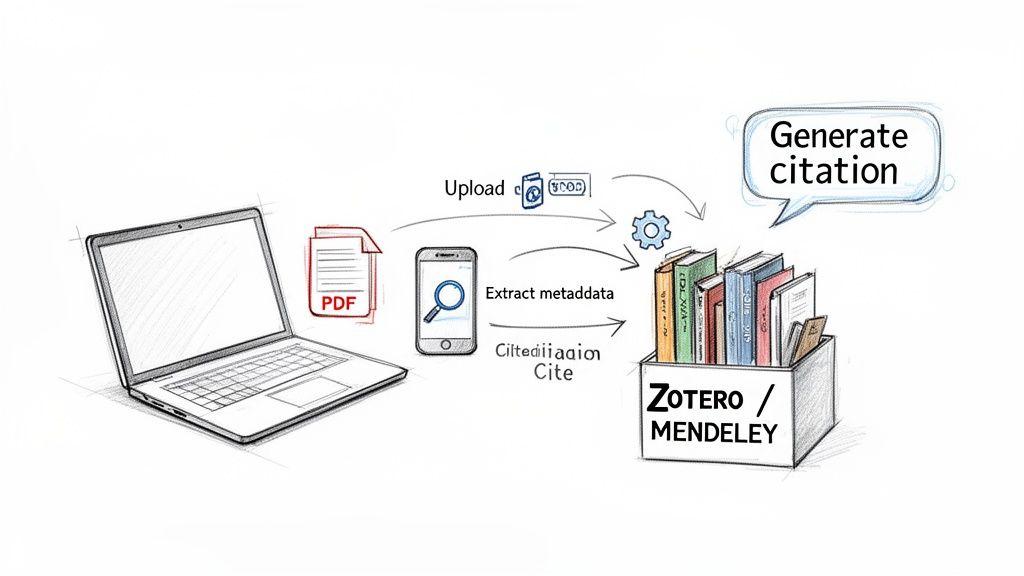
This process isn't about one magic tool; it’s about combining a couple of key pieces of software to handle the heavy lifting. It saves hours of grunt work and lets you focus on your actual writing.
Automating Citations with Reference Managers
If you’re a student or researcher, a reference manager like Zotero or Mendeley should be your best friend. Think of them as a personal digital library for every source you touch.
The real breakthrough comes when you add a PDF. Just drag a journal article into Zotero, and the software automatically scans it to pull out the key bibliographic data: author, title, journal, year, DOI, and more. It’s not flawless—I always give the results a quick once-over—but it gets you 90% of the way there in a matter of seconds.
From there, the "cite while you write" plugins for Microsoft Word and Google Docs are indispensable.
- Need to drop in an in-text citation? A couple of clicks, and it's done.
- Ready to build your bibliography? One more click generates a perfectly formatted list in APA, MLA, Chicago, or thousands of other styles.
I can't emphasize enough what a time-saver this is. For a recent paper with over 50 sources, creating the bibliography manually would have taken hours of painful formatting. With Zotero, it took me about 30 seconds to generate and another five minutes to proofread.
The Rise of AI in Citation Management
While reference managers are fantastic for organization, AI assistants are bringing a whole new level of efficiency to the table. Tools like 1chat add an interactive, intelligent layer to the entire research process.
Imagine you’ve just downloaded a dense, 50-page technical report as a PDF. Instead of just storing it, you can now have a conversation directly with the document. By uploading the PDF, you can simply ask things like:
- "Give me an APA 7 citation for this document."
- "What are the key findings in the 'Results' section?"
- "Summarize the author's main argument in three bullet points."
This moves way beyond just creating a citation; it merges citing with understanding. You can get a perfectly formatted reference and immediately ask follow-up questions to confirm the source is actually relevant to your argument. This is especially helpful when you need to quickly grasp the context. For instance, a 2009 report on citation metrics found that journal impact factors can be volatile. An AI tool could help you instantly analyze that report's data to decide if its findings truly support your point.
Putting It All Together: A Seamless Process
So, how does this all fit together in a real-world workflow? It's a smooth handoff between your AI assistant and your reference manager.
First, when you find a promising PDF, you can upload it to an AI chat tool to get the lay of the land. Ask for a quick summary to confirm it's what you need and grab a citation in your required style while you're there. (For more on this, check out our guide on how to extract information from a PDF.)
Next, you save that PDF and its clean citation data right into your Zotero or Mendeley library. This keeps everything organized and ready to go for current and future projects.
Then, as you’re writing your paper, you use your reference manager's plugin to pop in in-text citations as you go. No more "(Author, Year)" placeholders to fix later.
Finally, when your draft is complete, you generate the entire reference list with a single click. It’s alphabetized, correctly formatted, and ready for submission.
This integrated system turns citing a PDF from a dreaded chore into a fluid, almost invisible part of the research process. It frees you up to focus on what really matters: your ideas.
Best Practices for Citing PDFs Accurately
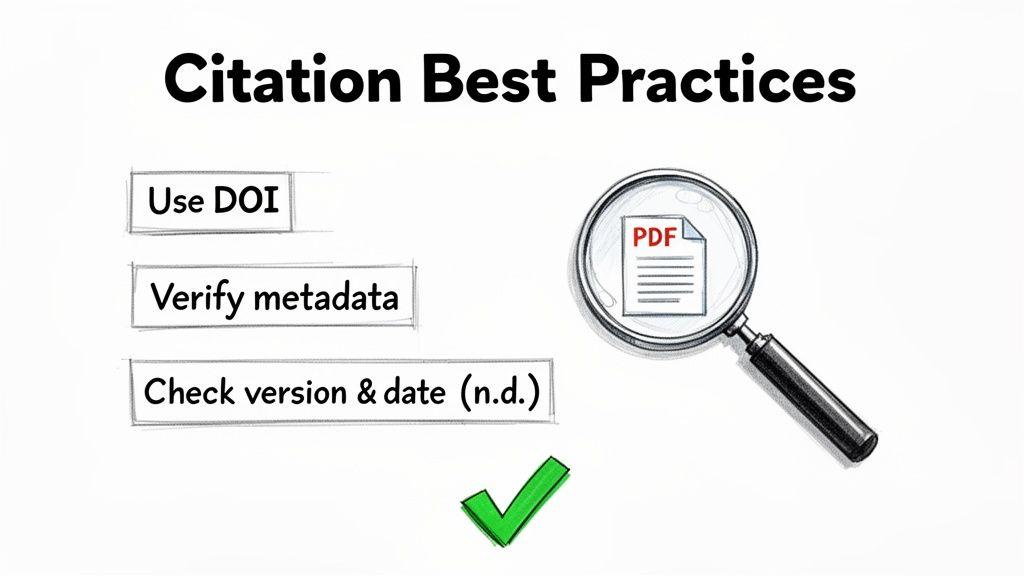
Getting the citation format right is just the first step. The real goal is to create a citation that's both accurate and ethically sound. More than just a way to avoid plagiarism, a solid citation builds a clear trail of evidence that strengthens your arguments and gives proper credit to the scholars whose work you're building on.
These habits aren't just about following rules—they're about protecting your own academic integrity. When you're meticulous, you make it easy for readers to find your sources, which is the hallmark of great research.
Prioritize the DOI Above All Else
If there’s one golden rule for citing online documents, it’s this: always use the DOI when it’s available. The DOI, or Digital Object Identifier, is a unique, permanent ID assigned to a specific document.
Think of it this way: a URL is like a street address, which can change if someone moves. A DOI is like a Social Security Number for a document—it stays with it forever. URLs often break over time (a problem we call "link rot"), but a DOI will always point to the correct source.
You can usually find the DOI right on the first page of an academic PDF, typically in the header or footer. If it’s not there, a quick search on Google Scholar or in a database like Crossref will almost always turn it up.
Key Takeaway: A URL points to a location, but a DOI points to an identity. By using the DOI, you ensure your citation will work for years, saving future readers (and yourself) the frustration of dead links.
The Double-Check Rule for Auto-Generated Citations
Citation managers and AI tools are fantastic for saving time, but they aren't perfect. They pull information from the metadata embedded in the PDF file, and that metadata can be messy, incomplete, or just plain wrong.
I’ve personally seen tools confuse a report ID with a volume number or fail to capitalize a title according to style guide rules. That's why you have to always double-check auto-generated citations.
Here’s a quick mental checklist I run through:
- Authors: Are the names spelled correctly and in the right order?
- Title: Is the capitalization right for the style guide (e.g., sentence case for APA, title case for MLA)?
- Publication Info: Is the journal title, volume, and issue number correct?
- Date: Is the year of publication accurate?
A five-minute proofread can save you from an embarrassing error that could chip away at your credibility. Think of automated tools as a helpful assistant, not the final authority.
Handle Preprints and Document Versions with Care
In fast-moving fields like computer science or medicine, researchers often share early versions of their work on preprint servers like arXiv.org before it has gone through formal peer review. If you're citing a PDF from one of these sites, you have a responsibility to be transparent about its status.
This means you need to clearly label it as a preprint in your citation.
Similarly, many reports and online guides are "living documents" that get updated. If you’re citing a document that has a version number or a "last updated" date, it's crucial to include that information.
For example, imagine you're citing a World Health Organization report on pandemic guidelines.
- Version 1.0 (March 2023): It makes a specific recommendation.
- Version 2.0 (September 2023): That recommendation is revised based on new data.
If you cite the March version without noting the date or version number, you could be misrepresenting the WHO's current stance. Paying attention to these small details is what makes a good researcher a great one.
Common Questions About Citing PDFs
Even when you feel like you have a handle on the rules, citing can get messy. Real-world research rarely fits into neat boxes, and PDFs are notorious for throwing curveballs. Let's walk through some of the most common tricky situations I see and get you some clear, confident answers.
We'll tackle the gray areas that trip up even seasoned researchers, from what you're actually citing to what to do when crucial information goes missing.
Do I Cite the PDF or the Original Source?
This question comes up all the time, and the answer is refreshingly simple: you always cite the original source, not the PDF file itself.
Think of the PDF as just the container. Your job is to describe what's inside that container. Is it a journal article? A chapter from a book? A government report? That's what you need to focus on, because your citation format will change depending on the answer.
For instance, if you download an article from the Journal of Psychology, you cite it as a journal article. You don't need to mention "PDF" anywhere in the citation. The content's origin is what matters, not the digital wrapper it came in.
What If My Ebook PDF Has No Page Numbers?
You're deep into an ebook on your tablet, you find the perfect quote for your paper, and then... no page numbers. It’s a classic problem with reflowable ebooks, where the "page" changes based on your screen size or font settings.
Don't worry, the major citation styles have a plan for this. Your goal is simply to leave a clear signpost so your reader can find the passage.
- For APA 7: Point to a heading, a paragraph number (e.g., para. 5), or a combination of the two (like "Discussion section, para. 4").
- For MLA 9: You can use the chapter (ch.), section (sec.), or paragraph (par.) number. For example, your in-text citation might look like
(Smith, ch. 3).
The main idea is to be as specific as you can. It shows you've done your due diligence and makes it easy for others to follow your work.
How Do I Find the DOI for a PDF Article?
For any modern academic article, the DOI (Digital Object Identifier) is your golden ticket. It's a permanent link that won't break over time, unlike a standard URL. Finding it is usually pretty easy.
First, just check the PDF itself. Most journals plaster the DOI right on the first page, often in the header or footer. It will almost always start with "10." and look something like this: https://doi.org/10.1234/j.psych.2023.01.001.
If it's not there, a little detective work is in order:
- Copy the article's full title.
- Pop it into Google Scholar. The search result often includes the full citation with the DOI.
- You can also go directly to the journal publisher’s website. The official page for the article will definitely have it.
- As a last resort, use the free DOI lookup on Crossref's website by pasting in the title.
A DOI is always superior to a URL. Website links can change or die—a phenomenon known as "link rot"—but a DOI is permanent. Using it ensures the long-term integrity of your citation and signals that you're a meticulous researcher.