
Want to know the quickest way to add a GIF in Slack? Just type /giphy followed by whatever you're thinking of, like /giphy celebration. It's the go-to command for instantly finding and sharing the perfect animated reaction.
Why GIFs Are a Secret Weapon for Team Communication
Before we get into the nuts and bolts, let’s talk about why GIFs have become such a staple in the modern workplace. A well-timed animation isn't just about getting a laugh; it’s a powerful tool for adding personality and emotion where text alone falls flat. Especially for remote and hybrid teams, GIFs can bridge the gap left by the absence of face-to-face non-verbal cues, making our digital chats feel a lot more human.
Think about it. In a busy channel filled with text updates, a single GIF can:
- Instantly cut through the noise to grab someone's attention.
- Serve as a mini-celebration for a project milestone or a big win.
- Make your point in a way that’s far more memorable than a simple "good job."
So, while it might feel like you're just having fun, mastering the art of the GIF is a real skill for anyone looking to improve team communication. Some studies have even shown that workspaces embracing GIFs saw a 25% increase in message engagement and a 35% drop in miscommunication errors. It’s all about making your digital workspace more connected and, frankly, more efficient.
Mastering the GIF is about more than just humor; it's about adding emotional context and clarity to text-based conversations. This skill is crucial for building stronger team connections in any digital environment.
Send a GIF Instantly with the Giphy Slash Command
When you need to drop the perfect GIF into a conversation right now, the /giphy slash command is your best friend. It’s built right into Slack and is hands-down the quickest way to find and share a GIF without ever leaving your keyboard. Think of it as your direct line to an instant animated reaction.
It’s incredibly simple. Just type /giphy into the message box, followed by a word or phrase that captures the vibe you're going for. For example, /giphy celebration will kick off a search.
Mastering the Command
The real beauty of the /giphy command is its private preview. After you type your search and hit enter, a GIF pops up, but only you can see it. This gives you a crucial moment to decide if it's the right fit for the conversation.
Don't love the first option? No problem. Just hit the Shuffle button to cycle through more choices until you land on the perfect one. If you decide against it altogether, the Cancel button makes it disappear. Once you've found "the one," click Send to share it with the channel.
Here’s exactly what that preview looks like.
You can clearly see the controls that put you in the driver's seat. This preview feature is a lifesaver for avoiding those awkward moments when a GIF just doesn't land right.
Getting Better Results with Your Commands
To get the best GIFs, you have to get specific. A generic search like /giphy happy will work, but something more descriptive like /giphy dancing dog or /giphy michael scott thank you will almost always get you closer to what you're picturing.
This table is a handy reference for how to fine-tune your /giphy commands.
Giphy Command Variations and Their Outcomes
Use this quick reference guide to master the /giphy slash command for finding and sending the perfect GIF every time.
| Command Example | What It Does | Best Use Case |
| /giphy mind blown | Searches for GIFs matching the phrase "mind blown." | Finding a specific reaction or meme. |
| /giphy #dealwithit | Uses a hashtag to search for a specific Giphy sticker or tag. | When you're looking for a popular meme format. |
| /giphy thumbs up | Provides a variety of "thumbs up" animations. | Getting a classic, universally understood reaction. |
| /giphy project launch success | Uses multiple keywords to narrow down the search. | For highly specific situations or inside jokes. |
The more precise your command, the better your results will be. It's all about telling Giphy exactly what you need.
A little tip from experience: The /giphy command works just as well in threaded replies as it does in the main channel. Using it in a thread is a great way to add some personality without adding to the noise of the main conversation.If you type /giphy and nothing happens, it most likely means the Giphy integration isn't turned on for your workspace. You’ll have to ping a workspace admin and ask them to install the app from the Slack App Directory.
More Ways to Drop the Perfect GIF
While the /giphy command is a classic for a reason—it's fast and easy—sometimes you need more control. When you have a very specific reaction in mind, or you just want to browse for inspiration, relying on the slash command's first result can be a gamble.
Fortunately, Slack has plenty of other ways to share GIFs, giving you the power to find and post the exact animation you're looking for.
Going Visual with the Giphy App
If you prefer seeing your options laid out visually instead of typing a command and hoping for the best, installing the official Giphy app for Slack is the way to go. Once it's set up, you'll see a small Giphy icon in your message composer. Clicking it opens a search window where you can browse, preview, and hand-pick the perfect GIF without ever leaving the conversation. It’s the best of both worlds: the massive Giphy library integrated right into your workflow.
This flowchart can help you decide which method to use on the fly.
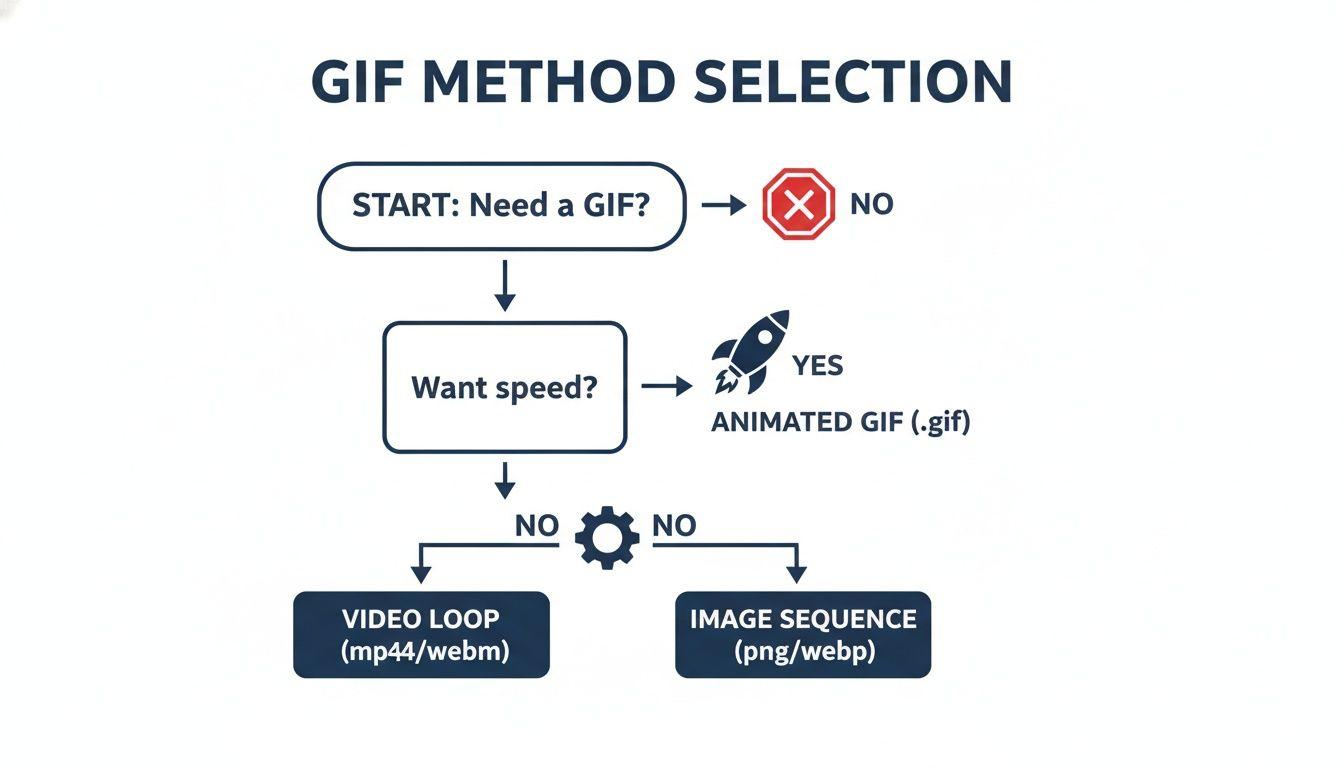
As you can see, speed isn't everything. When you want more choice, it's worth exploring these other methods.
The Old-School, Reliable Methods
Sometimes the most straightforward approaches are all you need. Beyond specific app integrations, Slack has a few built-in tricks that work beautifully.
- Drag-and-Drop: Have a GIF saved on your computer? Just drag the file from your desktop or a folder and drop it right into a Slack channel or DM. Slack handles the upload and display in seconds.
- Copy-Paste a Link: Found the ultimate GIF on a site like Giphy or Tenor? Simply copy the GIF's URL, paste it into the Slack message box, and send it. Slack’s unfurling feature will almost always display the animation automatically.
- Use the Emoji Picker: Don't forget to check the emoji menu! Click the smiley face icon in your message composer, and you’ll often find a GIF tab. From there, you can search for and insert animations directly.
These methods are incredibly flexible. Drag-and-drop is fantastic for custom GIFs or your go-to favorites, while pasting a link is perfect for sharing something you’ve just found on the web.
Pro Tip: When you drag and drop a GIF, Slack gives you a chance to add a message before posting. Use this to add context or explain your reaction. A little text can go a long way in making sure your GIF lands just right.
Can't Find the GIF Picker?
If you're clicking the emoji icon but don't see a GIF tab, it’s likely been disabled in your workspace settings. Only a workspace administrator can switch this on.
If that's you, head to Workspace Settings > Administration. Find the "Attach a GIF" section, check the box to Enable GIF picker, and save your changes. Trust me, enabling this is a small tweak that can be a huge morale booster for the whole team, a key point in many team collaboration guides.
How to Send GIFs From Your Phone on iOS and Android
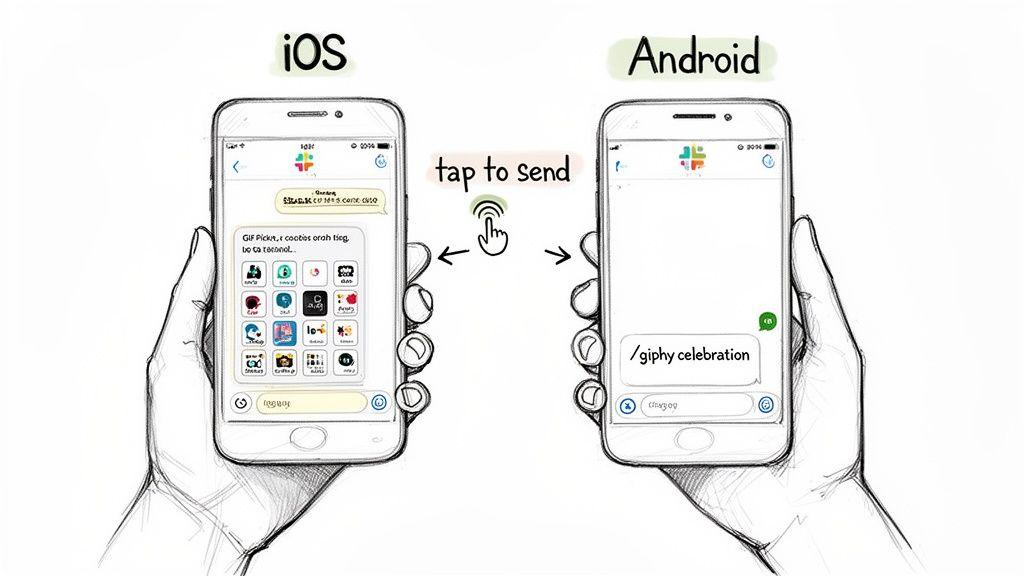
Just because you've stepped away from your computer doesn't mean you have to miss out on the fun. Sending a perfectly timed GIF from your phone is just as easy as it is on the desktop, and Slack gives you a few different ways to do it on both iOS and Android.
The quickest method is often the one you already know: the /giphy slash command. It works exactly the same in the mobile app. Just type /giphy and your search term—like /giphy running late—into the message field and hit send. Slack will show you a preview that only you can see, giving you the chance to Shuffle through options, Send it, or Cancel. It's my go-to for firing off a quick reaction without much fuss.
Using the Built-In GIF Picker
If you'd rather browse for inspiration, the built-in GIF library is your best bet. The experience is a little different depending on your device.
- On iOS: Look for the + icon to the left of your message box. Tap it, and then select GIFs from the pop-up menu.
- On Android: Tap the emoji icon right in the message box, then find and tap the GIF tab along the bottom.
From there, you’ll see a search bar and a library of trending GIFs from Giphy or Tenor. This is perfect for those times when you know the vibe you want but don't have the exact search term in mind.
One of the biggest perks of using the mobile app is tapping into your phone's photo gallery. This lets you share custom GIFs—like inside jokes for your team—that you won't find anywhere else.
To upload a GIF you've saved, tap the paperclip icon on Android or the + icon on iOS and choose the file from your library. If you're just getting started with the app, you can get it from the official 1chat download page and get your mobile GIF game going.
Best Practices for Using GIFs in a Professional Setting
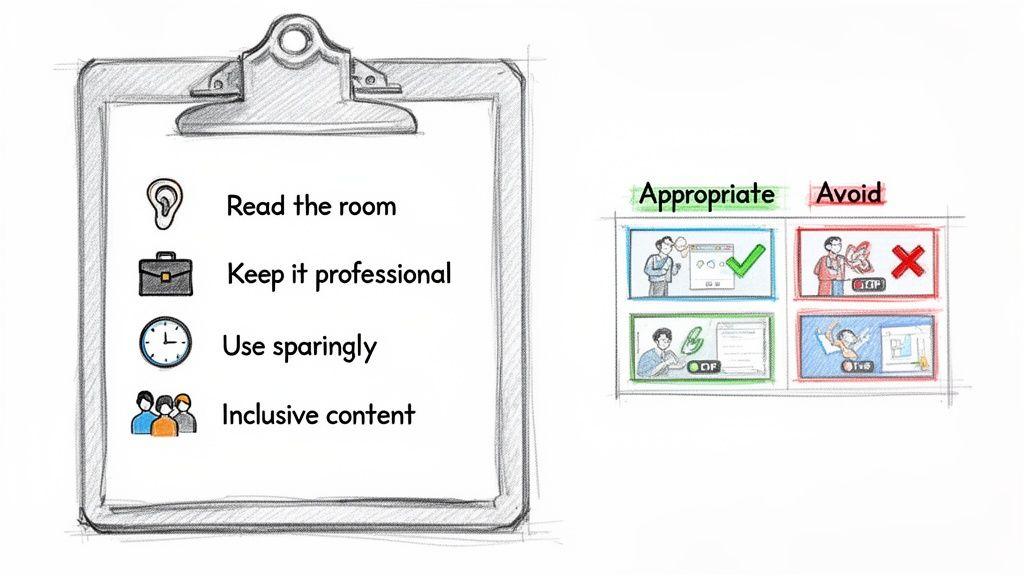
So you've mastered the /giphy command. That’s the easy part. The real skill is knowing when and why to use a GIF to make your point, not just add to the noise. In my experience, the single most important rule is to "read the room." Every company, and even every channel, has its own unique culture.
A celebratory GIF is perfect for the marketing channel when a campaign hits its goals. But drop that same GIF into the IT channel during a critical outage, and it’s going to fall flat. GIFs have become a workplace standard; with 18 million people using Slack daily and platforms like Giphy integrated everywhere, knowing how to use them well is a key part of modern communication.
Know Your Audience and Purpose
Before you hit send, take a second to ask yourself: does this actually help? Or is it just clutter? A well-timed GIF can instantly add warmth to constructive feedback or serve as a quick, friendly icebreaker with a new team member. On the flip side, overusing them can bury important updates and make you seem less professional.
Think about the goal of your message:
- Celebrate a win: A high-five or dancing GIF can be a fantastic way to boost morale and recognize a job well done.
- Add emotional context: Sometimes text alone feels cold. A GIF can convey empathy, humor, or excitement in a way words can't.
- Keep it inclusive and professional: This is a big one. Stick with GIFs that are universally understood. Avoid anything that could even remotely be seen as offensive, political, or unprofessional.
A friendly but crucial reminder: Every GIF you post in Slack is usually archived and searchable. Don't post anything you wouldn't want your boss—or their boss—to see attached to your name forever.
Using GIFs to Strengthen Your Team
When you get the hang of it, GIFs become more than just a quick laugh. They're a genuine tool for building rapport and making your team feel more connected, especially when you're working remotely. Something as simple as a "you've got this" GIF before a colleague's big presentation can be a powerful show of support.
It's all about balancing fun with focus, which is a huge part of what makes teams click in a digital workspace. If you're looking to build a more cohesive and effective group, take a look at our deeper dive into team collaboration best practices.
Of course, even something as fun as a GIF can run into a few hiccups. Let's walk through the most common snags and how to fix them.
It's a familiar moment of disappointment: you type /giphy with the perfect search term, hit enter, and... nothing. Just a "command not found" error staring back at you. This almost always means the Giphy app simply isn't installed in your workspace. You’ll need to ping a workspace admin and ask them to add it from the Slack App Directory.
Another classic issue is when your brilliant GIF shows up as a lifeless, static image. More often than not, this is a simple connection or cache problem. The quickest fix? Just give Slack a hard refresh. You can do that by hitting Ctrl+R on a Windows or Linux machine, or Cmd+R if you're on a Mac.
Why Are My GIFs Blocked?
Sometimes the problem isn't a bug, but a feature. Workspace admins have the power to set permissions that can limit who posts GIFs or even restrict them to a certain content rating (like G-rated only). If you find you’re completely unable to post a GIF, it's a good idea to check in with an admin to see if any of these rules are in place.
So, when things go wrong, here's your quick mental checklist:
- /giphy command fails? The app isn't installed.
- GIFs are frozen? It's likely a cache or connection issue.
- Can't post GIFs at all? Check for workspace permissions.
These integrations are a massive part of how we communicate. Giphy, for instance, was powering over 500 million GIF shares every single month back in 2023, and you can bet Slack made up a huge piece of that pie. To see how other high-performing teams work GIFs into their daily groove, you can discover more insights about Slack integrations on agilemania.com.
Common GIF Questions and Pro Tips
Once you've mastered the basics of sending GIFs in Slack, a few more specific questions usually come up. Let's dive into some of the finer points so you can become the go-to GIF expert on your team.
What About Using My Own Custom GIFs?
Absolutely! This is where the real fun begins. Sometimes, the perfect reaction is a video of a team member's face or an inside joke that a Giphy search just won't capture.
Uploading your own is simple. On the desktop app, you can just drag and drop the GIF file directly into the message window. On any device, you can also use the paperclip (attachment) icon to browse your files and upload it that way.
How Do We Keep GIFs Safe for Work?
This is a big one for team leaders and admins. To keep the company culture comfortable and professional, you need to control the type of content that pops up. Fortunately, Slack gives workspace admins the power to set the right tone.
An admin can navigate to Apps > Giphy > Settings to set a maximum content rating for all GIFs pulled using the /giphy command. Your options are:
- G (General Audiences)
- PG (Parental Guidance Suggested)
- PG-13 (Parents Strongly Cautioned)
- R (Restricted)
Setting a rating like G or PG is a simple and effective way to ensure every animation aligns with your team's professional standards.
The integration of GIF libraries like Giphy was a game-changer for team communication. Historically, when Slack's user base was growing to over 2.5 million daily active users in 2016, adding Giphy made conversations far more expressive and fun. You can read more about the impact of GIFs on Agile Mania.
Why Do My Teammates See a Different GIF Preview?
Ever felt that moment of panic when /giphy pulls up something completely random? Don't worry—that first preview is visible only to you.
This is a built-in privacy feature, not a bug. It gives you a chance to vet the GIF before anyone else sees it. If it’s not quite right, just hit Shuffle to try again or Cancel to scrap the idea. The GIF only gets posted to the channel when you deliberately click the Send button.